
It’s one of the most frustrating tech experiences: your phone displays full signal bars, yet nothing loads. Websites stall, messages fail to send, and apps spin endlessly. Despite strong cellular reception, you’re effectively offline. This disconnect between signal strength and actual internet access can stem from a range of issues—some simple, others more complex. Understanding the root causes is key to restoring reliable connectivity without unnecessary troubleshooting or service calls.
This guide breaks down the most common reasons behind this issue, backed by real-world scenarios and expert insights. Whether you're traveling, working remotely, or simply trying to stream at home, these solutions will help you regain stable internet access quickly and efficiently.
Signal vs. Internet: Understanding the Difference
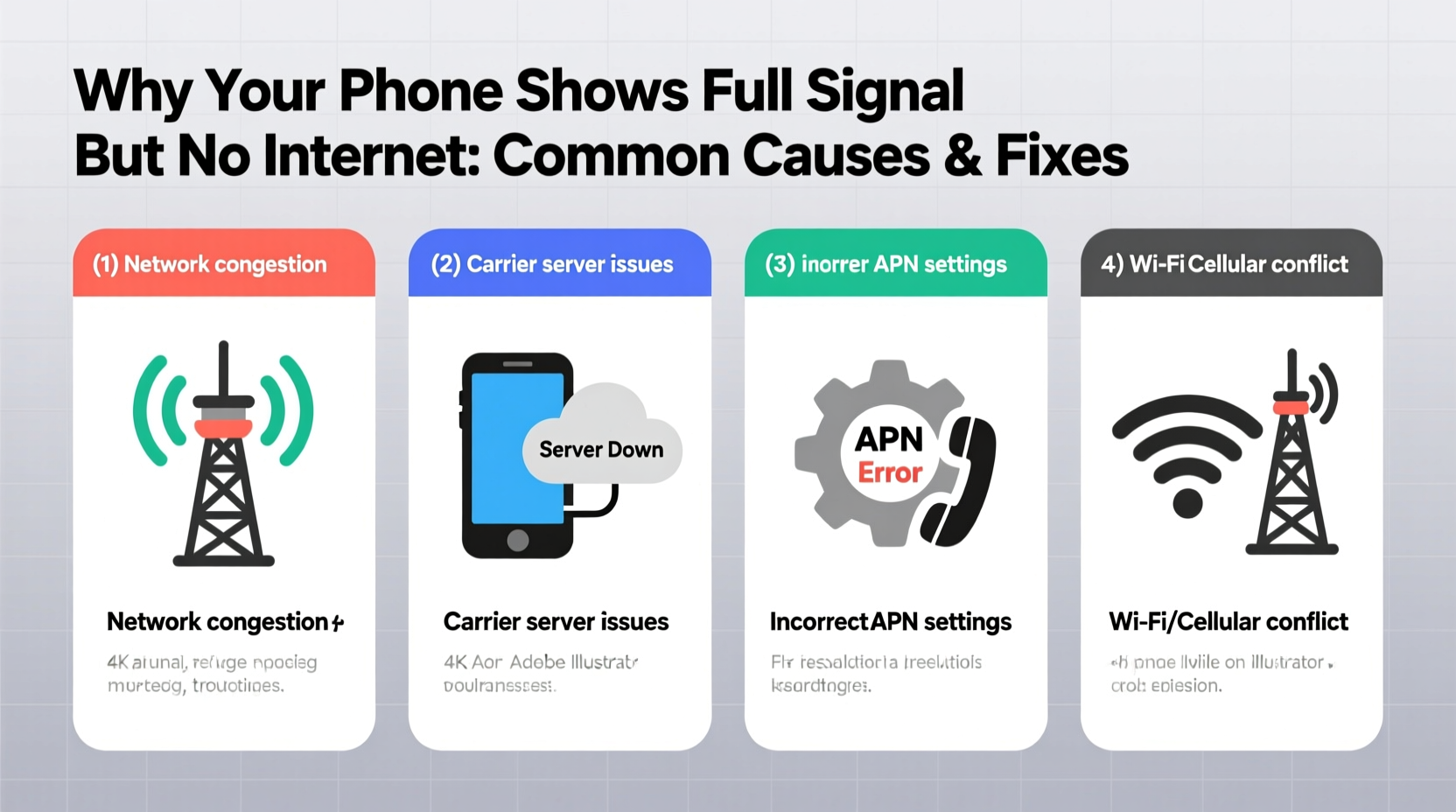
Many users assume that full signal bars mean full functionality. However, signal strength only indicates how well your device connects to a nearby cell tower—it doesn’t guarantee data transmission. Think of it like a clear phone line with no one on the other end. You might have excellent voice call quality (strong signal), but if the network isn't routing data properly, your internet won’t work.
Data connectivity depends on multiple layers:
- Radio Frequency (RF) Connection: Your phone's link to the nearest cell tower.
- Network Backhaul: The infrastructure carrying data from the tower to the core network.
- APN Settings: Access Point Names that tell your phone how to connect to carrier data services.
- Device Configuration: Software settings, permissions, and background processes affecting connectivity.
A breakdown in any of these areas can result in strong signal but no internet access.
Common Causes and How to Fix Them
1. Carrier Network Outages or Congestion
Even with full signal, your carrier may be experiencing localized outages or bandwidth congestion. During peak hours—such as rush hour commutes or large public events—towers can become overloaded, limiting available data capacity.
Solution: Check your carrier’s outage map or use third-party tools like Downdetector to see if others in your area are reporting similar issues. If an outage is confirmed, wait until service resumes or switch to Wi-Fi if available.
2. Incorrect APN Settings
Access Point Name (APN) settings act as gatekeepers for mobile data. If misconfigured—either through accidental changes or failed software updates—your phone cannot establish a proper data session, even with perfect signal.
Solution: Manually verify your APN settings under Settings > Mobile Data > Mobile Data Network (path varies by device). Compare them with your carrier’s official configuration. Resetting to default or re-entering correct values often restores connectivity.
“Misconfigured APNs are among the top overlooked causes of ‘no internet’ despite strong signal,” says Rajiv Mehta, Senior Network Engineer at T-Mobile. “They don’t affect voice or SMS, so users rarely suspect them.”
3. Airplane Mode or Data Toggle Issues
Seemingly obvious, but surprisingly common: Airplane Mode disables all wireless signals, including data. Sometimes toggling airplane mode on and off briefly can reset stuck radios. Similarly, mobile data might be turned off while Wi-Fi remains active, creating confusion about connection status.
Solution: Ensure Airplane Mode is off and mobile data is enabled. Toggle both off and on again to refresh the connection.
4. SIM Card Problems
A damaged, improperly seated, or outdated SIM card can prevent data authentication. While voice services may still function due to fallback protocols, data requires precise identification and encryption handshakes that faulty SIMs can’t support.
Solution: Power off the phone, remove the SIM tray, inspect for corrosion or scratches, and reinsert firmly. For older SIMs, request a replacement from your carrier—especially if you’ve recently switched plans or devices.
5. IP Address Conflicts or DHCP Failures
Your phone needs a valid IP address to communicate over the internet. Occasionally, the network fails to assign one due to DHCP server issues or internal glitches.
Solution: Restart your phone to force a new IP request. Alternatively, manually renew the IP via developer options (on Android) or reset network settings entirely.
Step-by-Step Troubleshooting Guide
Follow this logical sequence to isolate and resolve the issue efficiently:
- Verify Mobile Data is Enabled: Go to Settings > Mobile Data and confirm it’s turned on.
- Toggle Airplane Mode: Turn it on for 10 seconds, then off to reset radio modules.
- Check for Carrier Updates: On iPhones, go to Settings > General > About. On Android, look under Settings > Network & Internet > Mobile Network.
- Restart Your Device: A reboot clears temporary software conflicts and forces reconnection.
- Review APN Settings: Navigate to mobile network settings and ensure they match your carrier’s specifications.
- Test on Another Network: Connect to Wi-Fi to rule out device-wide issues.
- Swap SIM Cards: Try your SIM in another compatible phone or test a known-working SIM in yours.
- Reset Network Settings: As a last resort, erase saved networks and configurations. Note: This removes Wi-Fi passwords and Bluetooth pairings.
Do’s and Don’ts When Facing No Internet with Full Signal
| Do | Don’t |
|---|---|
| Restart your phone regularly to clear network caches | Ignore software update notifications—they often include critical network patches |
| Use official carrier apps to troubleshoot or report issues | Assume the problem is always with your phone; check external factors first |
| Keep your SIM card clean and properly inserted | Manually change APN settings unless guided by support |
| Contact customer support with specific error details | Spend money on signal boosters before diagnosing the real cause |
Real-World Case Study: The Office Building Blackout
Mark, a remote project manager, frequently worked from a downtown co-working space. His phone consistently showed five bars of LTE, yet Slack messages wouldn’t send and video calls dropped repeatedly. He assumed poor building materials were blocking signals, but Wi-Fi worked perfectly—pointing to a cellular data issue.
After testing his SIM in a colleague’s phone (same carrier), he found the same lack of internet access. That ruled out device failure. He contacted his provider and learned the building was served by a single congested tower handling thousands of connections daily. Though signal strength was high due to proximity, backhaul capacity was maxed out during business hours.
The solution? Mark activated Wi-Fi calling and prioritized Wi-Fi for data-heavy tasks. His carrier also provided a microcell unit within weeks, improving indoor data performance significantly.
This case highlights that signal strength alone doesn’t reflect network health—and alternative solutions like Wi-Fi calling can bridge gaps when cellular data falters.
Troubleshooting Checklist
Print or save this checklist for quick reference when your phone shows full signal but no internet:
- ✅ Confirm mobile data is enabled in settings
- ✅ Toggle Airplane Mode on/off
- ✅ Restart your phone
- ✅ Verify carrier settings are up to date
- ✅ Check APN configuration matches carrier standards
- ✅ Test SIM card in another device
- ✅ Attempt connection on Wi-Fi to isolate the issue
- ✅ Contact carrier support with detailed symptoms
- ✅ Reset network settings if all else fails
Frequently Asked Questions
Can a software update cause no internet despite full signal?
Yes. Updates sometimes alter network configurations or introduce bugs in modem firmware. If the issue started immediately after an update, check online forums for similar reports. Carriers often release patches within days. In the meantime, resetting network settings may help.
Why does my phone connect to some websites but not others?
This suggests DNS or firewall-level filtering rather than complete data failure. Your phone has internet access, but certain domains are being blocked or misrouted. Try changing your DNS to Google (8.8.8.8) or Cloudflare (1.1.1.1) via private DNS settings to bypass potential restrictions.
Does 5G affect this issue differently than 4G?
Yes. 5G networks use dynamic spectrum sharing and different frequency bands. A phone might lock onto a 5G signal with high RSSI (signal strength) but experience poor throughput due to mmWave limitations (short range, poor penetration). Switching to \"LTE Only\" mode temporarily can stabilize connectivity in weak 5G zones.
Preventive Measures for Reliable Connectivity
Staying connected isn’t just about fixing problems—it’s about minimizing their occurrence. Implement these habits to reduce future disruptions:
- Enable Wi-Fi Calling: Automatically switches to Wi-Fi for calls and texts when cellular is unreliable.
- Update Regularly: Install OS and carrier profile updates promptly to benefit from network optimizations.
- Monitor Data Usage: Unexpected spikes can indicate background apps consuming bandwidth or malware activity.
- Use Dual SIM Smartly: If your phone supports it, keep a secondary SIM from another carrier as a backup.
- Carry a Portable Hotspot: Useful in dead zones or when primary carrier service fails.
“Modern smartphones are powerful, but they depend heavily on backend infrastructure. Users should treat connectivity issues holistically—not just as device problems,” advises Dr. Lena Tran, Wireless Systems Researcher at MIT.
Conclusion: Take Control of Your Connection
Full signal with no internet is more than a minor annoyance—it disrupts productivity, communication, and peace of mind. But as this guide shows, the issue is rarely random. It stems from identifiable causes ranging from misconfigured settings to carrier-side bottlenecks. With methodical troubleshooting and a deeper understanding of how mobile networks operate, you can diagnose and resolve most connectivity problems independently.
Start with the basics: restart your phone, verify settings, and test variables. Escalate only when necessary. And remember, your carrier’s support team can provide valuable diagnostics—if you come prepared with details about when and where the issue occurs.




 浙公网安备
33010002000092号
浙公网安备
33010002000092号 浙B2-20120091-4
Comments
No comments yet. Why don't you start the discussion?