
You're standing in a familiar spot—your home, office, or favorite café—glancing at your phone. The signal icon shows two bars, seemingly enough for calls and browsing. But when you try to make a call or load a webpage, nothing happens. \"No service\" appears, or worse, everything just hangs. This confusing mismatch between signal strength and actual connectivity frustrates millions of users daily. It’s not just a glitch; it’s a symptom of deeper network, device, or environmental factors at play.
Understanding why your phone displays signal bars yet fails to deliver service requires unpacking how cellular networks operate, how phones interpret signals, and what can go wrong between tower and handset. This article decodes the phenomenon with technical clarity, real-world examples, and actionable solutions.
The Illusion of Signal Bars: What They Really Mean
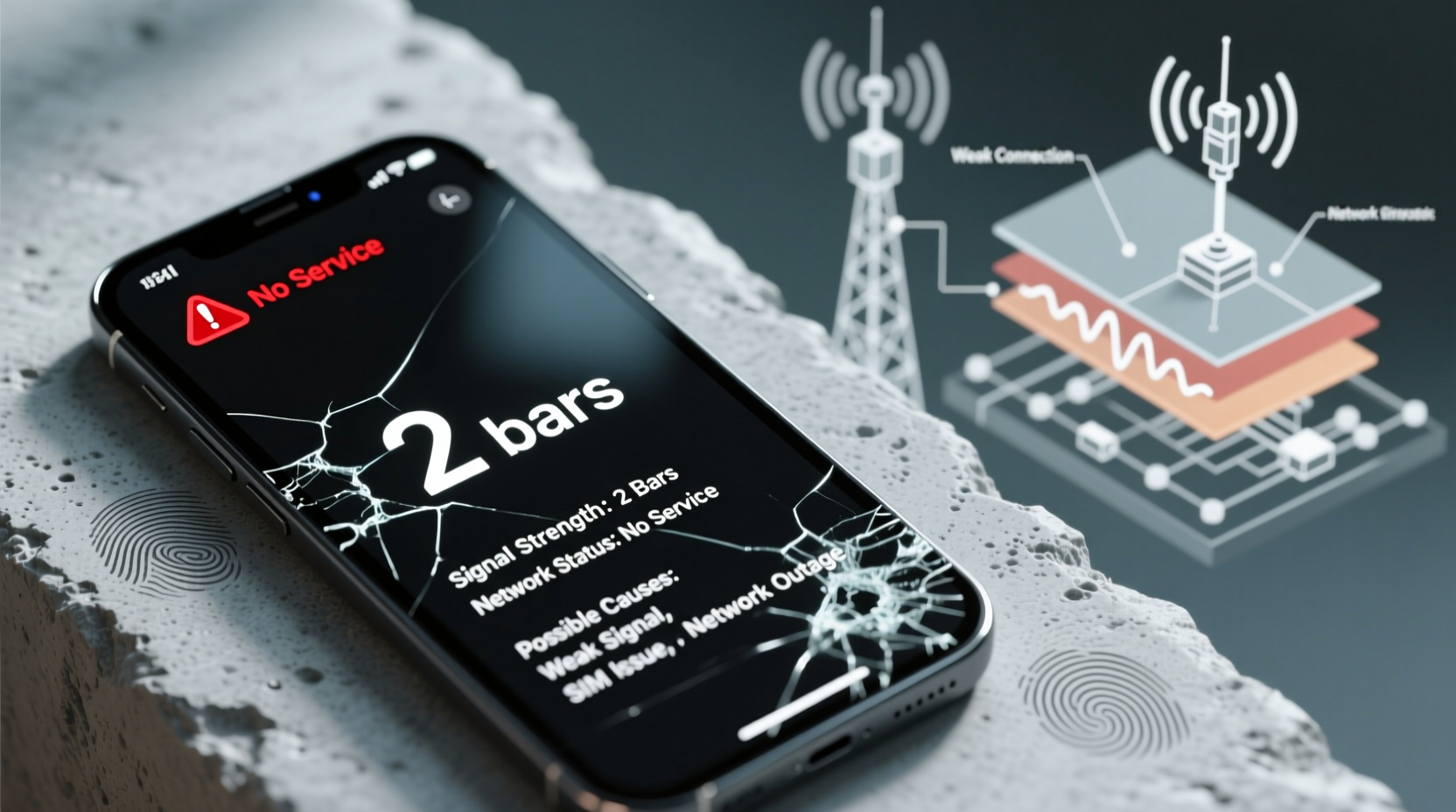
Signal bars are a simplified visual representation of your phone's connection strength to a cellular tower. However, they don’t tell the full story. A two-bar signal might indicate moderate reception, but that doesn’t guarantee functional service. Why? Because signal strength (measured in dBm) is only one component of connectivity.
Your phone measures Received Signal Strength Indicator (RSSI) and Reference Signal Received Power (RSRP) to estimate bars. These values reflect how powerful the incoming radio signal is. But strong signal power doesn't ensure data throughput or voice reliability. Interference, network congestion, or authentication failures can prevent usable service—even with decent signal.
For example, if your phone locks onto a distant tower through reflective surfaces (like glass buildings), it may display two bars due to detectable signal, but the connection could be too unstable for handshaking with the carrier’s network.
Common Causes Behind Two Bars and No Service
The disconnect between displayed signal and actual service stems from several interrelated issues. Below are the most frequent culprits:
1. Network Congestion
In densely populated areas—city centers, stadiums, concerts—cell towers can become overwhelmed. Even if your phone detects the tower (hence two bars), all communication channels may be occupied. You’re connected, but not prioritized.
2. Carrier Authentication Failure
Your phone must authenticate with the carrier’s core network using your SIM card. If there’s a temporary outage in the carrier’s Home Location Register (HLR) or Authentication Center (AuC), your device won’t be authorized to use the network—even with perfect signal.
3. SIM Card Issues
A damaged, dirty, or improperly seated SIM card can prevent proper registration. While the phone may still detect a nearby tower, it can’t complete the handshake without valid subscriber credentials.
4. Software Glitches
Firmware bugs, outdated carrier settings, or OS-level telephony stack errors can misreport signal status. Some Android devices have been known to “ghost connect” to networks after updates, showing signal without functionality.
5. Hardware Problems
Damaged antennas, water exposure, or internal disconnections (especially after drops) can impair your phone’s ability to transmit or receive properly. Reception might appear normal because the receiver picks up broadcast signals, but transmission fails—making two-way communication impossible.
6. Tower Handoff Failures
As you move, your phone switches between cell towers. Sometimes, it gets stuck trying to reconnect to a previously used tower instead of latching onto a stronger one. This results in phantom signal reporting.
“Signal bars are like a car’s fuel gauge—they show potential, not performance. A full tank doesn’t mean the engine will start.” — Dr. Lena Torres, RF Network Engineer at OpenSignal Labs
Step-by-Step Guide to Diagnose and Fix the Issue
Follow this systematic approach to identify and resolve the root cause of signal-display mismatches.
- Reboot Your Phone
Start simple. A restart clears temporary software hiccups in the modem processor and refreshes network connections. - Check for Carrier Outages
Visit your carrier’s status page (e.g., Verizon Status, AT&T Network Map) or third-party sites like Downdetector. Enter your location to see if others report similar issues. - Toggle Airplane Mode
Turn on Airplane Mode for 15 seconds, then disable it. This forces the phone to re-scan and re-register on the network, often resolving stuck connections. - Inspect the SIM Card
Power off the device, remove the SIM tray, and check for corrosion, scratches, or debris. Clean gently with isopropyl alcohol and a cotton swab. Reinsert firmly. - Update Carrier Settings and OS
Carriers push updates that improve network compatibility. On iPhone: Settings > General > About. On Android: Settings > Network & Internet > Mobile Network > Carrier Settings. Install any pending updates. - Reset Network Settings
This erases saved Wi-Fi passwords, Bluetooth pairings, and APN configurations, but often resolves deep-seated connectivity bugs. Found under Settings > General > Reset > Reset Network Settings (iOS) or Settings > System > Reset Options (Android). - Test in Another Location
Move outdoors or to a higher floor. If service returns, the issue is likely environmental (building materials blocking signal). - Contact Carrier Support
If all else fails, request a SIM replacement or ask them to refresh your line’s provisioning on their end.
Do’s and Don’ts When Facing Signal Discrepancies
| Do’s | Don’ts |
|---|---|
| Use field test mode to check real dBm values | Rely only on bar count for diagnosis |
| Clean the SIM card regularly if exposed to moisture | Bend or scratch the SIM during removal |
| Keep your OS and carrier profiles updated | Ignore persistent signal warnings over days |
| Try a different phone with the same SIM to isolate hardware issues | Assume the problem is always your phone |
| Enable Wi-Fi calling in weak signal areas | Leave mobile data running constantly in dead zones |
Real-World Example: The Office Building Paradox
Sarah, a project manager in downtown Chicago, noticed her iPhone consistently showed two bars inside her 12th-floor office but couldn’t send texts or receive calls. At home, the same phone worked perfectly. She assumed it was a carrier issue and nearly switched providers.
After testing with a colleague’s Android phone (same carrier), she found identical behavior—both showed signal but no service. That ruled out a device-specific fault. Using an online FCC tower map, she discovered the nearest tower was directly across the street. However, her building had energy-efficient windows coated with metallic film—a known signal blocker.
The solution? Her phone could receive broadcast signals (hence the two bars), but uplink transmissions were being attenuated. By placing her phone near a non-coated window or using Wi-Fi calling, service restored instantly. Sarah also requested a femtocell from her carrier, which improved indoor coverage long-term.
This case illustrates how environmental design can create deceptive signal conditions—and why user testing and diagnostics matter more than bar counts.
Troubleshooting Checklist
- ✅ Reboot the device
- ✅ Toggle Airplane Mode on/off
- ✅ Verify carrier network status
- ✅ Inspect and clean the SIM card
- ✅ Update phone OS and carrier settings
- ✅ Reset network settings
- ✅ Test with another device or SIM
- ✅ Try Wi-Fi calling as a workaround
- ✅ Contact carrier for SIM refresh or account reset
- ✅ Consider signal booster or femtocell for chronic indoor issues
Frequently Asked Questions
Can a virus or malware cause no service despite signal bars?
No—malware cannot directly disrupt cellular signal interpretation. However, malicious apps consuming background data might overload the modem or mimic connectivity issues. Unusual battery drain or overheating alongside signal problems warrants a security scan.
Why does my phone work fine sometimes and fail other times in the same place?
Network conditions fluctuate. Factors like time of day (congestion), weather (affecting signal propagation), or tower maintenance can impact service availability. Additionally, your phone may connect to different sectors of the same tower, each with varying backhaul capacity.
Does using a phone case affect signal strength?
Poorly designed metal cases or those with magnetic mounts can interfere with antenna performance, especially in newer smartphones where antennas are embedded in the frame. However, most modern cases are RF-transparent. If you suspect interference, test the phone without the case.
Conclusion: Beyond the Bars
The paradox of seeing two bars but having no service reveals a critical truth: signal indicators are approximations, not guarantees. True connectivity depends on a chain of elements—from tower health and network authentication to your phone’s hardware integrity. Ignoring the complexity behind those bars leads to frustration and unnecessary device replacements.
By understanding the underlying mechanics and applying structured troubleshooting, you regain control. Whether it’s cleaning a SIM card, resetting network settings, or advocating for better indoor coverage, the power to fix lies within reach. Don’t accept “no service” as inevitable. Investigate, test, and demand better performance from your network and device.




 浙公网安备
33010002000092号
浙公网安备
33010002000092号 浙B2-20120091-4
Comments
No comments yet. Why don't you start the discussion?