
You charge your phone before bed with 20% free space. By morning, it’s nearly full—no new photos, no downloads, no obvious cause. This frustrating scenario is more common than you think, and the culprit is often invisible: hidden app cache. While apps are designed to enhance your experience, many operate in the background, quietly accumulating gigabytes of temporary data without your knowledge. Understanding how this happens—and what you can do about it—is essential for maintaining a responsive, reliable device.
What Is App Cache (and Why It Matters)
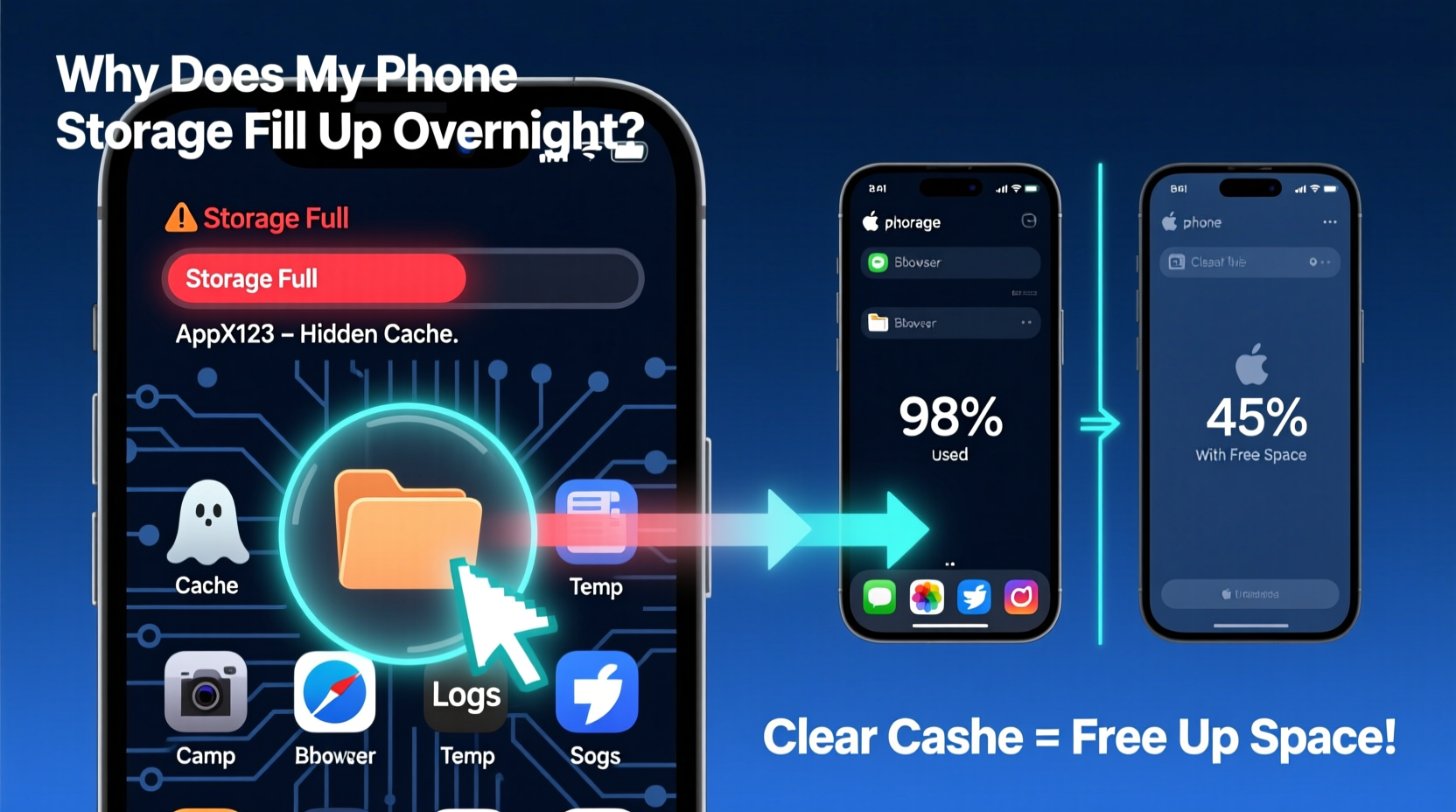
App cache refers to temporary files stored by mobile applications to improve performance. These files include images, scripts, login tokens, and other resources that allow apps to load faster on subsequent use. For example, when you open Instagram, it caches profile pictures and recent posts so they appear instantly next time. This system works well in theory, but problems arise when apps fail to clean up outdated or unnecessary cache files.
Unlike user-generated content such as photos or videos, cache data is not always visible in standard storage settings. Some apps store cache in deeply nested directories or disguise it under generic folder names like “misc” or “data.” Over time, especially with media-heavy or poorly optimized apps, this hidden accumulation can consume several gigabytes—sometimes enough to trigger low-storage warnings overnight.
“Many users don’t realize that background processes and auto-updates can generate significant cache without any direct interaction.” — Dr. Lena Torres, Mobile Systems Analyst at TechInsight Labs
How Hidden Cache Builds Up Overnight
The sudden loss of storage typically occurs during periods of inactivity—like while you sleep—when background services activate. Here’s how it happens:
- Background Syncing: Apps like Facebook, WhatsApp, and Google Photos sync messages, location data, and media in the background, downloading thumbnails and previews even if you haven’t opened them.
- Auto-Updates: App updates often include additional assets or create duplicate cache entries during installation.
- Push Notifications with Media: Messaging apps may automatically download image previews from group chats when a notification arrives.
- Poor Cache Management: Some developers don’t implement proper cleanup routines, allowing cache to grow unchecked across weeks or months.
A real-world case illustrates this issue clearly: Sarah, a freelance designer, noticed her Samsung Galaxy S23 kept warning her about low storage despite deleting old files regularly. After investigation, she discovered that TikTok had accumulated over 8 GB of cache—mostly video previews and ad fragments—downloaded passively whenever the app refreshed its feed in the background. She hadn’t used the app heavily, but its aggressive prefetching behavior filled her storage silently.
Identifying High-Cache Applications
Not all apps behave the same way. Some are notorious for bloating storage through inefficient caching. To find out which apps are responsible, follow these steps:
- Go to Settings > Storage on your device.
- Tap on “Apps” or “Internal Storage Used by Apps.”
- Sort apps by size (largest first).
- Look for entries where “Cache” makes up a large portion of total size.
Below is a comparison of typical cache behaviors among popular app categories:
| App Category | Common Cache Size | Primary Cache Content | Risk Level |
|---|---|---|---|
| Social Media (e.g., Instagram, TikTok) | 1–10 GB | Video previews, story caches, ad fragments | High |
| Messaging (e.g., WhatsApp, Messenger) | 500 MB – 5 GB | Thumbnails, voice messages, GIFs | Medium-High |
| Streaming (e.g., Spotify, YouTube) | 200 MB – 3 GB | Offline audio/video, album art | Medium |
| Productivity (e.g., Gmail, Chrome) | 100 MB – 1 GB | Email attachments, web page snapshots | Low-Medium |
| Games | 1–15 GB+ | Level assets, textures, update logs | Very High |
Note that risk level depends not only on current size but also on growth rate. A game might start small but expand rapidly after daily logins or events. Similarly, social platforms with autoplay features tend to accumulate cache continuously unless manually restricted.
Step-by-Step: How to Clean and Prevent Excessive Cache Buildup
Managing cache doesn’t require technical expertise—just consistency and awareness. Follow this timeline-based guide to regain control of your phone’s storage:
Immediate Action (Today)
- Clear All App Cache: On Android, go to Settings > Storage > Clear Cache. On iOS, offload unused apps via Settings > General > iPhone Storage.
- Check Top Storage Consumers: Identify the top three apps using the most space and review their cache-to-data ratio.
- Delete Unnecessary Downloads: Open file managers and remove temporary files in folders like “Download,” “Temp,” or “Cache.”
Short-Term Maintenance (This Week)
- Restrict Background Data: Go to Settings > Apps > [App Name] > Mobile Data > Restrict background data for non-essential apps.
- Disable Auto-Play and Preloading: In YouTube, TikTok, and Facebook, turn off autoplay and limit cellular data usage.
- Enable Smart Storage Features: Use Google Photos’ “Free Up Space” tool or Samsung’s “Storage Booster” to automate cleanup.
Ongoing Prevention (Monthly Routine)
- Review Storage Weekly: Set a calendar reminder to check storage every Sunday.
- Uninstall Unused Apps: Remove apps used less than once a month—they often run background services silently.
- Update Apps Regularly: Developers often fix memory leaks and optimize cache handling in updates.
Do’s and Don’ts of Managing App Cache
To avoid accidental data loss or performance issues, follow this balanced approach:
| Action | Do | Don't |
|---|---|---|
| Clearing Cache | Do it monthly or when storage runs low. | Don’t panic-clear cache daily—it slows down apps temporarily. |
| Deleting App Data | Use only for apps you’re willing to reset (e.g., games, browsers). | Don’t delete data from banking or authentication apps without backup. |
| Using Cloud Backups | Store photos, documents, and videos externally. | Don’t rely solely on cloud sync—verify uploads complete. |
| Installing Cleaner Apps | Choose trusted tools with transparent permissions. | Don’t grant admin access to unknown optimization apps. |
“Cache isn’t inherently bad—it’s a necessary part of modern app design. The problem lies in transparency and user control.” — Marcus Reed, Senior Developer at OpenMobile Alliance
Frequently Asked Questions
Is clearing cache safe? Will I lose important data?
Yes, clearing cache is completely safe. You won’t lose personal files, account information, or downloaded content. Cache only contains temporary duplicates meant to speed up access. After clearing, apps may take slightly longer to load the next time, but functionality remains intact.
Why does my cache keep coming back after I delete it?
Cache rebuilds naturally as you use apps. If it returns unusually fast, the app likely has aggressive prefetching enabled or suffers from poor memory management. Consider restricting background activity or switching to a lighter alternative (e.g., using Twitter Lite instead of the full app).
Can malware disguise itself as cache?
Rarely, but possible. Malicious apps sometimes hide payloads in cache-like directories. To reduce risk, install apps only from official stores, keep your OS updated, and periodically audit app permissions. If an unfamiliar app shows high cache usage, uninstall it immediately.
Take Control of Your Device’s Performance
Your smartphone should serve you—not slow down because of invisible digital clutter. Hidden app cache is a silent thief of storage, but now you have the tools to detect, eliminate, and prevent its impact. Start with a single cleanup session today, then build simple habits like weekly checks and background restrictions. Over time, you’ll notice faster performance, fewer interruptions, and greater peace of mind knowing exactly where your storage is going.




 浙公网安备
33010002000092号
浙公网安备
33010002000092号 浙B2-20120091-4
Comments
No comments yet. Why don't you start the discussion?