
Waking up to a “Storage Full” notification despite not downloading anything the previous day is more common than you think. Many users assume they’ve been hacked or that their device is malfunctioning—but in most cases, the culprit lies in overlooked app behaviors, background processes, and accumulating cache data. Unlike physical clutter, digital bloat builds silently, often without visible signs until it impacts performance. Understanding how and why this happens empowers you to regain control over your device’s storage and ensure long-term usability.
How Hidden Apps Consume Storage Without Your Knowledge
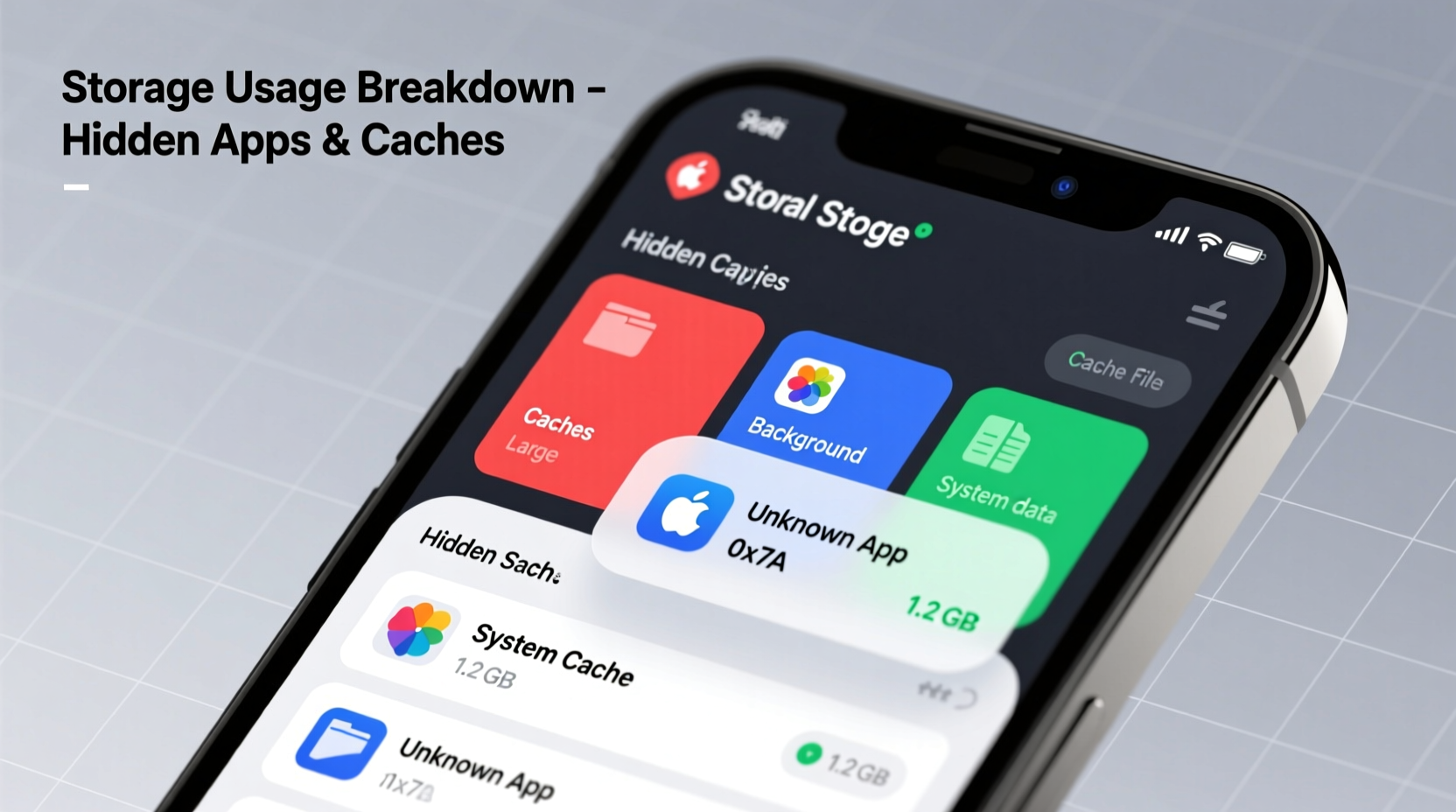
Modern smartphones support multitasking and background operations, allowing apps to run even when you’re not actively using them. Some of these apps are pre-installed by manufacturers (bloatware), while others gain permissions during installation that enable continuous background activity. These hidden processes can generate logs, temporary files, media downloads, and cached content—all of which eat into available storage space over time.
For example, social media platforms like Facebook, Instagram, and TikTok automatically download previews, stories, and videos in anticipation of user interaction. Messaging apps such as WhatsApp and Telegram store received media unless configured otherwise. Even productivity tools like email clients or cloud storage apps may sync large attachments locally, especially if auto-download settings are enabled.
Common Offenders That Operate in the Background
- Social Media Apps: Auto-save stories, reels, and suggested videos to internal storage.
- Streaming Services: Preload episodes or music tracks for offline use based on listening habits.
- Cloud Sync Tools: Google Drive, iCloud, Dropbox may cache recent files locally.
- System Services: Android System WebView, Google Play Services, and iOS indexing tools generate cache over time.
- Browsers: Chrome and Safari store site data, cookies, and offline pages automatically.
These apps don’t always notify you when they create new files, making it difficult to track down the source of sudden storage loss. The issue compounds when multiple apps behave this way simultaneously—especially on devices with limited internal memory.
Understanding Cache Accumulation: What It Is and Why It Matters
Cache refers to temporary data stored by apps and the operating system to speed up future performance. When you open an app, it might save images, scripts, or layout information so that the next launch feels faster. While caching improves responsiveness, unchecked growth leads to significant storage consumption—sometimes reaching several gigabytes across multiple apps.
The problem intensifies because cache isn't always cleared automatically. Some apps lack efficient cleanup routines, while others treat cache as persistent until manually deleted. Over days or weeks, especially with frequent usage, this residual data accumulates rapidly.
“Cache buildup is one of the top silent causes of storage exhaustion on mobile devices. Users rarely realize how much space temporary files occupy until performance degrades.” — Dr. Lena Torres, Mobile Systems Analyst at TechInsight Labs
Types of Cache You Should Monitor
| Type of Cache | Location | Typical Size Range | Clearing Method |
|---|---|---|---|
| App-Specific Cache | Settings > Apps > [App Name] > Storage | 50MB – 2GB+ | Manual clear via app settings |
| Browser Cache | Chrome/Safari settings | 100MB – 1.5GB | Clear browsing data |
| System Cache (Android) | Recovery mode or developer tools | 200MB – 1GB | Wipe cache partition |
| iOS Temporary Files | Managed by OS; limited visibility | Variable, often hidden | Offload unused apps or restart device |
Not all cache is harmful—some improves functionality. However, periodic audits help distinguish useful cache from obsolete junk.
Step-by-Step Guide: Diagnosing Overnight Storage Loss
If your phone mysteriously loses hundreds of megabytes or even gigabytes overnight, follow this systematic approach to identify and resolve the cause.
- Check Storage Usage Immediately After the Drop
Go to Settings > Storage and review which category increased significantly—Apps, Photos, Other, or System. - Sort Apps by Size
In Android: Settings > Apps > See all apps > Sort by size.
In iOS: Settings > General > iPhone Storage.
Look for any app showing unusual growth since yesterday. - Inspect Recently Updated Apps
An update might have changed default behavior, enabling auto-downloads or background syncing. - Review Media Galleries
Open your photo gallery and look for unexpected screenshots, downloaded videos, or saved story clips—especially from messaging or social apps. - Clear Individual App Caches
Select high-storage apps and tap “Clear Cache.” Avoid “Clear Data” unless necessary, as it resets app preferences. - Disable Auto-Download Features
In WhatsApp: Settings > Chats > Chat Backup & Auto-download.
In Telegram: Settings > Data and Storage > Auto-Download Media.
Set media downloads to Wi-Fi only or disable entirely. - Restart Your Device
A reboot forces some apps to reset temporary file creation and halts rogue background processes. - Monitor Changes Over 24 Hours
After adjustments, track storage daily to see if the issue recurs.
Real-World Example: Maria’s Mysterious Storage Drain
Maria, a freelance designer, noticed her Samsung Galaxy S21 showed only 2% storage free one morning—despite having 35% the night before. She hadn’t installed new apps or taken many photos. Using the steps above, she discovered that TikTok had grown from 700MB to over 3.2GB overnight.
Further investigation revealed that TikTok’s “Data Saver” setting was off, and its algorithm had begun preloading dozens of trending videos in high resolution. With autoplay enabled, the app assumed engagement and cached content aggressively. After clearing the cache and adjusting video quality settings, Maria reclaimed nearly 2.5GB of space. She also disabled background data for TikTok in app settings, preventing recurrence.
This case highlights how intelligent features designed for convenience can backfire when unchecked—especially on mid-tier phones with 64GB or less storage.
Essential Checklist: Prevent Future Storage Surprises
To maintain consistent storage health, implement these practices regularly:
- ✅ Audit app sizes weekly using built-in storage manager
- ✅ Disable auto-download for media in WhatsApp, Telegram, and Facebook Messenger
- ✅ Turn off background refresh for non-critical apps
- ✅ Clear browser cache monthly (Chrome, Safari, etc.)
- ✅ Enable “Optimize Storage” on iPhone or “Free Up Space” on Android
- ✅ Uninstall rarely used apps that run background services
- ✅ Move photos and videos to cloud storage with local deletion option
- ✅ Restart your phone every few days to reset temporary processes
Frequently Asked Questions
Why does my phone say “Other & System” is taking up so much space?
“Other & System” includes cached files, logs, firmware components, and unclassified data. On iOS, this category often grows due to incomplete syncs or outdated backups. On Android, it may reflect system diagnostics or residual app data. Regular reboots and software updates help reduce this footprint.
Can malware be responsible for sudden storage loss?
While rare on official app stores, malicious apps disguised as legitimate tools can secretly download files or record audio/video in the background. Signs include rapid battery drain, overheating, and unknown network activity. Only install apps from trusted sources and check reviews and permissions carefully.
Does clearing cache delete my app data or login info?
No—clearing cache removes only temporary files like thumbnails and offline scripts. Your account logins, settings, and saved content remain intact. However, “Clear Data” or “Reset App Preferences” will erase personal configurations and require re-login.
Proactive Habits for Long-Term Storage Health
Prevention is far more effective than emergency fixes. Establishing small but consistent habits ensures your phone remains responsive and functional for years. Think of storage management like dental hygiene: minor daily efforts prevent major issues later.
One powerful strategy is adopting the “one in, one out” rule: whenever you install a new app, remove an old one. This prevents gradual accumulation. Similarly, configure automatic photo uploads to Google Photos or iCloud with the option to delete originals after backup. Many users forget this step, leading to duplicate copies eating up space.
Also consider leveraging built-in optimization tools. Android’s “Adaptive Battery” and “Device Maintenance” features monitor usage patterns and restrict background activity for infrequently used apps. iPhones offer “Offload Unused Apps,” which removes the app but keeps its documents and data for quick reinstatement.
Conclusion: Take Control Before Performance Suffers
Your phone shouldn’t slow down or run out of space simply because you used it normally. The truth is, modern operating systems and apps are engineered for engagement—not storage efficiency. Left unchecked, hidden caches and aggressive background apps will continue consuming resources silently. By understanding where space goes and implementing routine checks, you reclaim both capacity and control.
Start today: spend 10 minutes auditing your top five storage-consuming apps, clear unnecessary cache, and adjust auto-download settings. These small actions deliver immediate relief and build long-term resilience against digital clutter. A well-maintained phone lasts longer, performs better, and supports your lifestyle without constant troubleshooting.




 浙公网安备
33010002000092号
浙公网安备
33010002000092号 浙B2-20120091-4
Comments
No comments yet. Why don't you start the discussion?