
If you’ve ever gone to bed with 30% of your phone’s storage free only to wake up the next morning with less than 5%, you’re not imagining things. This sudden drop in available space is more common than most users realize—and the culprit is often invisible: hidden cache files. These temporary data fragments accumulate silently in the background, consuming gigabytes without warning. Unlike photos or videos, cache isn’t something you intentionally save, which makes it harder to detect and even harder to control.
Understanding how and why this happens is the first step toward regaining control over your device’s performance and longevity. Cache exists for a reason—it helps apps load faster by storing frequently accessed data locally. But when poorly managed, especially across messaging apps, browsers, social media platforms, and streaming services, it can spiral out of control. The result? A sluggish phone, failed updates, missing notifications, and even app crashes.
This article breaks down exactly how hidden cache builds up overnight, which apps are the worst offenders, and what you can do—right now—to stop the cycle.
How Hidden Cache Works Behind the Scenes
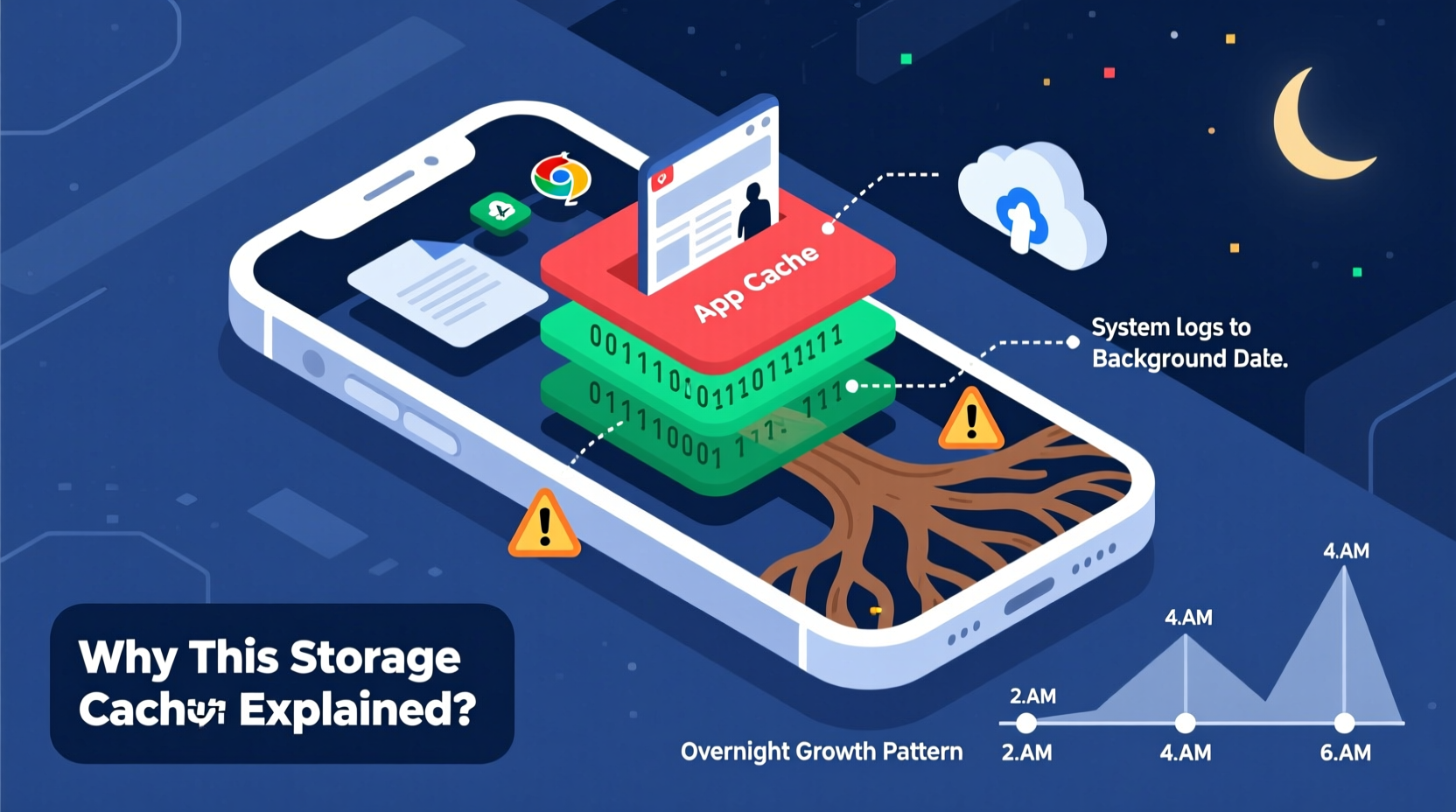
Cache is essentially digital scrap paper. When you open an app like Instagram or Chrome, the app downloads images, scripts, and layout data to display content quickly. Instead of fetching everything from the internet each time, it saves copies locally so subsequent visits are faster. That’s helpful—but over time, these small savings add up.
On both Android and iOS, apps are allowed to store cache automatically, and most users never clear it unless prompted. Some apps don’t even provide easy access to their cache settings. What’s worse, certain apps treat cache as “safe” storage and keep piling on data indefinitely. Messaging apps like WhatsApp or Telegram, for example, may cache every image, voice note, and video you receive—even if you never open them.
Overnight, while your phone is idle but still connected to Wi-Fi, background processes continue running. Apps sync, update feeds, download previews, and pre-load content. All of this activity generates new cache files. If automatic cleanup isn’t enabled—or if the system doesn’t prioritize it—those files remain, stacking up night after night.
The Top 5 Apps That Fill Storage Overnight
Not all apps behave the same way when it comes to cache management. Some are notorious for bloating storage with little user input. Here’s a breakdown of the biggest offenders:
- WhatsApp – Automatically caches all received media unless disabled. Can consume 10GB+ over weeks.
- Facebook / Meta Suite (Instagram, Messenger) – Aggressively caches posts, reels, and ads. Known to rebuild cache even after deletion.
- Google Photos – While designed for cloud backup, local thumbnails and offline edits create hidden cache.
- Spotify – Offline listening stores large audio caches; even browsing behavior can trigger temporary downloads.
- Chrome / Safari – Browser cache includes site data, cookies, and form entries that rarely get purged automatically.
A real-world case illustrates the problem clearly. Sarah, a freelance designer in Portland, noticed her iPhone kept showing “Storage Almost Full” alerts despite deleting old photos. After backing up her device, she discovered that WhatsApp alone was using 14.7GB—mostly in cache and unopened media. She hadn’t used the app heavily, but group chats were flooding her with memes and videos that auto-downloaded over Wi-Fi at night. Once she adjusted her media auto-download settings, her storage stabilized.
“Many users assume their phone manages storage intelligently. In reality, default settings favor convenience over efficiency—especially when it comes to cache.” — Dr. Rajiv Mehta, Mobile Systems Analyst at TechInsight Labs
Do’s and Don’ts of Managing Phone Cache
To avoid surprise storage depletion, follow best practices backed by mobile optimization experts. The table below outlines key actions you should and shouldn’t take.
| Do | Don’t |
|---|---|
| Enable automatic cache clearing in app settings where available | Assume that uninstalling and reinstalling an app always clears all data |
| Use built-in phone tools like ‘Smart Storage’ (iOS) or ‘Device Care’ (Samsung) | Turn off background data restrictions entirely—this increases cache buildup |
| Schedule monthly cleanups of browser and messaging app caches | Ignore system warnings about storage—delaying action worsens fragmentation |
| Disable auto-download of media on WhatsApp, Telegram, and similar apps | Manually delete files through file managers without understanding their function |
Step-by-Step Guide to Clean Hidden Cache (Android & iOS)
Follow this timeline-based approach to audit and reduce cache across your device. Set aside 20–30 minutes for a full cleanup.
- Day 1 – Audit Current Usage
- Go to Settings > Storage (Android) or Settings > General > iPhone Storage (iOS).
- Review the list of apps sorted by size. Tap into the top five largest.
- Note how much space is labeled “Documents & Data”—this often includes hidden cache.
- Day 1 – Clear Browser Cache
- Android (Chrome): Open Chrome > More (three dots) > History > Clear browsing data > Select \"Cached images and files\" > Clear data.
- iOS (Safari): Settings > Safari > Clear History and Website Data. Confirm action.
- Day 2 – Tackle Messaging Apps
- In WhatsApp: Settings > Storage and Data > Manage Storage. Review individual chats and clear large ones selectively.
- Disable auto-download: Settings > Storage and Data > Media Auto-Download > Uncheck Wi-Fi for Videos and Large Files.
- Repeat for Telegram and Facebook Messenger using their respective storage tools.
- Day 3 – Use Built-in Optimization Tools
- Android: Open Device Care (Samsung) or Storage section. Run “Clean Now” to remove residual cache and junk files.
- iOS: Enable iCloud Photos and turn on “Optimize iPhone Storage” under Settings > Photos.
- Ongoing – Monthly Maintenance
- Repeat Steps 1–3 every 30 days.
- Set calendar reminders to review storage before major updates or travel.
FAQ: Common Questions About Hidden Cache and Storage Loss
Can cache slow down my phone?
Yes. Excessive cache consumes RAM and storage, leading to slower app launches, longer boot times, and reduced multitasking performance. It can also interfere with OS-level operations like software updates.
Is it safe to delete all cache files?
Generally, yes. Cache is non-essential data designed to be disposable. Deleting it won’t remove your photos, messages, or account logins. However, apps may take slightly longer to load the next time you open them as they rebuild necessary files.
Why does my storage refill so fast after clearing cache?
If storage fills quickly again, one or more apps are generating cache aggressively—often due to background sync or auto-download settings. Focus on adjusting permissions for messaging, social media, and streaming apps. Also, check if your phone is set to back up large files continuously to cloud services, which sometimes retain local copies.
Checklist: Prevent Overnight Storage Bloat
Use this checklist monthly to maintain optimal storage health:
- ✅ Review top 5 space-consuming apps in Settings > Storage
- ✅ Clear browser cache on Chrome, Safari, or other default browsers
- ✅ Disable auto-download of media on WhatsApp, Telegram, and Messenger
- ✅ Enable optimize storage features (e.g., “Optimize iPhone Storage”)
- ✅ Run built-in cleanup tools (e.g., Samsung Device Care, Google Files)
- ✅ Restart your phone after major cleanups to reset background processes
- ✅ Backup important data before deep cleaning to avoid accidental loss
“Cache isn’t evil—it’s essential for speed. The issue is lack of transparency and control. Users should have real-time visibility into what’s being stored and why.” — Lena Park, Senior UX Researcher at OpenMobile Alliance
Conclusion: Take Control Before Your Phone Crashes
Your phone shouldn’t become unusable just because unseen data piled up while you slept. Hidden cache is a silent drain on performance and usability, but it’s entirely manageable with awareness and routine maintenance. By identifying high-risk apps, adjusting default behaviors, and scheduling regular cleanups, you can prevent storage emergencies and extend your device’s functional life.
Don’t wait for the red “Storage Full” alert. Act now—audit your current usage, clear unnecessary cache, and lock in smarter settings. A few minutes today can save hours of frustration tomorrow.




 浙公网安备
33010002000092号
浙公网安备
33010002000092号 浙B2-20120091-4
Comments
No comments yet. Why don't you start the discussion?