
Online gaming should be smooth, responsive, and immersive. But if you're plagued by sudden spikes in ping while playing over Wi-Fi, even the fastest internet plan won’t save you from frustrating lag, rubberbanding, or missed headshots. The culprit often isn't your ISP or game server—it’s your home network setup, particularly your router configuration. The good news? Most of these issues can be resolved with a few strategic changes to your router's settings. No need for expensive hardware upgrades—just smart optimization.
Understanding Ping Spikes: What They Mean for Gamers
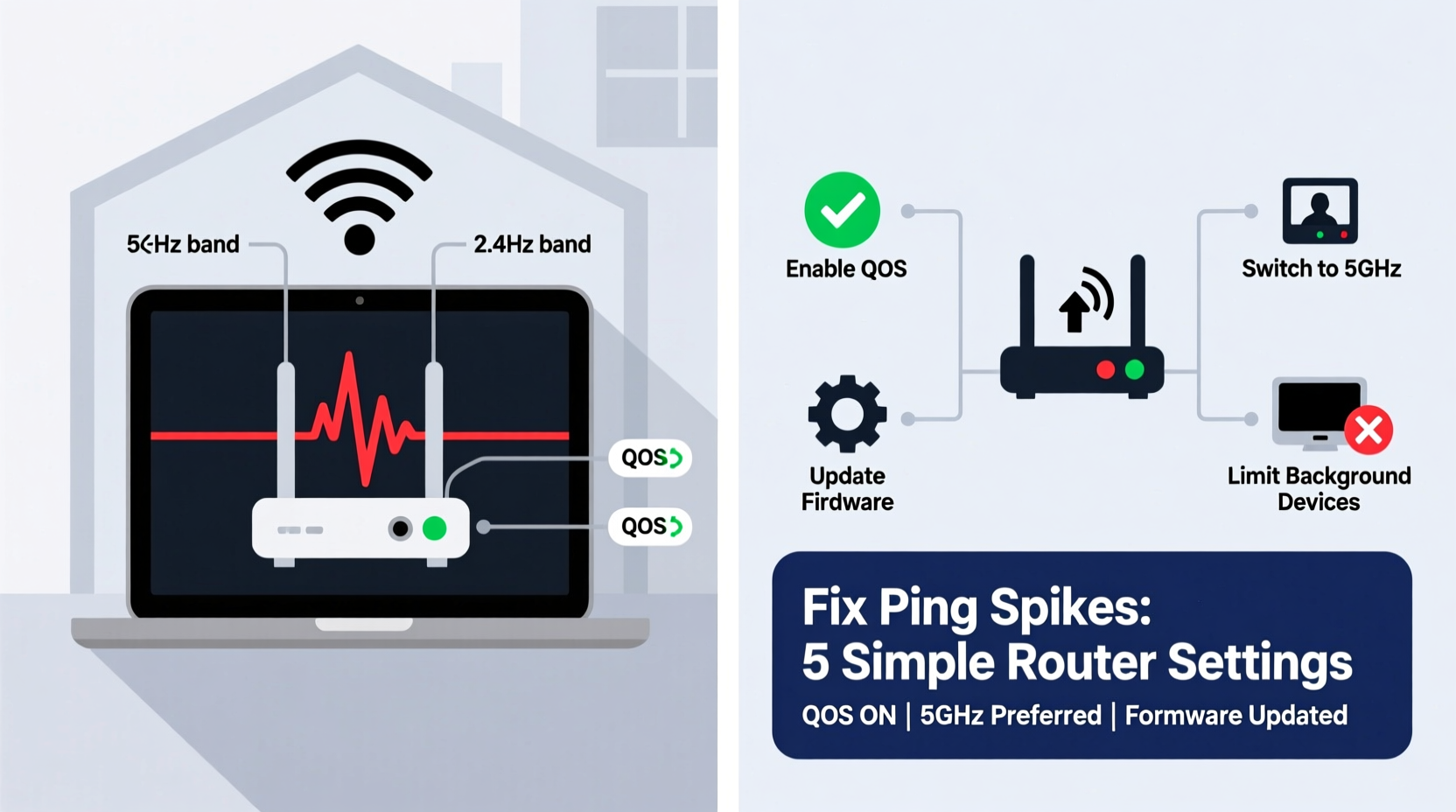
Ping measures the time it takes for data to travel from your device to a game server and back, expressed in milliseconds (ms). A stable connection might show 30–60 ms, but when that number suddenly jumps to 200+ ms—or worse, fluctuates wildly—you experience what gamers call “ping spikes.” These cause delayed inputs, stuttering movement, and desynchronization with the game world.
While bandwidth (download/upload speed) gets most of the attention, latency is far more critical in real-time gaming. Even with 500 Mbps fiber, poor network management inside your home can create micro-delays that ruin gameplay. And because Wi-Fi introduces variables like interference, distance, and signal congestion, it’s especially vulnerable to instability.
“Latency consistency matters more than raw speed in competitive gaming. A 40 Mbps connection with stable 40 ms ping beats a 1 Gbps link with erratic spikes.” — David Lin, Network Performance Analyst at GameNet Labs
Common Causes of Wi-Fi Ping Spikes in Gaming
Before adjusting settings, understand what’s behind the problem:
- Network Congestion: Multiple devices streaming, downloading, or updating in the background consume bandwidth and processing power from your router.
- Interference: Neighboring Wi-Fi networks, Bluetooth devices, microwaves, and cordless phones operate on the same 2.4 GHz band, disrupting signals.
- Router Overload: Low-end routers struggle to manage multiple connections efficiently, especially during high-traffic moments.
- Channel Overlap: Routers default to crowded channels, increasing competition for airtime.
- Distance and Obstacles: Thick walls, floors, and large distances weaken signal strength, leading to packet loss and retransmissions.
- QoS Misconfiguration: Without proper Quality of Service (QoS), gaming traffic doesn’t get priority over less urgent tasks like software updates.
ping -t [server IP] in Command Prompt or dedicated apps like PingPlotter to visualize spikes over time.
Step-by-Step Guide: Optimize Your Router Settings for Stable Gaming
You don’t need advanced networking knowledge—just access to your router’s admin panel (usually via 192.168.1.1 or 192.168.0.1 in a browser). Follow these steps carefully:
- Log Into Your Router
Open a web browser and enter your router’s IP address. Use the default username/password (often on a sticker) or one you’ve set. If unsure, check your ISP documentation or search “[your router model] login.” - Update Firmware
Navigate to the Administration or Maintenance section. Check for firmware updates. Outdated firmware can contain bugs affecting performance and security. Install any available update before proceeding. - Switch to the 5 GHz Band
If your router supports dual-band (2.4 GHz and 5 GHz), connect your gaming device to the 5 GHz network. It offers faster speeds and less interference, though shorter range. Avoid 2.4 GHz unless necessary. - Select the Least Congested Channel
Go to Wireless Settings > Advanced. For 2.4 GHz, use channels 1, 6, or 11—they don’t overlap. For 5 GHz, choose channels between 36–48 or 149–161 (avoid DFS channels if possible). Use a Wi-Fi analyzer app (like NetSpot or Wi-Fi Analyzer) to find the clearest channel nearby. - Enable Quality of Service (QoS)
Find QoS settings (sometimes under “Traffic Management” or “Bandwidth Control”). Enable it and prioritize your gaming device by MAC address or IP. Set its priority to “High” so traffic like game packets and voice chat get first access during congestion. - Reduce Interference from Other Devices
In QoS, you can also deprioritize non-essential devices—smart TVs doing updates, phones syncing photos, etc.—so they don’t hog bandwidth mid-game. - Set a Static IP for Your Gaming Device
To make QoS rules persistent, assign a static IP to your console or PC. Go to DHCP settings, reserve an IP based on your device’s MAC address. This ensures the router always recognizes it correctly. - Disable Power-Saving Modes on Wi-Fi
Some routers have “eco” or “power-saving” modes that reduce radio output. Turn these off to maintain consistent signal strength. - Limit Background Traffic
Schedule automatic updates (Windows, PSN, Xbox Live, Steam) outside gaming hours. Alternatively, pause them manually during play sessions. - Reboot Regularly
Restart your router weekly. It clears memory leaks, resets connections, and refreshes channel selection—especially helpful if your ISP uses dynamic DNS or routing paths.
Do’s and Don’ts: Router Optimization Table
| Do | Don’t |
|---|---|
| Use 5 GHz band for gaming devices close to the router | Use 2.4 GHz for gaming unless absolutely necessary |
| Enable QoS and prioritize your gaming device | Leave QoS disabled or misconfigured |
| Choose non-overlapping, low-congestion channels | Stick to default auto-channel settings without checking |
| Assign static IPs to key devices | Rely solely on dynamic IPs for QoS rules |
| Keep firmware updated | Ignore firmware notifications for months |
| Place router centrally, elevated, away from metal objects | Hide router in a cabinet or basement corner |
Real Example: How One Gamer Fixed His Lag in 20 Minutes
Mark, a competitive Call of Duty player in Toronto, experienced frequent ping spikes ranging from 50 ms to over 300 ms, despite having a 300 Mbps plan. He blamed his ISP until he ran a continuous ping test and noticed spikes coincided with his roommate’s Netflix streaming.
After logging into his ISP-provided router (a common TP-Link Archer C50), he discovered:
- No QoS was enabled
- The Wi-Fi was on a heavily used 2.4 GHz channel (6), shared by seven neighboring networks
- His PS5 was assigned a dynamic IP that changed weekly
He spent 20 minutes making changes: switched his PS5 to the 5 GHz network, selected channel 149 (least congested), enabled QoS, reserved a static IP for his console, and prioritized it as “Gaming – High Priority.”
Result? Ping stabilized at 38±5 ms throughout matches. No more rubberbanding. He later added a $30 Wi-Fi extender for better coverage, but the router tweaks made the biggest difference.
Checklist: Fix Wi-Fi Ping Spikes in Under 30 Minutes
Action Plan:
- ✅ Log into your router’s admin interface
- ✅ Check for and install firmware updates
- ✅ Connect gaming device to 5 GHz network
- ✅ Change Wi-Fi channel to a less crowded one
- ✅ Enable QoS and prioritize your gaming device
- ✅ Assign a static IP to your console or PC
- ✅ Reboot the router after changes
- ✅ Test ping stability during gameplay
Frequently Asked Questions
Can I fix ping spikes without changing hardware?
Absolutely. In most cases, poor router configuration—not outdated equipment—is the root cause. Adjusting QoS, channel selection, and band usage resolves the majority of Wi-Fi-related lag issues without buying new gear.
Does Ethernet always beat Wi-Fi for gaming?
Yes, generally. A wired connection eliminates wireless interference, offers lower latency, and provides consistent throughput. However, modern Wi-Fi 6 routers with proper tuning can deliver near-wired performance for users within close range and line of sight.
Why does my ping spike at the same time every day?
This often indicates scheduled activity—like automatic backups, cloud syncs, or ISP network maintenance. Check device update schedules and consider setting QoS rules to temporarily throttle non-critical traffic during peak gaming hours.
Expert Insight: Why Router Intelligence Matters More Than Speed
Many consumers focus only on internet speed, but how data is managed locally determines real-world responsiveness. As networks grow more complex—with smart homes, multiple users, and high-demand applications—router intelligence becomes critical.
“Most people treat their router like a dumb pipe. But it’s actually a traffic cop. When configured well, it prevents chaos. When ignored, everyone fights for the road.” — Dr. Lena Torres, Senior Network Engineer at HomeNet Dynamics
Modern routers come with features like beamforming, MU-MIMO, and adaptive QoS, but they’re often turned off by default. Enabling them—even on budget models—can dramatically improve fairness and stability across connected devices.
Conclusion: Take Control of Your Gaming Experience
Ping spikes on Wi-Fi aren’t inevitable. They’re symptoms of unoptimized network conditions that you can diagnose and fix yourself. By understanding how your router manages traffic and applying simple, targeted settings—especially QoS, channel selection, and band steering—you reclaim control over your gaming performance.
You don’t need a new ISP, a gaming-specific plan, or top-tier hardware. Just ten minutes of focused configuration can transform a jittery, frustrating experience into a smooth, competitive edge. Apply these steps tonight, test your next match, and feel the difference.




 浙公网安备
33010002000092号
浙公网安备
33010002000092号 浙B2-20120091-4
Comments
No comments yet. Why don't you start the discussion?