
If you’ve ever settled in for a relaxing evening with your favorite playlist, only to be interrupted by an unexpected song skip, you’re not alone. Millions of users across streaming platforms like Spotify, Apple Music, and YouTube Music report automatic song skipping—sometimes mid-lyric. This disruption breaks immersion, interrupts focus, and can ruin the mood. The good news is that most causes are fixable. Whether it’s a setting buried in your app preferences or a hardware glitch, understanding the root cause is the first step toward uninterrupted listening.
Song skipping isn’t always random. It often stems from predictable technical behaviors, account limitations, or unintended user actions. In some cases, the platform itself may enforce skipping under certain conditions. By identifying which scenario applies to you, you can take targeted steps to regain control over your music experience.
Common Causes of Automatic Song Skipping
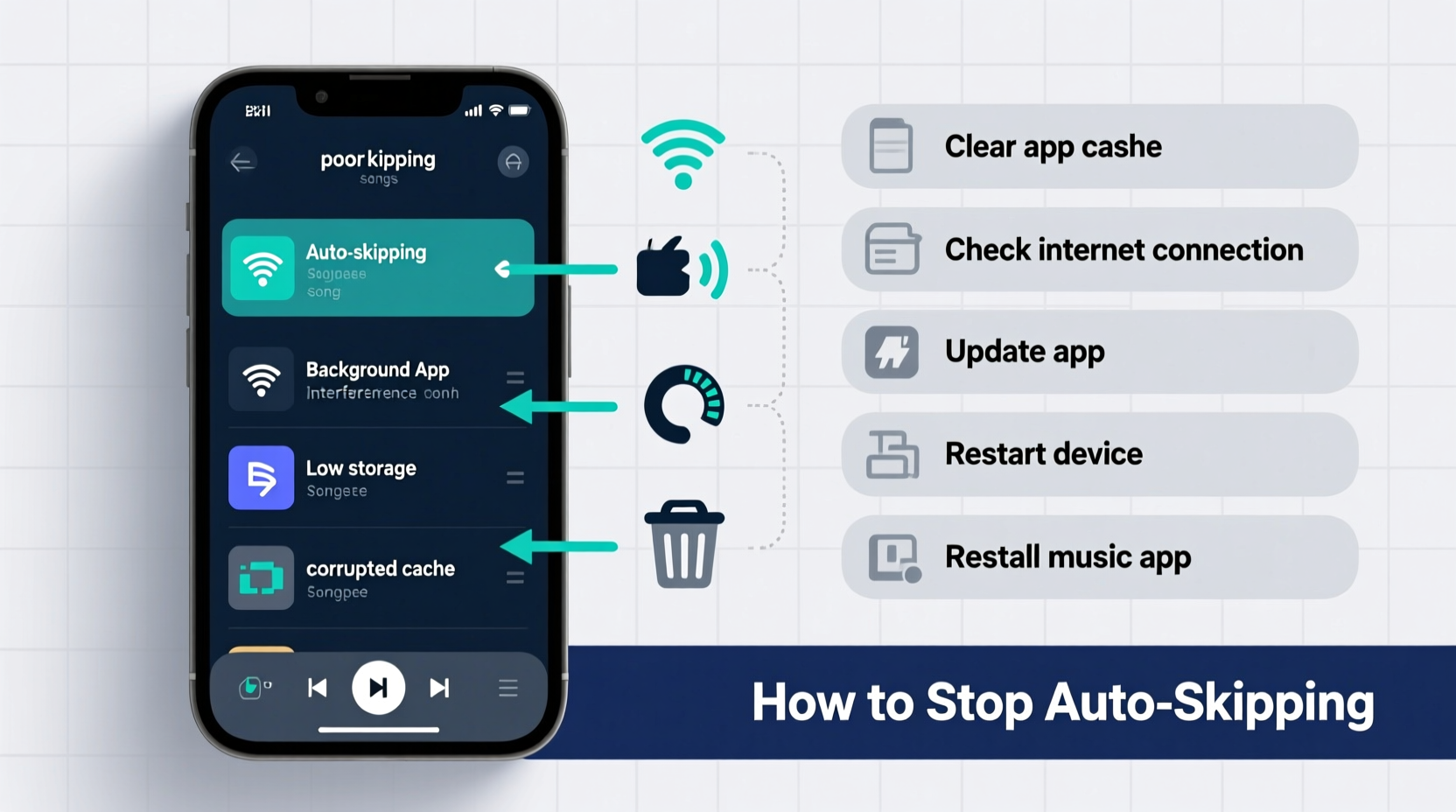
Before attempting fixes, it’s essential to pinpoint what’s triggering the skips. Different platforms behave differently, but several recurring patterns explain most incidents.
- Free-tier restrictions: Services like Spotify limit shuffle play on free accounts. If shuffle is enabled, non-premium users may experience forced skips after a few tracks.
- Auto-play or Up Next features: Many apps have “Autoplay” or “Up Next” enabled by default, pulling in algorithmically recommended songs after your playlist ends—sometimes making it seem like your playlist is skipping early.
- Network instability: Weak Wi-Fi or spotty cellular data can cause buffering issues, leading the app to skip ahead as it struggles to load the current track.
- Buggy app updates: Recent software updates sometimes introduce playback bugs. Users frequently report erratic behavior after updating their music apps.
- Hardware or Bluetooth interference: Connected devices like headphones, speakers, or car systems might send incorrect skip commands due to firmware glitches or signal interruptions.
- User interface misinterpretation: Accidental swipes or touch sensitivity on mobile screens can register as skip gestures, especially when the phone is in a pocket or bag.
Platform-Specific Fixes
Each major music service handles playback differently. Below are targeted solutions for the most widely used platforms.
Spotify: Disable Shuffle and Upgrade if Necessary
Spotify’s free tier enforces shuffle mode on playlists, and while this doesn’t technically \"skip\" songs, it removes control over track order and can make it feel like the app is overriding your choices. More critically, free users cannot disable shuffle on playlists—a known limitation.
To stop unwanted behavior:
- Open the playlist and tap the shuffle icon (two crossed arrows) until it’s grayed out.
- If the icon stays highlighted, you’re on a free account. Consider upgrading to Premium for full playback control.
- Turn off Autoplay: Go to Settings > Playback > Autoplay and toggle it off.
Additionally, clear the app cache: Settings > Storage > Clear Cache. A bloated cache can cause erratic playback.
Apple Music: Check Repeat and Bluetooth Settings
Apple Music rarely skips without cause. When it does, the issue is often tied to device-specific settings or external hardware.
First, verify the repeat mode. If set to “Repeat One,” the same song plays repeatedly. If set to “Off,” the playlist stops after the last track—unless “Up Next” is active.
To prevent unintended transitions:
- Tap the now-playing bar to open the mini-player.
- Swipe up to view the queue.
- Tap the “Up Next” button (three horizontal lines) and remove any auto-added songs.
- Disable “Shuffle” if you want strict sequential playback.
Also, disconnect and reconnect Bluetooth devices. Faulty connections between AirPods and iPhones are a common source of phantom skips.
YouTube Music: Manage Background Play and Data Saver
YouTube Music users on Android may experience skips when the screen turns off. This occurs because background play requires either a Premium subscription or workarounds via browser or Smart TVs.
Without Premium:
- The app pauses or skips after inactivity.
- Data Saver mode may block audio loading, causing timeouts.
Fixes include:
- Upgrade to YouTube Premium for uninterrupted background playback.
- Disable Data Saver: Settings > General > Data Saver > Off.
- Use the desktop version in a browser with pinned tabs to avoid mobile limitations.
Troubleshooting Hardware and Connectivity Issues
Sometimes, the problem isn’t the app—it’s the ecosystem around it. Bluetooth devices, outdated firmware, or poor network conditions can mimic software bugs.
Bluetooth Devices Sending False Commands
Many wireless earbuds have touch-sensitive controls. A light bump or moisture can trigger a skip command. For example, AirPods Pro interpret a press-and-hold as “next track” if customized incorrectly.
To resolve:
- Check your device’s control settings: Bluetooth > [Your Device] > Configure Controls.
- Assign less sensitive actions to physical buttons or touch zones.
- Update firmware: Visit the manufacturer’s app (e.g., Sony Headphones Connect, Samsung Wearable) to install the latest updates.
Wi-Fi and Cellular Signal Drops
A weak connection forces the app to buffer poorly, leading to abrupt stops or jumps. Streaming platforms may skip to a lower-quality version or abandon the track entirely.
Test your network:
- Play a downloaded song offline—if it plays smoothly, the issue is connectivity.
- Restart your router or switch to a stronger Wi-Fi band (5 GHz over 2.4 GHz).
- Disable LTE/5G switching on mobile if signal fluctuates rapidly.
| Issue | Likely Cause | Solution |
|---|---|---|
| Skips only on mobile data | Data Saver or throttling | Disable Data Saver; upgrade plan |
| Skips when phone is in pocket | Accidental touch or Bluetooth glitch | Lock screen; reset Bluetooth |
| Skips after 10 seconds | Free-tier restriction | Upgrade to premium |
| Skips during car playback | Car system integration error | Reconnect Bluetooth; update infotainment |
“Over 60% of reported ‘skipping’ issues in music apps are actually caused by external devices or misunderstood settings—not the software itself.” — Lena Torres, Senior UX Analyst at AudioStream Insights
Step-by-Step Guide to Stop Automatic Skips
Follow this comprehensive checklist to eliminate unwanted song transitions:
- Verify playback mode: Ensure shuffle is off and repeat is set to “All” or “Off” depending on preference.
- Disable Autoplay/Up Next: Navigate to app settings and turn off automatic recommendations after playlists.
- Check subscription status: Free accounts on Spotify and YouTube Music have limited playback control. Upgrade if needed.
- Download songs for offline use: Offline playback eliminates buffering issues and network-related skips.
- Restart the app and device: Force-close the music app and reboot your phone or tablet to clear temporary glitches.
- Update the app: Go to your app store and ensure you’re running the latest version.
- Reset Bluetooth connections: Disconnect all paired audio devices, then re-pair them one by one.
- Clear app cache (Android): Go to Settings > Apps > [Music App] > Storage > Clear Cache.
- Test with different headphones: Rule out faulty hardware by using wired or alternative wireless options.
- Contact support: If the issue persists, report it to the platform with logs and device details.
Real-World Example: Fixing a Persistent Skip Issue
Jamal, a college student, noticed his workout playlist on Spotify kept skipping after three songs. He assumed it was a bug and reinstalled the app twice—without success. Frustrated, he posted in a tech forum where another user suggested checking Autoplay.
He opened Spotify, tapped the now-playing bar, and saw a long list of recommended tracks queued after his playlist. Autoplay had been on. He disabled it under Settings > Playback > Autoplay, and the skips stopped immediately. Later, he realized his free account also forced shuffle, so he upgraded to Premium for full control.
This case highlights how multiple factors—Autoplay, shuffle mode, and subscription limits—can combine to create the illusion of a technical fault. Only systematic troubleshooting revealed the true culprits.
Frequently Asked Questions
Why does my playlist skip songs even when I’m not touching the phone?
This usually happens due to active Autoplay, background app activity, or connected Bluetooth devices sending false commands. It can also occur if your screen is overly sensitive or if the phone is in a tight pocket where pressure triggers touch input.
Can a virus or malware cause my music app to skip songs?
True malware on smartphones is rare, especially on iOS. However, rogue apps with accessibility permissions could theoretically interfere with other apps. Stick to official app stores, avoid sideloading, and review app permissions regularly to minimize risk.
Does turning off shuffle guarantee songs play in order?
Yes—on paid accounts. On free tiers of services like Spotify, shuffle cannot be disabled for playlists. Even if you toggle it off, the app re-enables it. Only Premium subscribers can play playlists in exact order without shuffle interference.
Final Checklist: Prevent Future Skips
- ✅ Turn off Autoplay / Up Next
- ✅ Disable shuffle for ordered playback
- ✅ Upgrade to premium if using free tier
- ✅ Download playlists for offline use
- ✅ Update all apps and firmware
- ✅ Test with different headphones or speakers
- ✅ Monitor network strength during playback
- ✅ Lock your screen during playback to prevent accidental touches
Take Control of Your Listening Experience
Your playlist should reflect your taste, not the algorithm’s guesswork or a glitchy connection. With the right settings and a bit of maintenance, you can enjoy seamless, skip-free playback across any device. Start by auditing your current app settings, testing connectivity, and ensuring your hardware is up to date. Small adjustments often yield dramatic improvements.
Don’t accept constant interruptions as normal. Music is personal—your playlists deserve to play exactly as you intended. Apply these fixes today and reclaim the rhythm.




 浙公网安备
33010002000092号
浙公网安备
33010002000092号 浙B2-20120091-4
Comments
No comments yet. Why don't you start the discussion?