
There’s nothing more frustrating than being deep into an intense gaming session when suddenly, your PS5 powers down without warning. No error message, no countdown—just a black screen and silence. While this can be alarming, the most common culprit is overheating. The PS5 is a powerful machine, but like any high-performance device, it generates significant heat. When that heat isn’t properly managed, the system automatically shuts down as a protective measure. Understanding why this happens—and how to fix it—is essential for preserving both your gaming experience and your console’s lifespan.
Understanding Why Your PS5 Shuts Off During Gameplay
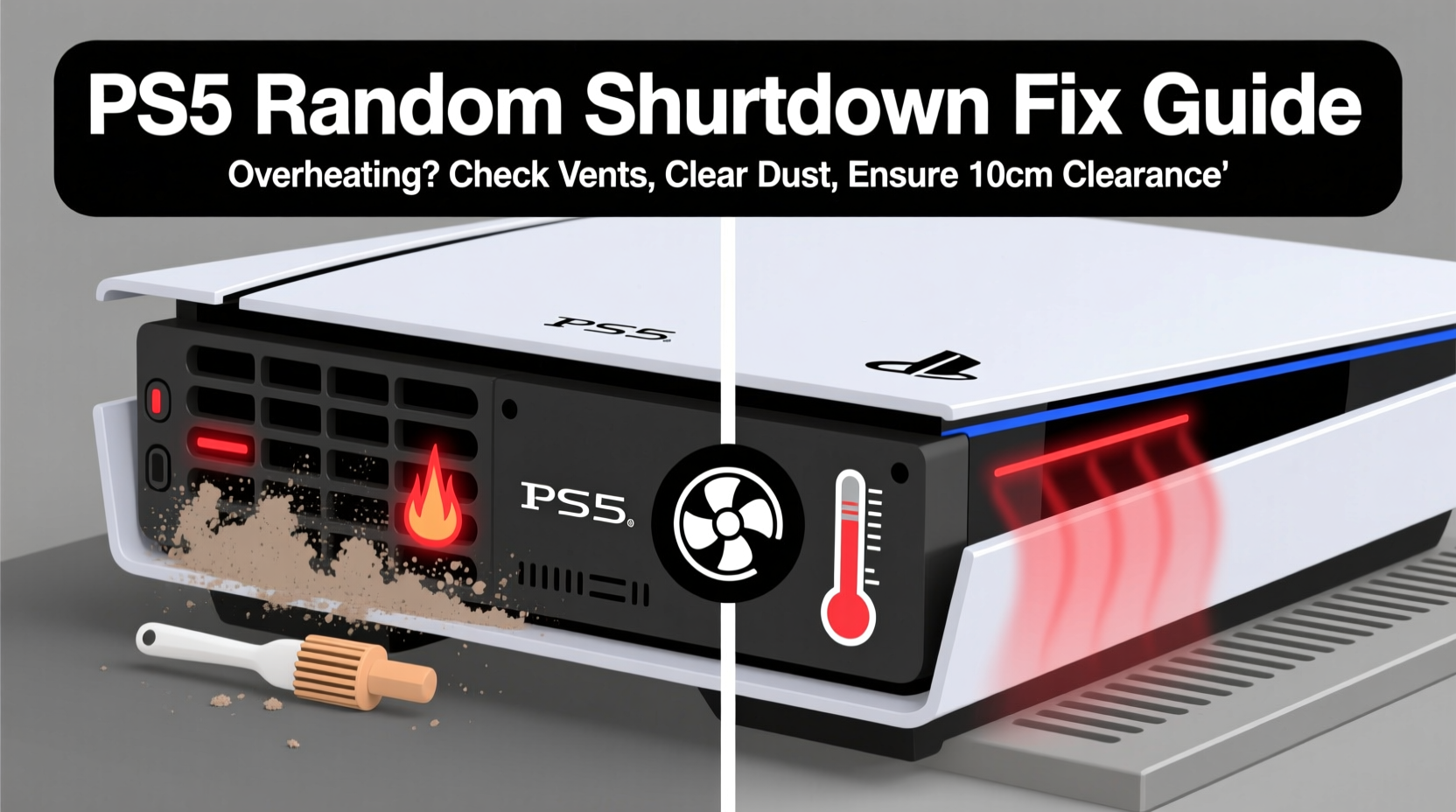
The PS5 is engineered with advanced thermal safeguards. If internal temperatures exceed safe thresholds, the system triggers an automatic shutdown to prevent permanent hardware damage. This feature is not a defect—it's a safety mechanism. However, frequent or random shutdowns indicate that your console is struggling to stay cool under load.
Several factors contribute to excessive heat buildup:
- Dust accumulation: Over time, dust clogs air vents and fans, restricting airflow.
- Poor ventilation: Placing the PS5 in enclosed spaces or near walls limits heat dissipation.
- Console orientation: Using the vertical stand improperly or placing the console on unstable surfaces can block intake vents.
- Ambient room temperature: Gaming in hot environments increases strain on cooling systems.
- Intensive game workloads: Graphically demanding titles push the CPU and GPU harder, generating more heat.
While occasional fan noise is normal, constant loud whirring or sudden shutdowns are red flags. These symptoms point directly to thermal stress.
Step-by-Step Guide to Preventing PS5 Overheating
Preventing overheating doesn’t require technical expertise—just consistent care and smart setup choices. Follow this step-by-step process to ensure optimal cooling performance.
- Inspect placement and environment
Ensure your PS5 sits in an open area with good airflow. Avoid entertainment cabinets, shelves with tight spacing, or corners where heat can trap. - Check console orientation
If using vertically, confirm the official Sony stand is securely attached. Misaligned stands can tilt the console, blocking the base intake vent. - Clean external vents weekly
Use a soft brush or dry microfiber cloth to wipe dust from visible grills. Do not use liquids or compressed air directly on openings. - Deep clean internal components (every 6–12 months)
Power off and unplug the console. Use low-pressure compressed air to gently blow dust from side and rear vents. Focus on intake areas near the base. - Monitor room temperature
Keep your gaming space below 77°F (25°C). Consider using a fan or air conditioner during summer months. - Update system software
Sony periodically releases firmware updates that improve thermal management and fan control algorithms. - Rebuild database if issues persist
Booting in Safe Mode and selecting “Rebuild Database” can resolve background processes causing unnecessary CPU load.
Do’s and Don’ts of PS5 Cooling Maintenance
| Do’s | Don’ts |
|---|---|
| Place the PS5 upright with proper stand support | Stack items on top of the console |
| Allow 4+ inches of clearance on all sides | Enclose the console in a closed cabinet |
| Use compressed air every 6 months for deep cleaning | Insert sharp objects into vents to remove dust |
| Wipe exterior with a dry, lint-free cloth | Use household cleaners or wet wipes on vents |
| Play games in well-ventilated, climate-controlled rooms | Leave the console running for hours in direct sunlight |
Real-World Example: A Gamer’s Overheating Crisis
Jamal, a dedicated *Call of Duty* player from Texas, experienced repeated PS5 shutdowns during online matches in July. At first, he assumed it was a power surge or faulty outlet. He tried different outlets, replaced his surge protector, and even contacted PlayStation Support. After ruling out electrical issues, a technician suggested checking for overheating.
Jamal realized his PS5 was placed inside a closed media unit, tucked behind glass doors. Though it looked neat, the enclosure prevented airflow. On hot days, internal temperatures soared past 167°F (75°C), triggering emergency shutdowns. He moved the console to an open shelf, cleaned the vents with compressed air, and installed a small desk fan nearby. Since then, his PS5 has run silently and reliably—even during marathon weekend sessions.
This case highlights how environmental setup often outweighs hardware flaws when diagnosing thermal issues.
Expert Insight on Console Longevity and Heat Management
“Modern consoles like the PS5 are built to handle high thermal loads, but sustained overheating accelerates wear on solder joints and capacitors. Even brief shutdowns are signs of stress that shouldn’t be ignored.” — Dr. Lena Park, Electronics Reliability Engineer at MIT Media Lab
Dr. Park emphasizes that while automatic shutoffs protect against immediate failure, repeated cycles of heating and cooling cause expansion and contraction in internal components. Over time, this leads to microfractures and reduced reliability. Proactive cooling isn’t just about comfort—it’s about preserving the integrity of your investment.
Effective Tips to Keep Your PS5 Cool
DIY Cooling Checklist for PS5 Owners
Use this checklist monthly to maintain peak thermal performance:
- ✅ Ensure console has ample space around all sides
- ✅ Verify vertical stand is correctly installed (if applicable)
- ✅ Wipe down exterior vents with a dry cloth
- ✅ Listen for abnormal fan noises (grinding, pulsing, or excessive whine)
- ✅ Confirm room temperature is within safe range (below 77°F / 25°C)
- ✅ Check for firmware updates in Settings > System > System Software
- ✅ Perform internal dust removal every 6–12 months using compressed air
- ✅ Avoid leaving the console on for extended periods post-gaming
When to Seek Professional Repair
Even with diligent maintenance, hardware issues can develop. If you’ve followed all cooling best practices and still experience random shutdowns, consider these potential internal problems:
- Fan failure: A malfunctioning fan may spin inconsistently or not at all.
- Thermal paste degradation: Over time, the paste between the processor and heatsink dries out, reducing heat transfer efficiency.
- Blocked internal ducts: Dust may accumulate beyond surface vents, requiring disassembly for full cleaning.
- Power supply irregularities: Rarely, voltage fluctuations mimic overheating behavior.
If your PS5 shuts down within minutes of startup—even in a cool room—or emits burning smells or unusual clicking sounds, stop using it immediately. Contact an authorized repair center or Sony directly. Attempting self-repair voids warranties and risks further damage.
Frequently Asked Questions
Can I use a cooling pad designed for laptops with my PS5?
No. Laptop cooling pads are not designed for the PS5’s airflow architecture. They may disrupt natural convection patterns or introduce vibrations. Instead, focus on improving ambient ventilation and regular cleaning.
How hot should my PS5 get before I worry?
The PS5 is designed to operate safely up to around 149°F (65°C) internally. Surface temperatures near the exhaust can reach 104–113°F (40–45°C) under heavy load, which is normal. However, sustained operation above 158°F (70°C) risks triggering shutdowns. If the casing feels excessively hot to touch, intervene promptly.
Does playing downloaded games vs. discs affect heat output?
Not significantly. The primary heat sources are the CPU and GPU, which work equally hard regardless of game source. However, disc drives do generate minor additional heat when spinning. Digital-only models eliminate this component, offering negligible thermal advantage.
Final Thoughts: Protect Your Playtime with Smart Cooling Habits
Your PS5 is capable of delivering stunning visuals and immersive experiences, but only if it remains within safe operating conditions. Random shutdowns aren’t just inconvenient—they’re warnings. By addressing airflow, managing dust, and optimizing your gaming environment, you can prevent overheating before it interrupts your progress or damages your hardware.
Think of your console like a high-performance vehicle: it needs regular maintenance and proper conditions to perform at its best. Simple habits—like weekly dusting, strategic placement, and seasonal deep cleans—go a long way in extending your PS5’s life and ensuring smooth gameplay for years to come.




 浙公网安备
33010002000092号
浙公网安备
33010002000092号 浙B2-20120091-4
Comments
No comments yet. Why don't you start the discussion?