
As homes grow smarter, so do the holiday decorations. Smart Christmas lights offer dazzling color transitions, music synchronization, and remote control via smartphone apps. But when your Wi-Fi network suddenly turns uncooperative—dropping connections or failing to respond—the magic can quickly fade. One common culprit? Your own router. It may seem counterintuitive that a device designed to connect everything could disrupt festive lighting, but interference between routers and smart lights is more common than you might think. The issue stems from overlapping wireless signals, network congestion, and hardware limitations. Understanding the root causes—and knowing how to fix them—can mean the difference between a smooth holiday display and a frustrating tech headache.
How Smart Christmas Lights Connect to Your Network
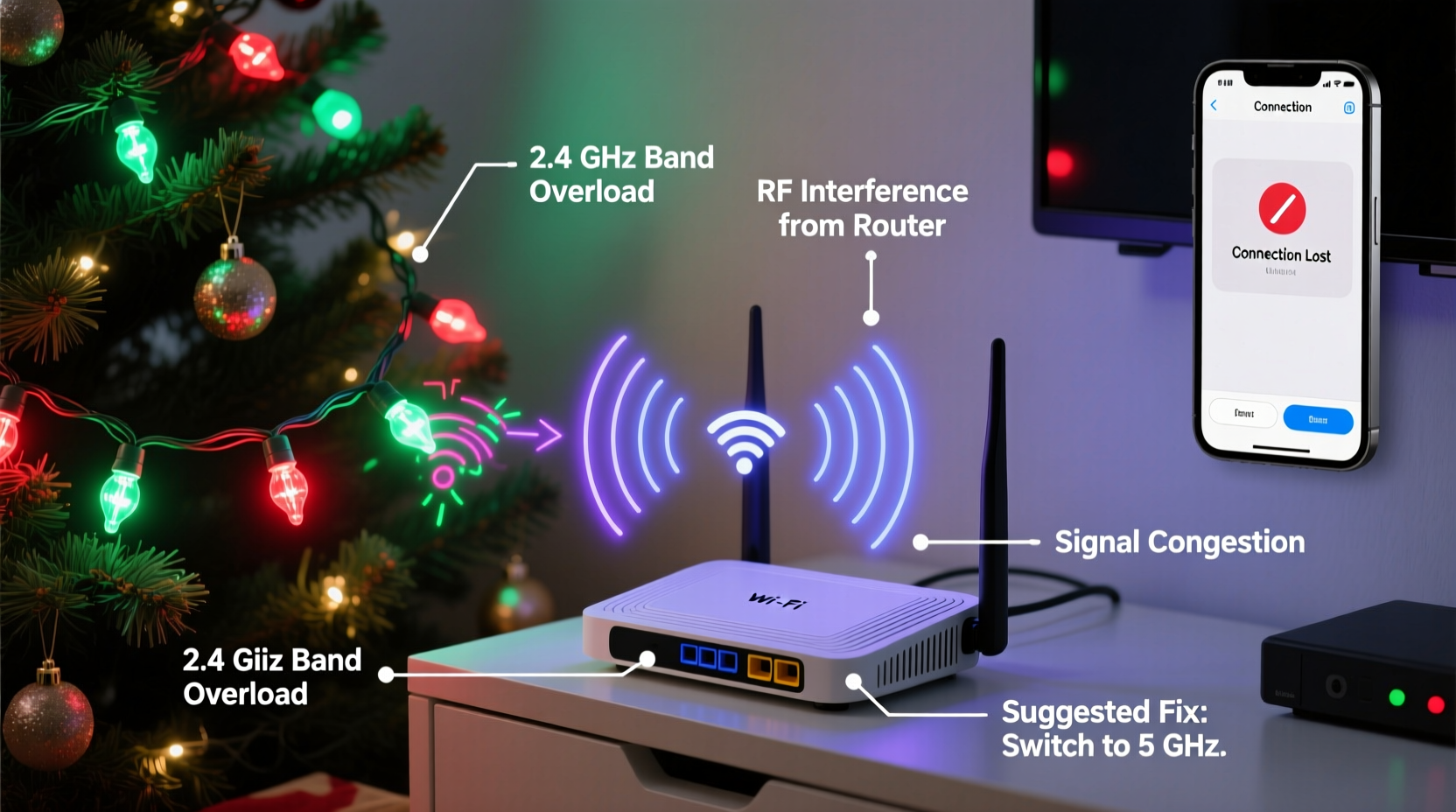
Most modern smart Christmas lights rely on Wi-Fi or Bluetooth to communicate with your smartphone, tablet, or voice assistant. Entry-level models often use 2.4 GHz Wi-Fi, the same frequency band used by most home routers. This band supports longer range but is also crowded with devices like microwaves, cordless phones, baby monitors, and dozens of IoT gadgets. When multiple devices operate on the same frequency, signal interference occurs, leading to latency, disconnections, or complete loss of control.
Higher-end smart light systems may use mesh networking protocols like Zigbee or Z-Wave, which operate on different frequencies and are less prone to Wi-Fi congestion. However, even these systems typically require a hub connected to your router, creating an indirect dependency on your home network. If the hub loses connection due to router instability, your lights go dark—literally and figuratively.
Why Routers Interfere with Smart Lights
The conflict between routers and smart lights isn’t about malice—it’s physics and design. Several factors contribute to this interference:
- Spectrum Overlap: Most smart lights use the 2.4 GHz band because it offers better wall penetration and broader coverage than 5 GHz. Unfortunately, this is the same band used by nearly every router and many household electronics, increasing collision risk.
- Channel Congestion: The 2.4 GHz band has only three non-overlapping channels (1, 6, and 11). In dense neighborhoods, multiple nearby networks can occupy these channels, causing interference that affects both internet performance and smart device responsiveness.
- Router Placement: Routers placed near metal objects, large appliances, or thick walls can create dead zones or reflective signal paths that degrade performance for nearby smart devices, including lights.
- Firmware Limitations: Older routers may lack Quality of Service (QoS) settings or modern interference mitigation features, making them less capable of managing mixed-device traffic efficiently.
- Device Flooding: During the holidays, homes often add numerous smart devices simultaneously—lights, plugs, cameras, speakers. This sudden influx can overwhelm older routers, leading to bandwidth contention and dropped connections.
“Wi-Fi congestion during peak usage times—like evenings in December—is one of the top reasons smart home devices fail intermittently.” — Dr. Alan Reeves, Wireless Network Engineer at MIT Media Lab
Step-by-Step Guide to Fix Router Interference
Resolving interference doesn’t require advanced technical skills. Follow this sequence to identify and eliminate the problem:
- Verify Device Compatibility
Confirm that your smart lights are designed to work reliably on your current network setup. Check manufacturer specs for supported bands and required bandwidth. - Reboot All Devices
Power down your router, smart light hub (if applicable), and any controllers. Wait 30 seconds, then power them back on in order: router first, then hub, then lights. This clears temporary glitches and resets network handshakes. - Change Wi-Fi Channel
Log into your router’s admin interface (usually via 192.168.1.1 or similar). Navigate to wireless settings and manually switch from auto-channel to a fixed channel—preferably 1, 6, or 11. Use a Wi-Fi analyzer app to see which channels are least used in your area. - Enable QoS Settings
If available, enable Quality of Service in your router settings. Prioritize traffic for your smart light hub or IP address to ensure consistent communication, especially during high-bandwidth activities like streaming. - Upgrade Firmware
Check for updates for both your router and smart lights. Manufacturers often release patches that improve signal handling and reduce interference sensitivity. - Use a Separate Network (Guest Wi-Fi)
Create a guest network dedicated to IoT devices. This isolates smart lights from your primary devices, reducing congestion and improving stability. - Optimize Router Placement
Move your router away from large metal objects, microwaves, and cordless phone bases. Elevate it centrally in your home for balanced coverage. Avoid placing it inside cabinets or behind TVs.
Alternative Solutions: Beyond Basic Troubleshooting
When standard fixes fall short, consider structural improvements to your network infrastructure:
Add a Wi-Fi Extender or Mesh System
If your lights are far from the router, signal degradation becomes inevitable. A Wi-Fi extender can boost coverage, but mesh systems like Google Nest Wi-Fi or Eero offer superior performance. These systems use multiple nodes to blanket your home in seamless Wi-Fi, reducing dropouts and improving response time for smart devices.
Switch to a Dual-Band or Tri-Band Router
Modern dual-band routers support both 2.4 GHz and 5 GHz networks. While smart lights usually can't connect to 5 GHz, offloading smartphones, laptops, and streaming devices to the faster band frees up space on 2.4 GHz for IoT traffic. Tri-band routers add a second 5 GHz lane, further reducing congestion.
Use a Dedicated Smart Home Hub
Devices like Samsung SmartThings or Amazon Echo Plus support Zigbee and Z-Wave natively. By connecting your smart lights through such hubs, you bypass Wi-Fi entirely for local commands. Only cloud-based functions (e.g., remote access) rely on your router, minimizing interference risks.
| Solution | Effectiveness | Cost | Difficulty |
|---|---|---|---|
| Change Wi-Fi channel | High | Free | Easy |
| Enable QoS | Moderate | Free | Medium |
| Use guest network | High | Free | Easy |
| Add Wi-Fi extender | Moderate | $30–$100 | Medium |
| Upgrade to mesh system | Very High | $150+ | Medium-Hard |
| Switch to Zigbee/Z-Wave | Very High | $50–$120 (hub cost) | Hard |
Mini Case Study: The Johnson Family’s Holiday Lighting Failure
The Johnsons installed a new set of app-controlled RGB Christmas lights along their roofline in December 2023. Initially, everything worked perfectly—colors changed on command, and music sync dazzled the neighborhood. But within days, the lights began responding slowly, then stopped responding altogether during evening displays.
After troubleshooting bulbs and power sources, they discovered the issue wasn’t the lights—it was their aging router. Living in a densely populated suburban area, their 2.4 GHz channel was saturated with nearby networks. Additionally, their children were streaming video games and movies simultaneously, consuming most of the bandwidth.
The solution? They activated their router’s built-in guest network and connected all smart lights and outdoor plugs to it. They also updated the router firmware and switched from auto-channel to channel 1, the least crowded in their vicinity. Within hours, responsiveness improved dramatically. For future-proofing, they ordered a compact mesh node to place in the garage, ensuring robust coverage for next year’s expanded display.
Checklist: Prevent Smart Light Interference Before It Happens
- ✅ Audit your current network load before adding new smart devices
- ✅ Verify that your router supports modern standards (802.11n/ac/ax)
- ✅ Set up a separate guest network for IoT devices
- ✅ Position router centrally and away from interference sources
- ✅ Update firmware on all devices quarterly
- ✅ Use Wi-Fi analyzer tools to monitor channel congestion monthly
- ✅ Consider upgrading to a mesh system if your home exceeds 1,500 sq ft
Frequently Asked Questions
Can 5 GHz Wi-Fi be used for smart Christmas lights?
No, most smart Christmas lights only support 2.4 GHz Wi-Fi due to its better range and obstacle penetration. The 5 GHz band offers faster speeds but shorter reach and weaker wall traversal, making it unsuitable for low-power IoT devices.
Will turning off other devices help my smart lights work better?
Yes. Streaming, gaming, and large downloads consume significant bandwidth and can starve smart devices of necessary network resources. Temporarily pausing heavy usage often restores smart light functionality immediately.
Do LED Christmas lights emit interference themselves?
Poorly shielded LED drivers in some budget strings can emit electromagnetic interference (EMI), which may disrupt nearby Wi-Fi signals. Opt for UL-certified or name-brand lights with proper EMI shielding to avoid this issue.
Conclusion: Enjoy Seamless Holiday Lighting Year After Year
Smart Christmas lights should enhance your holiday experience—not complicate it. While router interference can be frustrating, it's rarely insurmountable. With a clear understanding of wireless dynamics and a few strategic adjustments, you can maintain reliable, responsive control over your festive displays. The key lies in proactive network management: optimizing placement, separating device traffic, and investing in infrastructure that supports a growing smart home ecosystem. Don’t wait until next December to solve this year’s problems. Apply these solutions now, and let your lights shine brightly without a glitch in sight.




 浙公网安备
33010002000092号
浙公网安备
33010002000092号 浙B2-20120091-4
Comments
No comments yet. Why don't you start the discussion?