
If you've ever been in the middle of an important Zoom meeting only to have your screen start flashing, jittering, or pulsing unpredictably, you're not alone. Screen flickering during Zoom calls is a surprisingly common issue that can disrupt communication, damage professional credibility, and cause eye strain. While it may seem like a minor glitch, persistent flickering often points to deeper technical conflicts between your hardware, software, lighting environment, or network setup.
The root causes vary widely—from outdated graphics drivers to incompatible display settings or even ambient lighting frequency mismatches. What makes this problem especially frustrating is that it doesn’t always occur consistently, making diagnosis difficult. However, with a methodical approach, most cases of screen flickering during Zoom sessions can be resolved without needing to replace equipment or abandon the platform.
This guide breaks down the most frequent culprits behind screen flickering on Zoom, provides actionable steps to diagnose and fix each one, and includes expert-backed strategies to prevent recurrence. Whether you're working from home, attending virtual classes, or leading remote teams, stable visuals are essential—and achievable.
Understanding the Causes of Screen Flickering on Zoom
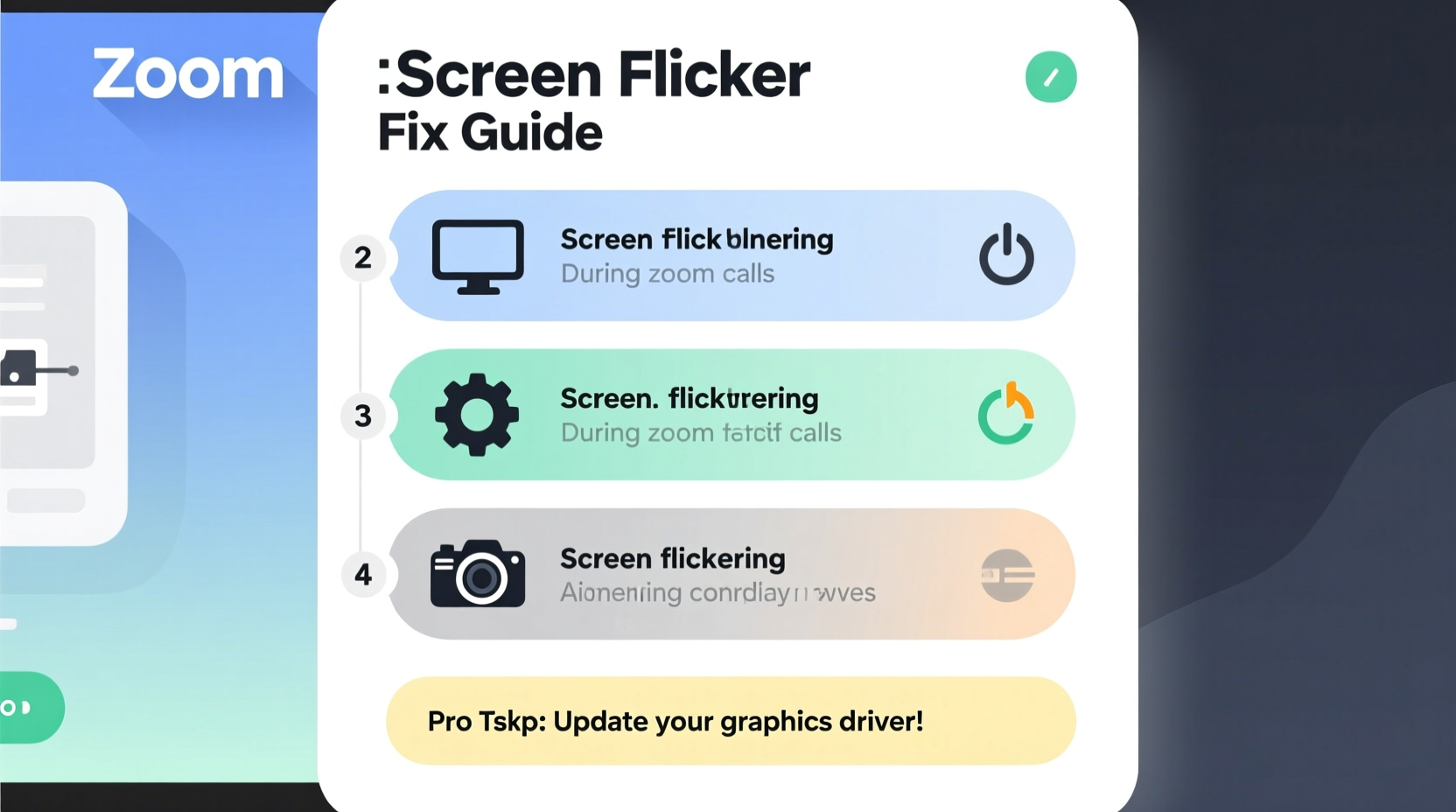
Screen flickering isn't inherently caused by Zoom itself but rather by how your system interacts with the application under specific conditions. Zoom demands real-time processing of video input, screen sharing, and rendering—tasks that place significant load on your GPU, CPU, and display subsystems. When any part of this chain struggles, visual artifacts like flickering can appear.
Common triggers include:
- Graphics driver incompatibility or corruption – Outdated or buggy drivers fail to render video smoothly.
- Refresh rate mismatches – Your monitor’s refresh rate may conflict with video frame rates used in Zoom.
- Poor lighting conditions – Fluorescent or LED lights operating at certain frequencies can create visible pulsing when captured by cameras.
- Hardware acceleration conflicts – Zoom uses hardware decoding to improve performance, but this can backfire on older or unstable GPUs.
- Display cable issues – Loose or damaged HDMI, DisplayPort, or USB-C cables introduce signal instability.
- Operating system bugs – Updates to Windows, macOS, or Linux sometimes introduce display rendering regressions.
Flickering might affect only your shared screen, your local view, other participants’ views, or your entire desktop interface. Pinpointing where the flicker occurs helps narrow down the source.
Step-by-Step Troubleshooting Process
Resolving screen flickering requires isolating variables systematically. Follow this sequence to identify and eliminate the underlying cause.
- Reproduce the issue intentionally – Start a test meeting with yourself or a colleague and attempt to share your screen or turn on your camera. Note exactly when flickering begins.
- Check external factors first – Turn off nearby fluorescent lights, switch to natural or incandescent lighting, and ensure no direct sunlight is hitting your screen.
- Restart Zoom and your device – A simple reboot clears temporary glitches in memory and resets display drivers.
- Update Zoom to the latest version – Open Zoom > Check for Updates (on desktop) to ensure you’re running the most stable build.
- Disable hardware acceleration in Zoom – Go to Settings > Video > uncheck “Enable hardware acceleration.” Restart Zoom after changing this setting.
- Test with another video conferencing app – Try Google Meet or Microsoft Teams. If flickering persists, the issue is likely system-wide, not Zoom-specific.
- Inspect physical connections – For external monitors, unplug and reconnect display cables. Try a different cable or port if possible.
- Boot into Safe Mode (Windows) or Safe Boot (macOS) – This disables third-party drivers and extensions that could interfere with display output.
If flickering stops during any of these steps, you’ve likely identified the culprit. Re-enable settings one at a time to confirm which change resolved the issue.
Graphics Drivers and System-Level Fixes
One of the most frequent sources of flickering is outdated or malfunctioning graphics drivers. These drivers act as intermediaries between your operating system and GPU, translating rendering instructions into visual output. When they’re out of date or corrupted, timing errors can manifest as flickering, especially under high-load scenarios like screen sharing.
To address this:
- Windows users: Press Win + X, select Device Manager, expand \"Display adapters,\" right-click your GPU (e.g., NVIDIA, AMD, Intel), and choose \"Update driver.\" Alternatively, visit the manufacturer’s website (Intel Driver Support, NVIDIA GeForce Experience, or AMD Radeon Software) for the latest certified version.
- Mac users: Graphics updates come through macOS system updates. Go to Apple Menu > System Settings > General > Software Update.
- Linux users: Use your distribution’s package manager (e.g.,
sudo apt upgrade nvidia-driver-535) or check your GPU vendor’s documentation.
After updating, restart your computer and retest Zoom. If problems persist, consider rolling back to a previous driver version—sometimes new updates introduce regressions.
“Over 60% of display anomalies reported in remote work environments trace back to driver-level conflicts, particularly after OS updates.” — Dr. Lena Torres, Senior Systems Engineer at TechReliability Labs
Do’s and Don’ts: Best Practices for Stable Zoom Performance
| Do | Don’t |
|---|---|
| Use well-lit rooms with consistent, non-flickering light sources (preferably daylight-balanced LEDs or incandescent bulbs) | Hold meetings under fluorescent office lighting, especially older magnetic ballast fixtures |
| Keep your operating system and Zoom app updated | Ignore update notifications; delay patches for weeks |
| Adjust your monitor’s refresh rate to match your content (e.g., 60Hz for standard video) | Run at mismatched refresh rates (e.g., 120Hz display showing 24fps video without proper sync) |
| Disable unnecessary background apps during calls to free up GPU resources | Run multiple video editors, games, or browsers with heavy animations while on Zoom |
| Use wired internet connections for stable bandwidth | Depend on congested Wi-Fi networks with packet loss or latency spikes |
Real-World Case: Resolving Flicker in a Hybrid Office Setup
A mid-sized marketing firm in Denver recently reported widespread flickering issues among employees joining daily stand-up meetings via Zoom. The problem primarily affected those using dual-monitor setups with mixed refresh rates—one screen at 60Hz, another at 75Hz. Employees described their shared presentations as “pulsing” or “strobing,” particularly when scrolling or animating slides.
The IT team conducted a controlled test: they standardized all secondary monitors to 60Hz, disabled hardware acceleration in Zoom, and replaced aging HDMI cables with certified high-speed versions. They also adjusted office lighting, switching from 60Hz-modulated fluorescent tubes to DC-driven LED panels.
Result: flickering disappeared in 94% of cases. For the remaining few, individual GPU driver updates resolved the issue. The company now includes display compatibility checks in its onboarding checklist for new hires.
Advanced Fix: Managing Refresh Rate and Lighting Frequency Sync
An often-overlooked factor is the interaction between your camera’s frame capture rate and ambient light frequency. In regions with 60Hz AC power (like North America), fluorescent and some LED lights actually cycle 120 times per second due to rectification. Cameras capturing at 30fps or 60fps can pick up these fluctuations, causing visible banding or flicker—especially noticeable during screen sharing.
To mitigate this:
- Increase your camera’s shutter speed to reduce exposure time per frame.
- If using an external webcam, look for models with \"anti-flicker\" settings (common in Logitech and Razer devices).
- Set your camera software (or Zoom) to match the local power frequency: 60Hz in the U.S., 50Hz in Europe.
- On Windows: Open Camera Settings > Configure > find “Flicker Reduction” and set it accordingly.
For built-in laptop cameras without manual controls, the best solution is environmental: replace problematic lights or use natural daylight whenever possible.
Troubleshooting Checklist
Use this checklist to quickly resolve screen flickering during Zoom calls:
- ✅ Restart your computer and relaunch Zoom
- ✅ Ensure Zoom is updated to the latest version
- ✅ Disable hardware acceleration in Zoom settings
- ✅ Update your graphics driver
- ✅ Test with a different monitor or cable
- ✅ Switch to a non-fluorescent lighting environment
- ✅ Set camera flicker reduction to match local power frequency (50Hz/60Hz)
- ✅ Close resource-heavy background applications
- ✅ Change monitor refresh rate to 60Hz (standard)
- ✅ Boot into Safe Mode to test for software conflicts
Frequently Asked Questions
Does screen flickering damage my monitor?
No, temporary flickering during Zoom calls does not harm your display hardware. However, prolonged exposure to unstable signals or excessive brightness fluctuations may contribute to long-term wear. The bigger risk is user discomfort, including eye strain and headaches.
Why does flickering only happen when I share my screen?
This typically indicates a GPU or driver issue. Screen sharing requires real-time encoding of your desktop, which stresses the graphics processor. If hardware acceleration is enabled but your GPU lacks sufficient VRAM or has outdated drivers, flickering or tearing can occur. Try disabling hardware acceleration and lowering shared screen resolution in Zoom settings.
Can poor internet cause screen flickering?
Not directly. Low bandwidth or high latency usually results in frozen video, audio lag, or disconnections—not screen flicker. However, if your system compensates for network stress by reducing graphical fidelity or throttling processes, indirect rendering issues may arise. Ensure your connection delivers at least 2.0 Mbps upload speed for HD Zoom calls.
Final Recommendations and Prevention
Screen flickering on Zoom calls is rarely due to a single point of failure. More often, it's the result of overlapping inefficiencies—outdated drivers, suboptimal lighting, mismatched refresh rates, or aggressive power management. The key to resolution lies in systematic elimination of variables.
Maintain a proactive maintenance routine: update drivers monthly, audit your workspace lighting, and periodically test your setup using Zoom’s built-in test meeting feature. Educate team members on basic display hygiene, especially in hybrid work environments where equipment varies widely.
Technology should enable seamless communication, not hinder it. By addressing flickering now, you’re not just fixing a visual glitch—you’re improving focus, professionalism, and digital comfort for everyone on the call.




 浙公网安备
33010002000092号
浙公网安备
33010002000092号 浙B2-20120091-4
Comments
No comments yet. Why don't you start the discussion?