
Screen flickering during charging is more than just a visual annoyance—it can strain your eyes, disrupt productivity, and signal deeper hardware or software issues. While occasional flickering might seem harmless, persistent behavior suggests an underlying problem that shouldn’t be ignored. The good news: in most cases, this issue is fixable without replacing your device. Understanding the root causes—from power fluctuations to faulty accessories—empowers you to take control and restore smooth performance.
Understanding the Root Causes of Screen Flickering
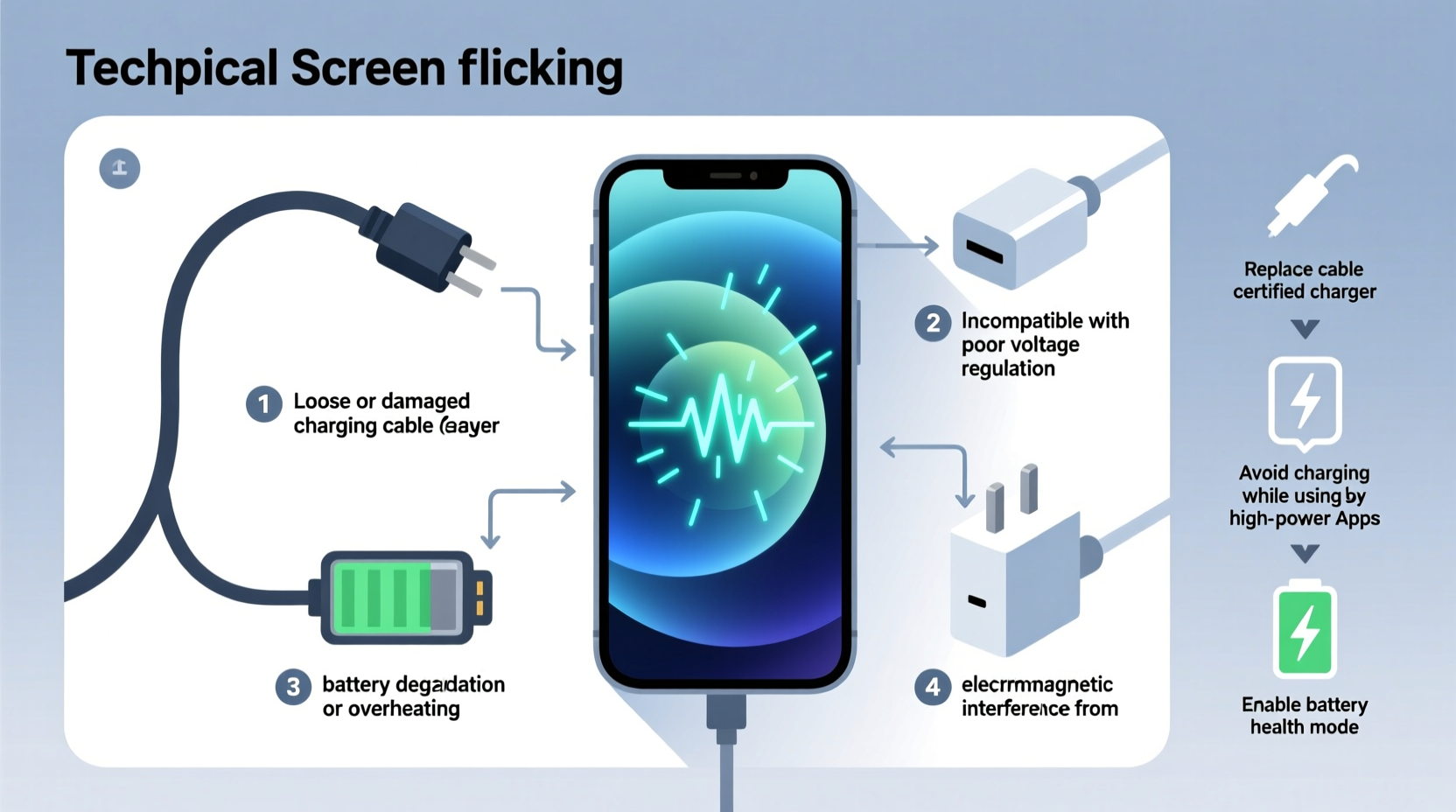
Modern smartphones are precision-engineered devices, but they're sensitive to electrical inconsistencies. When you plug in your phone, the flow of electricity doesn't always remain stable. This instability can interfere with the display driver, causing visible flickering on the screen. Several interrelated factors contribute:
- Electromagnetic Interference (EMI): Low-quality chargers or cables emit electromagnetic noise that interferes with the phone’s internal circuitry, particularly near the display assembly.
- Voltage Fluctuations: Inconsistent power delivery—especially from damaged or non-certified chargers—can confuse the phone’s power management system.
- Software Glitches: Operating system bugs, especially after updates, may cause temporary conflicts between touch input handling and display refresh rates.
- Battery Health Degradation: As batteries age, their ability to regulate incoming charge diminishes, increasing the risk of erratic behavior including screen flicker.
- Physical Damage: Cracked screens, loose connectors, or moisture exposure can compromise display integrity, making flickering more likely under load.
It's important to distinguish between brief flickers during fast charging—which some manufacturers acknowledge as minor EMI side effects—and persistent, disruptive flickering that lasts beyond a few seconds.
Step-by-Step Guide to Diagnose and Fix the Issue
Resolving screen flickering requires a methodical approach. Jumping straight to factory resets or repairs could waste time if simpler fixes exist. Follow these steps in order to isolate and eliminate the cause.
- Unplug and Observe: Disconnect the charger. Does the flickering stop immediately? If yes, the issue is related to charging. If not, the problem may be software or hardware unrelated to power.
- Switch Charging Accessories: Replace your current charger and cable with a known high-quality, manufacturer-recommended set. Avoid third-party fast chargers unless certified (e.g., MFi for Apple, USB-IF certified for Android).
- Try a Different Power Source: Plug into another wall outlet, avoiding extension cords or power strips. Some outlets deliver unstable voltage, especially in older buildings.
- Charge in Safe Mode (Android) or DFU Mode (iOS): Boot your phone in minimal software mode to rule out app interference. On Android, hold the power button, long-press “Power off,” then select “Safe Mode.” On iPhone, use recovery mode via iTunes/Finder to test charging without active apps.
- Inspect the Charging Port: Use a flashlight to check for lint, corrosion, or bent pins. A clogged port can create intermittent connections, leading to erratic charging behavior.
- Update Your OS: Install any pending system updates. Manufacturers often release patches addressing display and power management bugs.
- Reset Display Settings: Disable features like auto-brightness, dark mode, or adaptive refresh rate temporarily to see if flickering stops.
- Test Wireless Charging: If your phone supports it, try wireless charging. If flickering disappears, the issue lies in the USB-C/Lightning circuit or cable negotiation.
If none of these steps resolve the flickering, consider professional diagnostics. Persistent issues after eliminating external variables suggest internal component failure.
Do’s and Don’ts: Charging Habits That Affect Display Stability
Your daily charging habits play a significant role in long-term device health. Even small choices—like where you charge or what accessories you use—can influence screen stability.
| Do’s | Don’ts |
|---|---|
| Use original or certified charging equipment | Use cheap, unbranded chargers from unknown vendors |
| Charge in cool, dry environments | Charge under pillows or on heated surfaces |
| Keep the charging port clean | Force a cable into a misaligned port |
| Enable battery optimization settings | Leave the phone charging overnight regularly |
| Unplug if you notice heat buildup | Ignore warning signs like buzzing sounds or burning smells |
Over time, poor practices accelerate wear on both the battery and power regulation circuits, increasing the likelihood of display anomalies during charging cycles.
Real Example: How One User Fixed Persistent Flickering
Sarah, a freelance designer from Portland, began noticing her Samsung Galaxy S22 screen flickering every time she plugged in at her desk. At first, she assumed it was a software bug after an update. She tried restarting, disabling dark mode, and even clearing cache partitions—but the flicker returned each time she connected the charger.
Frustrated, she posted in a tech forum where another user suggested testing with a different cable. She borrowed her partner’s official Samsung charger and found the flickering vanished instantly. Upon closer inspection, her old cable had frayed insulation near the connector—a common source of EMI. Replacing the cable solved the issue permanently.
This case illustrates how easily a $10 accessory can mimic serious hardware failure. It also underscores the importance of systematic troubleshooting before assuming the worst.
Expert Insight: What Engineers Say About Power and Display Interaction
“Display flicker during charging is often a symptom of poor power signal integrity. Non-compliant chargers don’t filter electrical noise properly, which couples into nearby high-speed data lines like those driving the OLED panel.” — Dr. Alan Zhou, Electrical Engineer at Mobile Systems Lab, UC Berkeley
Dr. Zhou explains that modern phones pack tightly integrated components. The charging circuit runs close to the display driver IC, creating potential for cross-talk when low-quality power enters the system. High-end phones include shielding and filtering to reduce this risk, but even they aren’t immune to extreme cases of dirty power.
He emphasizes that while firmware updates can mitigate some effects, physical design and component quality remain the strongest defenses against flickering.
Checklist: How to Prevent Future Screen Flickering
Prevention is far easier than repair. Use this checklist to maintain a stable, flicker-free experience over the life of your device.
- ✅ Always use manufacturer-approved or certified charging accessories
- ✅ Inspect cables monthly for wear and tear
- ✅ Clean the charging port gently every 2–3 months with a dry brush
- ✅ Avoid charging in hot environments (e.g., direct sunlight, car dashboards)
- ✅ Enable adaptive charging or optimized battery charging features
- ✅ Monitor battery health through built-in tools (iOS Battery Health, Android AccuBattery)
- ✅ Replace the battery when health drops below 80% capacity
- ✅ Keep your operating system updated
Following these habits not only reduces flickering risk but also extends overall device lifespan and performance consistency.
When to Seek Professional Repair
Despite best efforts, some issues require expert intervention. Consider professional service if:
- The screen flickers even when not charging.
- Flickering is accompanied by touch unresponsiveness (“ghost touching” or missed inputs).
- You see discoloration, lines, or dead pixels appearing alongside flicker.
- The phone overheats significantly during charging.
- Battery swells or fails to hold charge beyond a few hours.
In such cases, internal faults—such as a failing display connector, damaged logic board capacitor, or degraded power management IC—may be responsible. Authorized service centers have diagnostic tools to pinpoint these issues without guesswork.
For example, iPhones affected by “Error 56” during charging often exhibit flickering due to PMIC malfunction—a known issue requiring micro-soldering repair. Similarly, Android devices with water damage may develop corrosion on the display flex cable, necessitating replacement.
Frequently Asked Questions
Can a screen protector cause flickering when charging?
No, screen protectors do not cause electrical interference that leads to flickering. However, poorly applied protectors can create optical illusions—especially with AMOLED screens—that resemble flicker under certain lighting. Remove the protector temporarily to test.
Does fast charging increase the risk of screen flicker?
Potentially, yes. Fast charging increases current flow and heat generation, which can amplify electromagnetic interference if using substandard accessories. High-quality fast chargers include noise suppression, but budget models often skip these components. Stick to certified fast-charging kits to minimize risk.
Is screen flickering dangerous?
While not immediately hazardous, persistent flickering can indicate unsafe electrical conditions. In rare cases, faulty chargers have led to fires or component burns. If you detect unusual heat, smell, or sparks, stop using the charger immediately and dispose of it safely.
Final Thoughts: Take Control of Your Charging Experience
Screen flickering when charging isn’t something you should simply tolerate. It’s a warning sign—one that could point to a minor fix or a developing hazard. By understanding the connection between power delivery and display performance, you gain the upper hand in maintaining your device’s reliability and safety.
Start today: unplug, inspect your gear, and test with a trusted charger. More often than not, the solution is simpler than expected. And if the problem persists, now you know exactly what questions to ask and which steps to take next.




 浙公网安备
33010002000092号
浙公网安备
33010002000092号 浙B2-20120091-4
Comments
No comments yet. Why don't you start the discussion?