
Smart bulbs promise convenience, automation, and energy efficiency—until they suddenly vanish from your app. One moment you're adjusting the color temperature before bed; the next, the bulb shows as \"offline\" with no explanation. This kind of intermittent disconnection is one of the most common frustrations among smart home users. While it may seem like a flaw in the device itself, the root causes are often environmental, network-related, or configuration-based. The good news? Most issues are fixable with targeted troubleshooting. Understanding why your smart bulb drops connection—and how to stabilize it—can save time, reduce frustration, and get your lighting system working reliably again.
Understanding Smart Bulb Connectivity
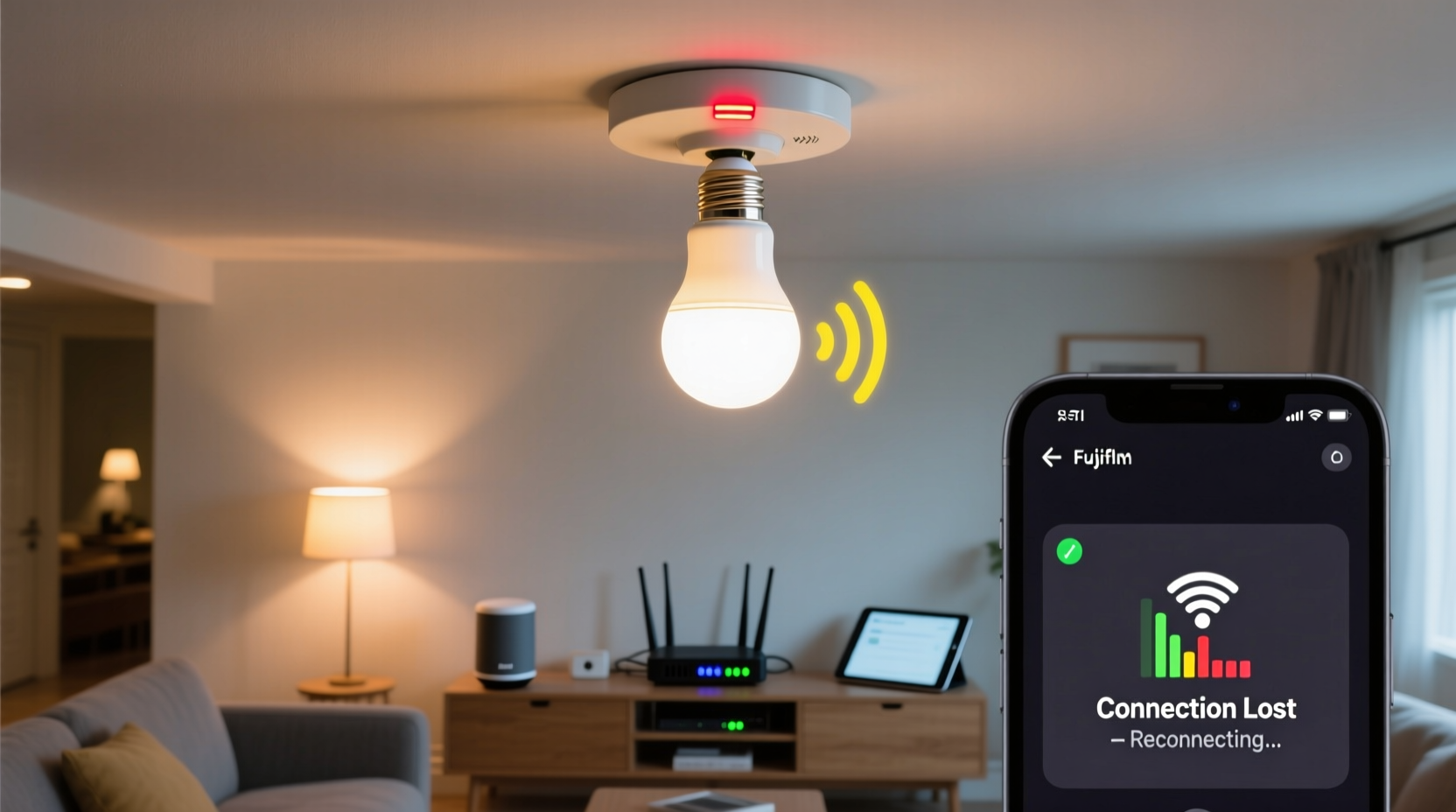
Smart bulbs connect to your home network using either Wi-Fi, Bluetooth, or a dedicated hub-based protocol like Zigbee or Z-Wave. Each method has its strengths and weaknesses:
- Wi-Fi bulbs connect directly to your router but can strain bandwidth if multiple devices are online.
- Bluetooth bulbs offer low latency but have limited range—usually confined to one room.
- Zigbee/Z-Wave bulbs rely on a central hub (like Philips Hue Bridge or Samsung SmartThings) and are more stable over time due to mesh networking.
When a bulb disconnects, it's typically because communication between the bulb, your network, and the app has been interrupted. This could stem from signal interference, power fluctuations, outdated firmware, or router limitations. Identifying which part of the chain is failing is the first step toward resolution.
Common Causes of Disconnection and How to Diagnose Them
Before diving into fixes, it’s important to isolate the cause. Here are the most frequent culprits behind unstable smart bulb connections:
1. Weak Wi-Fi Signal
Distance from the router, thick walls, or large metal objects can block signals. A bulb located at the far end of the house may struggle to maintain a steady link.
2. Network Congestion
Too many connected devices—especially high-bandwidth ones like streaming TVs or gaming consoles—can overwhelm your router, leading to dropped packets and unresponsive bulbs.
3. Power Cycling Issues
Turning a smart bulb off at the switch cuts power, resetting its internal state. Some bulbs reconnect automatically; others don’t, especially after prolonged outages.
4. Outdated Firmware
Manufacturers release updates to improve stability and security. If your bulb or app hasn’t updated in months, bugs may be causing disconnections.
5. Router Settings Conflicts
Features like AP Isolation, MAC filtering, or aggressive DHCP lease times can prevent smart devices from maintaining persistent connections.
6. Interference from Other Devices
Microwaves, cordless phones, baby monitors, and even neighboring Wi-Fi networks operate on the 2.4 GHz band and can interfere with smart bulb signals.
“Many users assume their smart bulb is faulty when the real issue lies in network architecture. Signal strength and router configuration matter more than people realize.” — Rajiv Mehta, IoT Network Engineer at HomeGrid Labs
Step-by-Step Guide to Fix Smart Bulb Disconnections
Follow this structured approach to identify and resolve the underlying problem. Start with basic checks and progress to advanced configurations.
- Check Physical Placement: Move the bulb closer to the router temporarily. If connectivity improves, signal range is likely the issue.
- Verify Power Supply: Ensure the fixture provides consistent power. Avoid switches that cut electricity completely unless using a compatible dimmer or smart switch designed for smart bulbs.
- Restart the Bulb and Hub (if applicable): Turn the light off for 10 seconds, then back on. For hub-based systems, reboot the bridge device.
- Reboot Your Router: Unplug your router for 30 seconds, then plug it back in. Wait for all lights to stabilize before testing the bulb.
- Update Firmware: Open your smart lighting app and check for available updates under device settings. Also update your router firmware via its admin panel.
- Change Wi-Fi Channel: Log into your router settings and switch from auto-channel selection to a less congested 2.4 GHz channel (e.g., 1, 6, or 11).
- Disable Conflicting Features: Turn off AP Isolation, Client Isolation, or any firewall rules blocking local device communication.
- Assign a Static IP Address: In your router’s DHCP settings, reserve an IP address for the bulb’s MAC address to prevent IP conflicts.
- Reduce Device Load: Disconnect non-essential devices or consider upgrading to a dual-band or tri-band router with better traffic management.
- Factory Reset the Bulb: As a last resort, reset the bulb through the app or by rapidly toggling the switch seven times (varies by brand), then re-pair it.
Tips and Best Practices for Long-Term Stability
Sustained performance requires proactive maintenance. Implement these strategies to minimize future disruptions.
Use a Mesh Network System
If your home has dead zones, deploy a mesh Wi-Fi system such as Google Nest Wifi, Eero, or TP-Link Deco. These extend coverage seamlessly and support seamless roaming for smart devices.
Invest in a Dedicated Hub
Zigbee and Z-Wave hubs create private networks separate from Wi-Fi. They’re less prone to interference and allow dozens of devices to communicate efficiently through mesh topology.
Avoid Overloading Light Switches
Never turn off smart bulbs at the wall switch unless absolutely necessary. Doing so breaks the connection loop. Instead, control brightness and on/off states through the app or voice assistant.
Group Bulbs Strategically
In apps like Philips Hue or LIFX, group bulbs by room rather than function. This reduces command load and makes automation rules easier to manage.
Monitor Network Health Regularly
Set calendar reminders every three months to review router logs, check for firmware updates, and test bulb responsiveness across different times of day.
| Issue | Do | Don't |
|---|---|---|
| Weak Signal | Install a Wi-Fi extender or mesh node nearby | Place bulb behind mirrors or inside enclosed fixtures |
| Firmware Issues | Enable automatic updates in app settings | Ignore update notifications for weeks |
| Power Interruptions | Use smart plugs to cycle power remotely | Flip physical switch daily |
| Network Congestion | Upgrade to a modern router with QoS support | Connect 50+ devices without monitoring usage |
Real-World Example: Resolving Persistent Disconnections in a Multi-Floor Home
Sarah, a homeowner in Portland, installed ten Wi-Fi smart bulbs across her two-story house. Within days, she noticed that bulbs upstairs frequently went offline during evening hours. Her initial assumption was a hardware defect. She contacted customer support, who suggested replacing two bulbs—but the issue returned.
After reading about Wi-Fi channel overlap, Sarah downloaded a network scanner app and discovered her neighbor’s network was broadcasting strongly on channel 6, the same her router used. She logged into her router and switched to channel 1, which had minimal traffic. She also relocated her router from a basement closet to a central hallway shelf. Combined, these changes improved signal penetration upstairs. To further stabilize connections, she upgraded to a mesh system with nodes on each floor. All bulbs now remain consistently online, even during peak usage times.
This case illustrates how environmental factors—not device quality—are often responsible for instability.
Essential Checklist for Stable Smart Bulb Performance
Keep this checklist handy whenever setting up new bulbs or troubleshooting existing ones:
- ✅ Confirm bulb is on 2.4 GHz network (not 5 GHz)
- ✅ Test signal strength near bulb location
- ✅ Disable AP/Client Isolation in router settings
- ✅ Update bulb firmware and mobile app
- ✅ Assign static IP or DHCP reservation
- ✅ Avoid turning bulb off at switch
- ✅ Reboot router monthly
- ✅ Limit total connected devices per access point
- ✅ Use a hub for large installations (6+ bulbs)
- ✅ Monitor performance weekly for first month
Frequently Asked Questions
Why does my smart bulb work for a few hours and then disconnect?
This pattern often points to a DHCP lease timeout. Routers assign temporary IP addresses that expire. If the bulb fails to renew its lease properly, it loses connection. Solution: Assign a static IP or shorten the DHCP renewal interval.
Can electrical wiring affect smart bulb connectivity?
Yes. Poor grounding, voltage fluctuations, or shared circuits with high-draw appliances (like refrigerators) can cause micro-outages that reset bulbs. Consider installing a line conditioner or consulting an electrician if flickering coincides with disconnections.
Is it better to use Wi-Fi or a hub-based system for multiple bulbs?
For five or more bulbs, a hub-based system (Zigbee/Z-Wave) is generally more reliable. It reduces Wi-Fi congestion, supports mesh networking, and offers faster response times. Wi-Fi works well for small setups but scales poorly.
Final Recommendations and Moving Forward
Smart bulbs should enhance your living space—not become a source of frustration. Most disconnection issues aren’t inherent flaws but symptoms of mismatched expectations and suboptimal setup conditions. By treating your smart lighting system as part of a larger network ecosystem, you gain greater control and reliability.
Start with simple diagnostics: verify signal strength, eliminate interference, and ensure consistent power. Then move to deeper optimizations like firmware updates and router configuration. For long-term peace of mind, consider transitioning to a hub-based platform as your smart home grows.
The technology exists to deliver seamless, responsive lighting. With careful planning and regular maintenance, your smart bulbs can perform flawlessly night after night.




 浙公网安备
33010002000092号
浙公网安备
33010002000092号 浙B2-20120091-4
Comments
No comments yet. Why don't you start the discussion?