
Smart Christmas lights promise a seamless, colorful holiday experience—remote control, synchronized music modes, customizable effects, and voice integration. But when the app controlling them crashes repeatedly, the magic fades fast. Instead of festive cheer, you're left tapping a frozen screen or restarting your phone for the fifth time. You’re not alone. Thousands of users report instability with smart lighting apps each season. The good news? Most issues are fixable with targeted troubleshooting.
This guide dives into the most common causes behind app crashes—from software conflicts to network strain—and provides actionable solutions that go beyond generic “restart it” advice. Whether you're using Philips Hue, Govee, Twinkly, or a budget-friendly brand from Amazon, these strategies apply across platforms and devices.
Understanding Why Smart Lighting Apps Crash
Smart lighting systems rely on a complex chain: your lights connect via Wi-Fi, Bluetooth, or a proprietary hub; the app communicates with the cloud or local network; and your smartphone must maintain stable processing power to render controls and animations. Any break in this chain can trigger a crash.
Common culprits include:
- Outdated app versions – Developers frequently patch bugs, but many users don’t auto-update.
- Network congestion – Holiday homes often overload Wi-Fi with multiple smart devices, streaming, and guests.
- Incompatible OS updates – A recent iOS or Android update may conflict with older app builds.
- Memory overload on mobile devices – Low RAM or storage can prevent apps from running smoothly.
- Firmware mismatches – Lights may run outdated firmware that doesn’t sync with the latest app version.
Unlike standalone apps, smart home tools depend on real-time communication. Even a 500-millisecond delay can cause timeouts, freezes, or abrupt closures. This interdependence makes stability harder to maintain than typical mobile apps.
Step-by-Step Troubleshooting Guide
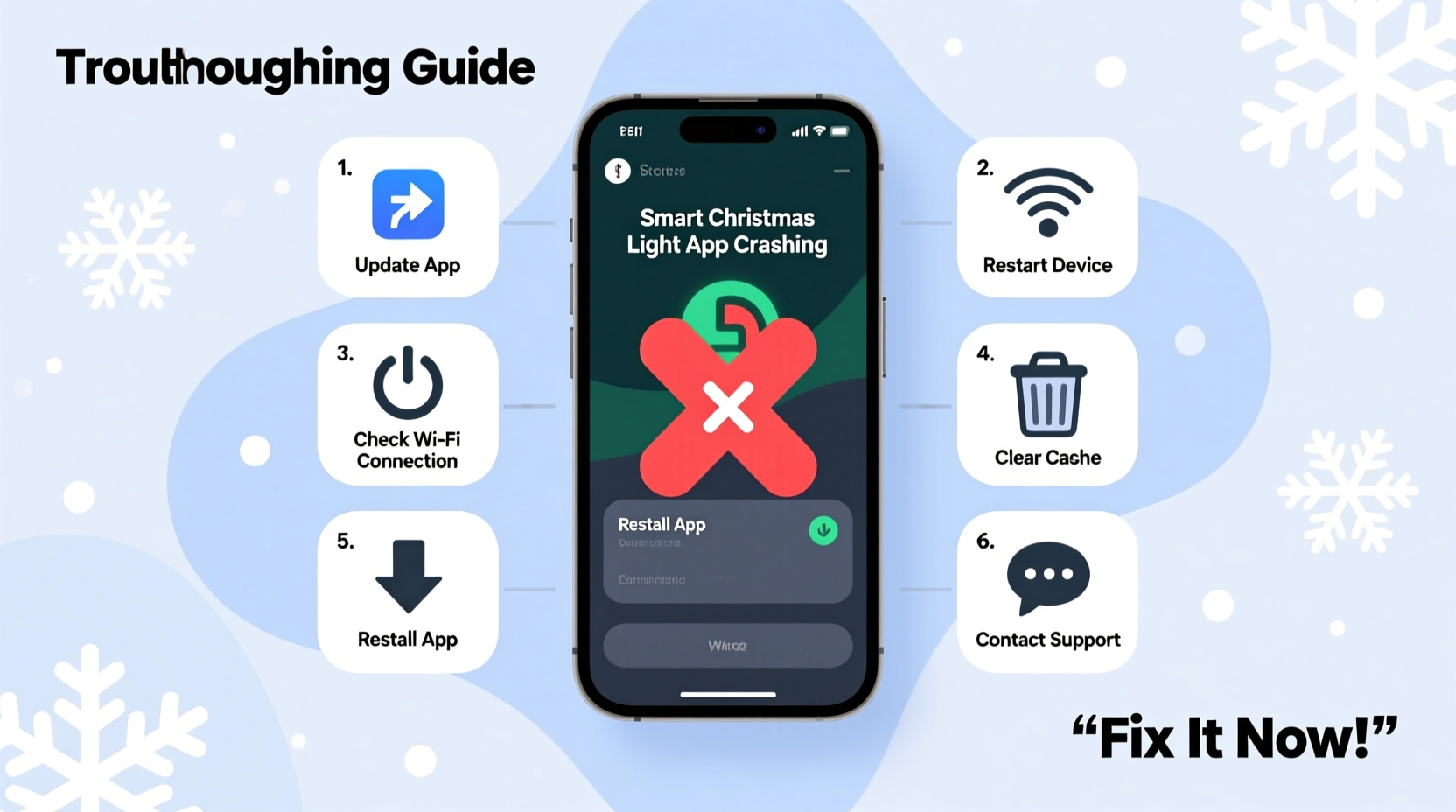
Follow this sequence to isolate and resolve the root cause. Many users skip early steps, assuming their setup is fine—but consistency matters.
- Force-close and restart the app
Swipe it away from recent apps and reopen. This clears temporary memory glitches. - Restart your smartphone
A full reboot resets network stacks and clears corrupted processes. - Check for app updates
Visit your device’s app store and search for the lighting app. Install any available update. - Verify router connectivity
Ensure your phone shows full Wi-Fi bars. Test by loading a website. - Reboot your router and hub (if applicable)
Unplug both for 30 seconds, then power them back on. Wait two minutes before reconnecting. - Forget and re-pair Bluetooth devices
If using Bluetooth lights (e.g., Govee strips), go to phone settings, forget the device, and pair again. - Test on another smartphone
Borrow a family member’s phone. If the app works there, the issue is device-specific. - Reset app preferences (Android) or offload app (iOS)
On Android: Settings > Apps > Reset App Preferences. On iPhone: Offload the app (Settings > General > iPhone Storage), then reinstall.
This process addresses 80% of reported crashes. If problems persist, dig deeper into firmware, interference, or account-level errors.
Do’s and Don’ts: Managing Your Smart Light Network
Mistakes in setup or maintenance often lead to instability. Use this table to avoid common pitfalls.
| Do | Don’t |
|---|---|
| Keep your app updated monthly during the season. | Ignore update notifications—especially after OS upgrades. |
| Use a dedicated 2.4 GHz Wi-Fi band for smart devices. | Run smart lights on a congested 5 GHz network with streaming traffic. |
| Limit the number of simultaneous connected devices per app. | Connect 50+ light segments without checking manufacturer limits. |
| Label physical hubs and circuits to identify faulty units quickly. | Mix different brands on the same circuit without surge protection. |
| Back up custom scenes and schedules outside the app (e.g., notes). | Assume saved settings will survive an app reset or phone change. |
Mini Case Study: The Overloaded Living Room Setup
Jamie installed 12 Govee LED strips around her living room, TV frame, staircase, and porch—all controlled through one app. By mid-December, the app began freezing whenever she tried to activate “Party Mode.” Restarting didn’t help. She assumed the app was broken and considered switching brands.
After testing each segment individually, she discovered the porch lights—exposed to cold and moisture—were sending erratic signals, forcing the app to retry connections repeatedly. This caused memory leaks on her three-year-old iPhone.
The fix? Jamie disconnected the porch strip, updated its firmware via a temporary indoor connection, added a weatherproof enclosure, and rejoined it. She also created two separate groups in the app: “Indoor Lights” and “Outdoor Lights,” reducing processing load during scene changes.
Since then, the app has remained stable. Her experience highlights how environmental stress and poor grouping can silently degrade performance.
Firmware and Cloud Sync: Hidden Factors
Most users focus on the app, but firmware—the software inside the lights or hub—is equally important. Outdated firmware may lack compatibility with new app features or security protocols, leading to handshake failures and crashes.
To check firmware:
- Open your lighting app and navigate to device settings.
- Look for “Device Info,” “About,” or “System Status.”
- If a firmware update is available, follow prompts to install it. Ensure the lights remain powered and within range during the process.
Cloud dependency is another hidden factor. Some apps (like Philips Hue) require internet access even for local control. If your ISP has intermittent outages, the app may hang while waiting for a server response. Consider enabling local control mode if supported—Twinkly and newer Govee models offer this.
“App crashes in smart lighting are rarely random. They’re symptoms of mismatched components—old firmware talking to new code, or overloaded networks failing under real-time demands.” — Marcus Lin, IoT Systems Engineer at SmartHome Labs
Checklist: Prevent Future Crashes
Use this checklist annually before decorating. It takes less than 20 minutes and prevents most recurring issues.
- ✅ Update all smart lighting apps on primary and backup devices
- ✅ Confirm smartphone OS is current (iOS 17+, Android 12+ recommended)
- ✅ Reboot router and any central hubs (e.g., Hue Bridge)
- ✅ Check for pending firmware updates on each light group
- ✅ Test app stability with basic on/off commands
- ✅ Create manual backups of favorite color schemes and timers
- ✅ Limit active connected devices to manufacturer-recommended levels
- ✅ Designate a secondary control method (e.g., physical switch or voice assistant)
Frequently Asked Questions
Can too many smart lights overload my Wi-Fi?
Yes. While individual lights use minimal bandwidth, grouped commands and real-time syncing create burst traffic. If you have over 20 smart devices—including lights, cameras, and speakers—consider upgrading your router or using a mesh system. Also, assign smart devices to a guest network to reduce main network load.
Why does the app crash only when I use voice commands?
Voice assistants like Alexa or Google Home send indirect commands through the cloud. If the app isn’t properly linked or token authentication expires, the request fails silently, causing the app to freeze when syncing status. Re-link your account in the app’s integration settings to resolve this.
Is it safe to use third-party apps with branded lights?
Proceed with caution. While apps like “Blynk” or “Tasker” offer advanced automation, they aren’t officially supported. Using them may void warranties or introduce instability due to unsupported API calls. Stick to manufacturer apps for core control, and use third-party tools only for non-critical triggers.
Optimizing Device Performance for Long-Term Stability
Your smartphone plays a critical role. Even powerful devices struggle when running multiple background services. To optimize:
- Clear cached data: Go to Settings > Apps > [Lighting App] > Clear Cache.
- Free up storage: Apps perform poorly when internal storage is below 10% capacity.
- Disable battery saver for the lighting app: Aggressive power management can throttle background processes.
- Turn off “Low Data Mode” (iOS) or “Data Saver” (Android) when using the app.
For households with older phones used solely for light control, consider dedicating an inexpensive tablet. Load only essential apps, disable notifications, and mount it near an entryway as a permanent controller.
When to Contact Support or Replace the System
If you’ve followed every step and still face crashes, it may be hardware-related. Persistent issues could stem from:
- Damaged control hubs with failing processors
- Corroded outdoor light connectors affecting signal integrity
- Manufacturing defects in low-cost, no-name brands
Contact the manufacturer with details: app version, phone model, error messages (if any), and steps already taken. Reputable brands like Nanoleaf or LIFX often provide remote diagnostics or replacement units under warranty.
If support fails to resolve the issue, consider migrating to a more stable ecosystem. Look for systems with strong local control, open APIs, and positive long-term user reviews—not just flashy marketing.
Conclusion: Take Control of Your Holiday Lighting Experience
A crashing app shouldn’t dim your holiday spirit. With systematic troubleshooting, preventive maintenance, and awareness of technical dependencies, you can restore smooth operation and enjoy the full potential of your smart lights. The key is not just fixing the symptom but understanding the ecosystem—your phone, network, firmware, and environment all play a role.
Start with small adjustments: update the app, reboot your router, test on another device. Then build habits like seasonal firmware checks and configuration backups. These small efforts ensure years of reliable, vibrant displays.




 浙公网安备
33010002000092号
浙公网安备
33010002000092号 浙B2-20120091-4
Comments
No comments yet. Why don't you start the discussion?