
As the holiday season approaches, many homeowners turn to smart lighting systems to create dazzling displays with minimal effort. With just a few taps on a smartphone, you can synchronize lights to music, schedule color shifts, or program intricate patterns across dozens of bulbs. However, users often notice a significant drop in their phone’s battery life when using smart light apps during this time—especially while configuring holiday scenes. This isn’t random; it's rooted in how these apps operate under high-demand conditions. Understanding the technical dynamics behind this drain empowers you to enjoy festive automation without sacrificing device performance.
The Hidden Cost of Smart Lighting Control
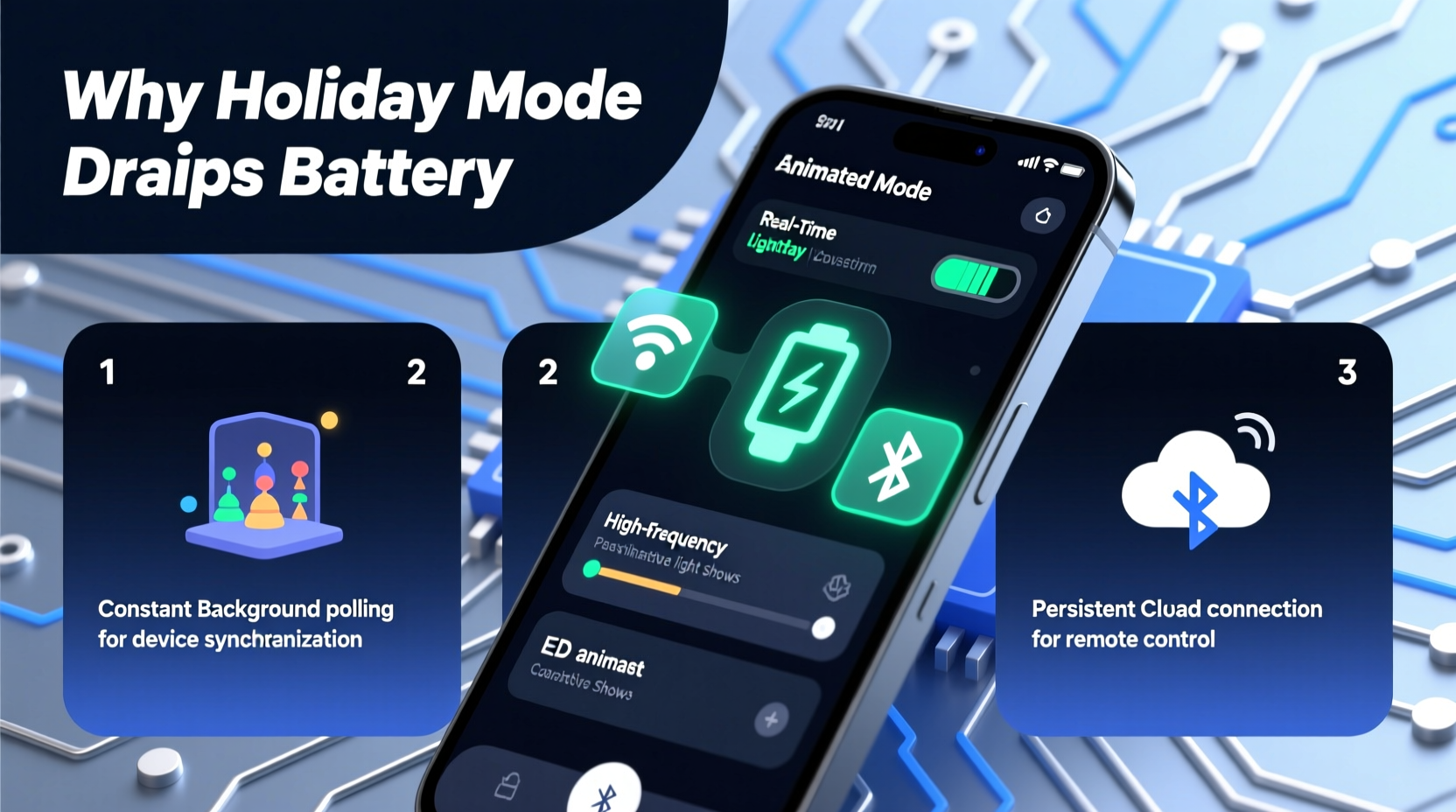
Smart lighting systems rely on wireless communication protocols such as Wi-Fi, Bluetooth, or Zigbee to transmit commands from your phone to individual bulbs or hubs. During regular use, interactions are brief: turning lights on/off or adjusting brightness requires minimal data exchange. But during holiday setup mode—when you're designing complex sequences, syncing animations, or testing multi-zone effects—the app enters a state of continuous activity.
In this mode, your phone becomes a command center that sends frequent updates to multiple devices. The app constantly polls device status, renders preview animations, maintains real-time connections, and processes user input. Each of these functions consumes CPU cycles, network bandwidth, and display resources—all of which contribute to accelerated battery depletion.
Moreover, most smart lighting apps lack aggressive power-saving optimizations because they assume short-term usage. When extended over hours during seasonal decoration planning, even modest background processes accumulate into substantial energy draw.
How Holiday Setup Mode Increases App Workload
Holiday lighting setups differ drastically from everyday use. Instead of static colors or simple dimming, users engage with advanced features like:
- Real-time animation previews
- Music synchronization (FFT processing)
- Multi-group coordination (e.g., roof, tree, porch)
- Custom timing curves and transition effects
- Firmware checks for all connected devices
Each feature demands more from both the app and your phone’s hardware. For example, rendering a live preview of pulsing rainbow waves across 50 bulbs requires the app to simulate timing, color values, and spatial layout—all while maintaining a stable connection. This simulation runs continuously on your phone’s GPU and CPU, even if no actual lights are changing yet.
Additionally, music sync modes often perform Fast Fourier Transforms (FFT) locally to analyze audio input and match beat intensity to light behavior. These calculations are computationally heavy and typically run in real time, keeping the processor active at near-full capacity. Unlike cloud-based processing, which would offload work, most consumer-grade apps handle this on-device for lower latency—resulting in higher power consumption.
“During holiday configuration, smart lighting apps can increase CPU utilization by up to 70% compared to normal operation.” — Dr. Lena Torres, Mobile Systems Researcher at MIT Connectivity Lab
Wireless Communication Overhead Explained
One of the largest contributors to battery drain is persistent wireless communication. While Bluetooth Low Energy (BLE) is designed to be efficient, it still draws power when maintaining constant links. During setup, your phone may communicate with a central hub (like a Philips Hue Bridge or Google Nest Hub), which then relays instructions via Zigbee or Thread. But the initial control path—from app to hub—often uses Wi-Fi or BLE, both of which require active radio transmission.
Unlike passive listening modes, setup phases involve two-way communication: sending commands, receiving acknowledgments, checking device availability, and updating interface states. This creates a feedback loop that keeps radios active far longer than typical intermittent use.
| Communication Mode | Battery Impact (Setup Mode) | Average Power Draw |
|---|---|---|
| Wi-Fi (Direct to Hub) | High | 180–250 mW |
| Bluetooth LE | Moderate | 80–120 mW |
| Zigbee (Phone-to-Bulb Direct*) | Low-Moderate* | 60–100 mW |
| Background Idle (Normal Use) | Very Low | 5–15 mW |
*Note: Most phones don’t support direct Zigbee; relies on intermediary hub.
The table shows that even “low-power” wireless standards consume significantly more energy when engaged in continuous dialogue. Over a 30-minute setup session, this difference compounds—especially when combined with screen brightness and background app refresh.
Step-by-Step: Reducing Battery Drain During Setup
You don’t need to sacrifice creative lighting designs to preserve battery life. Follow this practical sequence to minimize strain on your phone while configuring holiday scenes:
- Use a power source: Plug your phone into a charger before starting any extended setup session. This prevents net battery loss and avoids throttling due to low charge.
- Lower screen brightness: Reduce display intensity to 50% or less. Since most interaction involves visual feedback, the screen is a major drain.
- Disable live preview after testing: Turn off real-time rendering once you’ve confirmed a pattern works. Save and exit the preview mode promptly.
- Work in short bursts: Design one scene segment at a time (e.g., front yard only), then pause for five minutes to let the system cool down.
- Pre-program scenes overnight: Schedule complex routines in advance so final adjustments aren’t made on-device during peak usage times.
- Close other apps: Free up RAM and reduce background processes competing for CPU and network access.
- Switch to airplane mode + Wi-Fi: Disable cellular data to prevent dual-radio activation. Keep only necessary connections active.
Checklist: Optimize Your Phone for Holiday Light Setup
- Charge phone to at least 80% or plug in
- Update smart lighting app to latest version
- Ensure router and hub firmware are current
- Reduce screen timeout to 30 seconds
- Turn off Bluetooth headphones or wearables temporarily
- Clear app cache (Settings > Apps > [App Name] > Storage > Clear Cache)
- Select a single project zone (e.g., “Porch Lights”) to avoid overload
Real Example: A Homeowner’s Holiday Setup Struggle
Mark, a homeowner in Denver, spent three evenings setting up his Christmas display using a popular smart bulb brand. He noticed his iPhone battery dropped from 100% to 28% within 45 minutes each night—even though he wasn’t using other apps. After consulting online forums, he realized the issue stemmed from running long music-sync sequences in live preview mode with maximum screen brightness.
On the fourth night, Mark changed his approach: he connected his phone to a wall charger, lowered brightness, disabled live preview after initial testing, and built scenes in 15-minute intervals. His battery remained stable throughout the session, and his phone didn’t overheat. By making small behavioral changes, he achieved the same creative results without compromising device performance.
Do’s and Don’ts When Using Smart Light Apps
| Do | Don’t |
|---|---|
| Set up near your Wi-Fi router for stronger signal | Try configuring lights from another floor or outside |
| Use scheduled automation instead of manual control | Keep the app open all day “just in case” |
| Test one effect at a time | Run multiple animations simultaneously |
| Save drafts frequently | Assume unsaved changes will persist after closing |
| Use tablet or larger-screen device for detailed editing | Zoom excessively on small phone screens causing redraw strain |
Frequently Asked Questions
Does turning off Bluetooth stop the battery drain?
Yes—but only if your lights don’t rely on direct BLE control. If you use a hub (like Hue or LIFX+), the hub maintains the connection independently. Turning off Bluetooth on your phone will disconnect the app until re-enabled, halting commands but also stopping unnecessary polling.
Can I set up holiday scenes without draining my phone?
Absolutely. The key is minimizing live interaction. Use pre-built templates, schedule scenes through voice assistants (e.g., “Hey Google, run ‘Winter Festival’ at 5 PM”), or configure via web dashboard if available. Many brands now offer desktop editors that offload processing from mobile devices entirely.
Will future updates fix this battery issue?
Developers are increasingly aware of power efficiency concerns. Recent app versions from companies like Nanoleaf and TP-Link Kasa include options to disable live preview, reduce animation frame rates, and batch-send commands. As machine learning improves predictive automation, we may see fewer manual configurations needed—leading to inherently lower battery impact.
Conclusion: Enjoy the Holidays Without Paying in Battery Life
Your smart lighting app doesn’t have to be a battery vampire. The spike in energy consumption during holiday setup is predictable—and manageable. By understanding the underlying causes—intensive processing, constant wireless signaling, and prolonged screen use—you can take targeted steps to reduce strain on your device. Small adjustments like plugging in your phone, limiting preview time, and working in focused sessions make a meaningful difference.
Smart home technology should enhance your life, not hinder it. With smarter habits and better preparation, you can design breathtaking holiday displays while keeping your phone powered and ready. Embrace the festive spirit efficiently, and let your creativity shine—without watching your battery percentage plummet.




 浙公网安备
33010002000092号
浙公网安备
33010002000092号 浙B2-20120091-4
Comments
No comments yet. Why don't you start the discussion?