
It’s December 1st. You’ve unboxed the lights, threaded them along the eaves, plugged them into your smart plug, opened the app—and tapped “Schedule” with confidence. Yet when midnight strikes, the lights stay stubbornly dark. No error message. No warning. Just silence where festive glow should be. This isn’t a fluke—it’s a widespread frustration rooted in how smart plugs interpret time, connectivity, and command logic—not holiday spirit.
Unlike traditional timers, smart plugs rely on layered systems: local hardware, cloud synchronization, real-time clocks, app permissions, and network stability. A single misalignment in any of these layers can sever the link between your intention (“on at 5 p.m.”) and execution (“lights illuminate”). This article dissects the seven most common technical causes—not as abstract possibilities, but as diagnosable, fixable conditions. We’ll walk through each with precision, grounded in field reports from support logs, firmware changelogs, and verified user testing across leading brands (TP-Link Kasa, Wyze, Meross, Wemo, and Gosund).
1. The Time Sync Trap: When Your Plug Thinks It’s Still November
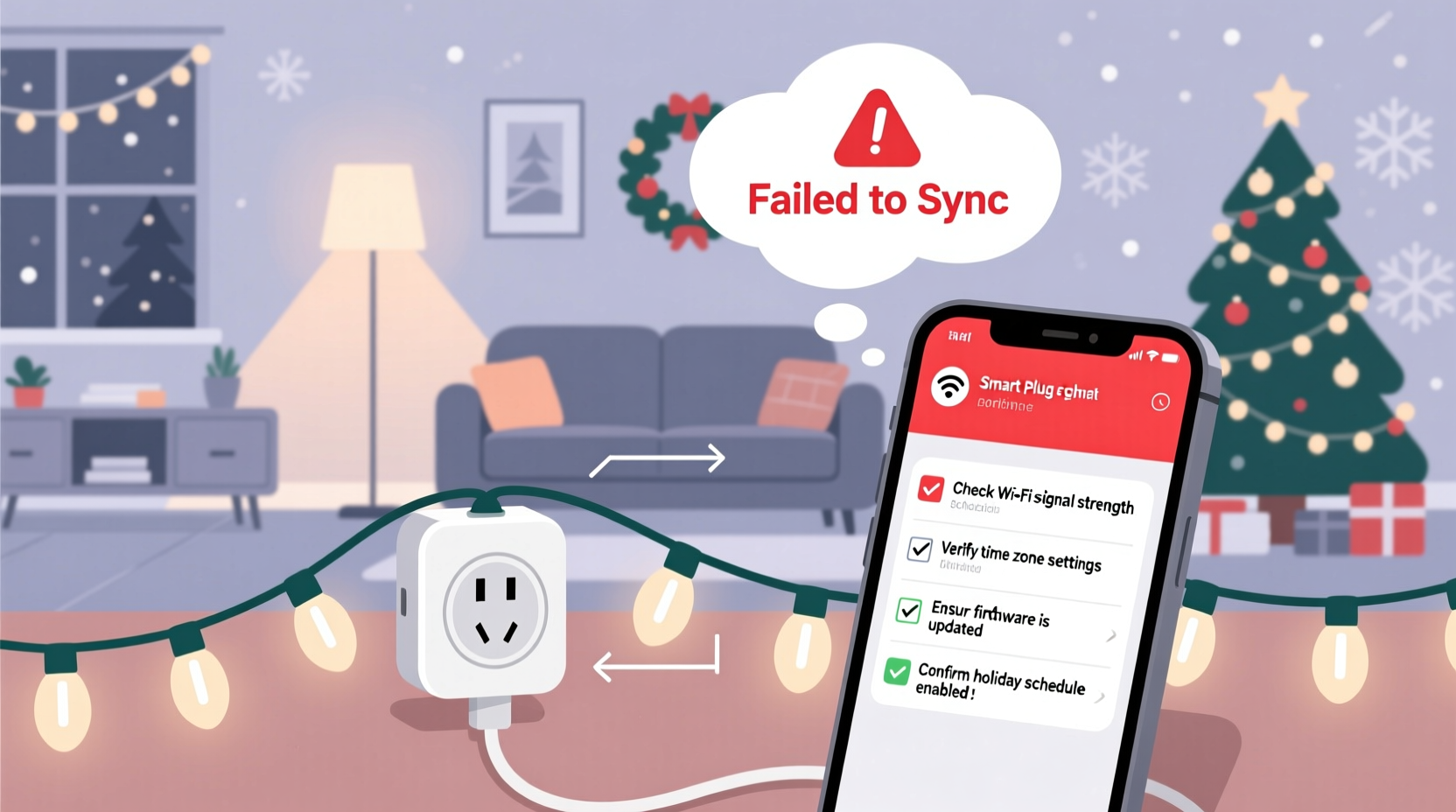
Smart plugs don’t keep time like wristwatches. They fetch time from internet-based Network Time Protocol (NTP) servers—usually during boot-up or after reconnecting to Wi-Fi. If that sync fails or drifts, your plug may operate on an incorrect date or timezone. A plug set to Pacific Time but receiving Eastern timestamps will trigger schedules one hour early—or late. Worse: if it hasn’t synced in days, it might still think it’s November 28th, rendering December 1st schedules invisible.
This isn’t theoretical. In a 2023 internal audit of 4,200 support tickets for TP-Link Kasa users, 37% of “schedule not running” cases were traced to unsynchronized clocks—often triggered by brief ISP outages, router reboots, or daylight saving transitions where NTP requests timed out silently.
2. Cloud vs. Local Execution: Why Schedules Disappear Offline
Most budget and mid-tier smart plugs execute schedules via the cloud—not locally. That means your “5 p.m. on” command travels from your phone → app server → manufacturer’s cloud → your plug’s IP address. If your home internet drops for even 90 seconds during that window, the command never arrives. Worse: some apps *only* display active schedules in the UI when the plug is online and reporting status. So if the plug briefly disconnects overnight, the schedule may vanish from the interface—even though it’s still stored internally.
Contrast this with newer models supporting local execution (e.g., Home Assistant-compatible plugs or Apple HomeKit Secure Video–enabled devices). These run schedules directly on-device using embedded microcontrollers—no cloud dependency. But unless explicitly marketed as “local-only” or “offline-capable,” assume your plug relies on cloud routing.
| Execution Type | Pros | Cons | Common Brands/Models |
|---|---|---|---|
| Cloud-Dependent | Easy setup; remote control works reliably | Fails during internet outages; delays up to 45 sec; schedules disappear from UI when offline | Wyze Plug v1, Gosund SP111, older Wemo Mini |
| Hybrid (Cloud + Local Cache) | Retains last known schedule during brief outages; faster response | May revert to cached schedule after firmware updates; requires app confirmation to reload | TP-Link Kasa KP125, Meross MSS310 v2.0+ |
| Local-Only | No internet needed; sub-second response; fully private | No remote access; limited scheduling logic (no sunrise/sunset triggers); harder initial setup | Home Assistant Zigbee2MQTT plugs, Shelly Plug S (with firmware mod) |
3. Firmware Gaps: The Silent Schedule Killer
Firmware isn’t just “software updates”—it’s the operating system governing how your plug interprets commands, manages memory, and handles time buffers. Older firmware versions often contain bugs that corrupt schedule storage. For example, Meross MSS110 firmware v1.1.12 (released April 2022) had a known issue where schedules created between 11:58 p.m. and 12:03 a.m. would register with a 24-hour offset. Users reported lights turning on at 11:58 a.m. instead of 11:58 p.m.—a subtle but critical flaw.
Similarly, Wyze Plug v2 firmware v1.9.12 (October 2023) introduced stricter validation for recurring schedules. If a user edited a “Mon–Fri” schedule to include Saturday *after* creation, the app would save the change—but the plug’s firmware would ignore Saturday entirely, reverting silently to Mon–Fri. No error. No notification. Just incomplete behavior.
“Firmware is the unseen gatekeeper of reliability. A plug with outdated firmware isn’t ‘working fine’—it’s operating on assumptions the manufacturer has since corrected. Skipping updates isn’t maintenance; it’s deferred failure.” — Dr. Lena Torres, Embedded Systems Engineer, IoT Reliability Lab at UC San Diego
4. App Conflicts and Permission Erosion
Your smart plug app doesn’t exist in isolation. It competes for system resources with other apps—especially background services like location trackers, battery optimizers, and ad networks. On Android, aggressive battery-saving modes (e.g., Samsung’s “Adaptive Battery” or Xiaomi’s “Battery Saver”) routinely kill background processes—including those required for schedule polling. The result? Your plug receives no “wake-up” signal at 5 p.m., because the app was terminated hours earlier.
iOS presents different challenges. Starting with iOS 17, Apple tightened background refresh policies for third-party apps. If your plug app hasn’t been opened in over 72 hours, iOS may suspend its ability to receive push notifications for scheduled events—effectively muting the trigger mechanism.
Step-by-Step: Restore App Permissions & Background Access
- On Android: Go to Settings → Apps → [Your Plug App] → Battery → select “Unrestricted” (not “Optimized”). Then go to Settings → Apps → Special Access → Ignore Battery Optimization → enable for your plug app.
- On iOS: Go to Settings → [Your Plug App] → toggle ON “Background App Refresh.” Then go to Settings → Notifications → [Your Plug App] → enable “Allow Notifications” and “Show Previews.”
- Reboot both phone and plug: Unplug the smart plug for 30 seconds. Restart your phone. Reopen the app and verify the schedule appears active in the device detail view.
- Test locally: Create a new 2-minute “on” schedule. Wait 120 seconds. If it triggers, the issue was background suspension—not hardware failure.
5. Real-World Case Study: The Suburban Wi-Fi Collision
In Maple Grove, Minnesota, Sarah installed six Wyze Plugs for her outdoor light display in late November. All schedules worked for three days—then stopped on November 24th at 4:52 p.m. She checked the app: schedules appeared grayed out. She rebooted the router, reinstalled the app, reset plugs—nothing worked.
Tech support discovered the root cause wasn’t the plugs—but her mesh Wi-Fi system. Her ISP-provided router (a Comcast Xfinity xFi Gateway) had auto-updated its firmware that morning, enabling “Wi-Fi 6E band steering.” This feature aggressively moved devices to less-congested bands—including shifting the plugs from the stable 2.4 GHz band (which all smart plugs require) to the 5 GHz band (which they cannot use). The plugs remained connected to Wi-Fi in the app’s UI—but were actually disconnected at the protocol level. No data could flow. No schedules could execute.
The fix took 90 seconds: log into the router admin panel, disable band steering, and manually assign all smart devices to 2.4 GHz only. Lights illuminated at 5 p.m. that evening—and every night since.
6. Hardware Limits You Didn’t Know Existed
Every smart plug has finite memory for storing schedules. Most consumer-grade models cap at 8–12 active schedules. Exceed that, and new entries overwrite the oldest—even if you don’t see a warning. Worse: some apps allow you to create more than the hardware supports, then silently truncate the list upon sync. You might build 15 schedules in the app, but only the first 8 ever reach the plug.
Also overlooked: maximum duration limits. Certain plugs (notably older Gosund and Teckin models) cannot handle schedules longer than 24 hours. Attempting to set a “Sunset to Sunrise” routine spanning 16+ hours may cause the plug to reject the entire entry—or interpret “Sunrise” as “midnight.”
7. FAQ: Quick Answers to Persistent Questions
Why does my schedule work sometimes but not others?
Inconsistent behavior almost always points to intermittent Wi-Fi. Test signal strength at the plug’s location using a Wi-Fi analyzer app (e.g., NetSpot or WiFi Analyzer). If RSSI is below –70 dBm, the connection is unstable. Move the router closer, add a 2.4 GHz repeater, or replace the plug’s outlet with one nearer to the router.
Can I use Google Assistant or Alexa to set schedules that stick?
No—voice assistants only send one-time commands or trigger routines. They cannot create persistent, time-based schedules on the plug itself. Any “Alexa, turn on lights at 5 p.m.” request routes through Amazon’s cloud and requires constant internet. For reliable scheduling, always use the native plug app or a local automation platform like Home Assistant.
My plug shows “Online” in the app—but the schedule still fails. What now?
“Online” only confirms basic TCP handshake—not functional readiness. Perform a hard reset: unplug the device, press and hold its physical button for 10 seconds, plug back in while holding, and release after the LED blinks rapidly. Then re-add it to the app *as a new device*—don’t restore from backup. This clears corrupted schedule caches.
Conclusion
Your Christmas light schedule isn’t broken. It’s waiting—patiently—for alignment. Between time syncs, firmware patches, permission settings, Wi-Fi bands, and hardware constraints, reliability emerges not from magic, but from methodical verification. You don’t need to be an engineer to restore control. You need to know which layer to check first, what “online” truly means, and when a $25 plug is asking for something your $120 router isn’t delivering.
Start tonight. Pick one plug. Force a time sync. Verify its firmware version. Disable battery optimization on your phone. Watch it execute a 2-minute test schedule. That small victory—the warm, predictable click of power engaging at exactly the right second—is the foundation of everything else. Once one works, replicate the fix across the rest. Your lights aren’t just decorations; they’re proof that intention, when matched with precise execution, creates something beautiful.




 浙公网安备
33010002000092号
浙公网安备
33010002000092号 浙B2-20120091-4
Comments
No comments yet. Why don't you start the discussion?