
If your smart thermostat seems to have a mind of its own—lowering the heat when you're home or cranking it up in the middle of the night—you’re not imagining things. Many homeowners report unexplained temperature shifts despite setting consistent preferences. The culprit? Often, it’s something called a \"ghost schedule.\" These hidden programming quirks can override your manual inputs, leading to discomfort, higher energy bills, and confusion. Understanding what ghost schedules are, how they form, and how to eliminate them is essential to getting the most out of your smart thermostat.
What Are Ghost Schedules?
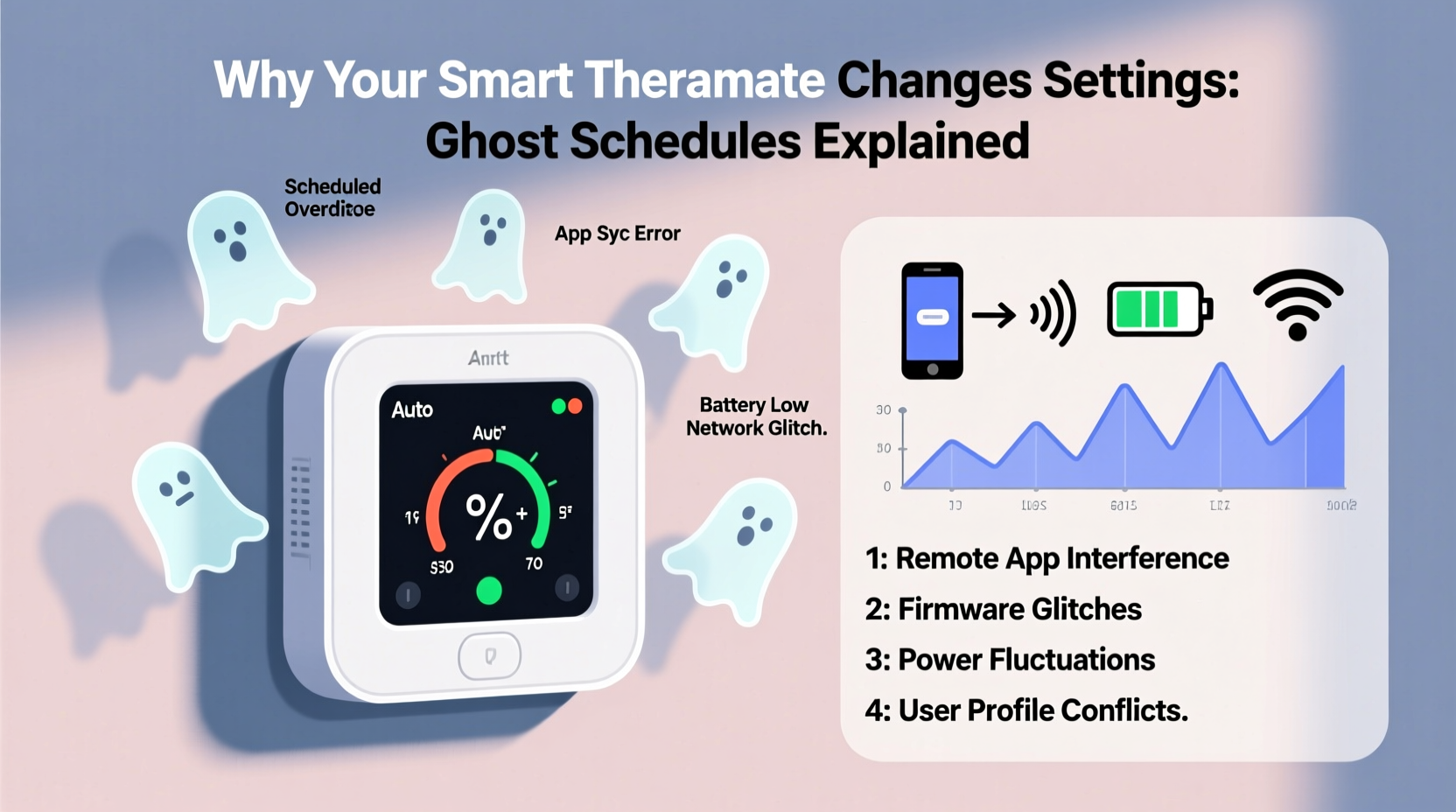
A ghost schedule refers to an unintended or invisible heating and cooling program running on your smart thermostat—often created accidentally through user error, app syncing issues, or automatic learning features gone awry. Unlike your manually set schedules, ghost schedules aren’t always visible in the primary interface, making them difficult to detect. They operate silently in the background, triggering temperature changes based on outdated or incorrect assumptions about your habits.
Ghost schedules commonly occur with thermostats that use occupancy learning (like early models of Nest or Ecobee) or those synced across multiple devices. For example, if you temporarily adjusted the temperature during a weekend guest visit, the thermostat might interpret that as a new routine and begin repeating it weekly—even after you’ve returned to your normal pattern.
“Ghost schedules are one of the most overlooked causes of inconsistent HVAC performance in homes with smart thermostats.” — Dr. Alan Reeves, Building Automation Engineer at SmartHome Labs
How Ghost Schedules Form: Common Causes
Understanding how these phantom programs originate helps prevent recurrence. Below are the most frequent triggers:
- Auto-Schedule Features: Some thermostats automatically generate schedules based on your manual adjustments over several days. If your behavior was atypical during setup (e.g., working from home during vacation), the system may lock in inaccurate patterns.
- Multi-User Conflicts: When multiple family members control the thermostat via different smartphones, conflicting inputs can create overlapping or orphaned schedules.
- Firmware Updates: Occasionally, updates reset settings or reactivate default scheduling modes without clear notification.
- Geofencing Glitches: Location-based controls that detect when you leave or return home can misfire due to poor GPS signal, causing premature or delayed temperature changes.
- Manual Overrides That Stick: Repeated temporary adjustments without resetting the base schedule can train the AI to adopt them permanently.
How to Detect a Ghost Schedule
Since ghost schedules don’t always appear in the main menu, detection requires a methodical approach. Here’s how to identify one:
- Monitor Temperature Logs: Access your thermostat’s history log (usually available in the companion app) and look for recurring changes that don’t match your input.
- Check All Schedule Modes: Navigate beyond the “Home” tab. Look under “Away,” “Sleep,” “Eco,” or “Smart Response” modes—some thermostats hide secondary schedules here.
- Review Occupancy Data: See whether the thermostat thinks you’re away when you’re actually home. This could indicate geofencing errors feeding into automated routines.
- Test in Manual Mode: Temporarily disable all scheduling and run in manual mode for 48 hours. If unwanted changes stop, a programmed schedule is likely responsible.
- Inspect User Activity Feed: High-end thermostats like Ecobee and Nest provide audit logs showing every adjustment, including source device and time.
Mini Case Study: The Phantom Cooling Cycle
Sarah in Denver installed a Nest Thermostat three months ago. She set a simple weekday schedule: 68°F during waking hours, 62°F at night. But she noticed her AC turning on at 2 p.m. daily, even though no one was home until 6. After checking the app, she saw no active schedule for afternoon cooling. Confused, she contacted support.
The technician discovered a “hidden” Eco Temperature mode activated during a firmware update. It had defaulted to cooling at 74°F between 1–4 p.m., assuming energy savings. Because this wasn’t labeled as a traditional schedule, Sarah hadn’t seen it. Disabling Eco Temperatures and reconfiguring Auto-Schedule resolved the issue.
Step-by-Step Guide to Eliminate Ghost Schedules
Follow this sequence to fully remove unwanted automation and regain control:
- Access Your Thermostat App: Open the official app (Nest, Ecobee, Honeywell Home, etc.) and ensure you’re logged into the correct account.
- Navigate to Settings > Schedules: Review each day’s schedule. Look for anomalies like sudden drops or spikes not matching your habits.
- Delete All Existing Schedules: Don’t just edit—fully delete them. This ensures no residual logic remains. On Nest, go to Settings > Reset Schedule. On Ecobee, select “Edit Schedule” then “Clear All.”
- Turn Off Learning Features: Disable Auto-Schedule, Smart Recovery, or Adaptive Intelligence temporarily while rebuilding control.
- Create a New Base Schedule: Manually program your desired temperatures for wake, leave, return, and sleep times. Be consistent across weekdays.
- Disable Unnecessary Modes: Turn off Eco, Away, or Vacation modes unless actively needed. These can trigger automatic changes.
- Re-enable Devices Gradually: If using room sensors or geofencing, reactivate one at a time and monitor for conflicts.
- Update Firmware: Ensure your thermostat and app are running the latest version to avoid known bugs.
- Test for 72 Hours: Monitor temperature changes closely. Use manual adjustments sparingly to avoid retraining the system prematurely.
- Re-enable Learning (Optional): Once stability is confirmed, cautiously turn back on adaptive features with close supervision.
Do’s and Don’ts: Managing Smart Thermostat Schedules
| Do | Don’t |
|---|---|
| Review your schedule monthly, especially after daylight saving time or seasonal shifts. | Assume the thermostat “knows best” without verifying its actions. |
| Use the app’s activity log to track all changes and sources. | Delete schedules without first documenting your preferred settings. |
| Set clear geofencing radii (e.g., 0.5 miles) to reduce false triggers. | Allow multiple users to make unsynchronized changes without communication. |
| Label custom modes (e.g., “Vacation – July”) for easy identification. | Ignore software update notifications—they often fix scheduling bugs. |
| Write down your ideal schedule before programming it digitally. | Rely solely on voice assistants (Alexa, Google) to adjust temperatures; they may bypass rules. |
Preventing Future Ghost Schedules
Once you’ve cleaned up existing issues, maintain control with proactive habits:
- Assign One Primary Administrator: Designate one person in the household to manage thermostat settings to minimize conflicting inputs.
- Use Vacation Mode Intentionally: Always deactivate it afterward. Some systems fail to revert properly, leaving behind partial automation.
- Limit Geofencing to Trusted Devices: Exclude phones with unreliable location services (e.g., older models or those frequently in airplane mode).
- Document Your Schedule: Keep a printed or digital copy of your current settings for quick reference during troubleshooting.
- Perform Quarterly Audits: Every three months, review logs and confirm alignment with your actual routine.
FAQ: Common Questions About Ghost Schedules
Can a factory reset remove ghost schedules?
Yes. A factory reset will erase all settings, including hidden schedules, learning data, and connected accounts. However, you’ll need to reconfigure Wi-Fi, rooms, and preferences from scratch. Use this as a last resort after failed targeted fixes.
Do all smart thermostats develop ghost schedules?
No—but those with advanced learning algorithms (e.g., Nest, Ecobee SmartSensor-enabled models) are more prone due to their adaptive nature. Simpler programmable thermostats or basic smart models (like Honeywell T5) are less likely to exhibit this issue.
Is there a way to block automatic schedule creation entirely?
Yes. Most thermostats allow you to disable auto-scheduling. In Nest, go to Settings > Learning > Turn off “Auto-Schedule.” On Ecobee, disable “Smart Recovery” and “Follow Me” features. This forces full manual control.
Final Checklist: Eliminate Ghost Schedules for Good
- ✅ Check thermostat app for unexpected temperature changes
- ✅ Review all schedule tabs (including Eco, Away, Sleep)
- ✅ Delete all existing schedules—not just edit them
- ✅ Disable Auto-Schedule and Smart Recovery features
- ✅ Manually rebuild your ideal daily/weekly plan
- ✅ Update thermostat firmware and app
- ✅ Limit geofencing to one reliable phone
- ✅ Assign one household member as thermostat administrator
- ✅ Test system stability for at least three days
- ✅ Document your final settings for future reference
Conclusion: Take Back Control of Your Comfort
Your smart thermostat should simplify life, not complicate it. When ghost schedules interfere, they undermine both comfort and efficiency. By understanding how these hidden programs emerge—and following a disciplined process to remove and prevent them—you reclaim authority over your home environment. Technology works best when it serves your routine, not the other way around. Audit your system today, apply these steps, and enjoy consistent, predictable climate control tailored to your real-life needs.




 浙公网安备
33010002000092号
浙公网安备
33010002000092号 浙B2-20120091-4
Comments
No comments yet. Why don't you start the discussion?