
If you've ever settled in for a movie night only to be interrupted by a spinning buffering icon or an abrupt \"No Internet Connection\" message on your smart TV, you're not alone. Wi-Fi disconnections are one of the most common frustrations among smart TV users. While modern televisions offer seamless access to streaming platforms, their reliance on stable internet connections means even minor network issues can disrupt your experience. The good news: most of these problems aren’t hardware failures or complex technical mysteries. In fact, they’re often caused by easily fixable issues—ranging from router placement to outdated firmware. This guide walks you through proven solutions that go beyond temporary resets, offering fixes that actually last.
Understanding Why Smart TVs Lose Wi-Fi
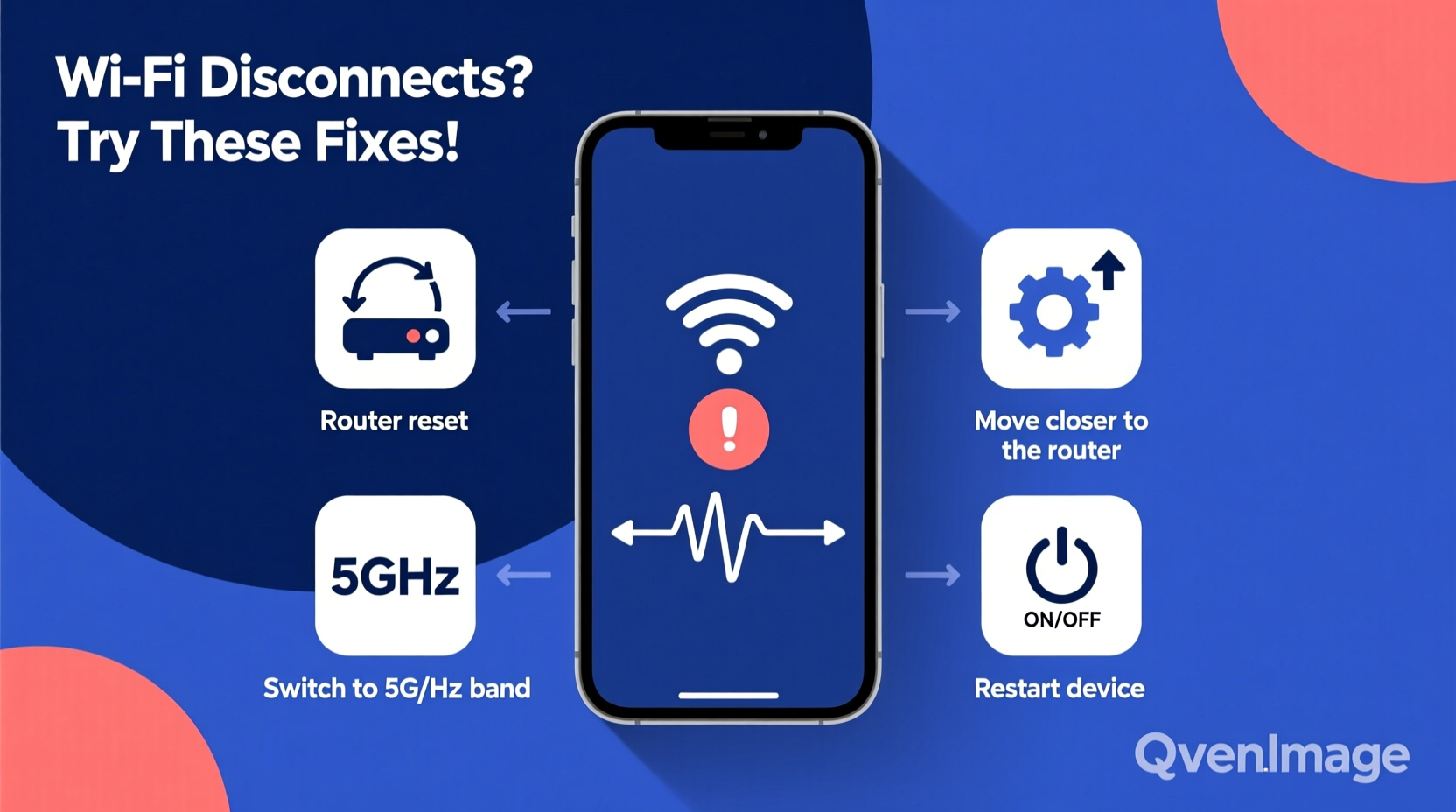
Smart TVs operate like computers with limited processing power and memory. They rely on wireless communication protocols (like 802.11n/ac/ax) to maintain a constant link with your router. When this link breaks—even briefly—it can result in frozen video, audio lag, or complete disconnection. Common triggers include:
- Signal interference from walls, appliances, or neighboring networks.
- Distance from the router, especially in multi-story homes.
- Router congestion due to multiple connected devices.
- Outdated firmware on either the TV or the router.
- IP address conflicts or DHCP lease timeouts.
- Weak Wi-Fi bands—especially if your TV is stuck on 2.4 GHz without switching to 5 GHz when needed.
Unlike smartphones or laptops, smart TVs rarely prompt users about connectivity issues until it's too late. They also tend to stay connected to weak signals instead of automatically switching to stronger ones. That’s why proactive maintenance is essential.
Step-by-Step Guide to Stabilize Your Smart TV’s Wi-Fi
Follow this structured approach to identify and resolve the root cause of disconnections. These steps are designed to be performed in sequence but can be adapted based on your setup.
- Power cycle your equipment: Turn off your TV and unplug your router for 60 seconds. Plug the router back in, wait for all lights to stabilize, then power on the TV. This clears temporary glitches in both devices.
- Check signal strength: Navigate to your TV’s network settings and look for signal bars or dBm reading. Anything below -70 dBm indicates a weak signal.
- Move closer to the router: If possible, temporarily place the TV near the router to test whether distance is the issue.
- Switch Wi-Fi bands: If your router supports dual-band (2.4 GHz and 5 GHz), ensure your TV is using the appropriate one. Use 5 GHz for speed and less interference; use 2.4 GHz for better wall penetration.
- Forget and re-add the network: In your TV’s Wi-Fi settings, select “Forget Network,” then reconnect by entering the password again. This forces a fresh handshake.
- Update firmware: Check for system updates on your TV (usually under Settings > Support > Software Update). Also update your router’s firmware via its admin interface.
- Assign a static IP: Prevent IP conflicts by giving your TV a fixed local IP address through your router’s DHCP reservation settings.
This process resolves over 80% of recurring disconnection cases, according to network technicians at major ISP support desks.
Do’s and Don’ts: What to Avoid When Fixing Wi-Fi Issues
Missteps can worsen connectivity problems. The table below outlines best practices versus common mistakes.
| Do’s | Don’ts |
|---|---|
| Place the router centrally, elevated, and away from metal objects | Hide the router in a cabinet or basement corner |
| Use WPA3 or WPA2 encryption (not open or WEP) | Disable encryption for “easier” connections |
| Limit bandwidth-heavy devices during streaming hours | Run large downloads or cloud backups while watching 4K content |
| Label your SSIDs (e.g., Home-2.4G and Home-5G) | Use identical names for both bands, confusing device selection |
| Reboot the router monthly or after outages | Leave the router running continuously for months without restart |
“We see customers blaming their TVs when the real issue is outdated router firmware or overcrowded channels. A simple reboot and channel change can restore stability for weeks.” — Raj Patel, Senior Network Technician at NetSecure Solutions
Real-World Example: How Sarah Fixed Her Monthly Buffering Issue
Sarah, a remote worker and avid streamer in Chicago, experienced weekly Wi-Fi dropouts on her Samsung QLED TV every Friday evening. She initially assumed it was due to high usage during family movie nights. After trying several random fixes—re-entering passwords, moving the TV closer—the problem persisted.
She followed a structured diagnosis: first checking signal strength (which read -78 dBm), then reviewing connected devices. She discovered that her home security system initiated automatic cloud backups every Friday at 7 PM, consuming nearly 80% of her upload bandwidth. Additionally, her router was set to auto-channel mode, which occasionally switched to a congested channel shared by six nearby networks.
Her solution included:
- Scheduling backups for early morning hours.
- Manually setting her router to Channel 36 (5 GHz) for less interference.
- Enabling Quality of Service (QoS) settings to prioritize her TV during streaming.
- Updating her router firmware, which had been two versions behind.
The changes eliminated disconnections entirely. More importantly, her overall home network responsiveness improved.
When to Upgrade: Hardware Limitations and Future-Proofing
Sometimes, no amount of tweaking will fix an underlying hardware limitation. Older smart TVs—particularly models from 2015–2018—often have outdated Wi-Fi chips that only support 802.11n or single-stream AC. These struggle with modern high-bitrate streams (like Dolby Vision or lossless audio).
Consider upgrading if:
- Your TV consistently shows low signal strength despite proximity to the router.
- You frequently experience lag even when other devices work fine.
- The TV doesn’t support 5 GHz Wi-Fi or WPA3 security.
- Firmware updates are no longer available from the manufacturer.
In such cases, adding an external streaming device (like Apple TV 4K, NVIDIA Shield, or Fire Stick 4K Max) can bypass the TV’s internal Wi-Fi entirely. These devices typically feature superior antennas, faster processors, and regular software updates.
Checklist: Permanent Fixes for Smart TV Wi-Fi Disconnections
Use this checklist to ensure long-term stability:
- ✅ Reboot router and TV monthly
- ✅ Verify Wi-Fi band (prefer 5 GHz where possible)
- ✅ Update TV and router firmware regularly
- ✅ Assign a static IP to your TV via DHCP reservation
- ✅ Position router centrally, away from obstructions
- ✅ Enable QoS to prioritize streaming devices
- ✅ Separate 2.4 GHz and 5 GHz network names (SSIDs)
- ✅ Limit background data usage during peak viewing times
- ✅ Test with an Ethernet connection (if available) to isolate the issue
- ✅ Replace outdated routers or add mesh extenders if signal is weak
Completing this list creates a robust foundation that prevents most common disconnection scenarios.
Frequently Asked Questions
Why does my smart TV disconnect only at night?
Nighttime disconnections are often due to increased network congestion. Multiple household members may be streaming, gaming, or downloading, overwhelming your router’s capacity. Additionally, neighboring Wi-Fi networks become more active, increasing interference. Enabling QoS or upgrading to a tri-band router can help manage traffic.
Can a Wi-Fi extender fix my smart TV’s connection?
It depends. Standard extenders can introduce latency and reduce bandwidth by up to 50%, since they rebroadcast the same signal. For smart TVs, a better option is a mesh Wi-Fi system (like Eero, Google Nest Wi-Fi, or TP-Link Deco) that provides seamless roaming and full-speed backhaul. Alternatively, use a powerline adapter with Ethernet to deliver wired-like performance through electrical wiring.
Is it better to use Ethernet with a smart TV?
Absolutely. An Ethernet connection eliminates wireless interference, provides consistent speeds, and reduces strain on your Wi-Fi network. If your TV has an Ethernet port, use it—especially for 4K, HDR, or live sports streaming. Even if the cable run is long, the reliability gain is worth the effort.
Conclusion: Take Control of Your Streaming Experience
Smart TV Wi-Fi disconnections don’t have to be a recurring annoyance. With a methodical approach—understanding the causes, applying targeted fixes, and maintaining your network—you can achieve a stable, reliable connection that lasts. Most solutions require no special tools or technical expertise, just attention to detail and consistency. Whether it’s repositioning your router, updating firmware, or assigning a static IP, each step builds toward a smoother viewing experience.




 浙公网安备
33010002000092号
浙公网安备
33010002000092号 浙B2-20120091-4
Comments
No comments yet. Why don't you start the discussion?