
If you've ever settled in for a movie night only to be interrupted by buffering, error messages, or a sudden loss of internet connection on your smart TV, you're not alone. Smart TVs are powerful devices, but their reliance on stable Wi-Fi makes them vulnerable to disruptions. Frequent disconnections can stem from hardware limitations, network congestion, outdated software, or even the placement of your router. The good news is that most issues are fixable with systematic troubleshooting. This guide walks through the most common causes and provides a step-by-step approach to restore reliable connectivity.
Understanding the Root Causes
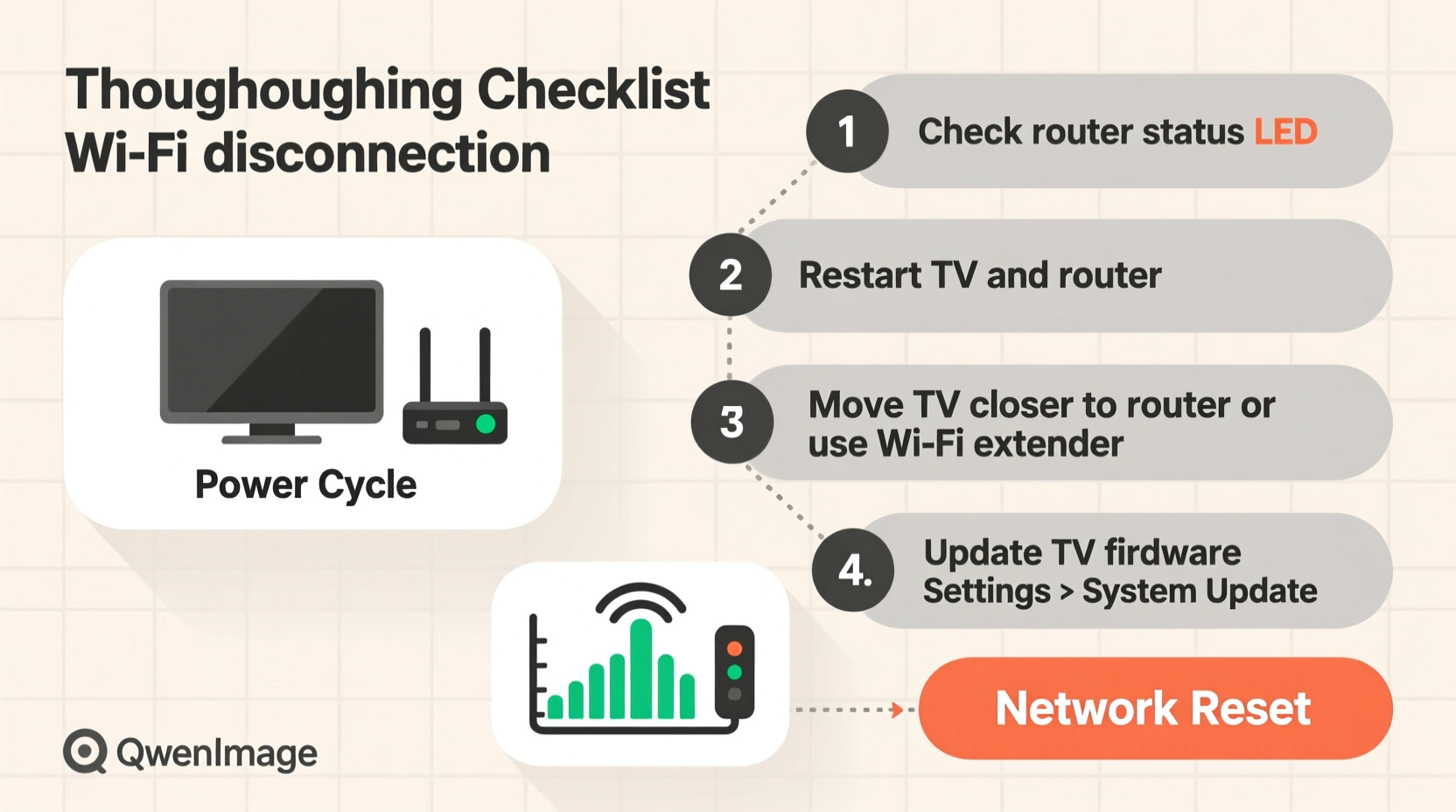
Smart TVs use Wi-Fi to access streaming platforms, apps, firmware updates, and voice assistants. Unlike smartphones or laptops, they often have less advanced wireless antennas and limited processing power. When a smart TV disconnects repeatedly, it’s usually reacting to one or more underlying issues:
- Weak signal strength: Distance from the router or physical obstructions like walls and appliances can degrade signal quality.
- Network congestion: Multiple devices using bandwidth simultaneously can overwhelm your router.
- Outdated firmware: Older software may contain bugs that affect network stability.
- Incompatible security settings: Some encryption types (like WPA3) aren’t fully supported by older smart TVs.
- Router limitations: Older routers may struggle to maintain stable connections with modern devices.
- DHCP lease expiration: If the IP address assigned to your TV expires and isn't renewed properly, the connection drops.
Identifying which factor applies to your situation requires methodical testing — starting with the simplest fixes and progressing to deeper diagnostics.
Troubleshooting Checklist: Step-by-Step Guide
Follow this structured sequence to diagnose and resolve Wi-Fi disconnection issues. Many users find success within the first few steps.
- Restart your smart TV and router. Unplug both devices for 30 seconds, then power them back on. This clears cached data and resets network protocols.
- Check other devices. See if phones, tablets, or laptops also lose connection. If yes, the issue is likely with your router or ISP.
- Move closer to the router. Temporarily place your TV near the router to test if distance or interference is the cause.
- Forget and reconnect to Wi-Fi. Go to Network Settings > Wi-Fi > Select your network > Forget. Then re-enter the password to establish a fresh connection.
- Switch from 5GHz to 2.4GHz (or vice versa). 5GHz offers speed but shorter range; 2.4GHz has better wall penetration but more interference. Try both bands to see which performs more reliably.
- Update your TV’s firmware. Navigate to Settings > System > Software Update and install any available updates. Manufacturers often patch connectivity bugs in new releases.
- Update your router’s firmware. Log into your router’s admin panel (usually via 192.168.1.1 or similar) and check for updates under the administration tab.
- Assign a static IP to your TV. Prevent DHCP-related dropouts by reserving an IP address for your TV in your router’s settings.
- Change DNS servers. Replace default DNS with Google (8.8.8.8, 8.8.4.4) or Cloudflare (1.1.1.1) for faster, more stable lookups.
- Reduce network load. Pause large downloads, cloud backups, or video calls while streaming to minimize bandwidth competition.
Advanced Fixes: Router and Network Optimization
When basic troubleshooting fails, it's time to examine your network infrastructure. Your router plays a pivotal role in maintaining consistent connections across all devices.
Optimize Router Placement
Place your router centrally, elevated, and away from metal objects, microwaves, cordless phones, and thick walls. These materials interfere with Wi-Fi signals. Avoid enclosing it in cabinets or placing it behind the TV, where heat and electronics create interference.
Enable Quality of Service (QoS)
QoS allows you to prioritize traffic for specific devices. In your router settings, assign higher priority to your smart TV during streaming hours. This ensures smooth playback even when other devices are active.
Use a Wi-Fi Extender or Mesh System
If your TV is far from the router, consider a Wi-Fi extender or mesh network system. Unlike traditional extenders, mesh systems provide seamless roaming and stronger backhaul connections. Brands like Eero, Netgear Orbi, and TP-Link Deco are popular choices.
Do’s and Don’ts: Common Pitfalls to Avoid
| Do’s | Don’ts |
|---|---|
| Regularly update your TV and router firmware | Ignore firmware update notifications |
| Use strong, unique Wi-Fi passwords | Share your Wi-Fi with too many devices or neighbors |
| Label your 2.4GHz and 5GHz networks differently | Mix band names (SSIDs), causing confusion and failed handoffs |
| Monitor connected devices via your router dashboard | Allow unknown devices to stay connected |
| Factory reset your TV as a last resort | Factory reset without backing up login credentials |
Real-World Example: Solving Persistent Dropouts
Mark, a homeowner in Chicago, experienced daily disconnections on his Samsung QLED TV. Netflix would buffer mid-episode, and YouTube frequently lost connection. He tried restarting the TV multiple times with no lasting fix. After checking other devices (which stayed connected), he focused on the TV itself.
He discovered his router was located in the basement, directly below a refrigerator and two floors away from the TV. Signal strength on the 5GHz band was weak (-78 dBm). Switching to the 2.4GHz band improved stability slightly, but streaming still stuttered during peak usage.
The turning point came when Mark enabled QoS on his ASUS router, prioritizing the TV’s MAC address. He also updated the TV’s firmware, which included a known fix for Wi-Fi sleep mode bugs. Finally, he added a mesh node on the main floor, dramatically improving signal strength. Since then, his TV has maintained a rock-solid connection for over six months.
“Wi-Fi issues on smart TVs are rarely about the TV alone. They’re symptoms of broader network health. Fix the ecosystem, and the device follows.” — Lisa Tran, Network Engineer at Broadband Insights Group
Frequently Asked Questions
Why does my smart TV disconnect overnight?
Many smart TVs enter standby or energy-saving modes that disable Wi-Fi to conserve power. Check your settings for options like “Fast Startup,” “Quick Boot,” or “Stay Connected to Wi-Fi.” Disabling aggressive power-saving features often resolves nighttime disconnections.
Can a virus cause my smart TV to lose Wi-Fi?
True malware infections on smart TVs are rare due to sandboxed operating systems. However, malicious apps or compromised network devices can disrupt connectivity. Only install apps from official stores, and regularly audit connected devices on your network.
Should I use a VPN on my smart TV?
While VPNs enhance privacy, they can introduce latency and instability, especially if the server is far away. If you notice disconnections after enabling a VPN, try switching servers or disabling it temporarily. For most users, a secure home network without a TV-level VPN is sufficient.
Final Recommendations and Pro Tips
Consistent Wi-Fi performance on a smart TV depends on synergy between the device, router, and environment. While modern TVs are feature-rich, their network capabilities often lag behind smartphones and computers. This makes proactive maintenance essential.
Here are three pro-level strategies to future-proof your setup:
- Set a monthly maintenance routine: Reboot your router, check for updates, and review connected devices.
- Label your network bands: Use distinct names like “Home-2G” and “Home-5G” so you can manually select the best one for your TV.
- Invest in enterprise-grade hardware: Routers from Asus, Ubiquiti, or Netgear with MU-MIMO and beamforming technology offer superior multi-device performance.
If problems persist despite thorough troubleshooting, contact your TV manufacturer’s support team. Provide details like model number, firmware version, and error codes. Some issues—like faulty Wi-Fi modules—may require professional repair or replacement.




 浙公网安备
33010002000092号
浙公网安备
33010002000092号 浙B2-20120091-4
Comments
No comments yet. Why don't you start the discussion?