
Smartwatches have become essential companions—tracking fitness, delivering notifications, and even making payments. But nothing disrupts the experience like a battery that drains in less than a day. While hardware limitations play a role, one of the most common culprits is often overlooked: background apps. These seemingly harmless programs continue running behind the scenes, consuming power even when you're not actively using them. Understanding how they impact battery life—and what you can do about it—is key to getting more from your wearable.
The Hidden Power Drain: Background Apps on Smartwatches
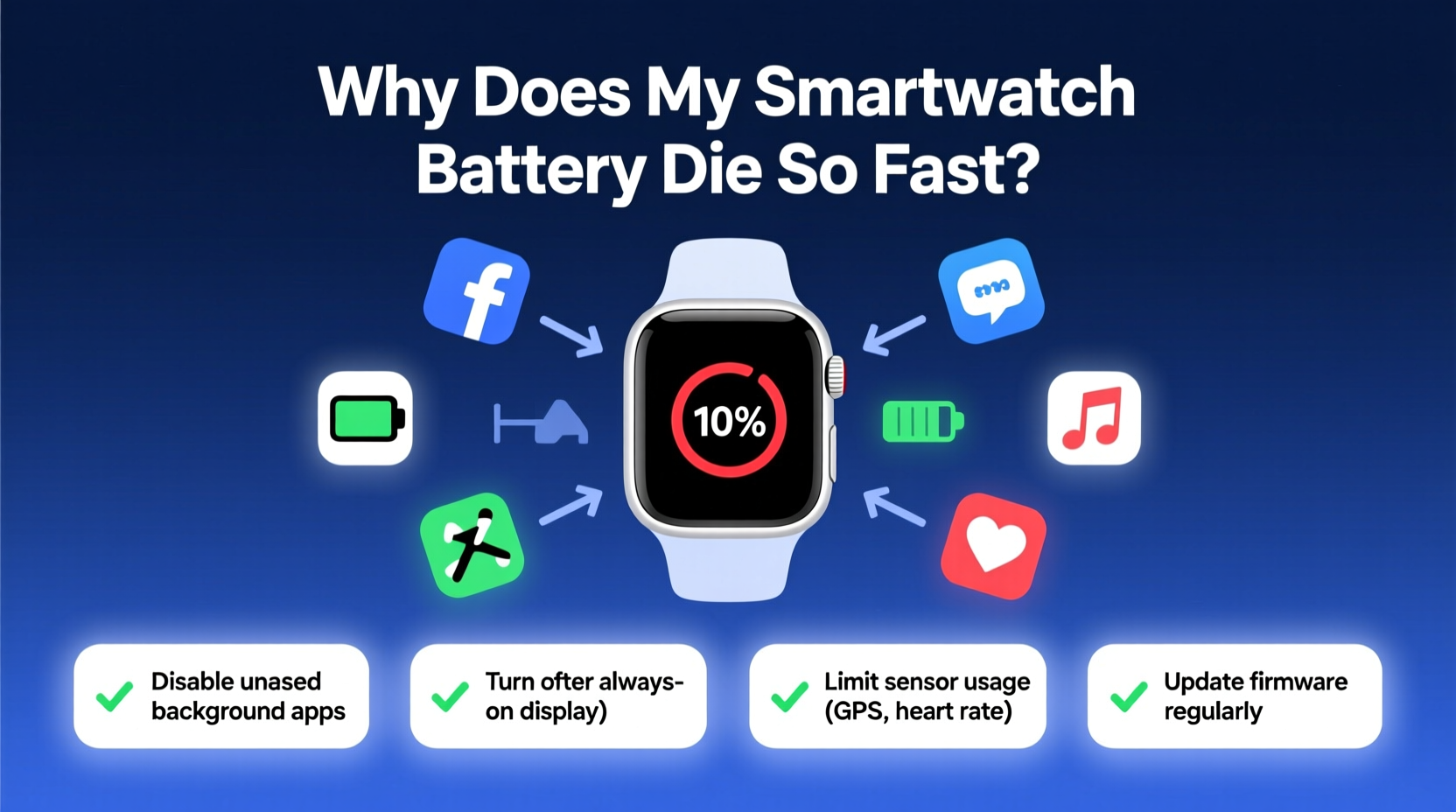
Unlike smartphones, smartwatches have significantly smaller batteries but still run complex operating systems like Wear OS, watchOS, or proprietary platforms. When you install third-party apps, many are designed to stay active in the background to provide real-time updates, location tracking, or health monitoring. However, this convenience comes at a cost.
Background processes such as syncing data, checking for notifications, using GPS, or maintaining Bluetooth connections all require CPU cycles and radio activity, both of which consume substantial energy. A single poorly optimized app can reduce battery life by 30% or more over 24 hours.
For example, a fitness tracker that continuously monitors heart rate and location—even during sleep—can keep sensors active all night. Similarly, messaging apps that constantly poll servers for new messages add up over time, especially if multiple apps behave this way simultaneously.
Common Background App Behaviors That Kill Battery Life
Several types of background activity contribute disproportionately to battery drain. Identifying these behaviors helps pinpoint which apps to manage or remove.
- Constant sensor usage: Apps that use GPS, accelerometer, or heart rate monitor non-stop (e.g., hiking or cycling apps).
- Push notifications: Social media or news apps that frequently wake the device screen.
- Auto-syncing: Email or cloud storage apps that pull data every few minutes.
- Always-on connectivity: Apps maintaining persistent Bluetooth or Wi-Fi links with phones or other devices.
- Poorly coded apps: Third-party apps without proper sleep states or memory management.
Even system-level services can be problematic. For instance, some smartwatches enable \"ambient display\" or \"raise-to-wake\" features by default, which cause the screen to activate dozens of times per hour. Combine that with aggressive app refresh settings, and it’s no surprise users report needing daily charging.
“Battery life on wearables isn’t just about capacity—it’s about efficiency. Background activity accounts for over half of unexpected drain cases we see.” — Dr. Lena Torres, Senior Engineer at Mobile Power Labs
Step-by-Step Guide to Fix Background App Battery Drain
Follow this systematic approach to identify and eliminate power-hungry background apps on your smartwatch.
- Review battery usage statistics: On most smartwatches (especially Wear OS and Apple Watch), go to Settings > Battery > Battery Usage. Look for apps consuming disproportionate power.
- Identify non-essential background apps: Make a list of apps you rarely use but appear high on the battery list.
- Disable background refresh: In your watch settings, find “Apps” or “Notifications,” then disable background activity for selected apps.
- Limit sensor access: Restrict GPS, heart rate, or motion detection permissions for apps that don’t need constant access.
- Uninstall or replace problematic apps: If an app consistently uses too much power, consider removing it or finding a more efficient alternative.
- Reboot regularly: Restart your smartwatch weekly to clear cached processes and reset background tasks.
- Update firmware and apps: Manufacturers often release optimizations that improve background task handling.
This process typically recovers several hours of battery life within a single day of implementation.
Do’s and Don’ts: Managing App Behavior for Better Battery Life
| Do | Don't |
|---|---|
| Allow background access only for critical apps (e.g., emergency alerts, medical trackers) | Let social media apps refresh every 5 minutes |
| Use built-in battery saver modes during long days away from chargers | Keep always-on display enabled all the time |
| Grant location access only while using the app (“While Using” mode) | Allow navigation apps to track your location 24/7 unless necessary |
| Check for app updates monthly—they often include performance fixes | Ignore outdated apps known for poor optimization |
| Turn off haptic feedback for non-urgent notifications | Enable vibration for every email, message, and calendar alert |
Mini Case Study: Recovering 18 Hours of Battery Life
Mark, a project manager in Seattle, found his Samsung Galaxy Watch draining completely by mid-afternoon despite starting each day at 100%. He used it heavily for calls, messages, and calendar alerts—but also had five fitness apps installed from various challenges.
After reviewing his battery stats, he discovered that a step-counting gamification app was using GPS and heart rate sensors throughout the day, even though he wasn’t actively engaging with it. Another weather widget refreshed every 10 minutes and lit up the screen each time.
Following the step-by-step guide above, Mark disabled background refresh for both apps, uninstalled two others he hadn’t opened in weeks, and turned off ambient display after 8 PM. The result? His watch now lasts nearly two full days on a single charge under similar usage.
“I didn’t realize how much junk I was carrying,” Mark said. “Cleaning up those apps changed everything.”
Optimize System Settings That Enable Background Abuse
Beyond individual apps, system-wide settings can amplify background drain. Adjusting these enhances the effectiveness of app-level changes.
Reduce Screen Wake Frequency
Features like “Raise to Wake” or “Double Tap to Wake” may seem convenient, but they cause frequent micro-awakenings. Disabling them—or setting a longer timeout—reduces unnecessary screen activation triggered by background alerts.
Enable Adaptive Brightness and Auto-Dark Mode
Many watches support automatic brightness adjustment based on environment. Pair this with dark watch faces to minimize OLED pixel burn and power draw.
Turn Off Unnecessary Connectivity Features
If you're not using LTE, Wi-Fi calling, or NFC payments, disable them. These radios remain partially active even when idle, scanning for signals and consuming standby power.
Schedule Do Not Disturb or Airplane Mode
Set automatic Do Not Disturb during sleep hours. This silences notifications and prevents apps from waking the screen. Alternatively, schedule airplane mode at night to cut all wireless activity temporarily.
Checklist: Weekly Smartwatch Battery Maintenance Routine
Adopt this quick weekly routine to maintain optimal battery performance:
- ✅ Review battery usage breakdown in settings
- ✅ Close or restrict any newly power-hungry apps
- ✅ Reboot the device to clear lingering background tasks
- ✅ Check for OS and app updates
- ✅ Audit recently installed apps—remove unused ones
- ✅ Confirm Do Not Disturb and battery saver rules are active
- ✅ Clean screen and charging contacts gently with dry cloth
Performing this checklist takes less than ten minutes but can prevent gradual degradation in battery longevity.
Frequently Asked Questions
Can I completely stop apps from running in the background?
Most smartwatches don’t allow full app termination due to OS design, but you can severely limit their background activity through settings. On Wear OS, for example, go to Settings > Apps & notifications > Advanced > Special app access > Battery optimization to force apps to sleep when not in use.
Why does my smartwatch battery drain overnight?
Nighttime drain is often caused by apps syncing data, performing backups, or monitoring sleep with continuous heart rate and motion tracking. While some of this is intentional (like sleep tracking), excessive drain suggests inefficient coding or too many active background services. Consider disabling non-essential monitoring or enabling airplane mode during sleep if tracking isn't needed.
Does updating my smartwatch improve battery life?
Yes. Firmware updates frequently include power management improvements, bug fixes, and better background task scheduling. For example, Google’s Wear OS updates have reduced background wakeups by up to 40% in recent versions. Always install official updates promptly.
Conclusion: Take Control of Your Smartwatch Battery Life
Your smartwatch doesn’t have to die before dinner. While small battery size is a physical limitation, poor software behavior—especially from background apps—is the primary reason for rapid drain. By auditing app usage, adjusting system settings, and adopting simple maintenance habits, you can double or even triple your wearable’s usable time between charges.
Start today: open your battery settings, spot the top offenders, and apply the fixes outlined here. Small changes compound quickly—what feels like a minor tweak could mean the difference between scrambling for a charger and finishing your day with confidence.




 浙公网安备
33010002000092号
浙公网安备
33010002000092号 浙B2-20120091-4
Comments
No comments yet. Why don't you start the discussion?