
Smartwatches have become essential companions for fitness tracking, notifications, and daily organization. But nothing disrupts the experience like a battery that drains in just a few hours. If you're charging your smartwatch multiple times a day, you're not alone — and more importantly, it’s likely not a hardware failure. Most often, rapid battery drain stems from overlooked settings, background processes, or usage habits. The good news? With targeted adjustments, you can dramatically improve battery longevity without sacrificing core functionality.
Understanding Smartwatch Battery Drain: The Core Causes
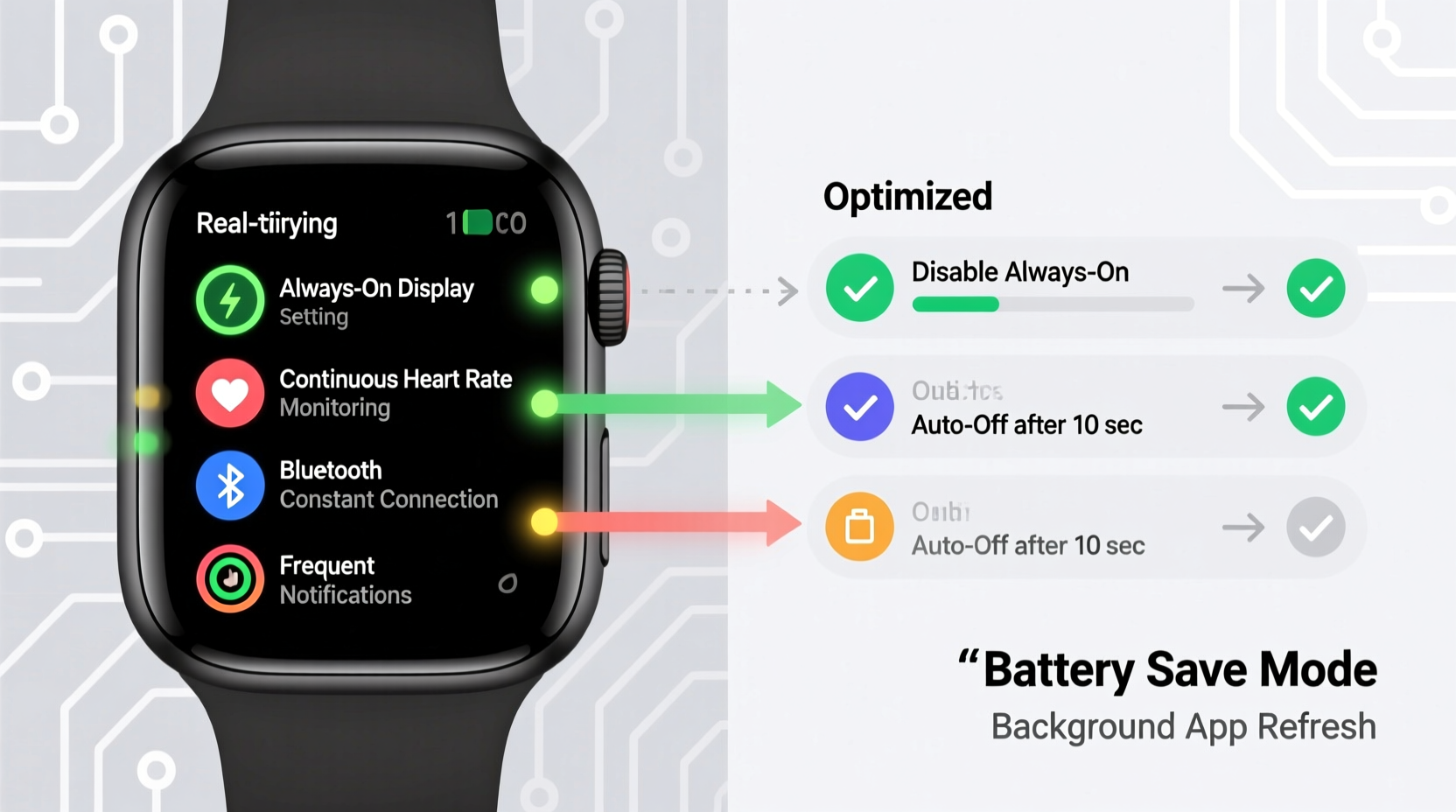
Unlike smartphones, smartwatches operate with smaller batteries and are constantly active. They track heart rate, sync data, display time, and respond to gestures — all of which consume power. However, certain features and configurations amplify energy use beyond normal levels.
The most common culprits behind fast battery drain include:
- Always-on display (AOD): Keeps the screen lit even when your wrist is down, using up to 30% more battery per day.
- Frequent heart rate monitoring: Continuous tracking every few seconds instead of intervals increases sensor load.
- GPS usage: Running GPS-intensive workouts or navigation apps drains power quickly.
- Background app refresh: Third-party apps syncing in the background without optimization.
- Poor Bluetooth connection: When paired devices struggle to maintain stable connections, both devices expend extra energy re-syncing.
- Bright screen settings: Maximum brightness, especially outdoors, accelerates discharge.
- Software bugs or outdated firmware: Glitches in operating systems can cause apps to run indefinitely or sensors to stay active unnecessarily.
While some battery degradation over time is normal, sudden drops in performance usually point to software or configuration issues — not aging hardware.
Step-by-Step Guide to Optimize Your Smartwatch Settings
Follow this sequence of adjustments to systematically reduce unnecessary power consumption. These steps apply broadly across major platforms like Wear OS, watchOS, and Samsung One UI Watch, though exact menu names may vary slightly.
- Disable Always-On Display
Navigate to Display > Always On in your watch settings. Toggle it off. Instead, rely on raise-to-wake or tap-to-wake functions to view the screen only when needed.
- Reduce Screen Brightness and Timeout
Lower brightness to 50–60% under normal conditions. Set screen timeout to 7–10 seconds. You’ll still see notifications clearly without excessive power draw.
- Adjust Heart Rate Monitoring Frequency
In health or fitness settings, switch from “Continuous” to “Every 10 Minutes” or “During Workouts Only.” Some watches allow scheduling — set intensive tracking only during active hours.
- Limit Background App Refresh
Go to Apps or Notifications and disable background syncing for non-essential apps like social media, weather, or news widgets. Allow only critical apps (e.g., messaging, calendar) to update frequently.
- Turn Off Unnecessary Sensors
If your watch supports ambient light sensor toggling or blood oxygen scanning, disable SpO2 measurements unless medically required. These sensors activate periodically and contribute to drain.
- Use Power-Saving Modes Strategically
Activate built-in power-saving modes during long days away from chargers. These typically disable animations, reduce sensor use, and limit connectivity — extending life by up to 50%.
- Update Firmware and Apps
Check for system updates via the companion phone app. Manufacturers regularly release patches that fix memory leaks and optimize battery efficiency.
Do’s and Don’ts: A Quick Reference Table
| Do | Don’t |
|---|---|
| Use adaptive brightness – lets the watch adjust based on environment. | Keep brightness at max – wastes energy indoors or at night. |
| Schedule workout tracking – limits GPS and HR monitoring to active periods. | Leave GPS running all day – even idle location services use significant power. |
| Enable battery saver before travel – preserves charge during commutes or flights. | Ignore low-battery warnings – letting the battery drop below 10% repeatedly stresses cells. |
| Review app permissions monthly – remove unused or power-hungry apps. | Install too many third-party watch faces – animated designs often run background processes. |
Real Example: How Sarah Regained Two Extra Days of Use
Sarah, a project manager and fitness enthusiast, relied on her Wear OS smartwatch for meetings, sleep tracking, and morning runs. She noticed her battery dropping from 100% at 8 AM to 15% by 6 PM — forcing nightly charges and an emergency charger at work.
After reviewing her settings, she discovered several inefficiencies:
- The always-on display was enabled with maximum brightness.
- Heart rate was set to continuous mode, even while sleeping.
- A weather app refreshed every five minutes and triggered haptic alerts.
- She used a custom animated watch face with live data feeds.
Over one weekend, Sarah reset her preferences: she switched to a static watch face, reduced heart rate sampling to 10-minute intervals, disabled constant display, and uninstalled redundant apps. She also updated her watch OS after finding a pending patch.
The result? Her battery lasted 48 hours under regular use — double its previous runtime. Even on workout-heavy days, she ended with 30% remaining. Small changes delivered massive returns.
Expert Insight: What Engineers Say About Battery Longevity
“Battery perception is often mismatched with actual usage. Users blame hardware, but 70% of early drain cases we analyze stem from misconfigured settings or outdated software.” — Dr. Alan Zhou, Senior Systems Engineer at a leading wearable tech firm
Zhou emphasizes that modern smartwatches are designed for efficiency, but user expectations have outpaced optimization. “People want full functionality all the time — GPS, voice assistants, constant notifications — but that level of engagement isn't sustainable on a small battery without trade-offs,” he explains.
He recommends adopting a “priority-based” approach: identify what you truly need daily (e.g., step count, call alerts), then disable everything else. “Treat your smartwatch like a tool, not a toy. Focus on utility, and the battery will follow.”
Essential Checklist for Better Battery Life
Use this checklist weekly or after any major software update to ensure optimal performance:
- ✅ Turn off always-on display
- ✅ Lower screen brightness to moderate levels
- ✅ Set heart rate monitoring to interval-based (not continuous)
- ✅ Disable SpO2 and stress tracking unless necessary
- ✅ Limit GPS usage to workouts only
- ✅ Remove animated or complex watch faces
- ✅ Review and uninstall unused apps
- ✅ Ensure both watch and phone apps are updated
- ✅ Reboot the device once a week to clear cache and background tasks
- ✅ Test battery performance after each change to measure impact
Frequently Asked Questions
How long should a smartwatch battery last under normal use?
Most modern smartwatches should last between 1.5 and 3 days on a single charge under typical usage — receiving notifications, tracking basic activity, and occasional GPS workouts. High-end models like Garmin or Apple Watch Ultra can exceed 7–10 days in smartwatch mode. If your device lasts less than 24 hours without heavy use, settings adjustments are likely needed.
Does turning off Wi-Fi save battery on a smartwatch?
Generally, yes — but with caveats. If your watch relies on Wi-Fi for syncing when away from your phone, disabling it might cause delays. However, leaving Wi-Fi on while outside known networks forces the device to scan constantly, which uses power. Best practice: keep Wi-Fi on only when near trusted networks (e.g., home or office), or let it auto-connect rather than continuously search.
Can I replace my smartwatch battery when it degrades?
Technically, yes — but practically, it's often not cost-effective. Most smartwatches use sealed, proprietary batteries requiring specialized tools and expertise. Replacement costs can reach $50–$100, sometimes half the price of a new entry-level model. Instead, prioritize preserving battery health through proper charging habits: avoid letting it drop below 10%, don’t leave it plugged in overnight regularly, and store it at around 50% if unused for extended periods.
Conclusion: Take Control of Your Smartwatch Battery Today
Your smartwatch doesn’t have to be chained to a charger. While compact batteries impose natural limits, poor settings choices are the real reason most users suffer premature drain. By making informed decisions about display behavior, sensor frequency, app activity, and system updates, you can reclaim hours — even days — of usable life.
Start today: spend 15 minutes auditing your current settings. Apply the fixes outlined here, monitor the difference, and refine as needed. Remember, battery optimization isn’t about losing features — it’s about using them wisely. When you align your smartwatch’s behavior with your actual needs, you unlock its full potential without compromise.




 浙公网安备
33010002000092号
浙公网安备
33010002000092号 浙B2-20120091-4
Comments
No comments yet. Why don't you start the discussion?