
Smartwatches have become essential companions for fitness tracking, notifications, and daily organization. Yet one of the most common frustrations users face is rapid battery drain—sometimes requiring a charge before the day even ends. While some battery degradation over time is normal, sudden or excessive power loss often points to fixable causes. Understanding the root issues behind fast battery depletion can help you regain control over your device’s longevity and performance.
Battery life varies by model, usage habits, and software efficiency. However, if your smartwatch that once lasted two days now struggles to make it through a single morning, it's time to investigate. This guide breaks down the most frequent culprits, offers actionable solutions, and provides expert-backed strategies to maximize your smartwatch battery health.
Common Causes of Rapid Battery Drain
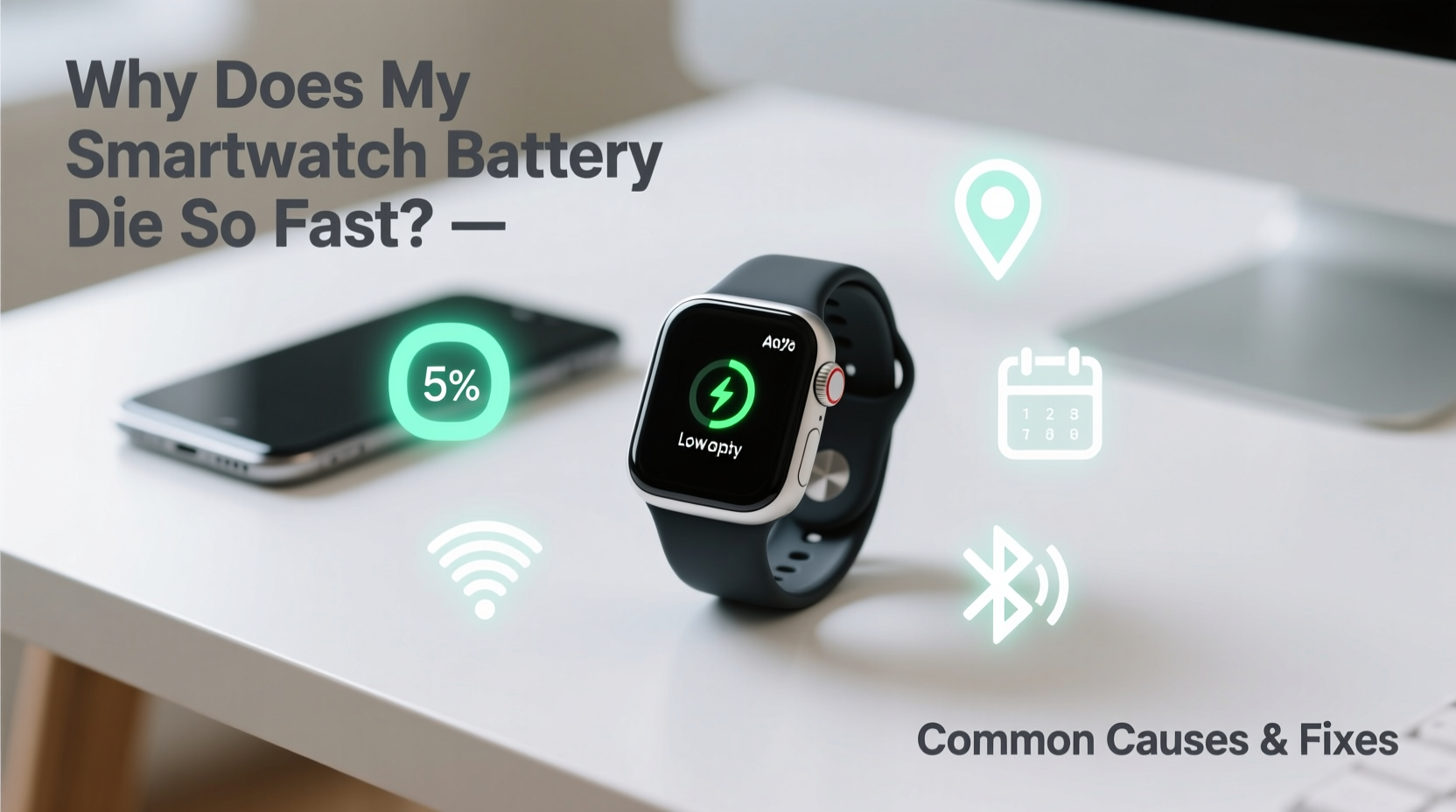
Before jumping to conclusions about hardware failure, consider the everyday factors that silently sap your smartwatch’s power. Many are software-related or tied to user behavior, making them easy to correct without technical expertise.
- Screen brightness and timeout settings: A high screen brightness level or extended wake duration keeps the display active longer, consuming significant energy.
- Background apps and notifications: Third-party apps running in the background or constant alerts from messaging and social media platforms keep the processor active.
- Always-on display (AOD): While convenient, this feature continuously powers the screen, drastically reducing battery life.
- Frequent heart rate and health monitoring: Continuous biometric tracking uses sensors nonstop, increasing power consumption.
- GPS and location services: Using GPS for workouts or enabling location-based features drains the battery quickly.
- Software bugs or outdated firmware: Glitches in operating systems or unoptimized updates can cause abnormal battery usage.
- Aging battery: After 1–2 years of regular charging cycles, lithium-ion batteries naturally degrade and hold less charge.
Step-by-Step Guide to Diagnose and Fix Battery Issues
Follow this structured approach to identify and resolve what’s causing your smartwatch battery to die prematurely.
- Check battery usage statistics: Navigate to your smartwatch’s battery settings (or companion app on your phone) to see which apps or functions consume the most power. Look for outliers—apps using disproportionate energy may need reconfiguration or removal.
- Reduce screen brightness: Lower the brightness manually or enable auto-brightness. Set the screen timeout to 5–10 seconds instead of 30 or more.
- Turn off Always-On Display: In settings, disable AOD. You’ll still be able to view time and notifications with a tap or raise-to-wake gesture.
- Limit background app refresh: Restrict third-party apps from syncing data constantly. Only allow critical apps like messaging or calendar to update frequently.
- Adjust heart rate monitoring frequency: Switch from continuous monitoring to periodic checks unless you're actively training or managing a health condition.
- Disable unnecessary notifications: Turn off alerts for non-essential apps. Each vibration and screen wake-up consumes power.
- Update software: Ensure both your smartwatch and paired smartphone are running the latest OS versions. Manufacturers often release patches that improve battery optimization.
- Restart your device weekly: A simple reboot clears cached processes and stops rogue apps from draining resources.
- Reset settings (if needed): If problems persist, perform a factory reset after backing up important data. This eliminates configuration errors without damaging hardware.
Do’s and Don’ts for Smartwatch Battery Longevity
| Do’s | Don’ts |
|---|---|
| Charge between 20% and 80% regularly to prolong battery cycle life | Leave the watch plugged in overnight frequently—overcharging stresses the battery |
| Use airplane mode during flights or when not needing connectivity | Run GPS-intensive apps (like hiking or cycling trackers) all day unnecessarily |
| Enable power-saving modes during long travel days | Install too many third-party watch faces with animations—they increase CPU load |
| Keep the operating system updated for optimal efficiency | Ignore recurring battery warnings or sudden drops in health indicators |
| Store in a cool, dry place away from direct sunlight | Expose the device to extreme temperatures, which accelerate battery degradation |
Real Example: Recovering Two-Day Battery Life
Sarah, a busy project manager and fitness enthusiast, noticed her Galaxy Watch 5 was dying by mid-afternoon despite previously lasting nearly two full days. She began investigating after missing a crucial meeting reminder due to a dead watch.
She opened the Wear OS app on her phone and reviewed battery usage. The data showed that her weather app was consuming 27% of battery—despite only checking it twice a day. Further inspection revealed it was refreshing every 15 minutes and triggering screen wakes. Disabling background refresh resolved that issue.
Next, she turned off the always-on display and reduced screen brightness from 100% to 60%. She also changed her workout tracking settings to record GPS only during actual exercise sessions, rather than all-day location logging.
Within 48 hours, Sarah regained consistent 36-hour battery life. Her experience highlights how small, overlooked settings can compound into major power losses—and how targeted adjustments yield immediate results.
Expert Insight on Battery Health Management
“Lithium-ion batteries thrive on moderation. Avoid deep discharges and full charges whenever possible. For best lifespan, keep your smartwatch between 30% and 80% charge most of the time.” — Dr. Alan Reyes, Senior Battery Engineer at Nordic Power Systems
“Many users overlook software as a battery killer. An app with poor code can run background loops that drain power even when idle. Regularly audit app permissions and usage.” — Priya Mehta, Mobile OS Optimization Specialist
Troubleshooting Checklist: Restore Your Smartwatch Battery Life
- ✅ Review battery usage stats in settings
- ✅ Disable Always-On Display
- ✅ Lower screen brightness and timeout duration
- ✅ Limit background app refresh and notifications
- ✅ Adjust health sensor frequency (e.g., heart rate)
- ✅ Turn off GPS when not in use
- ✅ Update watch and phone software
- ✅ Restart the device weekly
- ✅ Consider a factory reset if issues persist
- ✅ Evaluate battery health through manufacturer tools
Frequently Asked Questions
How long should a smartwatch battery last in a day?
Most modern smartwatches should last at least 24 hours under typical use—including notifications, intermittent app use, sleep tracking, and basic health monitoring. High-end models may last 3–7 days, while feature-rich devices like the Apple Watch usually require daily charging. If your watch doesn’t make it through a normal day, there’s likely room for optimization.
Can I replace my smartwatch battery?
Yes, but it’s not always straightforward. Most smartwatches have sealed designs, making DIY replacement risky. Official service centers offer battery replacements for popular models like Apple Watch, Samsung Galaxy Watch, and Fitbit. However, the cost can be significant—sometimes up to 50% of the original price. Evaluate whether an upgrade might be more economical if the device is over two years old.
Does turning off Bluetooth save battery?
Only marginally. While Bluetooth uses power, it’s optimized for low-energy communication in modern devices. Turning it off disconnects your watch from your phone, disabling calls, messages, and app sync—so the trade-off isn’t worth the minimal gain. Instead, focus on bigger drains like screen settings and background apps.
When to Suspect Hardware Failure
If you’ve optimized all settings and still experience rapid battery drain, hardware issues may be at play. Signs include:
- Battery drops from 60% to 10% within an hour with no heavy usage
- Device gets unusually warm during light tasks
- Charging takes significantly longer or stops prematurely
- Battery percentage jumps erratically (e.g., 40% → 80% → 30%)
In such cases, use built-in diagnostics (available on Apple Watch via Settings > Battery > Battery Health or on Wear OS devices through diagnostic apps). If the battery health is below 80%, replacement is recommended. Contact the manufacturer or authorized repair center to proceed safely.
Conclusion: Take Control of Your Smartwatch Battery Life
Your smartwatch shouldn’t leave you stranded by noon. With a few strategic adjustments, most battery issues can be reversed—often without sacrificing functionality. Start by auditing your current settings, eliminating hidden energy hogs, and adopting smarter charging habits. Over time, these practices not only extend daily battery life but also preserve the long-term health of your device.




 浙公网安备
33010002000092号
浙公网安备
33010002000092号 浙B2-20120091-4
Comments
No comments yet. Why don't you start the discussion?