
Smartwatches have become essential companions for fitness tracking, notifications, and daily productivity. But nothing disrupts the experience faster than a battery that dies before bedtime. If you're plugging in your device multiple times a day or noticing a sudden drop in battery longevity, you're not alone. While many users default to factory resets as a solution, there’s often no need to wipe your data. Most battery drain issues stem from specific settings, apps, or habits that can be adjusted—without losing your preferences or workout history.
Battery degradation over time is natural, but rapid drain after a software update, new app installation, or change in usage patterns usually points to avoidable causes. Understanding what’s consuming power allows you to make informed decisions that preserve both functionality and battery health. This guide breaks down the most common culprits behind fast battery drain and provides actionable, reset-free solutions to get your smartwatch lasting through the day.
Common Causes of Rapid Battery Drain
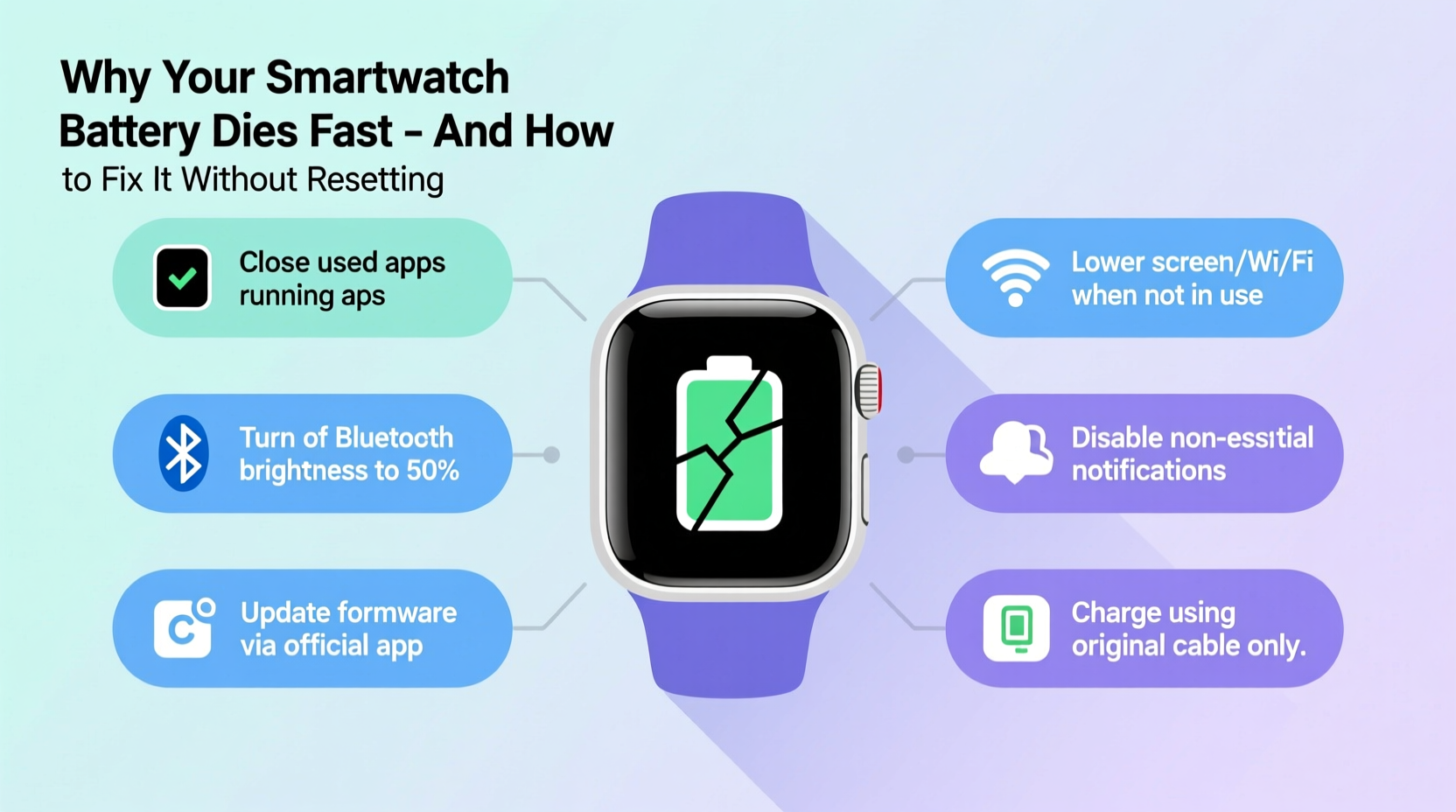
Before jumping into fixes, it's crucial to identify what might be taxing your smartwatch battery. Unlike smartphones, smartwatches operate on smaller batteries with limited capacity, making them more sensitive to background processes and display usage.
- Always-On Display (AOD): While convenient, keeping the screen lit even when idle consumes significant power, especially on AMOLED models.
- Frequent Notifications: Every alert triggers a vibration, backlight, and processor wake-up, multiplying energy use across the day.
- Background App Refresh: Apps syncing data in the background—even when not in use—can silently drain battery.
- GPS and Heart Rate Monitoring: Continuous location tracking and constant heart rate sampling are among the top energy hogs.
- Software Bugs or Updates: New OS updates may introduce inefficiencies or bugs that cause abnormal battery usage.
- Wi-Fi and Bluetooth Toggling: When connections are unstable, the watch repeatedly searches for signals, increasing power draw.
Step-by-Step Guide to Reduce Battery Consumption
Instead of resetting your device, follow this systematic approach to pinpoint and resolve battery drain issues. These steps are designed to preserve your data while optimizing performance.
- Review Battery Usage Statistics
Navigate to your smartwatch’s battery settings (usually under Settings > Battery) to view a breakdown of usage by app and system feature. Identify any apps using disproportionate power—especially those running in the background. - Disable Always-On Display
Turn off AOD in the Display settings. Instead, set the screen to activate only when you raise your wrist or tap the screen. This single change can extend battery life by up to 30–40% depending on usage. - Adjust Screen Brightness and Timeout
Lower the brightness manually or enable adaptive brightness. Set the screen timeout to 5–10 seconds instead of 30. A brighter, longer-lasting screen is one of the biggest battery drainers. - Limit Notification Frequency
Go to your paired smartphone’s companion app (e.g., Wear OS, Galaxy Wearable, Apple Watch app) and disable non-essential notifications. Prioritize calls, messages, and calendar alerts. Mute social media and email pings unless urgent. - Optimize Health Sensor Settings
Disable continuous heart rate monitoring if you don’t need it all day. Switch to on-demand or periodic checks. Similarly, turn off SpO2 (blood oxygen) and skin temperature monitoring unless medically necessary. - Manage GPS Usage
Only enable GPS during workouts. Avoid apps that track location in the background. In fitness apps, disable auto-pause detection if it causes unnecessary sensor activation. - Turn Off Unnecessary Connectivity
Disable Wi-Fi if you’re always within Bluetooth range of your phone. Also, consider turning off NFC or mobile payments if rarely used. Each active radio draws standby power. - Update Software and Apps
Ensure both your smartwatch OS and installed apps are up to date. Developers frequently release patches that fix battery-related bugs. Outdated firmware can cause inefficient processing and memory leaks. - Restart Weekly
A simple restart clears temporary files and stops rogue processes. Do this once a week rather than relying on constant uptime.
Checklist: Smartwatch Battery Optimization
Use this checklist weekly to maintain optimal battery performance:
- ✅ Reviewed battery usage stats
- ✅ Disabled Always-On Display
- ✅ Reduced screen brightness and timeout
- ✅ Limited non-essential notifications
- ✅ Adjusted heart rate and SpO2 monitoring frequency
- ✅ Disabled background app refresh for unused apps
- ✅ Turned off Wi-Fi and NFC when not needed
- ✅ Updated OS and apps
- ✅ Restarted the device
Do’s and Don’ts: Managing Smartwatch Battery Life
| Do | Don't |
|---|---|
| Enable battery saver mode during low-usage days | Run multiple fitness trackers simultaneously |
| Use dark watch faces (especially on AMOLED screens) | Leave third-party apps running in the background |
| Sync data manually instead of automatic intervals | Ignore recurring battery drain after updates |
| Charge between 20% and 80% regularly to prolong battery health | Keep the watch charging overnight every night |
| Uninstall apps you no longer use | Allow unknown apps to access sensors or location |
Real Example: Recovering Battery Life After an Update
Consider Sarah, a fitness enthusiast who uses her Wear OS smartwatch daily for runs, sleep tracking, and messaging. After a recent OS update, she noticed her battery dropped from lasting 28 hours to barely 14. Alarmed, she nearly reset the device—but first checked the battery usage log.
The log revealed that a recently updated weather app was syncing every 5 minutes and triggering GPS to fetch location-based forecasts. Additionally, the update had re-enabled Always-On Display by default. By disabling AOD, restricting the weather app’s background activity, and setting sync intervals to 30 minutes, Sarah restored her battery life to nearly 26 hours—without losing any data or settings.
This case illustrates how minor changes post-update can have major impacts. Investigating usage patterns—not rushing to reset—is often the smarter path.
Expert Insight on Battery Management
“Most users overlook the cumulative effect of micro-drains—constant vibrations, frequent screen wake-ups, and background syncs. These aren’t dramatic individually, but together they can cut battery life in half. Smart optimization beats hardware limitations.” — Dr. Rajiv Mehta, Senior Engineer at Mobile Power Labs
When to Suspect Hardware or Age-Related Issues
If you’ve optimized all settings and still face rapid drain, the issue may be physical. Lithium-ion batteries degrade over time, typically losing 20% of their capacity after 500 charge cycles (about 1.5–2 years of regular use).
Symptoms of aging include:
- Battery dropping from 60% to 20% suddenly
- Device shutting down at 10–15% remaining
- Swollen casing or overheating during normal use
In such cases, a reset won’t help. You may need professional battery replacement. Some manufacturers offer battery refurbishment services. Third-party repair shops can also replace batteries safely if done correctly.
FAQ: Common Questions About Smartwatch Battery Drain
Can I extend my smartwatch battery without reducing functionality?
Yes. Focus on high-impact, low-sacrifice changes: switch to a dark watch face, disable AOD, and limit background app refresh. You’ll retain core functions like step counting and call alerts while gaining hours of extra life.
Does turning off Bluetooth save battery on the watch?
Not significantly—and it defeats the purpose of pairing. Your watch needs Bluetooth to receive notifications and sync data. Turning it off disconnects it from your phone, making key features unusable. Instead, ensure your phone and watch are close enough for a stable connection to prevent signal hunting.
Is it bad to charge my smartwatch every night?
Nightly charging isn’t harmful, but keeping it at 100% for extended periods stresses the battery. For long-term health, try to keep it between 20% and 80%. If you must charge nightly, unplug once full or use a smart charger that stops automatically.
Conclusion: Take Control Without Resetting
Rapid battery drain doesn’t mean your smartwatch is failing—it’s often a sign of misconfigured settings or inefficient apps. By methodically adjusting display settings, managing notifications, and monitoring background activity, you can restore reliable battery life without wiping your device. Resets should be a last resort, not a first response.
Maintaining your smartwatch’s efficiency is an ongoing process, much like maintaining a car. Regular checkups, small tweaks, and informed usage go a long way. Apply these strategies consistently, and you’ll likely find your device lasting through even the busiest days.




 浙公网安备
33010002000092号
浙公网安备
33010002000092号 浙B2-20120091-4
Comments
No comments yet. Why don't you start the discussion?