
Smartwatches have become essential companions, delivering notifications, tracking fitness, and keeping us connected without reaching for our phones. But nothing disrupts that seamless experience faster than a sudden disconnection. If your smartwatch keeps dropping its Bluetooth link with your phone—missing calls, failing to sync data, or losing notifications—you’re not alone. This issue affects users across brands like Apple Watch, Samsung Galaxy Watch, Fitbit, and Garmin. The good news: most disconnections stem from preventable causes and can be resolved with straightforward fixes. Understanding the root causes and applying targeted solutions restores reliability and gets you back on track.
Understanding the Connection: How Smartwatches Stay Paired
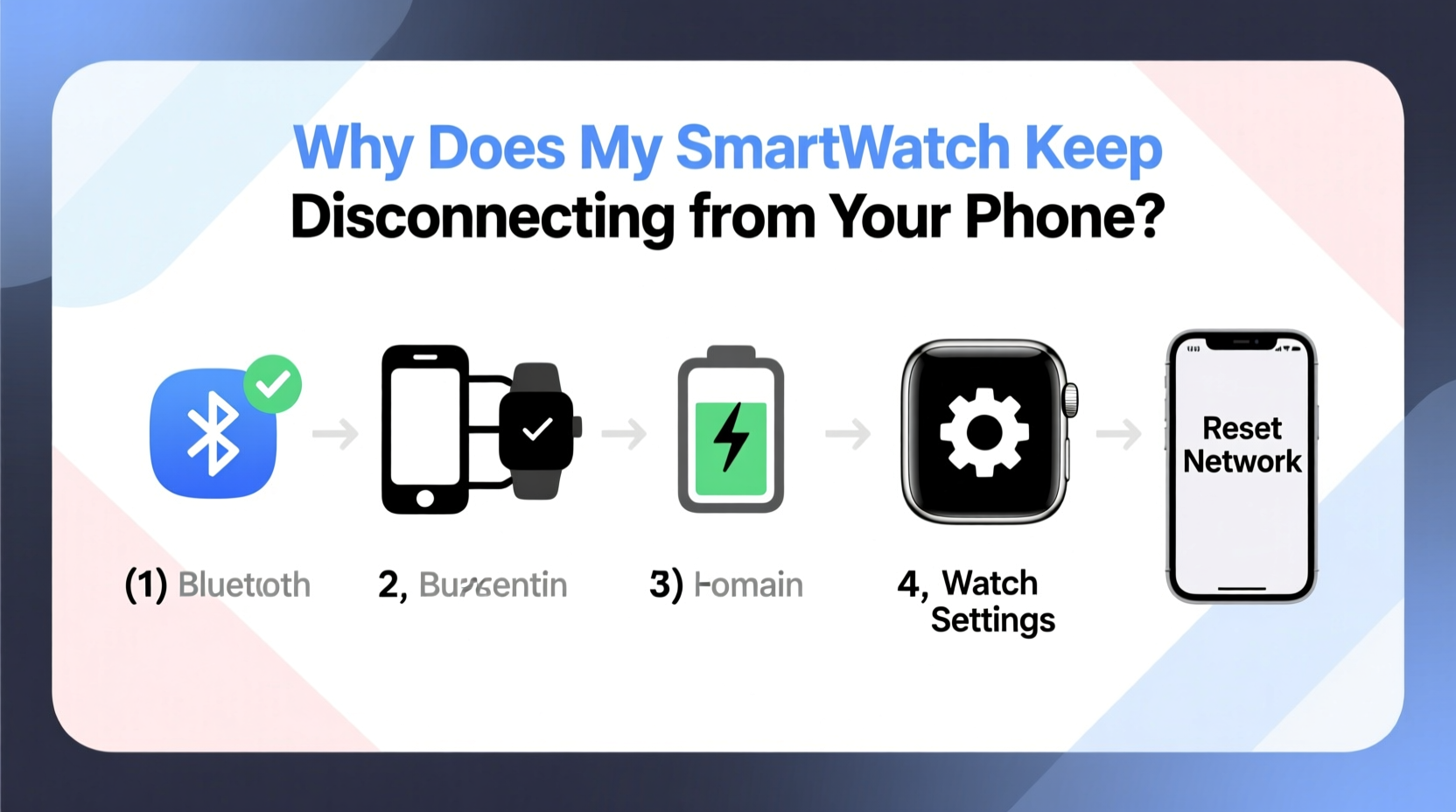
Your smartwatch connects to your phone primarily via Bluetooth, a short-range wireless technology designed for low-power communication between devices. When paired correctly, the watch and phone maintain a stable connection within about 30 feet (10 meters), allowing real-time data transfer such as messages, health metrics, and app alerts. However, this connection isn’t foolproof. Interference, software bugs, outdated firmware, or hardware limitations can cause intermittent drops.
Unlike Wi-Fi, Bluetooth operates in the crowded 2.4 GHz frequency band, which is also used by microwaves, cordless phones, and many other wireless devices. This congestion increases the chance of signal interference, especially in urban environments or homes with multiple connected gadgets. Additionally, both devices must actively manage power consumption, sometimes entering low-power modes that temporarily suspend the connection to conserve battery life.
“Bluetooth stability depends on both hardware capability and environmental conditions. A strong initial pairing doesn’t guarantee uninterrupted performance.” — Dr. Lena Torres, Wireless Communication Engineer at MIT Media Lab
Common Causes of Smartwatch Disconnections
Before diving into fixes, it’s crucial to identify what might be causing the problem. Most recurring disconnections fall into one of these categories:
- Bluetooth interference: Nearby electronics or physical obstacles weaken the signal.
- Outdated software: Old operating systems or apps may contain unresolved bugs affecting connectivity.
- Power-saving settings: Aggressive battery optimization features can disable background processes needed for constant syncing.
- Poor initial pairing: An unstable initial setup can lead to persistent instability.
- Network switching: Your phone automatically switching between Wi-Fi and cellular networks can momentarily break the Bluetooth handshake.
- Physical distance or obstruction: Walls, metal objects, or simply moving too far apart interrupt the signal.
- Full notification queue: Some watches struggle when overloaded with pending alerts, leading to sync timeouts.
Step-by-Step Troubleshooting Guide
Follow this structured approach to diagnose and resolve disconnection issues efficiently. Each step builds on the previous one, ensuring no stone is left unturned.
- Restart Both Devices
Begin with a soft reset. Turn off your smartwatch and phone completely, wait 30 seconds, then power them back on. This clears cached errors and re-establishes system-level connections. - Check Bluetooth Status
Ensure Bluetooth is enabled on your phone and set to “Always” or “Connected” mode. On Android, go to Settings > Connected Devices > Connection Preferences > Bluetooth. On iOS, navigate to Settings > Bluetooth and confirm your watch appears under “My Devices” with a connected status. - Disable Battery Optimization for Companion App
Android users should check if battery saver is restricting background activity. Go to Settings > Apps > [Your Watch App] > Battery > Unrestricted. This prevents the OS from killing the app process responsible for maintaining the Bluetooth link. - Forget and Re-Pair the Device
Go to your phone’s Bluetooth settings, find your watch, tap the gear icon (or \"i\"), and select “Forget This Device.” Then, restart the pairing process through the companion app (e.g., Wear OS, Galaxy Wearable, Apple Watch app). This often resolves corrupted pairing data. - Update Software on Both Devices
Check for updates on your phone and smartwatch. Outdated firmware is a frequent culprit. For example, an old version of Wear OS may not support newer Bluetooth protocols introduced in recent Android security patches. - Reset Network Settings (Phone)
If problems persist, reset network settings on your phone. This clears all saved Wi-Fi networks, Bluetooth pairings, and APN configurations. Afterward, re-pair your watch. Note: You’ll need to reconnect to Wi-Fi afterward. - Test in Low-Interference Environment
Move away from routers, microwaves, and large metal surfaces. Try using the watch near a window or open space to rule out environmental interference.
Do’s and Don’ts: Best Practices for Stable Connectivity
| Do | Don’t |
|---|---|
| Keep both devices charged above 20% | Let either device drop below 5% battery frequently |
| Use the official companion app for setup and updates | Attempt manual Bluetooth pairing outside the app |
| Enable “Always Connected” or similar mode on supported watches | Assume Bluetooth will work perfectly without configuration |
| Store devices close together when not in use | Leave your phone in another room while wearing the watch long-term |
| Limit third-party apps that run in the background | Install every available watch face or utility app |
Real-World Example: Sarah’s Intermittent Sync Issue
Sarah, a busy project manager, relied on her Samsung Galaxy Watch 5 to receive calendar alerts and texts during meetings. Over two weeks, she noticed increasing delays—sometimes missing critical messages entirely. At first, she assumed poor reception, but the issue occurred even indoors. After testing several theories, she discovered her new wireless charger was emitting electromagnetic noise interfering with Bluetooth signals. Moving the charger away from her desk restored consistent connectivity. Later, she also disabled battery optimization for the Galaxy Wearable app, which prevented the phone from suspending background sync during screen-off periods. These two adjustments eliminated disconnections completely.
This case highlights how seemingly unrelated hardware changes can impact wireless performance—and why systematic troubleshooting matters more than guesswork.
Tips for Long-Term Stability
Maintaining a reliable connection requires ongoing attention. Here are key habits to adopt:
- Monitor firmware updates monthly: Manufacturers regularly release patches addressing connectivity bugs.
- Avoid overcrowding the watch interface: Too many active complications or widgets strain processing power and delay sync cycles.
- Limit automatic app syncing: Disable unnecessary background refresh for non-critical apps in the companion app settings.
- Carry your phone in a consistent location: Pockets provide better signal consistency than bags or desks behind you.
- Use airplane mode strategically: When traveling or in areas with weak signal, enable airplane mode on the phone and manually reconnect Bluetooth after landing.
Frequently Asked Questions
Why does my smartwatch disconnect when my phone locks?
This typically happens due to aggressive battery-saving settings. Modern phones limit background activity when the screen is off. To fix it, disable battery optimization for your smartwatch’s companion app in your phone’s settings. On iPhones, ensure Background App Refresh is enabled for the Watch app.
Can a factory reset fix persistent disconnections?
Yes, but only as a last resort. Resetting your smartwatch erases all data and returns it to default settings, which can clear deep-seated software conflicts. Before doing so, back up any important health or fitness data through the companion app. After resetting, re-pair the watch carefully following the manufacturer’s instructions.
Does using Wi-Fi on my smartwatch affect phone connectivity?
Not directly. Many smartwatches with Wi-Fi capability can connect independently to networks, reducing reliance on the phone. However, when Wi-Fi is active, some models may prioritize that connection over Bluetooth, potentially delaying certain sync functions. Ensure your watch is configured properly in the companion app to balance both connections effectively.
Essential Checklist: Fix Smartwatch Disconnections Fast
Use this checklist whenever you notice unstable connectivity. It covers the most effective actions in order of simplicity and impact:
- ✅ Restart both the smartwatch and smartphone
- ✅ Confirm Bluetooth is enabled and stable on the phone
- ✅ Check for software/firmware updates on both devices
- ✅ Disable battery optimization for the companion app (Android)
- ✅ Forget the device and re-pair using the official app
- ✅ Test in a different environment to rule out interference
- ✅ Reset network settings on the phone if needed
- ✅ Contact manufacturer support if all else fails
When to Seek Professional Help
If you’ve completed all troubleshooting steps and disconnections continue, the issue may lie in hardware defects or deeper software incompatibilities. Signs include:
- The watch fails to appear in Bluetooth settings altogether
- Pairing fails repeatedly despite correct steps
- Other Bluetooth devices also experience instability with your phone
In such cases, contact customer support for your smartwatch brand. They may offer diagnostics tools, replacement units under warranty, or advanced reset procedures not available to consumers. For example, Apple provides Genius Bar appointments for diagnosing Watch connectivity, while Samsung offers remote troubleshooting via its Members app.
Conclusion: Regain Control of Your Smartwatch Connection
A disconnected smartwatch defeats its purpose as a seamless extension of your digital life. While occasional hiccups are normal, frequent disconnections signal underlying issues that demand attention. By understanding common causes—from Bluetooth interference to misconfigured settings—and applying proven troubleshooting methods, you can restore reliable performance. The steps outlined here are time-tested, practical, and effective across major smartwatch platforms. Consistency in maintenance, awareness of environmental factors, and proactive software updates go a long way toward ensuring uninterrupted connectivity.




 浙公网安备
33010002000092号
浙公网安备
33010002000092号 浙B2-20120091-4
Comments
No comments yet. Why don't you start the discussion?