
If you've ever settled in for a relaxing music session, only for your Spotify to abruptly stop mid-song, you're not alone. Millions of users experience unexpected pauses that disrupt listening flow—especially during workouts, commutes, or focus sessions. While frustrating, most causes are fixable with straightforward troubleshooting. The issue rarely stems from one single factor; instead, it’s often a combination of connectivity problems, app glitches, device settings, or account conflicts. Understanding the root cause is key to restoring seamless playback. This guide breaks down the most common reasons behind Spotify's random pauses and offers practical, step-by-step solutions across devices.
Common Causes Behind Spotify Pausing Unexpectedly
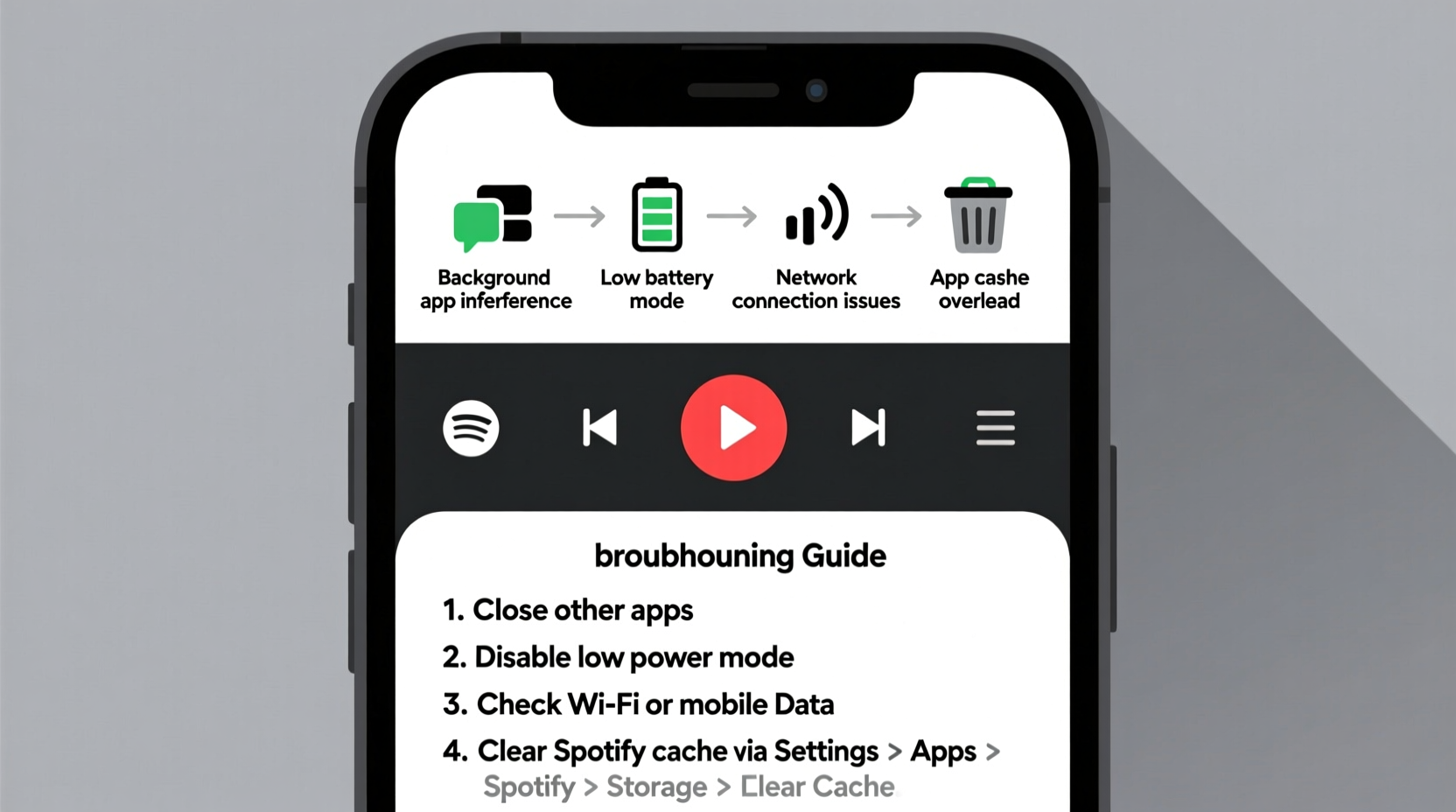
Spotify’s audio interruption isn’t usually due to a flaw in the service itself but rather how the app interacts with your device, network, or background processes. Identifying the trigger helps narrow down the solution. Here are the primary culprits:
- Poor or unstable internet connection: Whether using Wi-Fi or mobile data, weak signal strength can interrupt streaming.
- Battery-saving modes: Many smartphones automatically restrict background activity when power-saving mode is active.
- Outdated app version: Older versions may contain bugs affecting playback stability.
- Conflicting apps or notifications: Incoming calls, messaging alerts, or other media apps can interrupt audio focus.
- Device storage limitations: Low storage space can prevent the app from caching tracks properly.
- Account syncing issues: Multiple devices logged into the same account may compete for playback control.
Before jumping into complex fixes, start by eliminating the simplest possibilities. Often, a quick restart or setting adjustment resolves the problem instantly.
Step-by-Step Troubleshooting Guide
Follow this logical sequence to isolate and resolve the issue efficiently. Begin with basic checks before moving to more involved solutions.
- Restart the Spotify app. Close it completely from the recent apps menu and reopen it. This clears temporary memory glitches.
- Check your internet connection. Switch between Wi-Fi and mobile data to see if one performs better. Test speed via another browser or app.
- Ensure the device isn’t in power-saving mode. On Android, go to Battery settings; on iOS, disable Low Power Mode.
- Update the Spotify app. Visit your device’s app store and confirm you’re running the latest version.
- Clear the app cache (Android). Go to Settings > Apps > Spotify > Storage > Clear Cache. Avoid “Clear Data” unless necessary.
- Reinstall the app. Uninstall Spotify, restart your phone, then reinstall from the official store.
- Log out and back into your account. This resets authentication tokens that might be causing sync errors.
- Test playback on another device. Try logging into Spotify on a different phone, tablet, or computer to determine if the issue follows your account or stays with the device.
This progression moves from fast, non-invasive actions to deeper system-level corrections. Most users find resolution within the first four steps.
Do’s and Don’ts When Fixing Spotify Playback Issues
Avoid making the problem worse by following best practices. The table below outlines recommended actions versus risky ones.
| Do’s | Don’ts |
|---|---|
| Use a stable Wi-Fi network with consistent bandwidth | Stream over spotty public Wi-Fi without testing connection first |
| Keep your device updated with the latest OS version | Ignore system or app update notifications for extended periods |
| Enable background app refresh for Spotify | Run too many background apps that consume memory and CPU |
| Download songs for offline use to reduce reliance on streaming | Delete downloaded tracks frequently without re-downloading new ones |
| Check for conflicting Bluetooth devices or audio outputs | Leave multiple Bluetooth connections active simultaneously |
Sticking to these guidelines improves not just Spotify performance but overall device efficiency.
Real-World Example: Fixing Persistent Pauses on a Commute
Jamal, a daily commuter in Chicago, noticed his Spotify would pause every few minutes during his train ride. He assumed it was due to tunnel coverage drops, but even on surface routes with strong LTE, the interruptions continued. After trying several fixes, he discovered the root cause: his phone’s adaptive battery feature was suspending Spotify after short periods of inactivity—even while playing music. By going into Android’s App Battery Management settings and setting Spotify to “Unrestricted,” the pauses stopped immediately. His case highlights how modern smartphone optimizations can interfere with user expectations, especially for media apps requiring continuous background operation.
This scenario is increasingly common as manufacturers prioritize battery life over background functionality. Users must actively adjust permissions to maintain smooth audio experiences.
“Background app management has become so aggressive that even trusted apps like Spotify get throttled unintentionally.” — Lena Torres, Mobile Software Analyst at TechPulse Insights
Advanced Fixes for Stubborn Playback Problems
When standard troubleshooting fails, consider deeper technical adjustments. These apply mainly to recurring or systemic issues.
Reset Network Settings
Corrupted network configurations can disrupt data flow. Resetting them forces your device to rebuild Wi-Fi, cellular, and Bluetooth profiles. On iPhone: Settings > General > Transfer or Reset iPhone > Reset > Reset Network Settings. On Android: Settings > System > Reset Options > Reset Wi-Fi, mobile & Bluetooth. Note: You’ll need to re-enter saved Wi-Fi passwords.
Disable Battery Optimization for Spotify (Android)
Even if power-saving mode is off, individual apps may still be restricted. Navigate to Settings > Apps > Spotify > Battery > Battery Optimization, then select “Don’t optimize” or “All apps allowed.” This ensures Spotify won’t be paused by the system during playback.
Check Audio Focus Conflicts
Some apps—including voice assistants, navigation tools, or fitness trackers—temporarily take audio focus when they generate sound. Review recently installed apps and disable unnecessary notification sounds. On Android, use Developer Options to monitor which apps request audio focus (enable Developer Options by tapping Build Number seven times in About Phone).
Use Ethernet or Wi-Fi 6 for Desktop Streaming
On computers, especially laptops relying on older Wi-Fi chips, switching to a wired connection or upgrading to a modern router can eliminate micro-interruptions that aren’t noticeable elsewhere but disrupt audio buffers. For Mac and Windows users experiencing stutters, closing resource-heavy programs (e.g., video editors, browsers with 50+ tabs) also frees up processing power for smoother playback.
Frequently Asked Questions
Why does Spotify pause when I lock my phone?
This usually happens because background app refresh is disabled or battery optimization is restricting Spotify. On iOS, ensure Background App Refresh is enabled for Spotify in Settings. On Android, exclude Spotify from battery optimization. Also, verify that screen timeout isn’t set too aggressively—some devices pause media when the display turns off.
Does low storage affect Spotify playback?
Yes. Spotify relies on cached files to preload tracks and reduce buffering. If your device has less than 500MB of free space, caching becomes unreliable, leading to playback failures. Free up space by deleting unused apps, photos, or old downloads, then restart Spotify to restore normal function.
Can multiple devices cause Spotify to pause?
Absolutely. If two devices are logged into the same account and attempt to play music simultaneously, Spotify will automatically pause one. This often occurs when a smart speaker continues playing after you start music on your phone. To avoid this, use Spotify Connect to manually switch between devices instead of launching playback independently.
Final Checklist: Restore Smooth Spotify Playback
Use this concise checklist to systematically address and resolve Spotify pausing issues:
- ✅ Restart the Spotify app and your device
- ✅ Confirm you have a stable internet connection (Wi-Fi or mobile data)
- ✅ Disable battery-saving or power-saving modes
- ✅ Update Spotify to the latest version
- ✅ Clear app cache (Android) or reinstall (iOS if needed)
- ✅ Ensure background app refresh is enabled
- ✅ Exclude Spotify from battery optimization settings
- ✅ Log out and back into your Spotify account
- ✅ Test playback on another device to isolate the issue
- ✅ Free up device storage if below 1GB available
Running through this list typically resolves 95% of spontaneous pausing cases. Keep it handy for future reference—many of these steps double as preventative maintenance.
Conclusion
Spotify pausing unexpectedly doesn’t have to derail your day. With a methodical approach, most issues can be diagnosed and fixed in under ten minutes. The key is understanding that the problem often lies not with Spotify itself, but with how your device manages resources, connectivity, and background processes. Modern smartphones are designed to conserve power and optimize performance, sometimes at the expense of uninterrupted media playback. By adjusting a few settings—like disabling aggressive battery optimization or ensuring stable network access—you reclaim full control over your listening experience.




 浙公网安备
33010002000092号
浙公网安备
33010002000092号 浙B2-20120091-4
Comments
No comments yet. Why don't you start the discussion?