
If your tablet struggles to last through the day, you're not alone. Many users find themselves constantly searching for a charger, even with relatively new devices. While hardware degradation can play a role over time, the real culprit is often hidden in plain sight: your tablet’s settings. Background processes, connectivity features, display preferences, and app behaviors all contribute to rapid battery drain. The good news? Most of these issues are fixable without replacing your device or installing third-party tools.
Understanding how different system settings impact battery consumption allows you to make informed choices that extend usage time. From screen brightness to location services, each adjustment can have a measurable effect on energy efficiency. This guide breaks down the most common power-draining settings, explains why they affect battery life, and provides actionable steps to reclaim control over your device's longevity.
Common Settings That Drain Your Tablet Battery
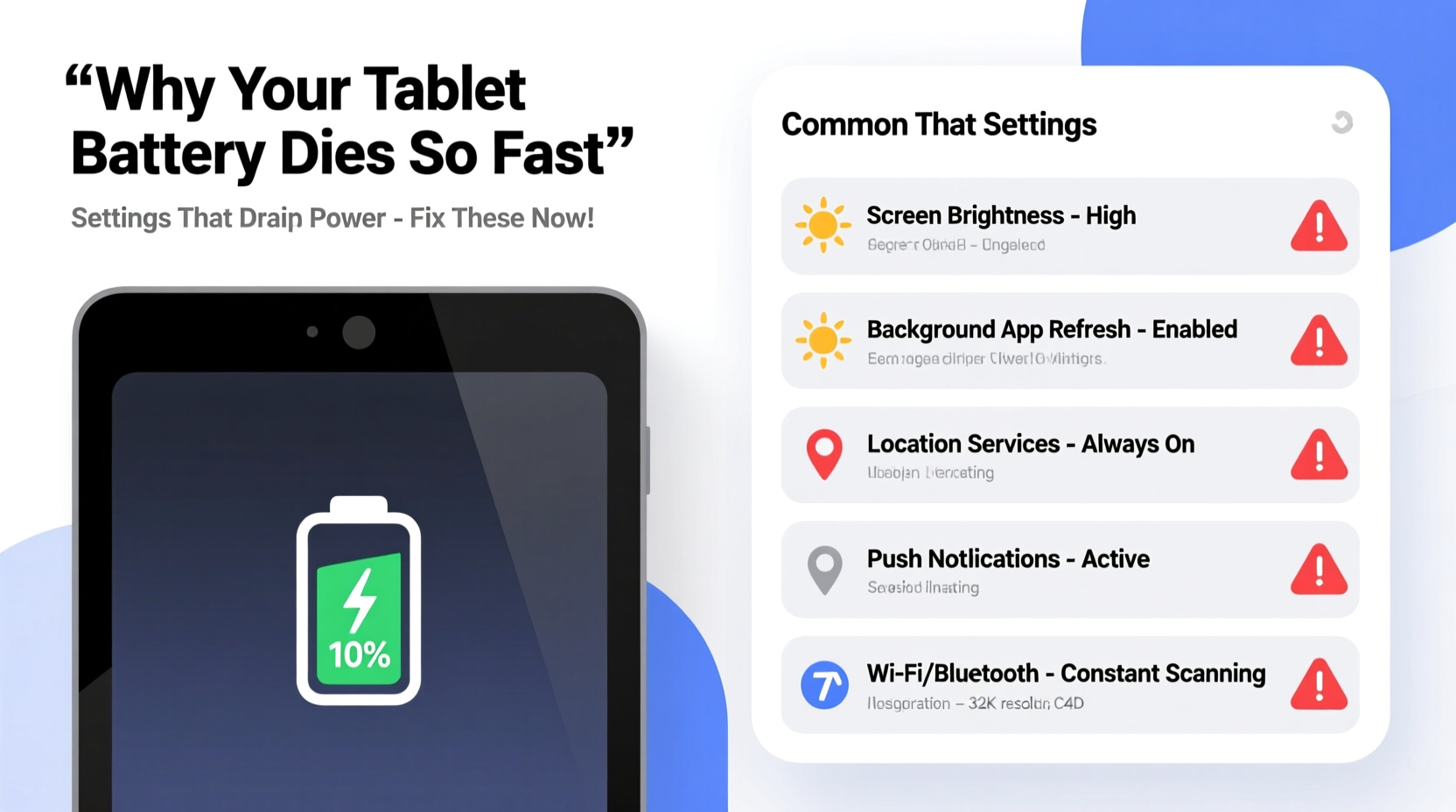
Modern tablets are designed to stay connected and responsive at all times. However, this convenience comes at a cost—battery life. Several built-in features and default settings silently consume power, even when you’re not actively using the device.
1. Screen Brightness and Timeout
The display is typically the largest consumer of battery power. High brightness levels, especially in auto-brightness mode, can cause excessive energy use. Similarly, a long screen timeout setting keeps the display active longer than necessary after user interaction stops.
2. Background App Refresh and Syncing
Many apps continue to run or refresh data in the background, checking for updates, emails, social media notifications, or cloud syncs. These activities keep the processor and network radios active, drawing continuous power.
Email apps set to \"push\" instead of \"fetch\" constantly poll servers. Cloud storage apps like Google Drive or Dropbox may upload photos or documents automatically, increasing CPU and data usage.
3. Location Services (GPS, Wi-Fi, Bluetooth)
Location tracking uses GPS, cellular networks, and Wi-Fi triangulation—all of which are power-intensive. Apps like maps, fitness trackers, or weather services frequently request location data, even when running in the background.
Even if you aren’t actively using navigation, having location enabled globally allows numerous apps to access your position, contributing to faster battery depletion.
4. Push Notifications and Always-On Connectivity
Real-time notifications require your tablet to maintain constant communication with servers. Features like instant messaging apps, live feeds, and push email keep network connections alive, preventing the device from entering low-power states.
Wi-Fi and Bluetooth scanning in the background also contribute. Even when not connected, your tablet may continuously search for networks or devices, consuming additional energy.
5. Auto-Sync and Cloud Backups
Automatic syncing across accounts (Google, Apple iCloud, Microsoft) ensures data consistency but runs periodic background checks. Photo backups, document synchronization, and contact updates happen silently—and frequently.
These operations involve disk access, processing, and data transmission, all of which increase power draw, especially on slower networks where uploads take longer.
Do’s and Don’ts: Battery Optimization Table
| Do | Don't |
|---|---|
| Enable adaptive brightness with manual caps | Keep screen brightness at maximum all day |
| Set screen timeout to 30 seconds or less | Leave screen timeout at 2+ minutes unnecessarily |
| Disable background app refresh for non-essential apps | Allow all apps to refresh in the background |
| Use location services only when needed; set to “While Using” | Keep GPS always on for all apps |
| Schedule backups during charging periods | Enable continuous photo and file auto-upload |
Step-by-Step Guide to Reducing Battery Drain
Follow this sequence of actions to systematically reduce unnecessary power consumption. Implementing these changes takes under 15 minutes and can significantly extend daily battery life.
- Adjust Display Settings
Go to Settings > Display. Lower brightness manually or fine-tune adaptive brightness. Set screen timeout to 30 seconds. Consider enabling dark mode if your tablet uses OLED or AMOLED technology. - Limit Background App Activity
Navigate to Settings > Apps > Special Access > Background Restrictions (Android) or Settings > General > Background App Refresh (iOS). Disable background refresh for apps that don’t need real-time updates (e.g., games, calculators). - Manage Location Permissions
Open Settings > Location. Review which apps have access. Change permissions from “Always” to “While Using” for non-critical apps. Turn off location entirely when not needed. - Optimize Email and Notifications
In email settings, switch from “Push” to “Fetch” every 15–30 minutes. Disable non-essential app notifications via Settings > Notifications. Prioritize only urgent alerts. - Control Sync Frequency
Go to Settings > Accounts (or Passwords & Accounts). Select your account (Google, iCloud, etc.) and disable automatic sync for contacts, calendar, or drive unless essential. Manually sync when convenient. - Turn Off Unnecessary Radios
Disable Bluetooth, Wi-Fi, and NFC when not in use. Use Airplane Mode in low-signal areas or during extended offline use (e.g., reading, watching downloaded videos). - Update Software and Apps
Outdated software may contain inefficient code or bugs that increase battery usage. Check for OS updates and ensure all apps are current—developers often optimize for energy efficiency in newer versions.
Mini Case Study: Recovering 4 Hours of Daily Battery Life
Sarah, a freelance graphic designer, relied on her Android tablet for client meetings and sketching. She noticed her battery lasted only five hours despite minimal use. After reviewing her settings, she discovered several issues:
- Screen brightness was set to 100% due to outdoor work, with a 2-minute timeout.
- Her design app and cloud storage were syncing continuously.
- Location services were enabled for social media and weather apps running in the background.
- She had push notifications enabled for eight messaging platforms.
Over one evening, Sarah adjusted her settings: lowered brightness, reduced timeout to 30 seconds, disabled background sync for non-essential apps, restricted location access, and turned off push for all but two critical apps. She also scheduled cloud backups for nighttime charging.
The next day, her tablet lasted nine hours on a single charge—an improvement of nearly 80%. She maintained full functionality while eliminating invisible drains. This small investment in configuration saved her from needing a second battery pack during travel.
“Battery optimization isn’t about sacrificing features—it’s about aligning them with actual usage. A few smart settings changes can double effective battery life.” — Dr. Alan Reyes, Mobile Systems Engineer at TechPower Labs
Battery-Friendly Checklist
Use this checklist weekly to maintain optimal battery performance:
- ✅ Reduce screen brightness and set timeout to ≤30 seconds
- ✅ Enable dark mode (especially on OLED screens)
- ✅ Disable background app refresh for non-critical apps
- ✅ Set location access to “While Using” or disable when idle
- ✅ Switch email from “Push” to “Fetch” every 15–30 minutes
- ✅ Turn off Bluetooth, Wi-Fi, and GPS when not needed
- ✅ Review battery usage stats to spot energy-hungry apps
- ✅ Schedule automatic backups only during charging
- ✅ Keep operating system and apps updated
- ✅ Reboot your tablet once a week to clear memory leaks
Frequently Asked Questions
Why does my tablet battery die overnight even when not in use?
This usually happens due to background processes like app syncing, push notifications, or location tracking. Even in sleep mode, some apps wake the device periodically. To prevent this, enable battery saver mode overnight or disable non-essential background activity. Also, check for rogue apps using excessive power in the battery usage menu.
Does dark mode really save battery?
Yes—but only on OLED or AMOLED displays. These screens turn off individual pixels when showing black, reducing power consumption. On LCD tablets, dark mode offers minimal battery savings, though it may reduce eye strain. Check your tablet’s display type before relying on dark mode as a battery-saving tactic.
Is it better to use battery saver mode all the time?
Battery saver mode limits performance, disables background sync, and reduces visual effects. While effective for extending life in emergencies, using it permanently may disrupt important notifications or app functionality. It’s best used situationally—during travel, long work sessions, or when below 30% charge.
Conclusion: Take Control of Your Tablet’s Power Usage
Your tablet doesn’t have to be tethered to a charger all day. By understanding which settings silently drain power, you can make targeted adjustments that deliver real results. The key is awareness: knowing how features like background sync, location tracking, and display settings impact energy use empowers smarter decisions.
You don’t need technical expertise—just a few minutes to review and refine your configuration. Small changes compound into significant gains, turning a half-day battery into a full-day companion. Whether you use your tablet for work, entertainment, or creativity, optimizing its power settings enhances both usability and longevity.




 浙公网安备
33010002000092号
浙公网安备
33010002000092号 浙B2-20120091-4
Comments
No comments yet. Why don't you start the discussion?