
Tablets have become essential tools for work, education, entertainment, and communication. But nothing disrupts the experience like a device that suddenly freezes—unresponsive to taps, swipes, or even the power button. If your tablet has started freezing at random moments, you're not alone. Millions of users face similar issues, often without understanding the root causes. The good news is that most freezing problems are fixable with practical, straightforward steps. This guide dives into the common reasons behind tablet freezes and provides actionable solutions to restore smooth performance.
Common Causes of Random Tablet Freezing
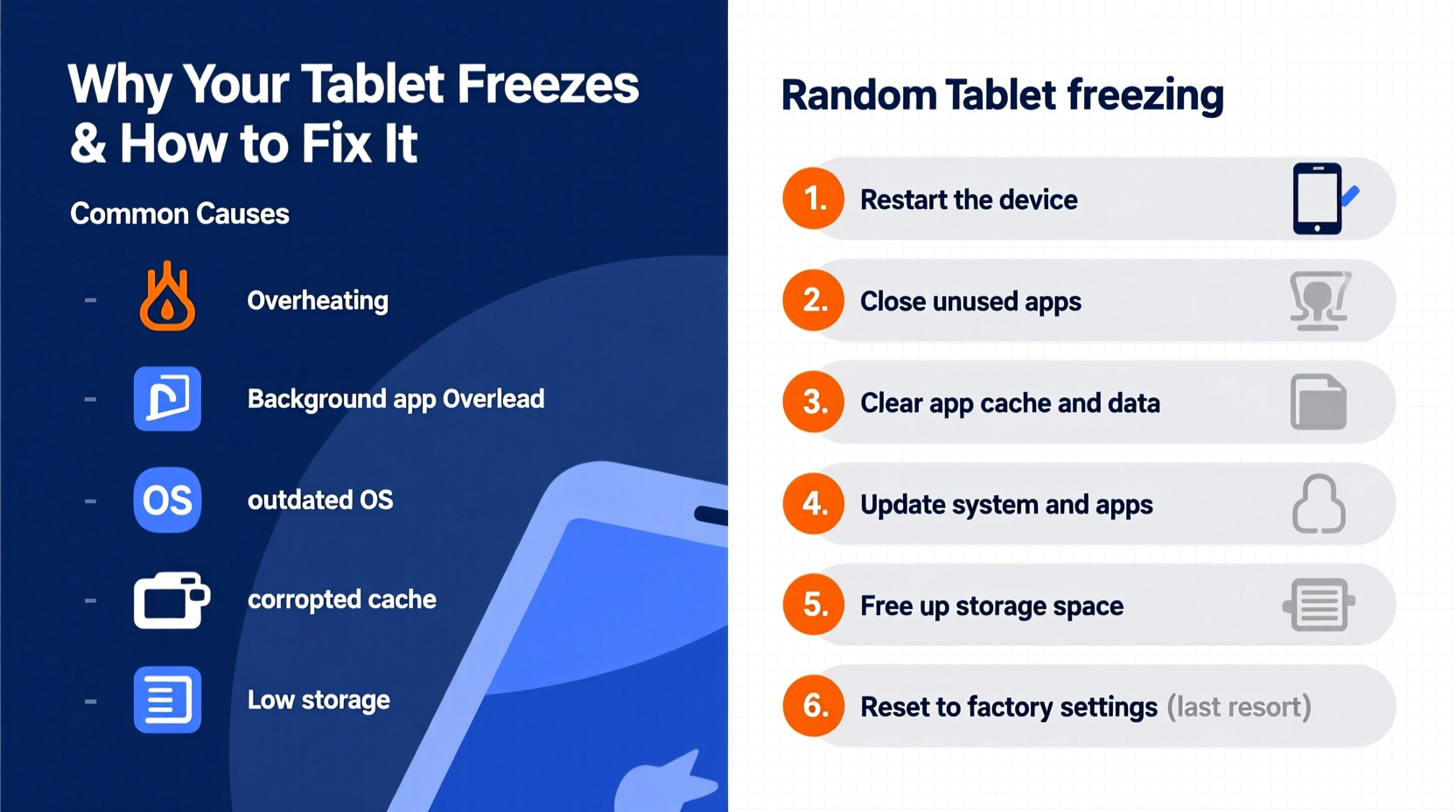
Before jumping into fixes, it's crucial to understand what might be triggering the issue. A tablet freeze isn't always a sign of hardware failure—it’s often linked to software conflicts, resource overload, or environmental factors. Identifying the cause helps target the right solution.
- Insufficient RAM: Running too many apps simultaneously can exhaust available memory, causing the system to lag or freeze.
- Outdated operating system: Older software versions may contain bugs or compatibility issues with newer apps.
- App conflicts or crashes: Poorly coded or outdated apps can crash in the background, dragging down the entire system.
- Overheating: Prolonged usage, direct sunlight, or blocked vents can cause thermal throttling or shutdowns.
- Storage overload: When internal storage is nearly full, the system struggles to manage temporary files and cache.
- Faulty firmware or corrupted system files: Glitches during updates or improper shutdowns can damage critical OS components.
- Malware or intrusive apps: Rare but possible, especially on Android tablets, malicious software can consume resources silently.
Step-by-Step Troubleshooting Guide
When your tablet starts freezing unexpectedly, follow this structured approach to diagnose and resolve the problem efficiently. These steps progress from simple checks to more advanced interventions, minimizing risk while maximizing effectiveness.
- Force restart the tablet – This clears any immediate hang-up. For most devices, press and hold the Power button for 10–15 seconds until the screen turns off and restarts. On some models, you may need to press Power + Volume Down simultaneously.
- Check for overheating – Feel the back of the device. If it’s hot, turn it off and let it cool in a shaded area for 15–20 minutes before resuming use.
- Boot into Safe Mode (Android only) – This disables third-party apps temporarily. To enter Safe Mode, press and hold the Power button, then long-press the \"Power off\" option until \"Reboot to safe mode\" appears. Tap OK. If the tablet runs smoothly in Safe Mode, a third-party app is likely the culprit.
- Update the operating system – Go to Settings > System > Software Update (or equivalent) and install any pending updates. These often include stability patches.
- Clear cache partition (Android) – Power off the tablet, then press and hold Power + Volume Up. Use volume keys to navigate to \"Wipe cache partition,\" confirm with Power, then reboot.
- Uninstall recently installed apps – If the freezing began after installing a new app, remove it through Settings > Apps.
- Free up storage space – Delete unused apps, photos, videos, or downloads. Aim to keep at least 10–15% of storage free for optimal performance.
- Reset app preferences – This resets permissions and background restrictions without deleting data. Found under Settings > Apps > Reset app preferences.
When to Consider a Factory Reset
If all else fails, a factory reset can eliminate deep-seated software issues. However, this should be a last resort. It erases all personal data, so back up contacts, photos, documents, and app data first via cloud services or external storage.
To perform a factory reset: Go to Settings > System > Reset options > Erase all data (factory reset). Follow prompts to confirm. After resetting, observe the tablet’s behavior before restoring apps one by one to identify potential offenders.
Do’s and Don’ts for Preventing Future Freezes
| Do’s | Don’ts |
|---|---|
| Keep your OS and apps updated regularly | Ignore software update notifications |
| Install apps only from official stores (Google Play, Apple App Store) | Download APKs or sideload apps from unknown sources |
| Use a reputable antivirus app (especially on Android) | Run multiple antivirus apps simultaneously—they compete for resources |
| Close background apps when not in use | Leave 10+ apps running in the background for hours |
| Store your tablet in a cool, dry place away from direct heat | Leave it in a car on a sunny day or near radiators |
| Restart your tablet weekly to clear cached processes | Use the tablet continuously for days without a reboot |
Real-World Example: Recovering a Frozen Learning Tablet
Sarah, a middle school teacher, relied on her Android tablet for daily classroom presentations. One morning, the screen froze during roll call—unresponsive to touch or buttons. She tried charging it, assuming low battery, but the device remained stuck on the home screen.
Following basic troubleshooting, she force-restarted the tablet (Power + Volume Down for 15 seconds). It rebooted successfully, but froze again within minutes. Suspecting an app conflict, she booted into Safe Mode. The tablet operated normally, confirming a third-party app was responsible.
She reviewed recent installations and found a “classroom timer” app downloaded the previous evening. After uninstalling it, the freezing stopped completely. Sarah now checks app reviews and developer credibility before installing anything new—a habit that’s prevented further issues.
“Many tablet freezes stem from software bloat or rogue apps. A methodical approach—starting with Safe Mode—can save users from unnecessary repairs.” — Dr. Marcus Lin, Mobile Systems Engineer at TechCare Labs
Essential Maintenance Checklist
Prevention is far more effective than repair. Use this checklist monthly to keep your tablet running smoothly and reduce the risk of unexpected freezes.
- ✅ Restart the tablet at least once a week
- ✅ Check for OS and app updates
- ✅ Delete unused apps and files
- ✅ Clear cache for heavy apps (e.g., browsers, social media)
- ✅ Verify battery health and avoid extreme temperatures
- ✅ Run a quick malware scan (Android devices)
- ✅ Back up important data to cloud or external drive
- ✅ Inspect for physical damage or swollen battery signs
Frequently Asked Questions
Why does my tablet freeze when I open certain apps?
This typically indicates that the app is poorly optimized, outdated, or incompatible with your tablet’s OS version. Try updating the app or clearing its cache. If the issue persists, uninstall and reinstall it. Some older tablets may no longer support newer versions of popular apps due to hardware limitations.
Can a virus make my tablet freeze?
Yes, though less common on iOS due to strict app sandboxing, Android tablets can be affected by malware disguised as legitimate apps. Signs include sudden freezes, excessive ads, rapid battery drain, or unfamiliar apps appearing. Install a trusted security app from Google Play and run a full system scan.
Is it safe to leave my tablet charging overnight?
Modern tablets have built-in safeguards to stop charging at 100%, making overnight charging generally safe. However, frequent full cycles can degrade battery health over time. For longevity, aim to keep charge between 20% and 80%. Also, avoid using the tablet intensively while charging, as this generates excess heat.
Conclusion: Take Control of Your Tablet’s Performance
A tablet that freezes randomly doesn’t mean it’s broken beyond repair. In most cases, the issue stems from manageable software or usage patterns—not irreversible hardware damage. By understanding the triggers and applying consistent maintenance, you can significantly improve reliability and extend your device’s lifespan.
The key is proactive care: regular restarts, timely updates, mindful app management, and attention to storage and temperature. If problems persist despite these efforts, consider consulting the manufacturer or an authorized service center—there may be underlying hardware concerns like failing memory or a degrading battery.
Don’t let a frozen screen derail your productivity or enjoyment. Start implementing these steps today, and reclaim a smooth, responsive tablet experience.




 浙公网安备
33010002000092号
浙公网安备
33010002000092号 浙B2-20120091-4
Comments
No comments yet. Why don't you start the discussion?