
It’s a common scenario: you’ve settled in for a long episode binge, only to notice your tablet growing uncomfortably warm—sometimes even hot—after just 20 minutes of streaming Netflix. While some warmth is normal during extended use, excessive heat can signal deeper issues, affect performance, and potentially shorten your device’s lifespan. Understanding why this happens and how to prevent it isn’t just about comfort—it’s about preserving your tablet’s health and efficiency.
The root causes are often tied to the high demands placed on your tablet during video streaming. Netflix delivers high-resolution content that requires significant processing power, sustained screen brightness, continuous network activity, and active background services—all of which generate heat. But not all heating is inevitable. With the right habits and optimizations, you can enjoy uninterrupted viewing without turning your tablet into a mini heater.
Why Tablets Heat Up During Netflix Streaming
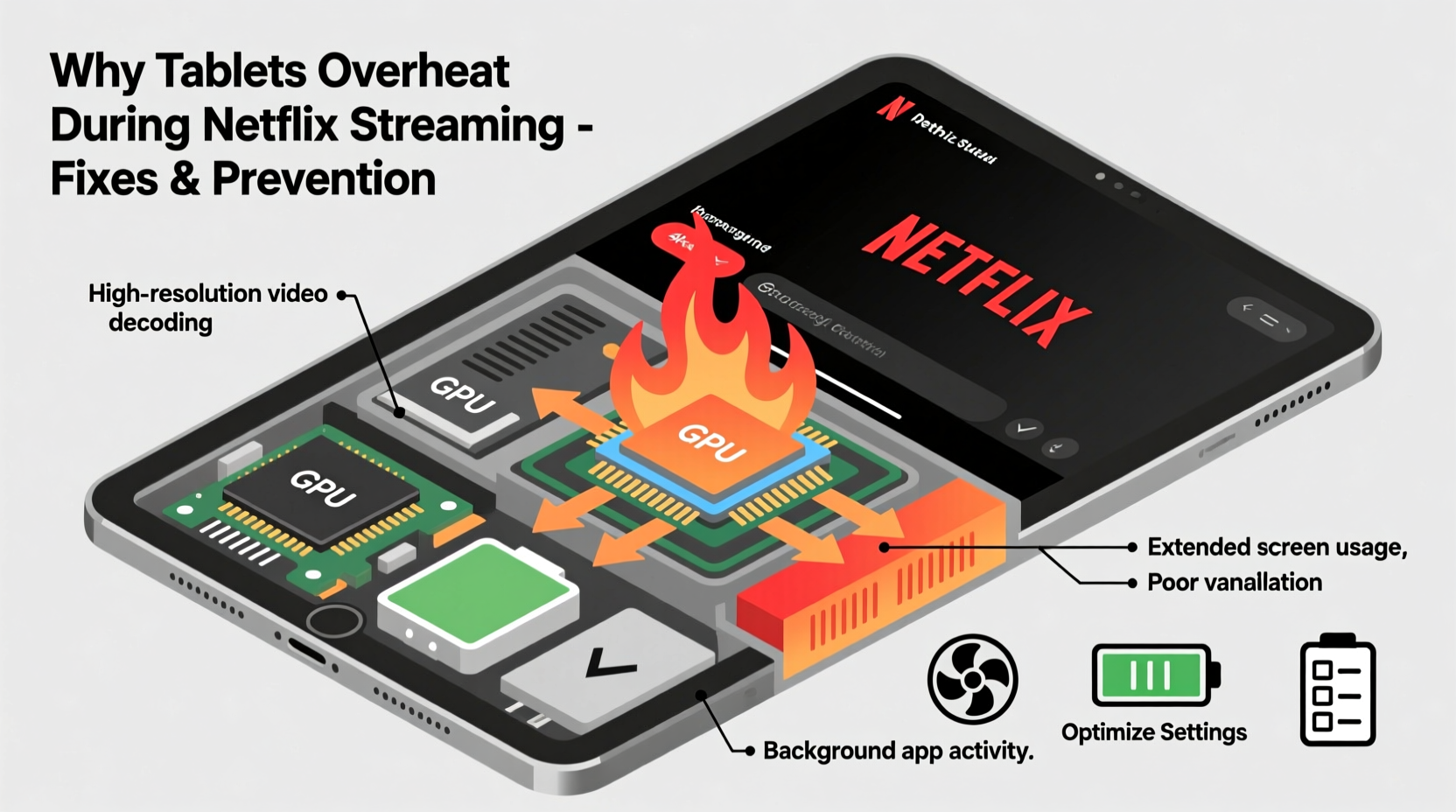
Heat generation in electronic devices is a natural byproduct of energy consumption. When your tablet runs resource-intensive tasks like decoding HD or 4K video streams, multiple internal components work harder, increasing thermal output. The primary contributors include:
- CPU and GPU usage: Video playback, especially at higher resolutions, requires constant decoding of compressed data. This task heavily engages the processor and graphics chip.
- Screen brightness: High brightness levels consume more power and generate additional heat, particularly on OLED or AMOLED displays.
- Wi-Fi and cellular radios: Maintaining a stable internet connection for streaming uses wireless modules that contribute to overall temperature rise.
- Background apps: Other running applications may be using system resources, adding to the load and heat production.
- Poor ventilation: Using your tablet on soft surfaces like beds or couches can block air vents (if present) and trap heat.
According to Dr. Alan Reyes, a mobile systems engineer at the Institute of Electrical and Electronics Engineers (IEEE), “Modern tablets are built with efficient thermal management, but prolonged high-load scenarios like 4K streaming push them to their limits. Sustained temperatures above 40°C (104°F) can trigger throttling or even long-term battery degradation.”
“Sustained overheating doesn’t just slow down your device—it accelerates battery wear and reduces component longevity.” — Dr. Alan Reyes, Mobile Systems Engineer, IEEE
Common Fixes to Reduce Tablet Heating
Before assuming hardware failure, try these practical troubleshooting steps. Many cases of overheating are caused by software inefficiencies or user habits that can be corrected immediately.
1. Lower Video Quality in the Netflix App
Netflix defaults to the highest quality your connection supports, often HD or Ultra HD. Reducing the stream resolution significantly decreases CPU load and heat output.
2. Close Unused Background Apps
Running multiple apps in the background increases RAM usage and forces the processor to multitask unnecessarily. Before starting a long watch session, close all non-essential apps.
3. Turn Off Bluetooth and GPS
Even when idle, Bluetooth and location services consume power and generate minor heat. Disable them during streaming if not needed.
4. Avoid Direct Sunlight and Hot Environments
Using your tablet in direct sunlight or a hot room raises its baseline temperature. Always stream in a cool, shaded area. Never leave your tablet on a car dashboard or near radiators.
5. Remove Thick Cases During Long Sessions
Silicone or rubber cases act as insulators. While they protect against drops, they also trap heat. Consider removing the case during extended Netflix sessions.
Preventive Measures for Long-Term Cooling
Fixing overheating after it happens is useful, but preventing it from occurring regularly is far more effective. These long-term strategies help maintain optimal thermal performance over time.
Optimize Screen Settings
The display is one of the biggest power consumers. Adjusting brightness and timeout settings can reduce both heat and battery drain.
| Setting | Recommended Adjustment | Benefit |
|---|---|---|
| Brightness | Set to 50–70% or enable auto-brightness | Reduces screen heat and power draw |
| Screen Timeout | Set to 1–2 minutes | Lowers exposure time of active components |
| Auto-Rotate | Disable if not needed | Reduces sensor and CPU activity |
| Night Mode / Dark Theme | Enable for OLED screens | Dark pixels emit less heat and light |
Keep Software Updated
Manufacturers release firmware updates that often include thermal management improvements, bug fixes, and better app optimization. Outdated software can cause inefficient resource usage, leading to unnecessary heating.
Use Airplane Mode with Wi-Fi On (If Possible)
If you’re connected to a stable Wi-Fi network, enabling Airplane Mode and then manually turning Wi-Fi back on disables cellular radios, GPS, and Bluetooth by default—reducing background interference and heat.
Step-by-Step Guide to Cool Down an Overheating Tablet
If your tablet becomes too hot to hold, take immediate action to prevent damage. Follow this timeline to safely reduce temperature and resume usage.
- Pause Netflix and close the app (5 seconds): Stop the video stream to halt intensive processing.
- Power off the device (10 seconds): A full shutdown stops all operations and allows rapid cooling.
- Remove the case (5 seconds): Expose the device to air for better heat dissipation.
- Place on a hard, cool surface (e.g., wooden table) (immediate): Avoid fabric or plastic surfaces that trap heat.
- Wait 10–15 minutes before restarting: Let internal components cool naturally. Do not use fans or refrigeration.
- Restart and recheck temperature: If still hot, let it rest longer. If cooled, reopen Netflix with reduced settings.
Never attempt to cool a tablet with ice, cold water, or freezing environments. Rapid temperature changes can cause condensation inside the device, leading to short circuits or corrosion.
Real Example: How Sarah Fixed Her Overheating iPad
Sarah, a college student, noticed her iPad Pro would shut down automatically during long Netflix study breaks. Initially, she thought it was a battery issue. After consulting a tech support forum, she realized she was streaming in 4K on a strong Wi-Fi connection while keeping the brightness at maximum. She also used a thick silicone case and often watched in bed, blocking airflow.
She applied several changes: removed the case, lowered brightness to 60%, set Netflix to “Medium” data usage, and switched to watching on her desk. Within days, the device stayed below warm-to-the-touch levels even during 3-hour viewing sessions. The random shutdowns stopped completely.
“I didn’t realize how much small settings added up,” she said. “Now I can watch entire seasons without worrying about my iPad shutting down.”
Do’s and Don’ts of Managing Tablet Temperature
To make best practices clear, here’s a quick-reference comparison table outlining key behaviors.
| Do’s | Don’ts |
|---|---|
| Stream in HD instead of 4K unless necessary | Leave the tablet in direct sunlight while watching |
| Use a stand to improve airflow around the device | Watch under blankets or on pillows |
| Update Netflix and OS regularly | Ignore frequent overheating warnings |
| Enable battery saver mode during long sessions | Run games or downloads simultaneously with Netflix |
| Reboot weekly to clear memory and caches | Apply third-party cooling apps (they don’t work) |
Frequently Asked Questions
Is it safe to use my tablet if it gets warm during Netflix?
A slightly warm device is normal. However, if it becomes too hot to hold comfortably (above 45°C), stop using it immediately. Prolonged exposure to high temperatures can degrade the lithium-ion battery and weaken adhesive components like screen layers.
Can a software update really reduce heating?
Yes. Updates often include optimized power management, improved video decoding efficiency, and patches for apps that leak memory or overuse CPU. For example, a 2023 Android update reduced average streaming temperature by 3–5°C in Samsung tablets due to better codec handling.
Does dark mode actually help with overheating?
On OLED or AMOLED screens, yes. Black pixels are turned off completely, consuming no power and generating no heat. On LCD screens, the effect is minimal, but dark themes still reduce eye strain and perceived brightness, allowing lower backlight levels.
Final Checklist: Keep Your Tablet Cool While Streaming
Before every Netflix session, run through this quick checklist to minimize heat buildup:
- ✅ Close all background apps
- ✅ Lower screen brightness to 60%
- ✅ Set Netflix video quality to “Medium”
- ✅ Remove protective case
- ✅ Place tablet on a hard, flat surface
- ✅ Disable Bluetooth, GPS, and cellular data if not needed
- ✅ Ensure good Wi-Fi signal to avoid buffering spikes
- ✅ Avoid charging while streaming (if possible)
Conclusion: Stay Cool, Stream Smarter
Your tablet doesn’t need to double as a space heater to enjoy your favorite shows. By understanding the technical reasons behind Netflix-induced heating and applying simple, science-backed adjustments, you can maintain a cooler, safer, and more efficient device. Most overheating issues stem not from hardware flaws, but from overlooked settings and usage habits.
Start implementing these fixes today—adjust your Netflix quality, optimize your environment, and follow the cooling checklist. Not only will your tablet last longer, but your viewing experience will become smoother and more reliable. Share your own tips in the comments and help others enjoy cool, uninterrupted streaming.




 浙公网安备
33010002000092号
浙公网安备
33010002000092号 浙B2-20120091-4
Comments
No comments yet. Why don't you start the discussion?