
Tablets have become essential tools for work, education, and entertainment. When your device suddenly freezes—unresponsive icons, a stuck screen, or an endless loading loop—it disrupts productivity and causes frustration. While occasional lag might be normal, frequent freezing often signals deeper issues. Understanding the root causes and knowing when a factory reset is appropriate can save time, prevent data loss, and restore performance without unnecessary repair costs.
Common Causes of Tablet Freezing
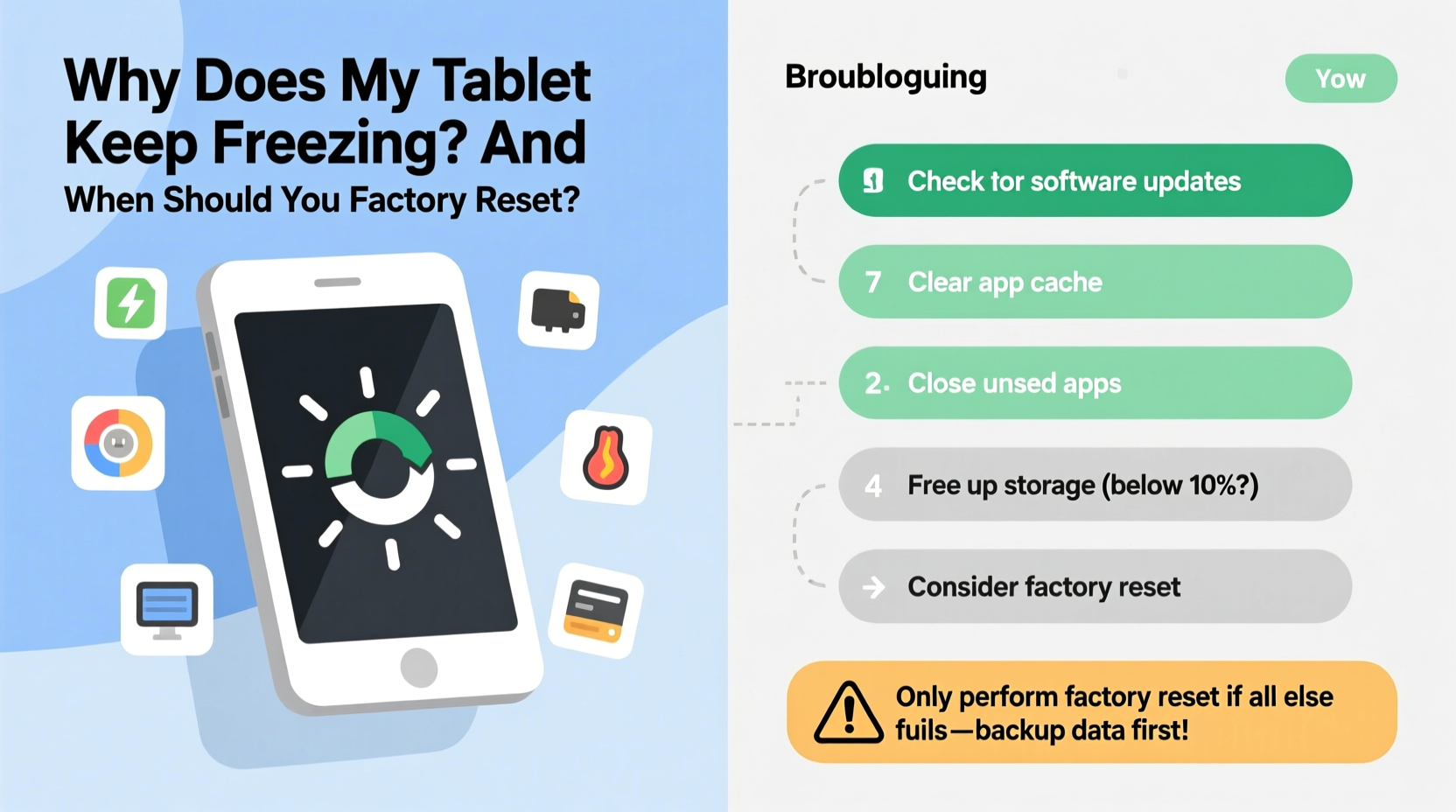
Freezing isn’t random. It typically results from hardware limitations, software conflicts, or user behavior. Identifying the cause helps determine whether a simple fix will suffice or if more drastic measures are needed.
- Insufficient memory (RAM): Running too many apps simultaneously overwhelms available memory, causing slowdowns and crashes.
- Outdated operating system: Older OS versions may lack critical bug fixes or compatibility updates, increasing instability.
- Corrupted app data: A single malfunctioning app can freeze the entire interface, especially if it runs in the background.
- Storage overload: When internal storage is nearly full, the system struggles to manage temporary files and cache, leading to poor responsiveness.
- Overheating: Prolonged use, direct sunlight, or blocked vents can trigger thermal throttling, forcing the device to slow down or shut off processes.
- Faulty hardware: Damaged screens, failing batteries, or corrupted internal storage chips can mimic software issues but require physical inspection.
When to Consider a Factory Reset
A factory reset erases all personal data, settings, and third-party apps, returning the tablet to its original out-of-the-box state. It’s not always necessary—but it’s one of the most effective ways to resolve deep-seated software problems.
You should consider a factory reset when:
- The tablet freezes repeatedly, even after restarting.
- Apps crash frequently despite being updated.
- The home screen lags significantly during basic navigation.
- System updates fail to install or cause immediate instability.
- Troubleshooting steps like clearing cache or uninstalling apps haven’t helped.
However, a factory reset should never be the first step. It's a last resort after exhausting less invasive options. Prematurely wiping your device risks losing important files and wasting time reinstalling apps unnecessarily.
Step-by-Step Troubleshooting Before Resetting
Before initiating a factory reset, follow this structured diagnostic process to isolate and potentially fix the issue.
1. Restart the Device
Power cycling clears temporary memory and stops rogue processes. Hold the power button for 10–15 seconds until the screen turns off, wait 30 seconds, then turn it back on.
2. Check for Software Updates
Navigate to Settings > System > Software Update. Install any pending updates, as they often include performance improvements and security patches that resolve freezing issues.
3. Boot into Safe Mode
Safe mode disables third-party apps, helping identify if a downloaded application is causing the problem.
Android Example: Press and hold the power button, then long-press “Power off” until “Reboot to safe mode” appears. Tap OK.
If the tablet runs smoothly in safe mode, an installed app is likely the culprit. Uninstall recently added apps one by one to pinpoint the offender.
4. Clear Cache Partition
The cache partition stores non-essential system data used for faster booting. Over time, it can become corrupted.
How to clear cache (Android): Turn off the tablet. Press and hold Power + Volume Up until the logo appears. Use volume keys to select “Wipe cache partition,” confirm with the power button, then reboot.
5. Monitor Storage Usage
Go to Settings > Storage and review usage. If free space is below 10%, delete old photos, videos, downloads, or move files to cloud storage.
6. Remove Unused Apps and Bloatware
Some pre-installed apps run background services that consume resources. Disable or uninstall them via Settings > Apps.
7. Test Battery Health
Low battery health can cause erratic behavior. If the battery drains rapidly or swells slightly, professional replacement may be required.
Do’s and Don’ts: Managing a Freezing Tablet
| Do | Don't |
|---|---|
| Restart your tablet weekly to clear memory | Ignore repeated freezing—it rarely resolves itself |
| Keep at least 15% of storage free | Install unknown apps from untrusted sources |
| Back up data before any major change | Use force shutdowns excessively (can corrupt data) |
| Update apps and OS promptly | Leave your tablet in hot environments (e.g., cars) |
| Factory reset only after trying other fixes | Assume hardware failure without testing software first |
Real-World Example: Sarah’s Overloaded Tablet
Sarah, a freelance graphic designer, relied on her tablet for client meetings and sketching. Over six months, she installed multiple design tools, cloud sync apps, and streaming services. Gradually, the device began freezing during presentations—sometimes requiring a hard reboot.
She initially suspected a hardware defect and considered buying a new model. Instead, she followed a systematic approach: cleared cached data, uninstalled redundant collaboration apps, and moved large project files to external storage. The result? Smooth performance returned within two days—without a factory reset.
This case highlights how gradual software bloat, not sudden failure, often causes freezing. Simple maintenance could have prevented the crisis.
Expert Insight: Knowing When to Wipe Clean
“A factory reset is like hitting the refresh button on your digital life. It’s powerful, but only effective if the problem is software-based. Always rule out overheating, malware, or storage saturation first.” — Dr. Alan Zhou, Mobile Systems Engineer at TechReliability Labs
Experts emphasize that resetting too early wastes time and increases user frustration. Proper diagnosis ensures the fix matches the fault.
Step-by-Step Guide: Performing a Factory Reset Safely
If troubleshooting fails and freezing persists, proceed with caution. Follow these steps to preserve data and ensure a clean restart.
- Back up everything: Sync contacts, photos, documents, and app data to cloud services (Google Drive, iCloud, Dropbox) or transfer to a computer.
- Deactivate lock features: Turn off Find My Device (Android) or Find My iPad (iOS) to avoid activation locks after reset.
- Charge the tablet: Ensure battery is at least 50% charged to prevent interruption during the process.
- Initiate reset:
- Android: Settings > System > Reset > Erase all data (factory reset)
- iPadOS: Settings > General > Transfer or Reset iPad > Erase All Content and Settings
- Wait for completion: Do not interrupt the process. It may take 5–15 minutes depending on storage size.
- Set up as new or restore: After reboot, choose to restore from backup only if the previous setup caused issues. Otherwise, start fresh to avoid reintroducing corrupted data.
Frequently Asked Questions
Will a factory reset fix a permanently frozen screen?
Not always. If the screen is physically damaged or unresponsive to touch, a reset won’t help. However, if the device powers on but freezes during startup, a forced factory reset via recovery mode may resolve software-level corruption.
Can malware cause tablet freezing?
Yes. Malicious apps or scripts can consume system resources in the background. Signs include unexpected pop-ups, rapid battery drain, or unfamiliar apps appearing. Removing suspicious apps or performing a factory reset (after scanning backups) usually eliminates the threat.
How often should I factory reset my tablet?
Never on a schedule. Only perform a reset when necessary due to persistent performance issues. Regular resets aren’t beneficial and increase wear on flash storage over time.
Final Checklist Before You Reset
Before confirming a factory reset, verify the following:
- ✅ All important files are backed up
- ✅ Account credentials (email, Wi-Fi, cloud) are recorded
- ✅ Two-factor authentication methods are accessible post-reset
- ✅ Alternative devices are available in case of setup delays
- ✅ You’ve tried safe mode, cache wipe, and app removal
Missing any of these steps risks permanent data loss or reinstallation bottlenecks.
Conclusion: Regain Control of Your Device
A freezing tablet doesn’t mean it’s broken beyond repair. Most issues stem from manageable software conditions—overloaded memory, outdated systems, or conflicting apps. With methodical troubleshooting, many users can restore smooth operation without wiping their device.
A factory reset remains a powerful tool, but it must be used wisely. Treat it like surgery: precise, intentional, and only after proper diagnosis. By understanding the why behind the freeze and respecting the consequences of a full erase, you protect both your data and your digital experience.




 浙公网安备
33010002000092号
浙公网安备
33010002000092号 浙B2-20120091-4
Comments
No comments yet. Why don't you start the discussion?