
Digital artists rely on tablets to bring their ideas to life with precision and fluidity. But when strokes stutter, brushes delay, or the screen freezes mid-drawing, the creative process grinds to a halt. If you’ve found yourself asking, “Why does my tablet lag when using drawing apps?” you're not alone. Performance issues plague users across brands and price points — from budget Android tablets to high-end iPads and Windows devices. The good news? Most causes of lag are fixable with the right adjustments. This guide breaks down the technical and environmental reasons behind drawing lag and delivers actionable solutions to restore smooth, responsive performance.
Understanding the Root Causes of Drawing Lag
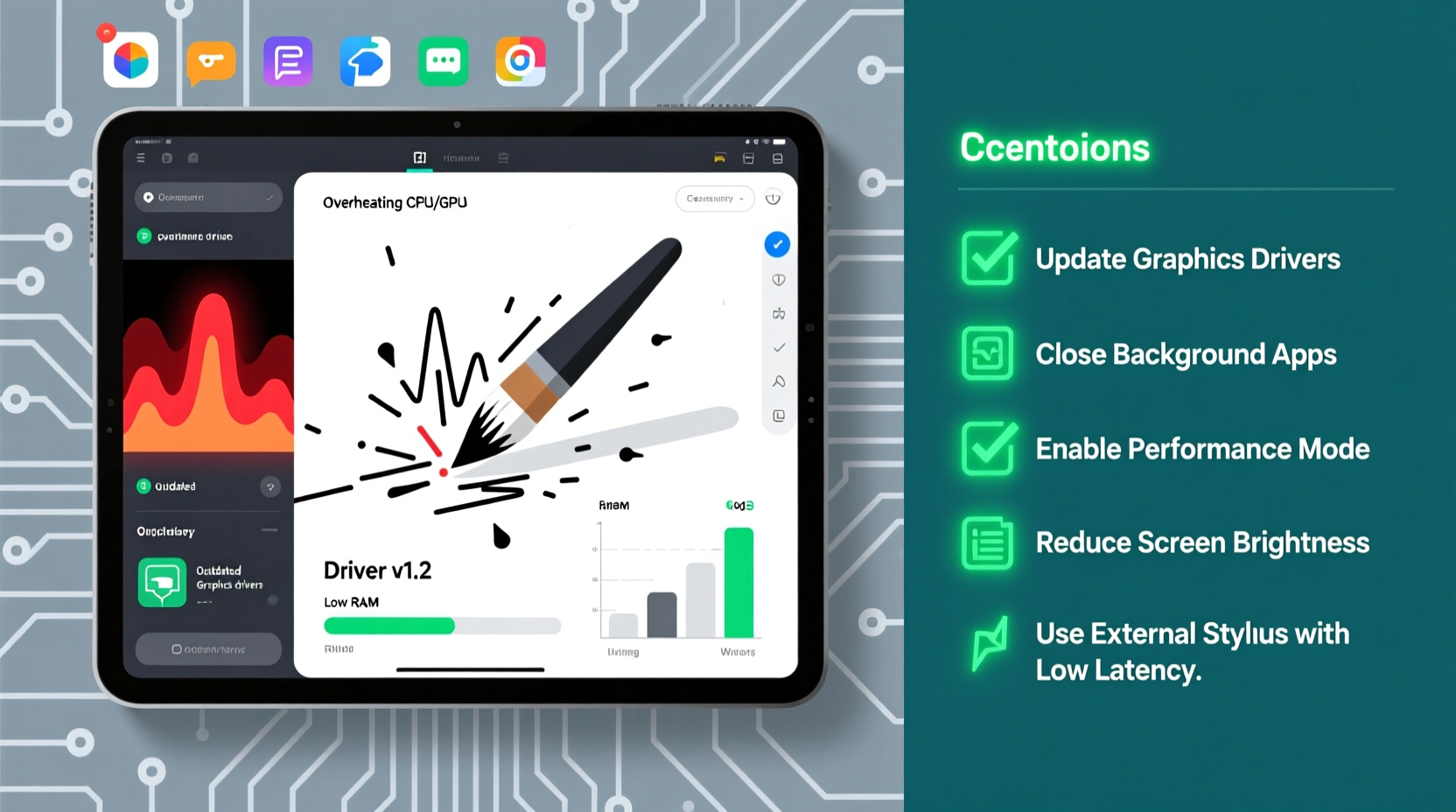
Lag during digital drawing isn’t just an annoyance — it’s a symptom of underlying mismatches between hardware capability, software demands, and user settings. When your stylus input doesn’t translate instantly to the screen, several factors could be at play:
- Insufficient processing power: Complex brush engines and high-resolution canvases demand CPU and GPU resources.
- Low RAM: Multitasking or running memory-heavy apps can starve your drawing program of needed resources.
- Outdated software: Old operating systems or unpatched apps may lack optimizations for modern tools.
- Poor stylus-to-screen latency: Even with good hardware, poor driver support or Bluetooth delays can cause input lag.
- Background processes: Syncing services, updates, or unused apps consume cycles that should go toward rendering strokes.
- Display refresh rate limitations: A 60Hz screen cannot match the responsiveness of a 120Hz display, especially with fast brush movements.
“Input latency under 20ms is ideal for natural-feeling drawing. Anything above 40ms becomes noticeable and disruptive.” — Dr. Lin Zhao, Human-Computer Interaction Researcher, MIT Media Lab
Hardware Limitations: Is Your Tablet Up to the Task?
Not all tablets are built for professional-grade drawing. While entry-level models may handle casual sketching, they often struggle with pressure-sensitive brushes, layer-heavy projects, or large canvas sizes. Understanding your device’s specs helps determine whether lag stems from capability gaps.
| Spec | Adequate for Casual Use | Recommended for Pro Work | Avoid If Below |
|---|---|---|---|
| CPU | Dual-core, 1.5GHz | Octa-core, 2.0GHz+ (e.g., Apple A14+, Snapdragon 8 Gen 2) | Single-core or outdated chipsets |
| RAM | 3–4GB | 6GB+ | Less than 3GB |
| Storage Type | eMMC | UFS 3.0 or NVMe (iPad, Surface) | HDD or slow flash storage |
| Screen Refresh Rate | 60Hz | 90Hz–120Hz | Below 60Hz |
| Stylus Latency | ~50ms | Better than 20ms | Over 70ms |
If your tablet falls into the “Avoid” column in multiple categories, upgrading may be the most effective long-term solution. However, many users experience lag even on capable devices due to misconfigurations — which are far easier and cheaper to fix.
Software Optimization: Settings That Make a Difference
Even powerful tablets can feel sluggish if software isn’t tuned properly. Digital art applications like Adobe Fresco, Procreate, Krita, and Autodesk Sketchbook offer extensive settings that directly impact performance. Adjusting these can eliminate lag without any hardware changes.
Reduce Canvas Resolution and Layer Count
High-resolution canvases (e.g., 4K or print-ready DPI) require significant memory and processing. Each added layer multiplies the workload. For everyday sketching or concept work, scale down to 2048×2048 or 3000×3000 pixels. Reserve ultra-high resolutions for final renders.
Switch to Simpler Brush Types
Fancy textured or particle-based brushes look stunning but come at a cost. They often use complex algorithms to simulate real media behavior, consuming more GPU cycles. Try switching to basic round or pencil brushes while working, then revert to detailed ones only during final touches.
Disable Unnecessary Features
Many apps include real-time effects like symmetry guides, rulers, stabilizers, or animation previews. While helpful, these features add computational overhead. Turn them off during active drawing sessions and re-enable only when needed.
Update Operating System and App Versions
Developers frequently release performance patches. An outdated version of iPadOS or Android may lack critical optimizations for stylus input handling. Check for system and app updates monthly.
“I reduced lag by 60% just by turning off brush preview animations in Krita. It’s amazing how small settings add up.” — Maya Tran, freelance illustrator
Step-by-Step Guide to Diagnose and Fix Drawing Lag
Follow this systematic approach to identify and resolve lag sources. Perform each step in order and test after every change.
- Restart your tablet – Clears temporary files and stops rogue background processes.
- Close all other apps – Swipe away multitasking windows to free up RAM.
- Check for OS and app updates – Go to Settings > System > Software Update and app store.
- Lower canvas size – Reduce resolution in your drawing app’s new project menu.
- Use default or lightweight brushes – Avoid custom brushes with heavy textures or scripts.
- Turn off non-essential features – Disable rulers, stabilizers, and live filters temporarily.
- Clear app cache – On Android: Settings > Apps > [App Name] > Storage > Clear Cache. On iOS: Offload and reinstall the app.
- Test with a different stylus – Some third-party pens introduce Bluetooth interference or poor signal response.
- Reset stylus connection – Unpair and re-pair Bluetooth pens or recalibrate active styluses.
- Monitor temperature – Overheating throttles performance. Avoid direct sunlight and heavy cases.
If lag persists after completing these steps, consider deeper issues such as storage fragmentation (on Android), corrupted app data, or failing hardware components.
Real-World Example: How One Artist Fixed Her Lagging iPad
Sophie Kim, a concept artist based in Vancouver, experienced severe lag on her first-generation iPad Pro while using Procreate. Strokes would appear half a second after she drew them, making line work nearly impossible. Initially, she assumed her device was too old to handle modern workflows.
After consulting online forums, she followed a diagnostic checklist similar to the one above. She discovered that her project had 47 layers at 4K resolution and was using a custom watercolor brush pack with animated textures. By flattening unnecessary layers, reducing canvas size to 2560×2560, and switching to a basic airbrush, her lag vanished. She also updated iPadOS from version 15.2 to 16.4, which included touch-response improvements.
The result? Smooth, responsive drawing returned — without needing to upgrade her hardware. Sophie now keeps a “performance mode” preset in Procreate for quick setup during tight deadlines.
Environmental and Usage Factors That Contribute to Lag
Beyond specs and software, external conditions affect performance. Tablets are sensitive to heat, electromagnetic interference, and physical wear.
Temperature and Ventilation
When a tablet overheats, its processor automatically slows down (thermal throttling) to prevent damage. This directly impacts drawing responsiveness. Using a tablet in direct sunlight, inside a thick case, or while charging increases heat buildup.
To mitigate this, draw in shaded areas, remove protective cases during intensive sessions, and avoid charging while working if possible. Some users report better performance when placing the tablet on a cool surface like marble or using passive cooling pads.
Electromagnetic Interference
Bluetooth styluses and active pens communicate wirelessly with the screen. Nearby Wi-Fi routers, speakers, or even fluorescent lights can interfere with signal transmission, causing jittery lines or delayed inputs. Keep your workspace free of cluttered electronics and ensure your pen is fully charged — weak batteries increase transmission errors.
Screen Protectors and Cases
While useful for protection, cheap screen protectors add distance between the stylus tip and digitizer, increasing perceived lag. Some ultra-thick films also scatter touch signals. Opt for matte, low-latency protectors designed specifically for stylus use. Similarly, bulky cases may block vents or press against the screen, triggering false inputs.
“Just 0.3mm of poorly conductive material can degrade stylus accuracy and timing. Precision matters.” — Tech Review Lab, Consumer Electronics Digest
Preventative Checklist for Smooth Drawing Performance
Use this checklist weekly to maintain optimal tablet performance:
- ✅ Restart your tablet at least once per week
- ✅ Update all drawing apps and the operating system
- ✅ Delete unused projects and clear app caches
- ✅ Use stylus-friendly screen protectors
- ✅ Avoid extreme temperatures during use
- ✅ Limit background apps while drawing
- ✅ Calibrate your stylus monthly (if supported)
- ✅ Back up artwork regularly to free internal storage
Frequently Asked Questions
Can clearing cache really improve drawing performance?
Yes. Over time, apps accumulate temporary files that can corrupt or slow down operations. Clearing the cache forces the app to rebuild clean session data, often resolving glitches and improving responsiveness.
Does using a lower resolution always fix lag?
In most cases, yes. High-resolution canvases require more memory bandwidth and GPU power. Reducing resolution decreases the load on your tablet’s processor, leading to smoother brush strokes and faster undo/redo actions.
Is it worth upgrading my stylus to reduce lag?
If you’re using a basic capacitive pen or an off-brand active stylus, upgrading can make a dramatic difference. Premium pens like Apple Pencil, Samsung S Pen, or Microsoft Surface Pen have tighter integration with their respective systems, offering lower latency and higher pressure sensitivity.
Conclusion: Take Control of Your Creative Workflow
Lag shouldn’t dictate the pace of your creativity. Whether caused by hardware limits, bloated settings, or environmental factors, drawing lag is almost always addressable. By understanding the interplay between your tablet’s capabilities and your workflow demands, you can make informed adjustments that restore fluidity and confidence in every stroke.
Start with simple optimizations — close background apps, update software, reduce canvas size — and progress to deeper diagnostics if needed. Many artists regain smooth performance without spending a dime. For those pushing the limits of older devices, targeted upgrades in styluses or accessories can extend usability well beyond expected lifespans.




 浙公网安备
33010002000092号
浙公网安备
33010002000092号 浙B2-20120091-4
Comments
No comments yet. Why don't you start the discussion?