
Streaming entertainment should be seamless—crisp visuals, uninterrupted audio, and instant access to your favorite shows. Yet, buffering remains a common frustration for many households. Whether you're watching on a smart TV, streaming box, or gaming console, repeated pauses to \"load more\" disrupt the experience and raise the question: Why does this keep happening? More importantly, what can you do about it?
Buffering occurs when your device doesn’t receive data quickly enough to maintain smooth playback. While occasional delays might seem inevitable, persistent buffering is not normal and usually points to correctable issues in your network, device settings, or internet plan. This guide breaks down the root causes and delivers actionable solutions that go beyond basic advice.
Understanding How Streaming Works (and Where It Breaks Down)
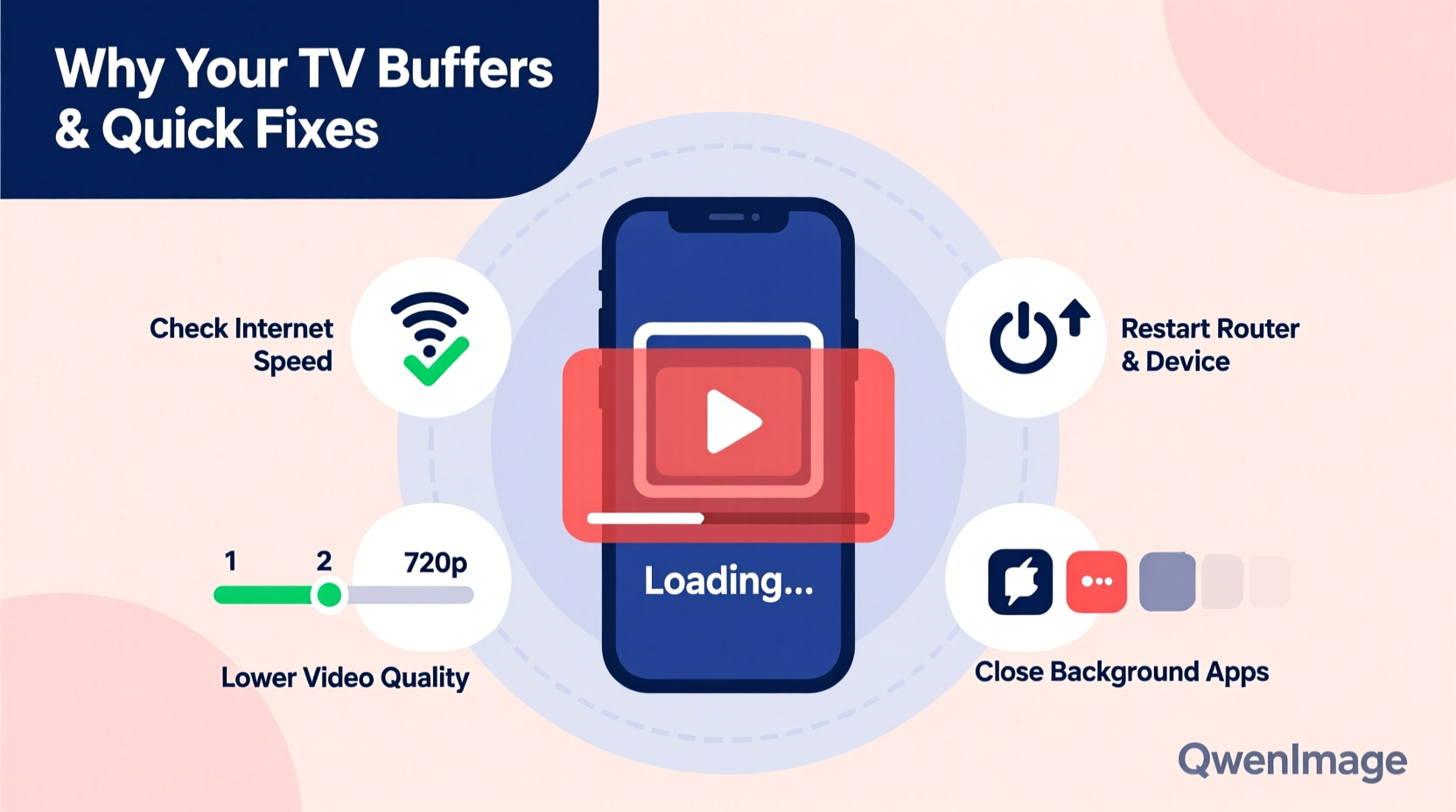
When you press play on a streaming service like Netflix, Hulu, or Disney+, your TV requests video data from a remote server. That data travels through your home network via Wi-Fi or Ethernet, then gets processed and displayed on screen. The stream loads a few seconds ahead of where you are watching—that’s the “buffer.” If incoming data slows or stops, the buffer empties, and playback halts until more data arrives.
The quality of the stream depends on two main factors: your internet speed and network stability. High-definition (HD) content typically requires at least 5 Mbps, while 4K Ultra HD may need 25 Mbps or more. However, speed alone isn’t the full story. Latency (delay), packet loss (data corruption), and network congestion also impact performance.
“Even with high-speed internet, inconsistent delivery due to network jitter or interference can cause buffering more than raw bandwidth limitations.” — Raj Patel, Network Engineer at Broadband Insights Group
Common Causes of TV Buffering During Streaming
Before jumping to solutions, identify the likely culprit. Buffering rarely has a single cause—it’s often a combination of factors that degrade performance over time.
- Insufficient Internet Speed: Your current plan may not support multiple devices or high-resolution streams simultaneously.
- Wi-Fi Signal Interference: Walls, appliances, and neighboring networks can weaken signal strength, especially on crowded 2.4 GHz bands.
- Network Congestion: Multiple users streaming, downloading, or gaming at once consume bandwidth and slow everything down.
- Outdated Hardware: Older routers, modems, or streaming devices may struggle with modern codecs or encryption standards.
- Server-Side Issues: Occasionally, the problem lies with the streaming platform’s servers being overloaded or undergoing maintenance.
- Background Activity: Smart TVs often run automatic updates, ads, or cloud syncs in the background without user awareness.
Step-by-Step Guide to Fix Buffering Issues
Solving buffering requires systematic troubleshooting. Follow this sequence to isolate and resolve the issue efficiently.
- Test Your Internet Speed at the TV
Use a speed testing app available on your smart TV or streaming stick. Compare results with your ISP’s advertised speeds. If actual speeds are below 70% of promised rates, contact your provider. - Restart Your Router and Modem
Power off both devices, wait 60 seconds, then turn them back on. This clears temporary glitches and resets connection states. - Move Closer to the Router or Use Ethernet
Position your TV within line of sight of the router if possible. For best results, connect via Ethernet cable instead of Wi-Fi. - Switch Wi-Fi Bands (2.4 GHz vs. 5 GHz)
Most modern routers broadcast on both frequencies. The 5 GHz band offers faster speeds and less interference but shorter range. Connect your TV to 5 GHz if within 30 feet of the router. - Reduce Network Load
Pause large downloads, stop other streams, or disconnect unused devices. Schedule heavy downloads for off-peak hours. - Update Firmware and Apps
Check for system updates on your TV, streaming device, and router. Outdated software can introduce bugs affecting network performance. - Change DNS Settings
Default DNS servers from ISPs can be slow. Switch to Google DNS (8.8.8.8 and 8.8.4.4) or Cloudflare (1.1.1.1) in your network settings for faster domain resolution. - Adjust Streaming Quality Manually
In services like YouTube or Amazon Prime Video, lower the resolution temporarily to see if buffering stops. This helps confirm whether bandwidth is the bottleneck.
Do’s and Don’ts When Troubleshooting Buffering
| Do’s | Don’ts |
|---|---|
| Use wired connections whenever possible | Ignore firmware update notifications |
| Place your router centrally and elevated | Run torrents or cloud backups during movie night |
| Limit simultaneous streams based on your plan | Assume all buffering is your fault—check service status first |
| Monitor bandwidth usage via your router’s admin panel | Use long, unshielded HDMI cables as they can introduce signal noise |
| Factory reset your streaming device if problems persist | Upgrade your internet plan without testing current capacity first |
Real-World Example: Solving Persistent Buffering in a Multi-Device Household
Consider Sarah, a homeowner in Austin with fiber internet promising 300 Mbps. Despite fast speeds, her living room TV frequently buffered during evening shows. Her kids were gaming upstairs, her husband was on a video call, and multiple phones were syncing photos in the background.
She began by running a speed test on the TV—results showed only 18 Mbps download. After rebooting the router, speed improved slightly but still dropped during peak use. She then connected the TV directly via Ethernet; buffering stopped immediately. Further investigation revealed her 5-year-old mesh system had outdated firmware and weak backhaul between nodes.
Sarah updated the router firmware, switched her streaming device to the 5 GHz network, and set up Quality of Service (QoS) rules to prioritize media traffic. She also scheduled large updates overnight. These changes eliminated buffering entirely—even during family viewing hours.
Checklist: Quick Fixes to Try Now
If you’re experiencing buffering right now, work through this checklist in order:
- ✅ Restart your modem and router
- ✅ Close unnecessary apps or downloads on other devices
- ✅ Move closer to the router or switch to 5 GHz Wi-Fi
- ✅ Test speed directly on the TV
- ✅ Temporarily lower stream quality in app settings
- ✅ Connect via Ethernet cable (if available)
- ✅ Update the streaming app and TV operating system
- ✅ Reboot the TV or streaming device
- ✅ Change DNS to 1.1.1.1 or 8.8.8.8
- ✅ Contact your ISP if speeds are consistently below expectations
When to Upgrade Your Equipment or Internet Plan
Sometimes, fixes aren’t enough. If you’ve optimized your setup and still face issues, consider these upgrades:
- New Router: Routers older than 3–4 years may lack support for modern Wi-Fi 6 or MU-MIMO technology. A newer model improves efficiency, especially in homes with many devices.
- Mesh Network System: For larger homes, a mesh system eliminates dead zones and ensures consistent coverage.
- Faster Internet Tier: If multiple 4K streams run simultaneously, upgrade to 200 Mbps or higher. Fiber connections offer the most reliable performance.
- Dedicated Streaming Device: Built-in smart platforms on some TVs become sluggish over time. An external device like Apple TV 4K or NVIDIA Shield often delivers smoother performance.
Before spending money, verify that your current plan matches your household’s needs. A single HD stream uses ~5 Mbps; 4K uses 15–25 Mbps. Add 5 Mbps per additional active device. So, four 4K streams plus two phones and a laptop could require 100+ Mbps minimum.
FAQ: Common Questions About TV Buffering
Does restarting my TV really help with buffering?
Yes. Restarting clears memory leaks, stops rogue background processes, and re-establishes network connections. It’s one of the fastest and most effective first steps.
Can a VPN cause my TV to buffer?
Absolutely. Streaming through a distant or overloaded VPN server adds latency and reduces effective bandwidth. Disable the VPN temporarily to test if performance improves.
Why does only one of my TVs buffer while others work fine?
This usually indicates a localized issue—such as distance from the router, interference from nearby electronics, or an outdated streaming app on that specific device. Compare network signal strength and connection type (Wi-Fi vs. Ethernet) across devices.
Conclusion: Take Control of Your Streaming Experience
Buffering doesn’t have to be part of your viewing routine. With a methodical approach, most causes can be identified and resolved using simple tools and settings adjustments. Start with the basics—restart equipment, check speed, reduce load—and progress to advanced fixes like QoS or hardware upgrades if needed.
Remember, smooth streaming isn’t just about raw internet speed; it’s about how efficiently your entire ecosystem works together. By optimizing your network, managing bandwidth, and maintaining your devices, you can enjoy uninterrupted, high-quality entertainment every time you press play.




 浙公网安备
33010002000092号
浙公网安备
33010002000092号 浙B2-20120091-4
Comments
No comments yet. Why don't you start the discussion?