
A USB drive that fails to appear on your PC can be more than just an inconvenience—it can block access to critical files, disrupt workflows, or trigger concerns about data loss. This issue is surprisingly common and often stems from a mix of hardware, software, or system-level problems. The good news: in most cases, the problem is fixable without professional help. Understanding the root causes and applying targeted solutions can restore functionality and protect your data.
USB drives are designed for plug-and-play convenience, but when they don’t show up in File Explorer, Disk Management, or even Device Manager, it’s time to move beyond simple re-plugging. This guide walks through comprehensive troubleshooting methods—starting with quick checks and progressing to advanced fixes—so you can systematically identify and resolve why your USB isn’t being recognized.
Step 1: Perform Immediate Hardware Checks
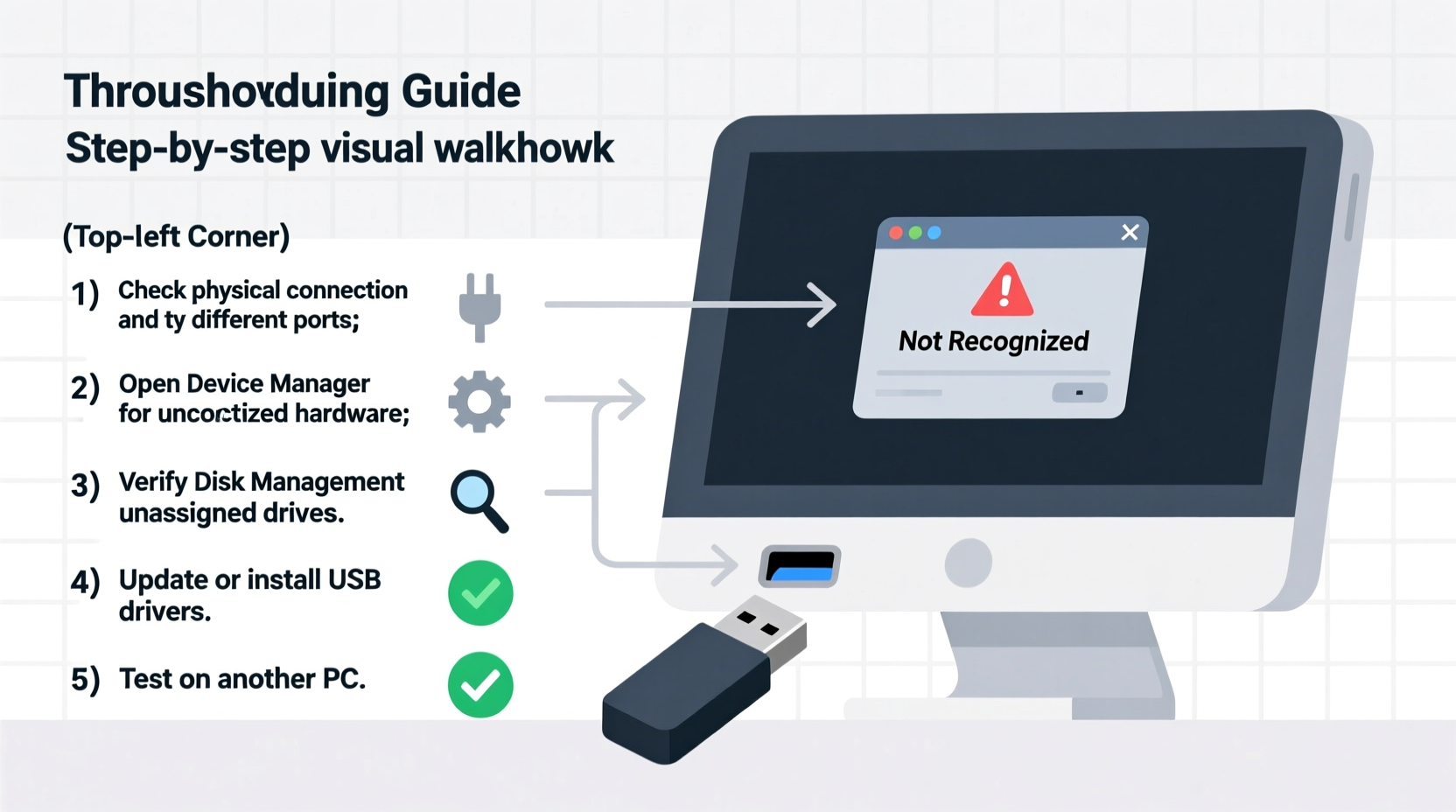
Before diving into software diagnostics, rule out physical and connection issues. Many \"undetected\" USB drives are simply failing due to preventable hardware-related causes.
- Try a different USB port – Some ports may have power delivery issues or driver conflicts. Test the drive on multiple ports, preferably on the back panel (direct motherboard connection) rather than front or hub-connected ones.
- Use another computer – Plug the USB into a different PC or laptop. If it appears there, the issue lies with your original machine’s configuration or drivers.
- Inspect the USB connector – Look for bent pins, debris, or corrosion. Gently clean the metal contacts with isopropyl alcohol and a cotton swab.
- Test with a known-working device – Plug a mouse or keyboard into the same port to verify the port itself functions.
Step 2: Verify Detection in System Tools
Sometimes, a USB drive is detected by the system but doesn’t appear in File Explorer. To confirm whether Windows sees the device, use built-in diagnostic tools.
Check Device Manager
Navigate to Control Panel > Device Manager and expand the “Universal Serial Bus controllers” section. Plug in the USB drive and watch for new entries like “USB Mass Storage Device.” If you see a yellow exclamation mark, right-click and select “Update driver.”
Use Disk Management
Press Win + X and choose “Disk Management.” If your USB appears here but lacks a drive letter, it won’t show in File Explorer. Right-click the partition and assign a drive letter via “Change Drive Letter and Paths.”
Look in DiskPart (Command Line Tool)
Open Command Prompt as Administrator and type:
diskpart
list disk
If your USB appears in the list (e.g., Disk 1), it’s physically recognized. You can then proceed to assign a letter or repair partitions if needed.
“Many users assume their USB is dead when it’s merely unassigned in Disk Management. Always check lower-level tools before concluding hardware failure.” — Jordan Lee, IT Support Specialist with 12 years in enterprise troubleshooting
Step 3: Update or Reinstall USB Drivers
Outdated, corrupted, or incompatible drivers are a leading cause of undetected USB devices. Updating them can restore recognition.
Manual Driver Update
- Open Device Manager.
- Locate the USB device under “Disk drives” or “Other devices” (if unrecognized).
- Right-click and select “Update driver.”
- Choose “Search automatically for updated driver software.”
Uninstall and Re-scan
If automatic updates fail:
- Right-click the problematic device in Device Manager.
- Select “Uninstall device.”
- Unplug the USB drive.
- Restart your PC.
- Reconnect the drive after boot—Windows will reinstall the driver automatically.
Update Chipset and USB Host Controllers
Visit your motherboard or laptop manufacturer’s website and download the latest chipset and USB 3.0/3.1 drivers. Install them even if current versions seem up-to-date—manufacturer-specific drivers often resolve compatibility gaps.
Step 4: Address File System and Partition Issues
If the drive appears in Disk Management but shows as “RAW,” “Unallocated,” or has no file system, it cannot be accessed normally. These states often result from improper ejection, corruption, or virus damage.
Assign or Repair Drive Letter
In Disk Management, right-click the USB partition and choose “Change Drive Letter and Paths.” Assign an available letter (e.g., E:, F:). This often resolves visibility issues instantly.
Format the Drive (Data Loss Warning)
If the drive is detected but unusable, formatting may be necessary. Right-click the partition in Disk Management and select “Format.” Choose NTFS for Windows-only use or exFAT for cross-platform compatibility (Windows and macOS).
Use CHKDSK to Fix Errors
If the drive is accessible but unstable, run a disk check:
- Open Command Prompt as Admin.
- Type:
chkdsk F: /f /r(replace F: with your USB drive letter). - Press Enter. This scans for errors and attempts repairs.
Note: CHKDSK only works if the drive has a valid file system and assigned letter.
Step 5: Power and BIOS-Level Considerations
Some USB issues originate from power management settings or firmware configurations.
Disable USB Selective Suspend
This Windows feature turns off USB ports to save power, sometimes preventing proper device initialization.
- Go to Control Panel > Power Options.
- Click “Change plan settings,” then “Change advanced power settings.”
- Expand “USB settings” and set “USB selective suspend setting” to Disabled.
Check BIOS/UEFI Settings
On older systems or laptops with legacy support, USB ports may be disabled at the firmware level.
- Restart your PC and enter BIOS (usually by pressing F2, Del, or Esc during boot).
- Navigate to the “Integrated Peripherals” or “Advanced” tab.
- Ensure “USB Legacy Support” and “XHCI Hand-off” are enabled.
- Save and exit.
External Power Needs
High-capacity or dual-interface USB drives (especially USB-C models) may require more power than standard ports provide. Use a powered USB hub or connect directly to a high-amperage port (often colored blue or red).
Troubleshooting Checklist
Follow this step-by-step checklist to methodically resolve USB detection issues:
- ✅ Try the USB on another computer
- ✅ Test multiple USB ports on your PC
- ✅ Inspect the USB connector for physical damage
- ✅ Check Device Manager for unrecognized devices
- ✅ Open Disk Management to see if the drive appears
- ✅ Assign a drive letter if missing
- ✅ Update USB and chipset drivers
- ✅ Run
chkdskto repair file system errors - ✅ Disable USB selective suspend in Power Options
- ✅ Format the drive (after attempting data recovery)
Common Causes and Solutions Summary
| Issue | Possible Cause | Solution |
|---|---|---|
| Not detected anywhere | Hardware failure, damaged port | Test on another PC, inspect connector |
| Appears in Disk Management but not File Explorer | Missing drive letter | Assign a drive letter |
| Detected but unreadable | Corrupted file system | Run chkdsk or format |
| Driver error in Device Manager | Outdated or corrupt driver | Update or reinstall driver |
| Intermittent connection | Power management or faulty cable | Disable USB suspend, avoid hubs |
Real-World Example: Recovering a Student’s Thesis Drive
A university student once arrived at a campus IT desk in distress—her 64GB USB drive, containing her final thesis and research data, wasn’t showing up on any computer. Initial tests showed no lights or sounds upon insertion. Technicians first tried multiple ports and machines with no success. In Disk Management, however, the drive appeared as “Disk 1” with unallocated space.
Rather than formatting immediately, they used Recuva to scan the drive. The software recovered 98% of the files, including the thesis draft and citation database. After recovery, they reformatted the drive using exFAT and advised the student to enable safe ejection and maintain cloud backups. The drive continued working afterward, suggesting a temporary file system corruption rather than hardware failure.
This case underscores the importance of checking lower-level tools and prioritizing data recovery before irreversible actions like formatting.
Frequently Asked Questions
Can a USB drive be repaired if it’s not detected at all?
Yes, in many cases. If the drive appears in Disk Management or DiskPart, it’s likely repairable through driver updates, letter assignment, or formatting. If it doesn’t appear anywhere, the controller chip or NAND memory may be damaged, requiring professional data recovery services.
Why does my PC recognize some USB drives but not others?
This often points to compatibility issues. Older PCs may lack support for USB 3.2 or exFAT-formatted drives. Additionally, low-power ports may fail to initialize high-demand devices. Updating system drivers and using direct motherboard ports usually resolves this.
Is it safe to use third-party formatting or recovery tools?
Stick to reputable software from trusted developers (e.g., EaseUS, Recuva, Rufus). Avoid freeware from unknown sources, as some contain malware. Always scan downloaded tools with antivirus software before use.
Final Thoughts and Next Steps
When a USB drive doesn’t show up on your PC, the solution is rarely one-size-fits-all. Success comes from systematic testing—starting with physical connections and progressing through driver, file system, and power settings. Most issues are resolvable without replacing the drive, especially if addressed promptly.
The key is patience and precision. Jumping straight to formatting risks permanent data loss. Instead, verify detection in Disk Management, attempt recovery, and only proceed with irreversible steps when necessary. Equally important is prevention: always eject USBs safely, keep drivers updated, and maintain backups of critical data.




 浙公网安备
33010002000092号
浙公网安备
33010002000092号 浙B2-20120091-4
Comments
No comments yet. Why don't you start the discussion?