
Voice assistants like Amazon Alexa, Google Assistant, and Apple’s Siri have transformed the way we interact with technology. From setting alarms to controlling smart home devices, these AI-powered tools promise hands-free convenience. Yet, despite rapid advancements in natural language processing, many users still face a common frustration: their voice assistant mishears commands. You say “turn off the kitchen lights,” and it responds by playing music. You ask for the weather forecast, and it sets a timer instead. What’s going wrong—and more importantly, how can you fix it?
The root causes of misheard commands are often not due to flawed AI alone but stem from a combination of environmental, technical, and behavioral factors. Understanding these elements is the first step toward improving recognition accuracy and unlocking the full potential of your voice assistant.
Why Voice Assistants Mishear Commands
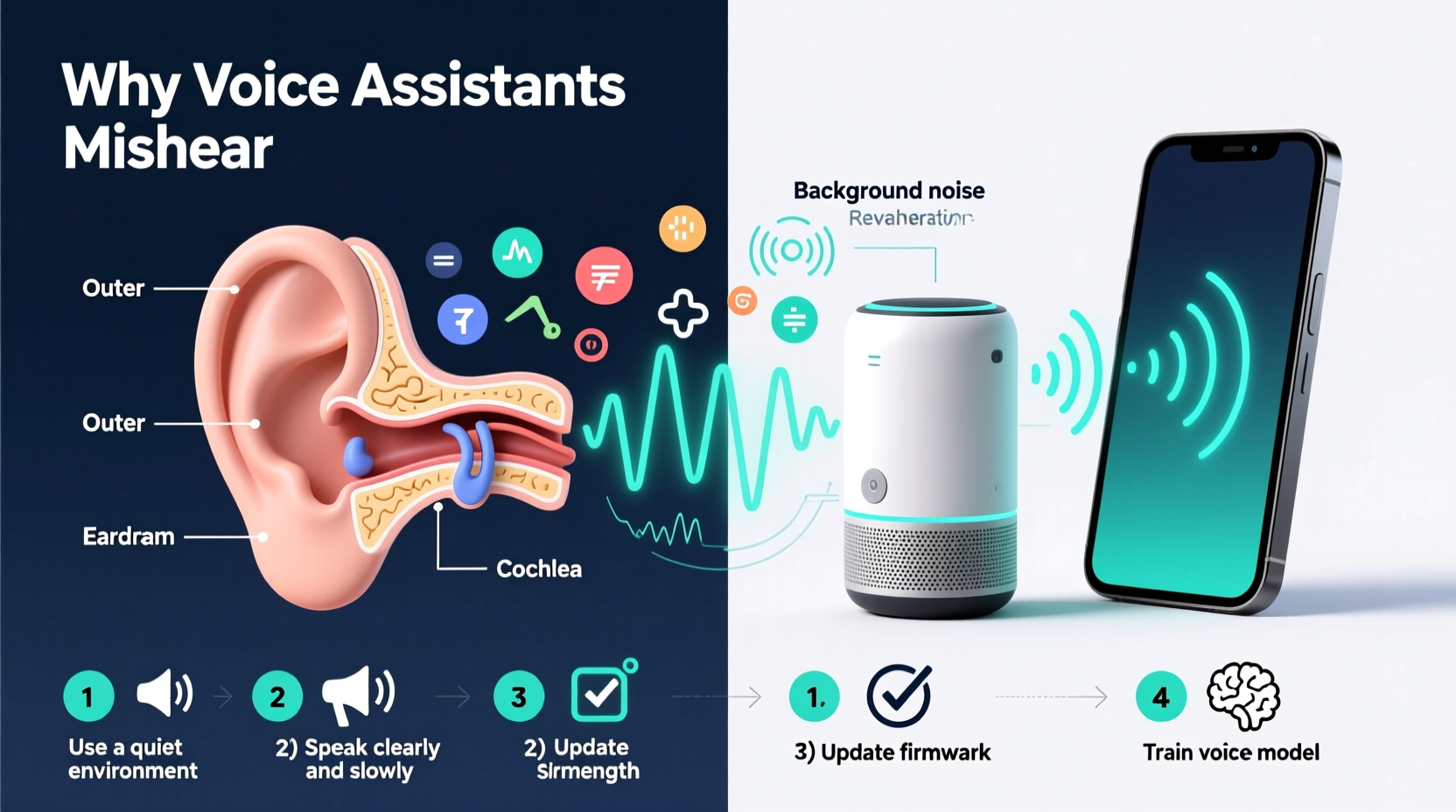
Voice assistants rely on automatic speech recognition (ASR) systems that convert spoken language into text. This process involves capturing audio, filtering background noise, identifying phonemes, and matching them to known words and phrases. However, several challenges interfere with this chain of events:
- Background noise: Conversations, appliances, TVs, or even outdoor sounds can distort your voice input.
- Accent and pronunciation: ASR models are typically trained on large datasets dominated by standard accents (e.g., American or British English), making them less accurate for regional dialects or non-native speakers.
- Speech speed and clarity: Mumbling, speaking too quickly, or using slang can confuse the system.
- Microphone quality: Low-sensitivity microphones may not pick up soft or distant speech effectively.
- Device placement: Obstructions or distance from the device reduce audio clarity.
A study by Stanford University found that voice recognition systems exhibit significantly higher error rates—up to 35% more—for African American speakers compared to white speakers, highlighting ongoing disparities in training data diversity. While companies are actively working to close this gap, it remains a real-world limitation for many users.
Environmental Factors That Affect Accuracy
Your physical environment plays a major role in how well a voice assistant hears you. Hard surfaces like tile, glass, and concrete cause sound reflections, leading to echo and muddled input. Soft materials such as carpets, curtains, and upholstered furniture absorb sound, which can weaken signal strength if you're far from the device.
Consider this scenario: You're in a large, empty kitchen with marble countertops and no rugs. When you say, “Add milk to my shopping list,” the sound bounces off multiple surfaces before reaching the smart speaker. The assistant receives a distorted version of your voice, increasing the chance of misunderstanding.
Additionally, competing audio sources—a running dishwasher, a podcast on another device, or children talking in the next room—can mask your command. Even HVAC systems or fans generate enough ambient noise to degrade performance.
“Speech recognition isn’t just about the AI—it’s about acoustics, microphone design, and user behavior converging in real time.” — Dr. Lena Patel, Senior Researcher in Human-Computer Interaction, MIT Media Lab
Step-by-Step Guide to Improve Voice Recognition
Improving voice assistant accuracy doesn’t require technical expertise. Follow this step-by-step process to optimize both your setup and usage habits:
- Reposition Your Device Strategically
Select a central location away from walls, cabinets, or corners. Place the device on an open surface at waist to chest height. Avoid placing it inside drawers or behind objects. - Reduce Background Noise
Turn off unnecessary appliances when giving voice commands. Close windows during noisy outdoor conditions. Use noise-absorbing materials like rugs or bookshelves nearby to minimize echo. - Train the Assistant to Recognize Your Voice
Use built-in voice enrollment features:- For Google Assistant: Go to Settings > Voice Match > Add Voice Model.
- For Amazon Alexa: Open the Alexa app > More > Settings > Your Profile & Family > Add Voice Profile.
- For Siri: Enable \"Hey Siri\" and complete the voice training prompts.
- Speak with Clear Diction
Pronounce words fully, especially key command words like “lights,” “thermostat,” or “playlist.” Avoid blending phrases—say “Play jazz music” instead of “Plajazz musik.” - Update Firmware and Apps Regularly
Manufacturers release updates that improve microphone sensitivity, noise filtering, and language models. Ensure your smart speaker and mobile app are always up to date. - Customize Wake Words and Routines
If “Alexa” triggers too often, consider switching to “Echo” or “Computer.” Similarly, create unique routine names (“Good Morning Routine” vs. “Morning Stuff”) to avoid ambiguity.
Do’s and Don’ts for Better Voice Control
| Do’s | Don’ts |
|---|---|
| Speak at a consistent volume and pace | Yell or whisper commands aggressively |
| Use simple, structured sentences | Give long, complex instructions in one breath |
| Enroll your voice in the assistant’s profile | Assume all users will be recognized equally without training |
| Place the device in a quiet, central area | Hide the speaker inside a cabinet or behind furniture |
| Test recognition after changes | Ignore repeated errors without troubleshooting |
Mini Case Study: Fixing Daily Misunderstandings in a Busy Household
The Thompson family in Denver struggled with their Amazon Echo in the kitchen. Every morning, when Sarah said, “Set a timer for ten minutes,” Alexa responded with “Starting a 10-minute dance party.” Frustrated, they nearly stopped using voice commands altogether.
After investigating, they discovered three issues: the device was placed inside a lower cabinet, the overhead fan created constant background noise, and none of the family members had enrolled their voices.
They repositioned the Echo on the countertop, turned off the fan during cooking, and completed voice profiles for all four family members. Within two days, the error rate dropped from nearly 40% to under 5%. The same command now triggers the correct response consistently.
This case illustrates how small adjustments—especially combining hardware placement with personalization—can dramatically improve reliability.
Advanced Tips for Power Users
Beyond basic optimization, advanced users can leverage additional tools and settings to fine-tune performance:
- Use explicit phrasing: Instead of “Call Mom,” say “Call Mom on mobile” to eliminate ambiguity if multiple contacts exist.
- Leverage custom commands via routines: Create personalized shortcuts. For example: “Alexa, start homework mode” could turn on lights, set a 90-minute timer, and silence notifications.
- Adjust microphone sensitivity (if available): Some high-end devices allow manual gain control through developer settings or third-party integrations.
- Monitor voice history: Review past interactions in your assistant’s app to identify recurring misinterpretations and adjust phrasing accordingly.
Checklist: Optimize Your Voice Assistant in 10 Minutes
Use this quick checklist to boost recognition accuracy today:
- ✅ Reposition the device to an open, central location
- ✅ Turn off nearby noise sources (fans, TVs, radios)
- ✅ Enroll your voice in the assistant’s personal profile
- ✅ Speak a test command: “What time is it?”
- ✅ Check for app and firmware updates
- ✅ Rename ambiguous smart devices (e.g., “Bedroom Lamp” instead of “Light 2”)
- ✅ Test again with a full command like “Turn off the living room lights”
Frequently Asked Questions
Can accents really affect voice assistant accuracy?
Yes. While modern systems support dozens of languages and dialects, they perform best with widely represented accents in training data. Users with strong regional or non-native accents may experience higher error rates. However, enrolling your voice and speaking clearly can significantly improve results over time.
Why does my assistant hear me better some days than others?
Variability often comes from environmental changes—open windows, new furniture, seasonal humidity affecting acoustics—or temporary Wi-Fi disruptions that delay processing. Consistent device placement and network stability help maintain reliable performance.
Does speaking louder help the assistant hear me?
Not necessarily. Shouting can distort your voice and overwhelm the microphone. A calm, clear tone at normal conversational volume is ideal. If you’re far from the device, consider adding a second smart speaker in that room.
Conclusion: Take Control of Your Voice Experience
Misheard commands don’t mean your voice assistant is broken—they’re a signal that the system needs better input or configuration. By understanding the interplay between acoustics, speech patterns, and technology, you can transform frustrating interactions into seamless, efficient conversations.
Start with one change: move your device, enroll your voice, or speak a little more clearly. Small actions compound into significant improvements. As voice interfaces become more embedded in our daily lives—from cars to wearables to healthcare apps—mastering this skill ensures you stay in control, not left repeating yourself.




 浙公网安备
33010002000092号
浙公网安备
33010002000092号 浙B2-20120091-4
Comments
No comments yet. Why don't you start the discussion?