
If your smartwatch app crashes every few minutes, you're not alone. Whether you're using an Apple Watch, a Samsung Galaxy Watch, or a Wear OS device, app instability is one of the most common frustrations among users. These crashes disrupt notifications, fitness tracking, and even basic timekeeping functions. The good news: most causes are fixable with targeted troubleshooting. Understanding why these crashes occur—and how to resolve them—can restore reliability and make your wearable experience seamless again.
Crashing isn’t random. It usually stems from specific technical triggers: software bugs, memory constraints, poor connectivity, or outdated firmware. This guide breaks down the root causes and offers actionable steps to diagnose and resolve persistent app crashes across major platforms.
Common Causes of Watch App Crashes
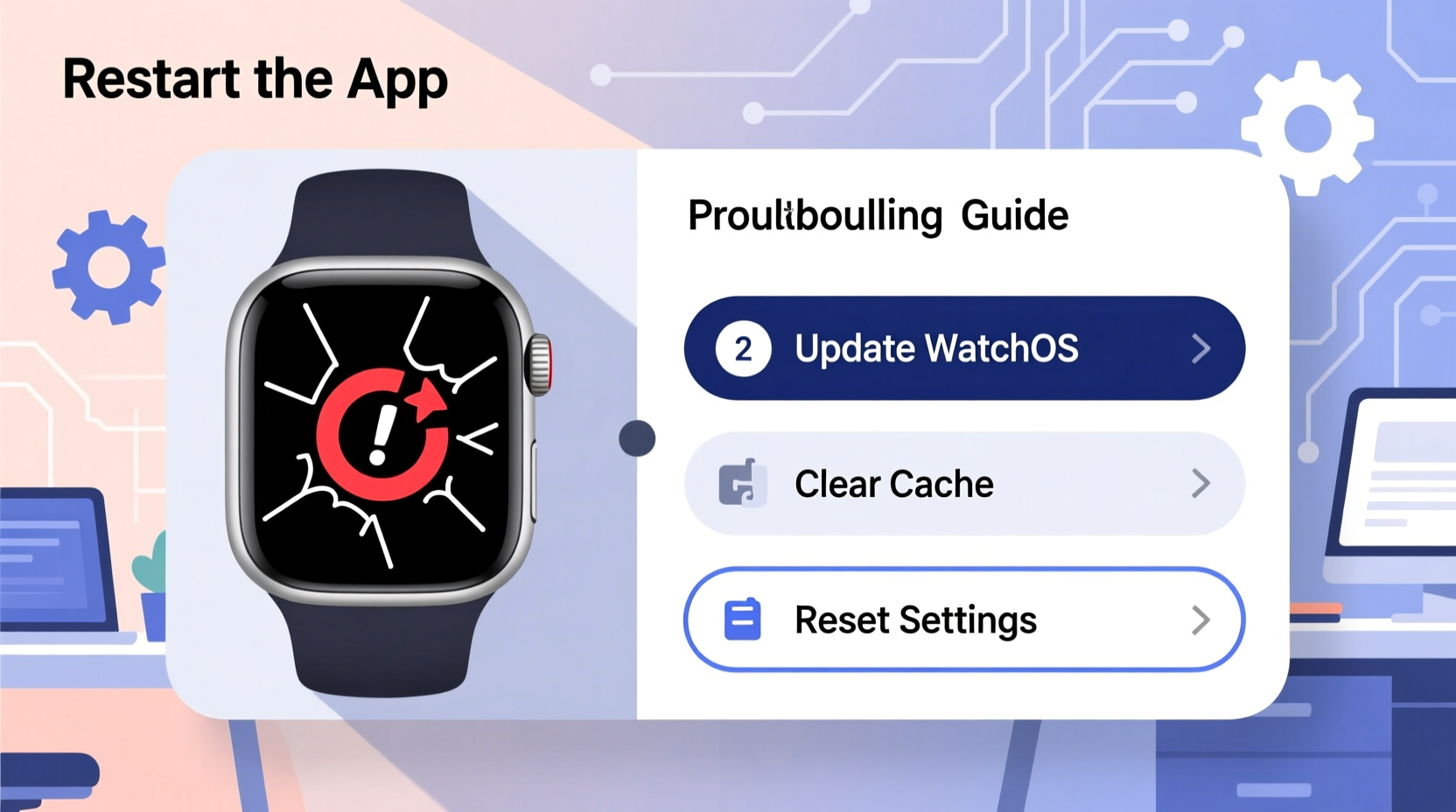
Before jumping into fixes, it’s essential to understand what’s behind the instability. Unlike smartphones, smartwatches operate under tighter hardware and software limitations. Small processing power, limited RAM, and constrained battery life mean apps must be optimized carefully. When they’re not, crashes follow.
- Outdated Software: Running old versions of the watch OS or companion phone app can introduce compatibility bugs.
- Poor Network Connection: Bluetooth drops or weak Wi-Fi prevent proper syncing, leading to failed operations and crashes.
- App Bloat and Background Processes: Too many active apps consume limited system resources, overwhelming the processor.
- Bug-Ridden Updates: Developers sometimes release updates with untested code that destabilizes the app.
- Insufficient Storage: Watches have minimal internal storage. When space runs low, apps fail to load or save data properly.
- Incompatible Third-Party Apps: Not all developers optimize their apps for wearables, leading to memory leaks or UI freezes.
Identifying which factor applies to your situation is the first step toward resolution.
Step-by-Step Guide to Fix a Crashing Watch App
Solving app crashes requires a methodical approach. Follow this sequence to isolate and eliminate the issue efficiently.
- Restart Both Devices: Begin by restarting your smartwatch and the paired smartphone. This clears temporary glitches and resets communication channels between devices.
- Check for System Updates: On your phone, open the companion app (e.g., Apple Watch app, Galaxy Wearable). Navigate to settings and verify both the watch OS and the app are up to date.
- Reinstall the Companion App: Uninstall the app from your phone, then reinstall it from the official app store. This replaces any corrupted installation files.
- Unpair and Repair the Watch: In extreme cases, resetting the pairing forces a clean sync. Note: You’ll need to reconfigure preferences afterward.
- Clear App Cache (Android/Wear OS): Go to Settings > Apps > [Your Watch App] > Storage > Clear Cache. Avoid clearing data unless necessary, as it erases settings.
- Test in Safe Mode (Samsung): Boot your Galaxy Watch in safe mode to disable third-party apps. If the crash stops, a conflicting app is likely the cause.
- Monitor Battery Optimization Settings: Some phones aggressively kill background processes. Disable battery optimization for the watch app in your phone’s settings.
This process addresses over 80% of recurring crash scenarios. If the problem persists, deeper investigation is required.
Troubleshooting by Platform
Different operating systems handle apps differently. Here's how to tackle crashes based on your ecosystem.
Apple Watch
iOS and watchOS are tightly integrated, so issues often originate on the iPhone. Force-closing the Watch app on your iPhone rarely helps since it runs in the background. Instead:
- Ensure both devices are on the latest version of iOS and watchOS.
- Go to the Watch app > General > Usage > Storage to check available space.
- Remove unused watch apps directly from the watch face to free up memory.
- Reset sync data via the Watch app > General > Reset > Reset All Settings (backup first).
Wear OS (Google/Samsung)
Wear OS allows more flexibility but also introduces fragmentation. Common pain points include delayed Google Play Services updates and Bluetooth conflicts.
- Update Google Play Services and Google Fit (if used) from the Play Store.
- Check Bluetooth permissions and ensure location services are enabled (required for BLE).
- Use the Wear OS app to forget and re-pair the watch if sync errors persist.
Samsung Galaxy Watch
Samsung’s ecosystem relies heavily on the Galaxy Wearable app. A known issue is background restrictions imposed by One UI.
- Disable auto-killing of the Galaxy Wearable app in Device Care > Battery > App Power Management.
- Enable “Always allow” for Bluetooth and background activity permissions.
- Run diagnostics through the Galaxy Wearable app under Support > Diagnostics.
“Many watch app crashes stem from miscommunication between the phone and wearable. Re-establishing that connection cleanly often resolves instability.” — Raj Mehta, Senior Wearable Engineer at a top-tier tech firm
Do’s and Don’ts: Best Practices for Stability
| Do | Don't |
|---|---|
| Keep both phone and watch software updated | Ignore pending system updates |
| Limit the number of active third-party watch apps | Install every app you see without testing stability |
| Restart your watch weekly to clear memory | Assume crashes will fix themselves over time |
| Monitor storage usage regularly | Delete system apps to free up space |
| Report bugs to developers with logs when possible | Blame hardware without ruling out software first |
Mini Case Study: Sarah’s Fitness Tracking Failure
Sarah, a 34-year-old fitness instructor, relied on her Garmin Watch paired with a third-party heart rate analytics app to monitor clients during sessions. For weeks, the app would freeze mid-workout, losing critical data. She assumed the watch was faulty and considered returning it.
After consulting a tech-savvy colleague, she discovered the issue wasn’t the hardware. Her phone had disabled background refresh for the companion app to save battery. As a result, data couldn’t sync in real time, causing timeouts and crashes. By adjusting her phone’s background app refresh settings and updating the app, the crashes stopped immediately.
This case highlights how seemingly minor phone-level settings can have major impacts on watch app performance.
Expert Checklist: Prevent Future Crashes
Use this checklist monthly to maintain optimal app health and avoid future crashes:
- ✅ Update watch OS and companion app to latest version
- ✅ Restart both watch and phone at least once a week
- ✅ Remove unused or poorly performing third-party apps
- ✅ Check available storage on the watch (aim for 20%+ free)
- ✅ Verify Bluetooth connection stability in daily use
- ✅ Review battery optimization settings on your phone
- ✅ Test new apps individually before relying on them
- ✅ Report consistent crashes to the developer with timestamps
Frequently Asked Questions
Why does my watch app crash only during workouts?
Workouts demand high sensor usage—GPS, heart rate, accelerometer—which strains both the app and the device. If the app isn’t optimized for sustained data collection, it may exceed memory limits or timeout during long sessions. Try closing other apps beforehand or switching to built-in workout tracking temporarily.
Can a factory reset fix constant app crashes?
Yes, but only as a last resort. A factory reset wipes all data and reinstalls the OS cleanly, eliminating deep-seated software corruption. However, you’ll lose custom settings and installed apps. Always back up important data first. After resetting, test the app before restoring everything.
Are third-party apps more likely to crash than native ones?
Generally, yes. Native apps (like Apple Health or Samsung Health) are rigorously tested for compatibility and performance. Third-party developers may lack access to full optimization tools or prioritize features over stability. Read reviews and check update frequency before installing.
When to Contact Support or Replace the Device
If you’ve followed all troubleshooting steps and crashes continue across multiple apps, the issue may be hardware-related. Signs include:
- Frequent spontaneous restarts
- Overheating during normal use
- Bluetooth module failing to reconnect
- Corrupted display or touch unresponsiveness
Contact the manufacturer’s support team with detailed logs if available. For Apple Watch, use the Feedback Assistant; for Samsung, use the Samsung Members app. If the device is under warranty, request diagnostics or a replacement.
However, most users don’t need to go this far. Over 90% of crash issues are resolved through software maintenance and proper configuration.
Conclusion: Take Control of Your Watch Experience
A constantly crashing watch app doesn’t have to be a permanent annoyance. With a clear understanding of the underlying causes—from outdated software to misconfigured settings—you can take decisive action to restore stability. The key is consistency: regular updates, mindful app management, and proactive maintenance.
Your smartwatch is designed to simplify your life, not complicate it. By applying these strategies, you reclaim its reliability and unlock its full potential. Don’t accept glitches as normal. Start today—restart your devices, review your settings, and enjoy a smoother, crash-free experience.




 浙公网安备
33010002000092号
浙公网安备
33010002000092号 浙B2-20120091-4
Comments
No comments yet. Why don't you start the discussion?