
If your internet cuts out every night, you're not alone. Many users experience frustrating Wi-Fi disconnections during evening hours, just when they're streaming movies, working remotely, or gaming online. While it may seem like a mystery, there are logical explanations—ranging from network congestion to hardware issues—and effective fixes within reach. Understanding why this happens is the first step toward restoring a reliable connection.
Network Congestion: The Hidden Nighttime Bandwidth Thief
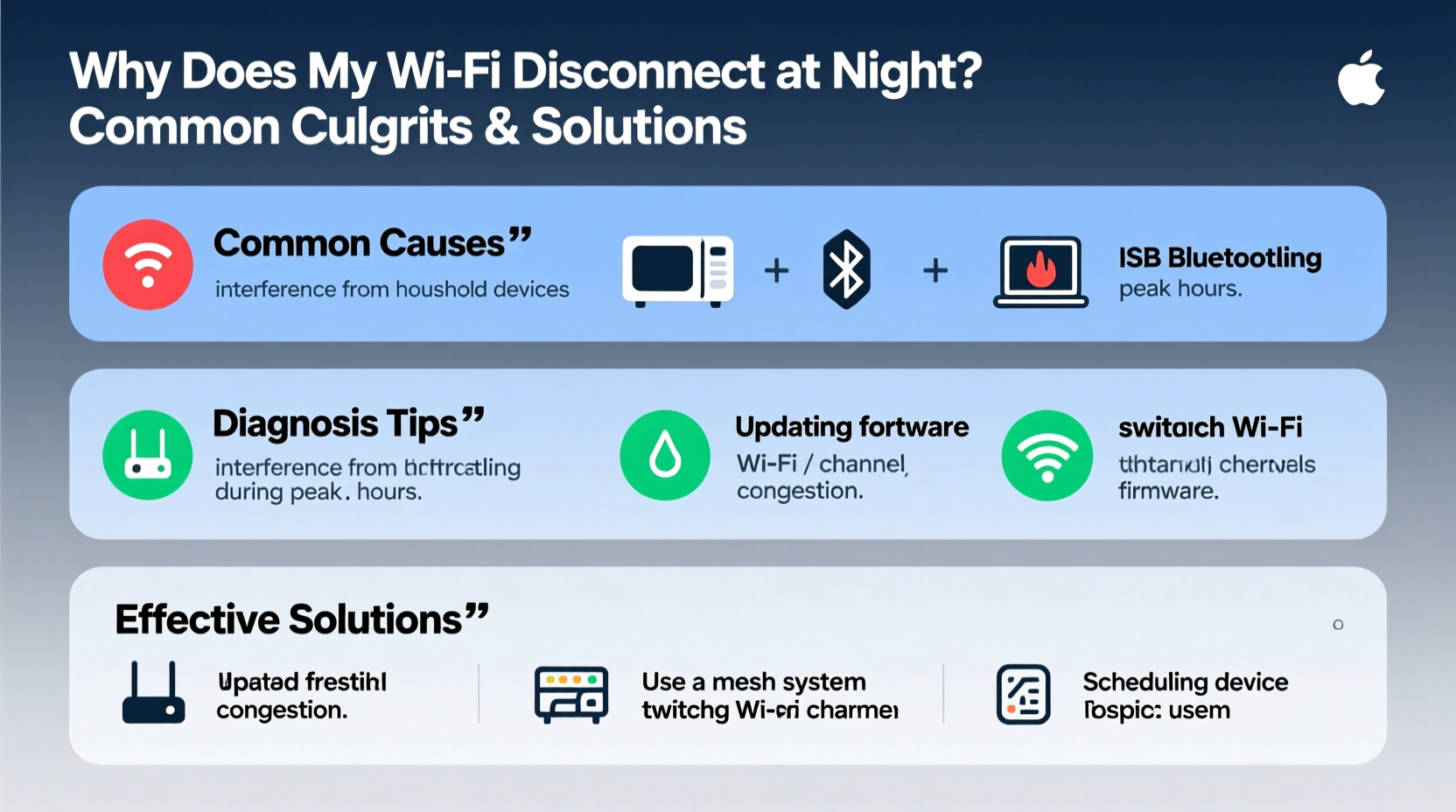
One of the most common reasons for nighttime Wi-Fi dropouts is increased network traffic. As people return home from work and school, more devices connect to the same local network. Streaming services, video calls, smart home gadgets, and downloads all compete for bandwidth, pushing routers beyond their capacity.
In densely populated areas such as apartment complexes or suburban neighborhoods, this effect intensifies due to overlapping signals from neighboring networks operating on the same Wi-Fi channels. This interference can degrade performance or cause intermittent disconnections.
Modern routers use either the 2.4 GHz or 5 GHz frequency band. The 2.4 GHz band has longer range but fewer non-overlapping channels (only three in most regions), making it prone to congestion. The 5 GHz band offers faster speeds and more channels but with shorter range.
“During peak usage times, especially between 7 PM and 10 PM, residential networks face up to 300% more traffic than daytime averages.” — Dr. Alan Reyes, Network Performance Analyst at Broadband Insights Group
Router Overheating and Hardware Limitations
Your router works harder at night, processing data from multiple connected devices. Prolonged operation under load can cause overheating, particularly if the device is placed in an enclosed space, near other electronics, or in direct sunlight. When internal temperatures rise, components may throttle performance or shut down temporarily to prevent damage.
Older or budget-friendly routers often lack advanced thermal management systems. Signs of overheating include:
- Intermittent disconnections occurring after several hours of use
- Sluggish performance that improves after a reboot
- Physical warmth when touching the router casing
Additionally, outdated firmware or hardware limitations—such as single-core processors or insufficient RAM—can make older models struggle with modern demands, leading to crashes during heavy usage.
How to Prevent Router Overheating
- Ensure proper ventilation by placing the router in an open area, away from walls and obstructions.
- Avoid stacking it with modems or other heat-emitting devices unless designed for it.
- Clean dust buildup regularly using compressed air.
- Consider adding small cooling pads or stands with fans if overheating persists.
ISP Throttling and Scheduled Maintenance
Some Internet Service Providers (ISPs) implement bandwidth throttling during peak hours to manage network load. Though rarely disclosed outright, this practice reduces individual user speeds when overall demand spikes. In extreme cases, it can destabilize connections enough to appear as disconnections.
Additionally, ISPs often perform system-wide maintenance or updates overnight. These scheduled operations might briefly interrupt service, typically between midnight and 5 AM. Check your provider’s support portal or contact customer service to see if maintenance windows align with your outage pattern.
To determine whether your ISP is involved:
- Run speed tests at different times of day using tools like Ookla Speedtest or FCC Measuring Broadband America.
- Compare results: A significant drop only at night suggests possible throttling.
- Use a wired Ethernet connection to rule out Wi-Fi-specific issues.
| Sign | Possible Cause | Action Step |
|---|---|---|
| Connection drops across all devices simultaneously | ISP issue or modem problem | Contact ISP; check status page |
| Only wireless devices affected | Wi-Fi interference or router issue | Reposition router; change channel |
| Dropouts occur after extended use | Overheating or memory leak | Reboot router; improve airflow |
| Slow speeds but no full disconnect | Bandwidth congestion or throttling | Limit active devices; upgrade plan |
Environmental Interference and Signal Obstruction
Electromagnetic interference (EMI) from household appliances can disrupt Wi-Fi signals, especially on the 2.4 GHz band. Devices like microwaves, cordless phones, baby monitors, and even LED lighting emit radio frequencies that interfere with Wi-Fi transmission.
For example, running a microwave oven—even briefly—can block up to 75% of the 2.4 GHz spectrum for its duration. If your router is located near the kitchen or entertainment center, nightly cooking or appliance use could coincide with disconnections.
Physical barriers also play a role. Walls made of concrete, brick, or metal significantly weaken signals. At night, when lights are on and HVAC systems cycle more frequently, additional electrical noise may further degrade signal quality.
Minimizing Environmental Interference
- Relocate your router to a central, elevated position away from appliances and thick walls.
- Switch to the 5 GHz band where possible—it's less susceptible to EMI.
- Change your Wi-Fi channel manually via router settings to avoid crowded ones.
- Use Wi-Fi analyzer apps (like NetSpot or Wi-Fi Analyzer) to identify least congested channels.
“We once resolved chronic nightly dropouts simply by moving the router three feet away from a smart refrigerator emitting constant Bluetooth pulses.” — Lena Tran, Home Network Consultant, ConnectWell Solutions
Step-by-Step Guide to Diagnose and Fix Nighttime Disconnections
Follow this structured approach to identify and resolve your specific issue:
- Document the Pattern: Note exact times of disconnection, duration, and which devices are affected. Use a journal or digital log over 3–5 nights.
- Test with Ethernet: Connect a computer directly to the modem/router via cable. If the wired connection stays stable, the issue is Wi-Fi-related.
- Check Router Logs: Access your router’s admin panel (usually via 192.168.1.1 or similar). Look for error messages, reboots, or disconnect timestamps.
- Update Firmware: Visit the manufacturer’s website to ensure your router runs the latest firmware version. Updates often fix stability bugs.
- Change Wi-Fi Channel: In your router settings, switch from auto-channel to a fixed one (e.g., Channel 1, 6, or 11 on 2.4 GHz; choose less crowded options on 5 GHz).
- Limit Connected Devices: Temporarily disable non-essential smart devices (printers, bulbs, cameras) to test if reducing load helps.
- Contact Your ISP: Report findings and ask about throttling policies, line quality, or known outages in your area.
- Upgrade Equipment: If your router is over three years old, consider upgrading to a dual-band or tri-band mesh system for better coverage and handling of concurrent connections.
Mini Case Study: The Family That Lost Netflix Every Evening
The Patel family in Austin, Texas, experienced recurring Wi-Fi dropouts starting around 8 PM each night. Their two children were doing homework online while parents streamed shows—only to have everything freeze or disconnect completely.
After testing, they discovered their aging router was overheating inside a closed media cabinet. Additionally, their neighbor’s security camera system operated on the same Wi-Fi channel, causing interference during evening hours.
Solutions implemented:
- Moved the router to an open shelf in the living room.
- Updated firmware and switched to Channel 1 on 2.4 GHz and Channel 36 on 5 GHz.
- Enabled QoS to prioritize streaming devices.
- Set automatic reboots at 5:30 AM via router settings.
Result: No disconnections reported in the following two weeks. Speeds improved by nearly 40% during peak time.
Frequently Asked Questions
Can energy-saving modes on devices cause Wi-Fi disconnections?
Yes. Some smartphones, tablets, and laptops enter power-saving mode at night, turning off Wi-Fi radios to conserve battery. This doesn’t affect the network itself but makes individual devices appear disconnected. Adjust sleep settings in device preferences to keep Wi-Fi active.
Should I leave my router on all the time?
Generally yes. Routers are designed for continuous operation. However, periodic reboots (daily or weekly) help maintain performance. Use a smart plug to automate restarts during low-usage hours if needed.
Does a mesh network help prevent nighttime dropouts?
Absolutely. Mesh systems distribute load across multiple nodes, reduce dead zones, and dynamically select optimal paths for data. They’re especially effective in larger homes with many devices competing for bandwidth.
Checklist: Stop Nighttime Wi-Fi Disconnections
- ✅ Log disconnection times and patterns for 3–5 days
- ✅ Test with a wired Ethernet connection
- ✅ Move router to a central, ventilated location
- ✅ Update router firmware to the latest version
- ✅ Switch to less congested Wi-Fi channels
- ✅ Disable unused connected devices
- ✅ Enable Quality of Service (QoS) settings
- ✅ Contact ISP to rule out throttling or line issues
- ✅ Consider upgrading to a modern dual-band or mesh router
- ✅ Schedule automatic nightly reboots (if supported)
Conclusion
Nighttime Wi-Fi disconnections are more than just an annoyance—they disrupt work, education, and leisure. But behind every frustrating dropout lies a solvable cause. Whether it’s network congestion, router overheating, environmental interference, or ISP practices, identifying the root issue empowers you to take control.
Start with simple adjustments: relocate your router, update its software, and monitor usage patterns. Most problems can be resolved without spending a dime. For persistent issues, investing in better hardware or professional consultation pays dividends in reliability and peace of mind.




 浙公网安备
33010002000092号
浙公网安备
33010002000092号 浙B2-20120091-4
Comments
No comments yet. Why don't you start the discussion?