
Video calls have become essential in both professional and personal communication. Whether you're presenting in a boardroom meeting, attending a virtual class, or catching up with family across the globe, a sudden Wi-Fi dropout can be more than an annoyance—it can disrupt workflows, damage credibility, and create unnecessary stress. While it might seem like your router is misbehaving without reason, the truth is that most disconnections stem from identifiable technical or environmental factors. Understanding these root causes—and knowing how to address them—can transform your connectivity experience from frustrating to flawless.
The Hidden Triggers Behind Video Call Disconnections
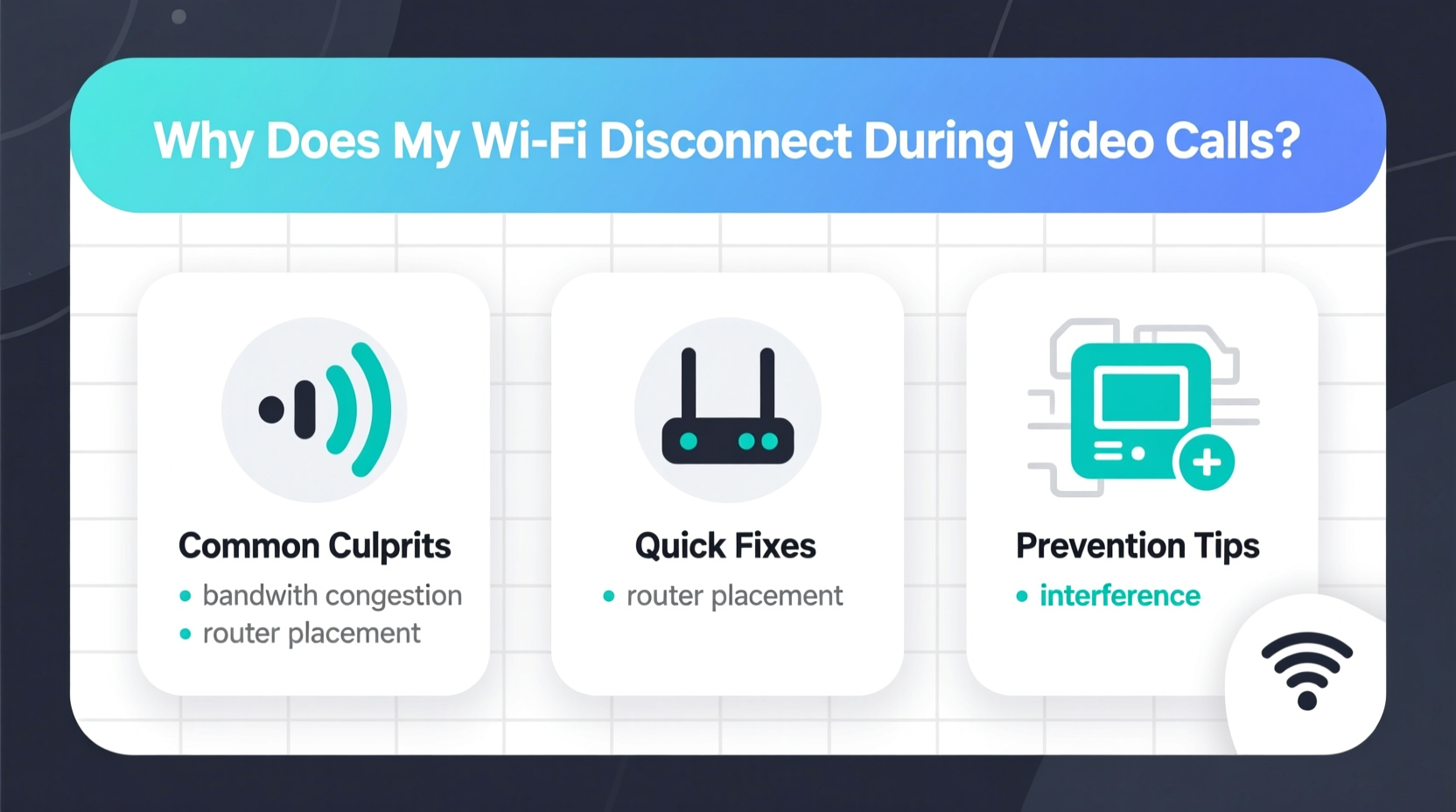
Wi-Fi instability during video calls often occurs because real-time streaming demands consistent bandwidth, low latency, and minimal packet loss. Unlike browsing or downloading, where interruptions are less noticeable, video conferencing relies on continuous two-way data flow. When this flow is disrupted—even briefly—the result is freezing, audio lag, or complete disconnection.
Common triggers include network congestion, outdated hardware, signal interference, ISP throttling, and suboptimal device settings. Each of these plays a role depending on your environment, usage patterns, and infrastructure quality. Addressing them systematically leads to significantly improved reliability.
Top 5 Causes of Wi-Fi Dropouts During Video Calls
1. Network Congestion and Bandwidth Overload
When multiple devices stream, download, or update simultaneously, they compete for limited bandwidth. Video calls require steady upload speeds (often overlooked), typically between 1.5 Mbps and 4 Mbps depending on resolution. If other users are gaming, streaming HD content, or backing up files, available bandwidth drops sharply.
This strain becomes critical when your router lacks Quality of Service (QoS) features to prioritize traffic. Without QoS, your video call competes equally with background tasks, increasing the chance of buffering or disconnection.
2. Outdated or Underpowered Router Hardware
Routers older than three to four years may not support modern Wi-Fi standards such as Wi-Fi 5 (802.11ac) or Wi-Fi 6 (802.11ax). These newer protocols offer better multi-device handling, reduced latency, and stronger signals. Older models using 802.11n or earlier struggle under sustained high-demand scenarios like video conferencing.
In addition, entry-level routers provided by ISPs often lack processing power and RAM to manage complex network traffic efficiently, leading to crashes or overheating during peak use.
3. Signal Interference and Physical Obstacles
Wi-Fi signals operate on radio frequencies—primarily 2.4 GHz and 5 GHz—that are susceptible to interference. Common household items like microwaves, cordless phones, baby monitors, and Bluetooth speakers emit electromagnetic noise that overlaps with Wi-Fi bands, especially at 2.4 GHz.
Physical barriers also weaken signals. Thick walls, metal frames, mirrors, and even large appliances absorb or reflect wireless signals. If your device is far from the router or separated by several obstacles, the connection degrades, causing periodic dropouts during sensitive activities like video calls.
4. Device-Specific Issues
Your laptop, phone, or tablet might be contributing to the problem. Power-saving modes often throttle Wi-Fi adapters to conserve battery, reducing transmission strength and responsiveness. Similarly, outdated network drivers or firmware bugs can cause inconsistent behavior.
Some laptops position Wi-Fi antennas near hinges or edges, making orientation crucial. Closing the lid slightly or placing hands near the base can block the antenna, weakening reception mid-call.
5. ISP Throttling or Network Instability
Internet Service Providers sometimes throttle bandwidth during peak hours or when detecting high-data applications. Although net neutrality regulations discourage discriminatory throttling, some ISPs still implement bandwidth caps or deprioritize certain types of traffic after a threshold is reached.
Additionally, local node congestion or faulty line equipment (e.g., damaged cables, loose connectors) can introduce jitter and latency spikes, disrupting real-time communication even if your speed test results appear normal.
“Many so-called ‘Wi-Fi problems’ aren’t actually Wi-Fi—they’re upstream issues related to ISP performance, router capability, or device configuration.” — Dr. Lena Torres, Network Engineer at Broadband Insights Group
Step-by-Step Guide to Diagnose and Fix Wi-Fi Disconnections
Follow this structured troubleshooting process to identify and resolve the underlying cause of your video call disruptions.
- Test Your Connection Baseline
Use tools like Speedtest.net or Fast.com to measure download, upload, and ping. Perform tests wired (via Ethernet) and wirelessly. Compare results. A significant drop in wireless speed indicates a Wi-Fi-specific issue. - Check for Background Activity
Close unused apps, pause downloads/uploads, and disable automatic updates temporarily. Monitor bandwidth usage via Task Manager (Windows) or Activity Monitor (Mac). - Restart Networking Equipment
Power off your modem and router. Wait 30 seconds, then turn the modem back on. Once its lights stabilize, restart the router. This clears cache, resets IP assignments, and re-establishes a clean connection with your ISP. - Evaluate Signal Strength
On Windows, check signal strength via Settings > Network & Internet > Wi-Fi. On Mac, hold Option while clicking the Wi-Fi icon. Look for “RSSI” values: -30 dBm is excellent; -60 dBm is good; below -70 dBm indicates weak signal. - Switch Wi-Fi Bands
If your router supports dual-band, connect to the 5 GHz network for faster speeds and less interference. Note that 5 GHz has shorter range, so proximity matters. Use 2.4 GHz only if you're far from the router. - Enable QoS Settings
Access your router’s admin panel (usually http://192.168.1.1 or http://192.168.0.1). Locate QoS (Quality of Service) settings and prioritize your device or application (e.g., Zoom, Teams). Assign higher priority to upload traffic used in video calls. - Update Firmware and Drivers
Visit your router manufacturer’s website to check for firmware updates. Similarly, ensure your computer’s network adapter drivers are current through Device Manager (Windows) or System Updates (Mac). - Consider a Wired Connection
For mission-critical calls, use an Ethernet cable. It eliminates wireless interference entirely and provides maximum stability. If running a cable isn't feasible, consider MoCA adapters or powerline networking as alternatives.
Comparison Table: Do’s and Don’ts for Stable Video Calls
| Do | Don’t |
|---|---|
| Use Ethernet whenever possible | Rely solely on distant Wi-Fi for critical meetings |
| Position router centrally and elevated | Place router behind furniture or near metal objects |
| Limit connected devices during calls | Start large downloads mid-meeting |
| Upgrade to a Wi-Fi 6 router if over 3 years old | Stick with ISP-provided routers indefinitely |
| Disable power-saving mode on laptops | Let battery optimization reduce network performance |
Real-World Example: Remote Worker Solves Daily Call Drops
Sarah, a project manager based in Chicago, experienced frequent disconnections during daily team stand-ups. Her home office was on the second floor, directly above her basement-mounted router. Despite showing full bars, her MacBook would lose connection every 10–15 minutes.
After testing, she found her RSSI was -78 dBm—very poor. She moved the router upstairs, switched to the 5 GHz band, and enabled QoS prioritizing her laptop. She also disabled iCloud Drive syncing during calls. The result? No dropouts over the next two weeks. Later, she invested in a mesh Wi-Fi system, which eliminated dead zones and improved overall network resilience.
Sarah’s case illustrates how multiple small factors—distance, frequency band, background sync, and placement—combined to create a persistent issue. Only systematic diagnosis revealed the cumulative effect.
Essential Checklist: Prevent Wi-Fi Dropouts Before Your Next Call
- ✅ Test internet speed (especially upload) before scheduling important calls
- ✅ Close bandwidth-heavy apps (cloud backups, streaming)
- ✅ Position yourself closer to the router or use a Wi-Fi extender
- ✅ Switch to 5 GHz if within range
- ✅ Disable Wi-Fi power-saving mode on your device
- ✅ Reboot router weekly or after prolonged use
- ✅ Enable QoS and prioritize video conferencing apps
- ✅ Consider upgrading to a mesh system for larger homes
Frequently Asked Questions
Why does my Wi-Fi cut out only during Zoom or Teams calls?
Video conferencing platforms require consistent upload speed and low latency. Even brief network hiccups that go unnoticed during browsing become apparent in real-time video. Additionally, some apps don’t handle packet loss gracefully, leading to abrupt disconnections rather than graceful degradation.
Can too many devices on Wi-Fi cause disconnections?
Yes. Each connected device consumes network resources. While modern routers handle dozens of devices, simultaneous high-bandwidth activities (streaming, gaming, cloud sync) can overwhelm processing capacity, especially on older or ISP-provided units. Limit active devices during critical calls.
Is it better to use mobile hotspot instead of home Wi-Fi?
Sometimes. A 5G mobile hotspot can provide faster, more stable connectivity than congested or outdated home networks—particularly in apartments with overlapping neighbor networks. However, data caps and signal variability make it less reliable long-term. Use it as a backup option when home Wi-Fi fails consistently.
Final Recommendations for Uninterrupted Connectivity
Stable video calls depend on more than just having \"internet.\" They require optimized end-to-end conditions—from your ISP to your router, device settings, and physical environment. Most disconnections are preventable with proactive maintenance and informed setup choices.
Begin with simple steps: reboot your router, move closer to it, close unnecessary apps, and switch to 5 GHz. Then progress to advanced solutions like QoS, firmware updates, or hardware upgrades if needed. For professionals relying on video communication, investing in a mesh Wi-Fi system or a dedicated access point pays dividends in reliability and peace of mind.
Remember, consistency beats perfection. Small improvements compound into a seamless calling experience over time.




 浙公网安备
33010002000092号
浙公网安备
33010002000092号 浙B2-20120091-4
Comments
No comments yet. Why don't you start the discussion?