
If your internet cuts out every time you heat up lunch, you're not imagining things. This common household frustration stems from electromagnetic interference between your microwave oven and your Wi-Fi network. While it may seem like a minor annoyance, frequent disconnections can disrupt video calls, online gaming, or streaming. The good news is that this issue is both explainable and solvable. Understanding the science behind microwave-Wi-Fi interference allows you to take practical steps to minimize disruptions and maintain stable connectivity.
How Microwaves Interfere with Wi-Fi Signals
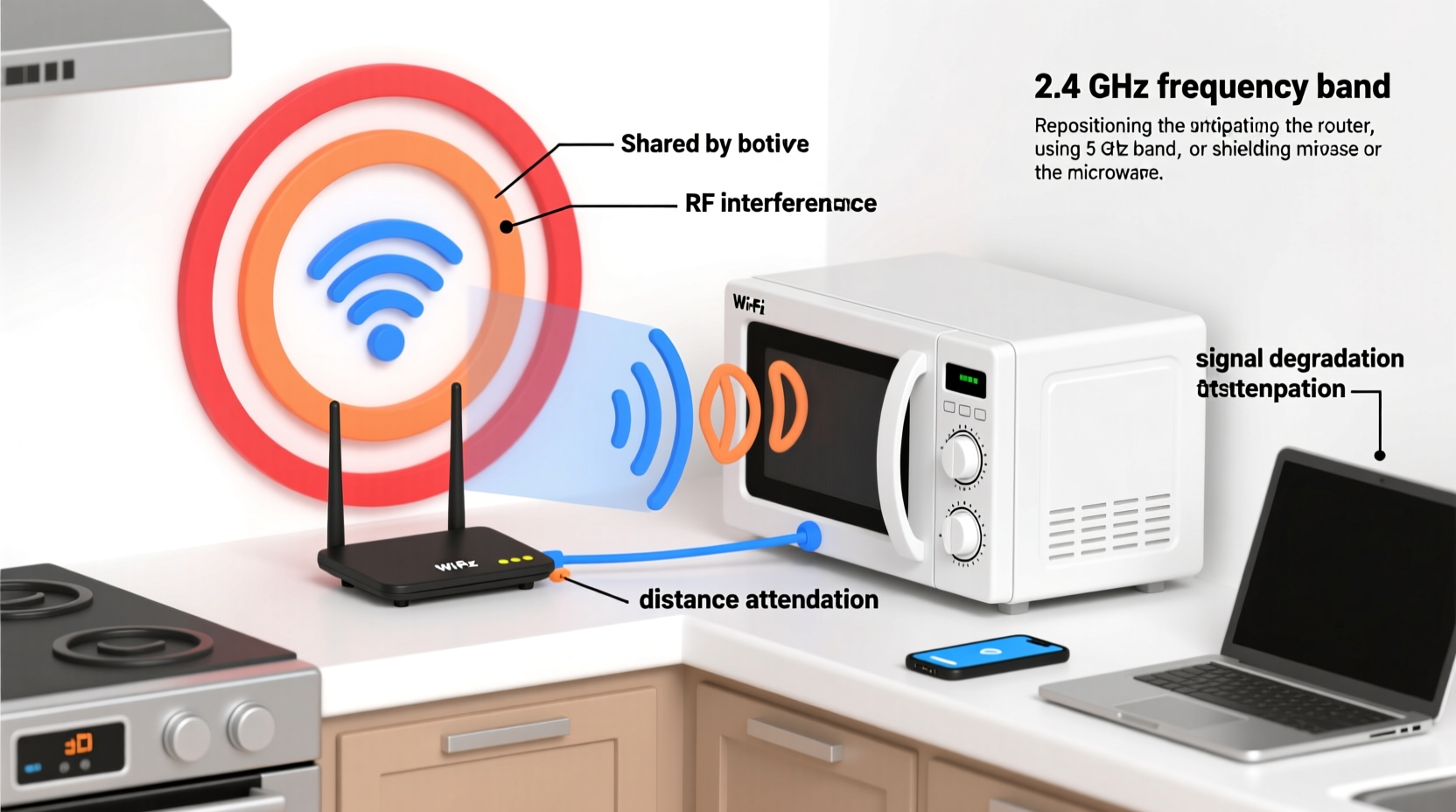
Microwave ovens and most Wi-Fi networks operate in the 2.4 GHz frequency band. This shared spectrum is the root cause of the interference. When a microwave runs, it generates electromagnetic waves at around 2.45 GHz to agitate water molecules in food and produce heat. Although microwaves are shielded, older or damaged units may leak small amounts of radiation—enough to flood nearby wireless signals.
This leakage doesn’t pose a health risk but can drown out Wi-Fi transmissions. Routers using the 2.4 GHz band send data in narrow channels. A microwave’s broad-spectrum noise can overwhelm these channels, causing packet loss, latency spikes, or complete disconnection. The effect is often temporary, lasting only as long as the microwave operates, but repeated interruptions degrade user experience significantly.
“Microwave ovens are one of the most common sources of non-malicious RF interference in homes. Their proximity to routers often compounds the issue.” — Dr. Alan Reyes, RF Engineering Consultant
Identifying Microwave-Induced Wi-Fi Disruptions
Before applying fixes, confirm that your microwave is indeed the culprit. Here are key signs:
- Wi-Fi drops consistently during microwave use (e.g., heating coffee, popcorn).
- Devices reconnect automatically once the microwave stops.
- Other 2.4 GHz devices (like cordless phones or baby monitors) also act erratically when the microwave runs.
- No other appliances trigger similar issues.
To test, perform a simple experiment: restart your router, connect a device via Wi-Fi, and begin a continuous ping to your router or a reliable server (e.g., 8.8.8.8). Start the microwave and observe if ping times spike or packets are lost. If so, interference is confirmed.
Step-by-Step Guide to Reduce Microwave-Wi-Fi Interference
Fixing this issue doesn’t require expensive upgrades. Follow this structured approach to diagnose and resolve interference:
- Relocate Your Router: Move your router away from the kitchen or at least six feet from the microwave. Distance reduces signal overlap.
- Upgrade Microwave Shielding: If your microwave is over five years old, check for door seal damage. Clean hinges and ensure the latch closes tightly. Replace if seals are cracked.
- Switch to 5 GHz Wi-Fi: Connect devices to the 5 GHz band, which is immune to microwave interference. Note that range is shorter, but speed and stability improve.
- Change Wi-Fi Channel: Use your router settings to switch from crowded channels (especially 1–6) to less congested ones like 11 or 13 (where supported).
- Add a Wi-Fi Extender or Mesh System: Place extenders in areas unaffected by the kitchen to maintain coverage without relying on 2.4 GHz near the microwave.
When to Consider Professional Help
If interference persists despite these steps, consider an RF inspection. Certified technicians can measure leakage levels and verify whether your microwave exceeds FCC limits (5 mW/cm² at 2 inches). Excessive leakage indicates a faulty unit needing repair or replacement.
Router Settings That Minimize Interference
Your router’s configuration plays a major role in handling interference. Access your admin panel (usually via 192.168.1.1 or 192.168.0.1) and adjust the following settings:
| Setting | Action | Benefit |
|---|---|---|
| Wi-Fi Band Selection | Enable dual-band; prioritize 5 GHz | Isolate critical devices from 2.4 GHz noise |
| Channel Width (2.4 GHz) | Set to 20 MHz instead of 40 MHz | Narrower channels resist interference better |
| Wireless Mode | Select \"802.11n only\" or \"802.11g/n\" | Improves coexistence with legacy devices |
| Transmit Power | Lower power if coverage allows | Reduces overlap with noisy zones |
| Scheduler | Disable 2.4 GHz during peak microwave hours | Forces devices to use 5 GHz when interference is likely |
Some advanced routers offer automatic channel selection based on real-time interference. Enable features like “Auto Channel Scan” or “Smart Connect” to let the system adapt dynamically.
Real-World Example: Fixing a Persistent Kitchen Interference Issue
Consider Sarah, a remote worker living in a small apartment. She noticed her Zoom meetings froze every time she reheated food. Her router sat on a shelf directly above the microwave. Using a Wi-Fi analyzer app, she found her connection jumped from Channel 6 to “unstable” during microwave use.
She first moved the router to the living room—three rooms away—and switched all work devices to the 5 GHz network. Ping tests showed zero packet loss during microwave operation. As a final step, she replaced her 8-year-old microwave after noticing visible wear on the door seal. Post-upgrade, even 2.4 GHz devices remained stable.
Sarah’s case illustrates how combining physical relocation, band steering, and equipment maintenance resolves interference holistically.
Checklist: Eliminate Microwave-Wi-Fi Conflicts
Use this checklist to systematically address the issue:
- ✅ Confirm interference with a ping or speed test during microwave use.
- ✅ Relocate the router at least 6–10 feet from the microwave.
- ✅ Switch high-priority devices (laptops, tablets) to the 5 GHz band.
- ✅ Change the 2.4 GHz Wi-Fi channel to 1, 6, or 11—avoid overlapping channels.
- ✅ Inspect microwave door seal and hinge condition; replace if damaged.
- ✅ Update router firmware for improved interference management.
- ✅ Install a mesh Wi-Fi system if dead zones persist after repositioning.
- ✅ Test with a new microwave if leakage is suspected.
Frequently Asked Questions
Can a microwave permanently damage my router?
No, microwave interference causes temporary disruption, not hardware damage. Routers are designed to handle common RF noise. However, prolonged exposure to high-leakage microwaves may stress components over many years, though failure due solely to this is extremely rare.
Why doesn’t my neighbor’s Wi-Fi have this problem?
Differences in router placement, microwave age, shielding quality, and network setup explain variations. Your neighbor may use 5 GHz more extensively, have a newer microwave, or keep their router farther from the kitchen. Environmental factors like wall materials also affect signal propagation and interference susceptibility.
Is 5 GHz Wi-Fi always better than 2.4 GHz?
Not universally. 5 GHz offers faster speeds and less interference but has shorter range and poorer wall penetration. 2.4 GHz covers larger areas and works better through obstacles. For devices far from the router (e.g., garage, backyard), 2.4 GHz may be necessary. Use both bands strategically: 5 GHz for speed-critical tasks, 2.4 GHz for coverage.
Preventive Maintenance Tips
Long-term stability requires ongoing attention. Incorporate these habits into your routine:
- Test Wi-Fi performance quarterly, especially if adding new appliances.
- Label your network SSIDs (e.g., “Home-5G” and “Home-2.4G”) to make band selection easier for users.
- Avoid placing metal objects near the router or microwave—they reflect and distort signals.
- Replace microwaves every 7–10 years, even if functional, to benefit from improved shielding standards.
Conclusion: Take Control of Your Home Network Stability
Wi-Fi dropping when the microwave runs is a widespread but fixable issue. By understanding the technical overlap between household appliances and wireless networks, you gain the power to create a more reliable digital environment. Simple changes—relocating your router, switching to 5 GHz, or upgrading aging equipment—can eliminate frustrating interruptions. Don’t accept spotty connectivity as inevitable. With the right knowledge and actions, you can enjoy uninterrupted streaming, smooth video calls, and consistent smart home performance—even during meal prep.




 浙公网安备
33010002000092号
浙公网安备
33010002000092号 浙B2-20120091-4
Comments
No comments yet. Why don't you start the discussion?