
There’s nothing more disruptive in a virtual meeting than hearing your own voice—or someone else’s—echoing back at you. The repetition fractures concentration, interrupts communication, and undermines the professionalism of even the most well-prepared call. While Zoom is one of the most reliable video conferencing platforms, audio issues like echo remain common, especially in less-than-ideal environments or with mismatched hardware. Understanding the root causes of echo and knowing how to respond immediately can transform your meeting experience from frustrating to seamless.
Echo on Zoom typically occurs when sound from a speaker is picked up by a microphone and rebroadcast, creating a loop. This feedback cycle may seem technical, but it's often rooted in simple setup oversights. Whether you're joining from a home office, a shared workspace, or a mobile device, echo can happen to anyone. The good news? Most echo problems can be resolved quickly with the right knowledge and tools.
What Causes Echo During Zoom Meetings?
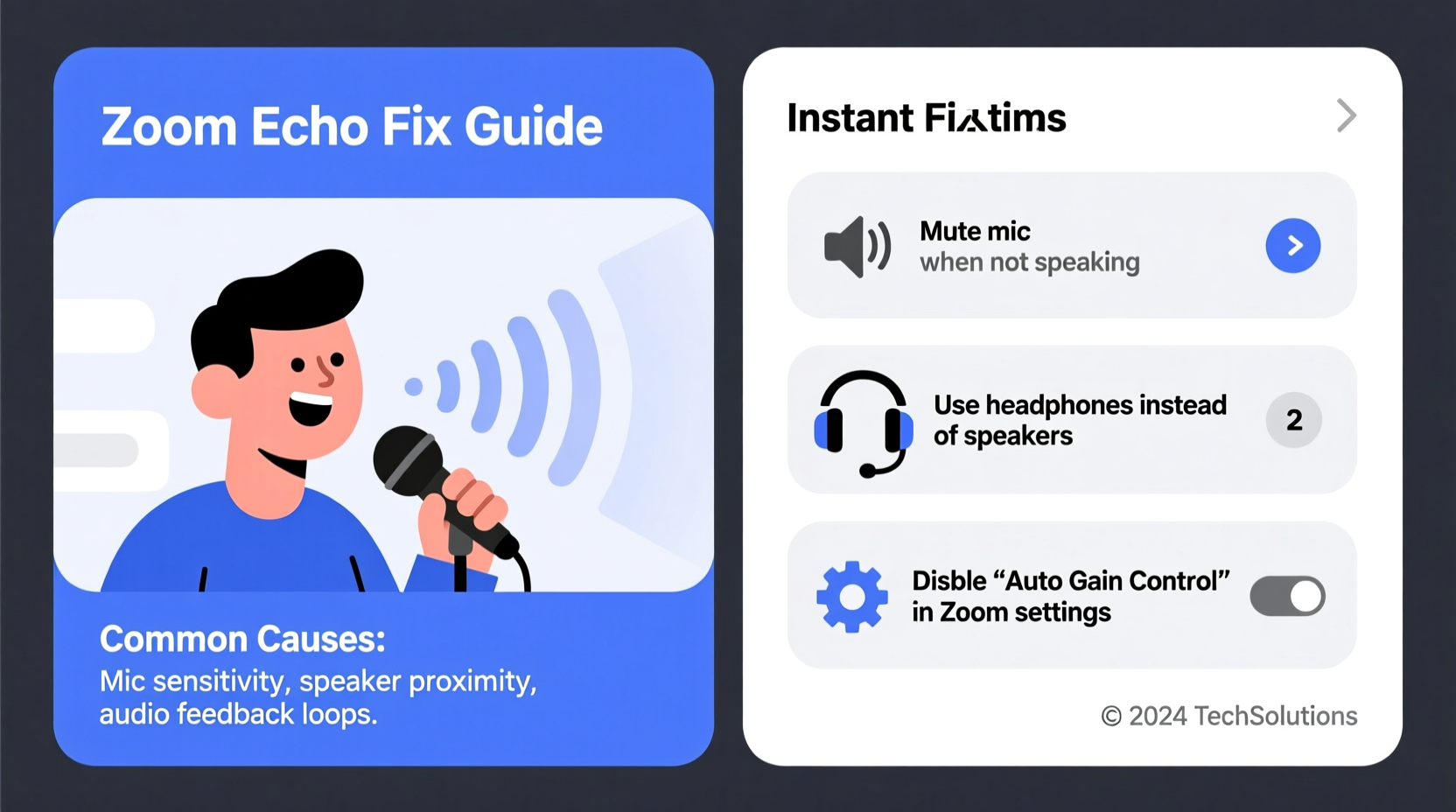
Zoom itself doesn’t generate echo. Instead, the platform acts as a conduit for audio signals that become distorted due to hardware, software, or environmental factors. The most frequent cause is audio feedback: when a participant’s microphone captures the sound coming from their speakers or another person’s audio output, then transmits it back into the meeting. This creates a repeating loop—the echo you hear.
Several scenarios contribute to this:
- Using built-in laptop speakers and microphone simultaneously: Many users rely on their device’s internal audio systems, which are often too close together. Sound emitted from the speakers easily feeds back into the mic.
- Multiple devices in the same room: If two people in one physical space join the same meeting on separate devices, each device picks up the other’s audio output, causing echo.
- Loudspeaker volume: High speaker volume increases the chance of sound leakage into nearby microphones, including those on headsets or external mics.
- Poor room acoustics: Hard surfaces like walls, glass, and floors reflect sound, increasing reverberation and making echo more likely.
- Outdated or misconfigured audio drivers: Drivers manage how your system processes audio input and output. When outdated or incorrectly set, they can fail to suppress feedback loops.
“Echo in virtual meetings is rarely a platform flaw—it’s almost always a local audio environment issue.” — Dr. Lena Torres, Audio Systems Engineer at MIT Media Lab
Immediate Fixes to Stop Zoom Echo
If you’re in the middle of a meeting and suddenly start hearing an echo, don’t panic. You can resolve the issue in under a minute with these practical steps.
1. Mute Yourself (Then Troubleshoot)
The fastest way to stop echo is to mute your microphone. While this halts your contribution temporarily, it breaks the feedback loop instantly. Use this pause to assess your setup.
2. Switch to Headphones or Earbuds
Wearing headphones physically separates audio output from your microphone. Since the sound goes directly into your ears and isn’t released into the room, there’s no opportunity for it to be re-captured. Even basic wired earbuds can eliminate echo in most cases.
3. Lower Speaker Volume
If you must use external or built-in speakers, reduce the volume significantly. The quieter the output, the less likely it is to leak into your mic. Aim for a level that’s clear but not loud enough to fill the room.
4. Check for Duplicate Participants
Ensure no one else in your immediate vicinity is also logged into the same meeting. Two devices in one room will almost always create echo. In hybrid meetings, designate one device per location.
5. Disable Original Sound (if enabled)
Zoom’s “Original Sound” feature preserves unprocessed audio for hosts and performers, but it disables automatic echo cancellation. If you’ve turned this on, disable it: go to Settings > Audio > uncheck “Enable Original Sound.”
Step-by-Step Guide to Prevent Future Echo
Preventing echo requires proactive configuration. Follow this sequence before your next meeting to ensure clean audio every time.
- Choose the Right Audio Hardware: Use a headset with a built-in microphone or a dedicated USB microphone positioned away from speakers.
- Test Your Setup Before Joining: In Zoom, go to Settings > Audio and click “Test Speaker and Microphone.” Speak naturally and adjust input levels so your voice registers without peaking.
- Enable Automatic Echo Cancellation: Ensure Zoom’s noise suppression features are active. Under Settings > Audio, check “Automatically adjust microphone settings” and “Suppress background noise” (set to “Low” or “Medium”).
- Use a Dedicated Meeting Space: If possible, choose a quiet room with soft furnishings—carpets, curtains, or furniture help absorb sound reflections.
- Update Audio Drivers: Visit your device manufacturer’s website to download the latest audio drivers. Outdated drivers can interfere with Zoom’s echo cancellation algorithms.
- Restart Devices Regularly: A simple reboot clears cached audio processes that might conflict with Zoom’s real-time processing.
Do’s and Don’ts: Best Practices for Echo-Free Meetings
| Do’s | Don’ts |
|---|---|
| Use headphones with a noise-canceling microphone | Use laptop speakers and mic at the same time |
| Mute when not speaking | Leave your mic open while typing or moving around |
| Position external mics away from speakers | Place your microphone near a vibrating surface (e.g., desk with fan) |
| Test audio settings weekly | Ignore recurring echo issues—address them immediately |
| Use a pop filter or foam cover on mics | Shout into the microphone to compensate for low volume |
Real-World Example: How One Team Eliminated Daily Echo Issues
A remote marketing team at a mid-sized tech startup faced persistent echo during daily stand-ups. Three members joined from home offices using laptops on kitchen tables, while others used Bluetooth speakers in shared coworking spaces. The echo disrupted discussions and forced repeated clarifications.
Their IT coordinator conducted a quick audit and found several overlapping issues: original sound was enabled on two accounts, multiple participants used built-in mics, and one user had both a phone and laptop in the same room connected to the same meeting.
Within 48 hours, the team implemented changes: everyone was issued lightweight headsets, original sound was disabled company-wide, and a policy was introduced requiring mute-on-entry and single-device-per-location rules. The result? Zero echo incidents over the next six weeks, and a measurable improvement in meeting efficiency.
Advanced Solutions for Persistent Echo
If echo persists despite following best practices, deeper technical adjustments may be necessary.
Use External Audio Interfaces
For professionals in podcasting, training, or high-stakes presentations, an external audio interface with real-time monitoring and echo suppression offers superior control. Devices like the Focusrite Scarlett or Rode AI-1 include hardware-level processing that reduces latency and feedback risk.
Optimize Room Acoustics
Even minor acoustic improvements make a difference. Hang a thick curtain, place a rug under your desk, or use bookshelves as natural diffusers. Avoid sitting directly against bare walls where sound reflects most intensely.
Switch to a Wired Connection
Wi-Fi latency can delay audio transmission, desynchronizing input and output and worsening perceived echo. A wired Ethernet connection ensures consistent data flow, helping Zoom’s echo cancellation algorithms work more effectively.
Use Third-Party Noise Suppression Tools
Applications like Krisp, NVIDIA Broadcast, or RTX Voice use AI to isolate voice from ambient noise and prevent feedback. These run in the background and integrate seamlessly with Zoom, offering an extra layer of protection.
“AI-powered noise filtering has reduced echo-related complaints by over 70% in our client base.” — Mark Chen, CTO of Krisp Technologies
FAQ: Common Questions About Zoom Echo
Why do I hear echo only when certain people speak?
Echo is localized to individual setups. If only specific participants trigger echo, the issue lies with their audio configuration—not yours. Politely suggest they switch to headphones or lower their speaker volume.
Can Zoom’s settings alone fix echo?
Zoom includes robust echo cancellation, but it works best when supported by proper hardware and environment. Software can’t fully compensate for a loud speaker feeding into a sensitive microphone.
Does echo affect recording quality?
Yes. If echo occurs during a recorded meeting, it will be permanently embedded in the audio file. Always resolve echo before starting a recording to ensure professional-quality playback.
Conclusion: Take Control of Your Audio Experience
Echo during Zoom meetings is a solvable problem, not an inevitable part of virtual communication. By understanding the causes—audio feedback loops, poor hardware choices, and environmental factors—you gain the power to eliminate disruptions before they start. Simple actions like using headphones, muting when silent, and checking for duplicate devices can instantly restore clarity.
For teams and individuals who rely on Zoom daily, investing in better audio gear and setting clear communication norms pays dividends in productivity and professionalism. Don’t wait for the next echo to derail your message. Apply these strategies today, test your setup regularly, and make crisp, echo-free meetings the standard.




 浙公网安备
33010002000092号
浙公网安备
33010002000092号 浙B2-20120091-4
Comments
No comments yet. Why don't you start the discussion?