
CapCut has become one of the most popular video editing tools for creators across mobile and desktop platforms. Its intuitive interface, powerful effects, and seamless integration with TikTok make it a go-to choice for quick, high-quality edits. But when CapCut crashes during export—especially after hours of editing—it’s more than frustrating; it can feel devastating. Lost progress, corrupted files, and stalled content schedules are real consequences.
The good news: export crashes are rarely random. They stem from identifiable technical or operational causes that can be diagnosed and resolved. Whether you're using CapCut on iPhone, Android, Windows, or macOS, this guide walks through every potential trigger, from device limitations to software bugs, and provides actionable solutions to get your exports working reliably.
Understanding Why Export Crashes Happen
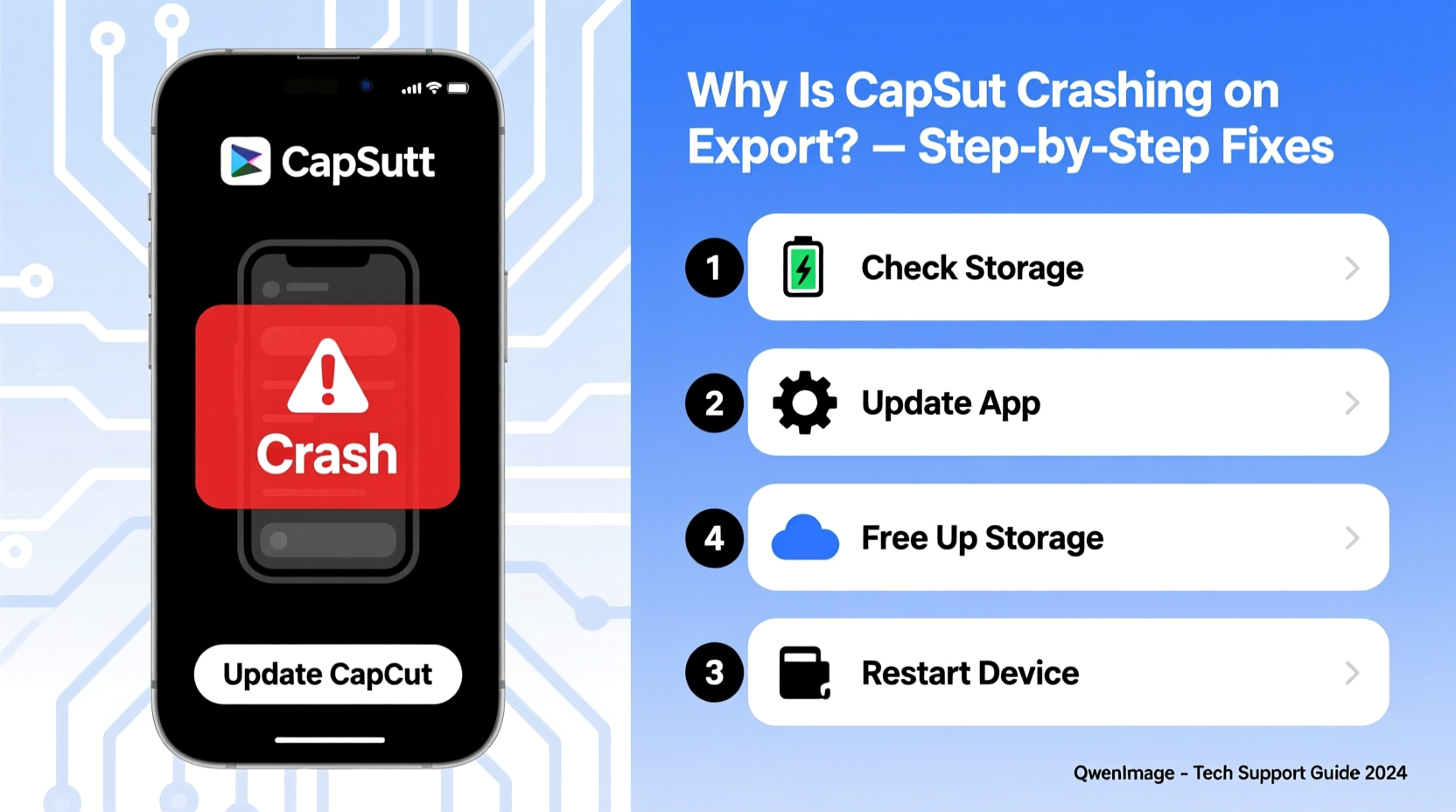
Exporting a video is one of the most resource-intensive processes in any editing app. It involves rendering transitions, applying filters, compressing audio, and encoding the final file into a standard format like MP4. During this phase, CapCut demands significant CPU, GPU, RAM, and storage bandwidth. If any part of the system fails to keep up, the app may freeze, crash, or close unexpectedly.
Crashes aren’t always due to faulty software. Often, they result from:
- Insufficient device memory (RAM)
- Overheating hardware
- Bugs in outdated or unstable app versions
- Corrupted project files or media assets
- Storage issues (low space, fragmented cache)
- Conflicts with other running apps
Identifying which factor applies to your situation is the first step toward resolution. The following sections break down targeted fixes based on common failure patterns.
Step-by-Step Troubleshooting Process
Follow this structured approach to isolate and eliminate the cause of export crashes. Start at Step 1 and proceed sequentially until the issue resolves.
- Restart Your Device
Simple but effective. A reboot clears temporary memory leaks, stops background processes, and resets system resources. This alone resolves many sporadic crashes. - Check Available Storage
Ensure your device has at least 2–3 GB of free space. Exporting requires room for temporary render files. Low storage leads to write failures and abrupt closures. - Update CapCut to the Latest Version
Visit your app store (Google Play, App Store, Microsoft Store) and confirm you’re running the most recent version. Developers regularly patch bugs related to export stability. - Clear CapCut Cache
On mobile: Go to Settings > Apps > CapCut > Storage > Clear Cache.
On desktop: Navigate toC:\\Users\\[User]\\AppData\\Local\\Packages\\CapCut(Windows) or~/Library/Caches/com.lemon.lv(macOS) and delete cache folders. - Lower Export Settings Temporarily
Try exporting at 1080p instead of 4K, or reduce frame rate from 60fps to 30fps. High-resolution exports strain older or mid-tier devices. - Break Long Projects into Segments
If your timeline exceeds 5 minutes, split it into smaller clips. Render each separately, then combine them in another editor or use CapCut’s “Merge” function post-export. - Disable Unnecessary Effects
Remove excessive overlays, animated stickers, or complex keyframe animations. These increase processing load during render.
If the crash persists after completing these steps, move to deeper diagnostics.
Device-Specific Fixes by Platform
Different operating systems handle resources differently. What works on iOS may not apply to Windows. Below are targeted recommendations based on your platform.
| Platform | Common Causes | Solutions |
|---|---|---|
| iOS (iPhone/iPad) | Background app refresh interference, overheating, iCloud sync conflicts | Turn off Background App Refresh for CapCut. Avoid editing in direct sunlight. Disable iCloud Drive syncing temporarily. |
| Android | Aggressive battery optimization, third-party launchers, low-RAM management | Add CapCut to Battery Optimization whitelist. Use default launcher during export. Close all other apps. |
| Windows | Outdated graphics drivers, insufficient VRAM, antivirus interference | Update GPU drivers via NVIDIA/AMD/Intel site. Run CapCut as Administrator. Exclude app folder from real-time scanning. |
| macOS | Gatekeeper restrictions, permission denials, thermal throttling | Grant full disk access to CapCut in System Settings > Privacy. Ensure proper ventilation. Limit multitasking during export. |
Real Example: How One Creator Fixed Persistent Crashes
A freelance video editor named Jordan used CapCut on a 2019 MacBook Pro to create social media reels for clients. After upgrading to a newer CapCut version, exports began failing consistently at the 70% mark. No error message appeared—just a sudden quit.
Initial attempts—restarting, clearing cache, reinstalling—failed. Then, Jordan checked Activity Monitor and noticed CapCut spiking memory usage beyond 4GB. The MacBook had only 8GB of RAM total. With Chrome and Slack also open, the system was running out of usable memory.
The solution? Jordan closed all non-essential apps, disabled visual effects in the project (like blur transitions), and exported at 1080p30 instead of 4K. The export completed successfully. Later, Jordan upgraded to 16GB RAM and reported zero crashes since.
This case illustrates how multiple factors—hardware limits, background activity, and export settings—can combine to trigger instability. Addressing just one may not be enough.
Expert Insight: What Developers Say About Export Stability
While CapCut’s development team doesn’t publish public post-mortems for every bug, industry experts in video encoding offer insight into common pitfalls.
“High-resolution exports fail most often not because of the app itself, but due to mismatched expectations and hardware capability. A phone from 2018 simply wasn’t designed to encode H.265 4K video smoothly.” — Marcus Lin, Video Encoding Engineer
He emphasizes that modern editing apps push older devices beyond their original design limits. “The software evolves faster than hardware cycles,” he adds. “Users need to understand their device’s ceiling and adjust workflows accordingly.”
This means accepting that some projects may require alternative tools or segmented rendering if native export proves unreliable.
Prevention Checklist: Avoid Future Export Crashes
Once you’ve fixed the immediate issue, adopt these habits to maintain long-term stability:
- ✅ Keep CapCut updated automatically
- ✅ Reboot your device weekly
- ✅ Export shorter drafts before finalizing long videos
- ✅ Use SSD storage (on desktop) for faster read/write speeds
- ✅ Monitor device temperature—avoid prolonged editing in hot environments
- ✅ Regularly back up projects to cloud or external drive
- ✅ Limit multitasking during export sessions
- ✅ Test exports early in the editing process
Building these practices into your routine reduces the risk of last-minute failures and protects your creative output.
Frequently Asked Questions
Why does CapCut crash only during export and not while editing?
Editing uses real-time preview rendering, which is less intensive. Exporting requires full-frame encoding, applying all effects permanently, and writing large files to storage. This process demands far more sustained system resources, exposing weaknesses that don’t appear during casual use.
Can corrupted media files cause export crashes?
Yes. If your project includes damaged or incompatible video/audio clips (e.g., unsupported codecs, partially downloaded files), CapCut may fail during the encoding phase. Replace suspect clips with verified ones to test.
Is there a way to recover an unfinished export?
Unfortunately, no. CapCut does not save partial exports. However, auto-saved project versions may exist. On mobile, check the \"Projects\" tab for unsaved drafts. On desktop, look in the default project directory (Documents/CapCut or equivalent).
Advanced Tips for Power Users
For those pushing CapCut to its limits, consider these advanced strategies:
- Use Proxy Editing: On desktop, convert high-res source footage to lower-resolution proxies before importing. Edit with proxies, then relink to originals before export.
- Adjust Hardware Acceleration: In CapCut desktop settings, toggle between GPU-accelerated encoding (NVENC, QuickSync) and software encoding. Some drivers perform better with one over the other.
- Monitor Resource Usage: Use Task Manager (Windows), Activity Monitor (macOS), or third-party tools like CPU Dasher (Android) to watch memory, CPU, and temperature during export.
- Switch to Desktop for Heavy Projects: If you frequently work with 4K, multi-layer timelines, or long videos, prioritize the desktop version. It handles memory and heat better than mobile counterparts.
These techniques won’t fix a broken installation, but they optimize performance within known constraints.
When to Consider Alternatives
Despite best efforts, some devices simply cannot run CapCut reliably at higher loads. If you’ve exhausted all options and still face crashes, it may be time to evaluate alternatives.
Consider switching to:
- DaVinci Resolve (Free): Industry-grade color grading and editing, excellent for desktop users.
- Adobe Premiere Rush: Cross-platform, lightweight, integrates with Creative Cloud.
- InShot or VN Video Editor: Mobile-first apps with simpler export pipelines.
Migration isn’t failure—it’s adaptation. The right tool matches your workflow, hardware, and reliability needs.
Conclusion: Take Control of Your Workflow
CapCut crashing on export is a solvable problem, not an inevitable one. By understanding the technical demands of video rendering and aligning them with your device’s capabilities, you regain control over your creative process. Most crashes stem from preventable conditions: low memory, outdated software, or overly ambitious settings.
Apply the troubleshooting steps methodically. Start simple—restart, update, clear cache—then escalate to hardware and environmental checks. Learn your device’s limits and plan projects accordingly. And above all, protect your work with regular backups and incremental testing.
Video creation should empower, not frustrate. With the right knowledge, even stubborn export issues become manageable. Fix the problem once, implement preventive habits, and get back to what matters: telling your story.




 浙公网安备
33010002000092号
浙公网安备
33010002000092号 浙B2-20120091-4
Comments
No comments yet. Why don't you start the discussion?