
Alexa, Amazon’s intelligent virtual assistant, has transformed how we interact with our homes. From adjusting lights to playing music or checking the weather, a simple voice command should be all it takes. But when Alexa starts mishearing you—responding to the wrong request, asking for clarification repeatedly, or not responding at all—it disrupts the seamless experience you expect. The issue often lies not with Alexa herself, but with her ability to hear you clearly. Microphone malfunctions, environmental noise, device placement, or even firmware glitches can interfere with accurate voice recognition. Fortunately, most of these problems are fixable with systematic troubleshooting.
Understanding Why Alexa Mishears Commands
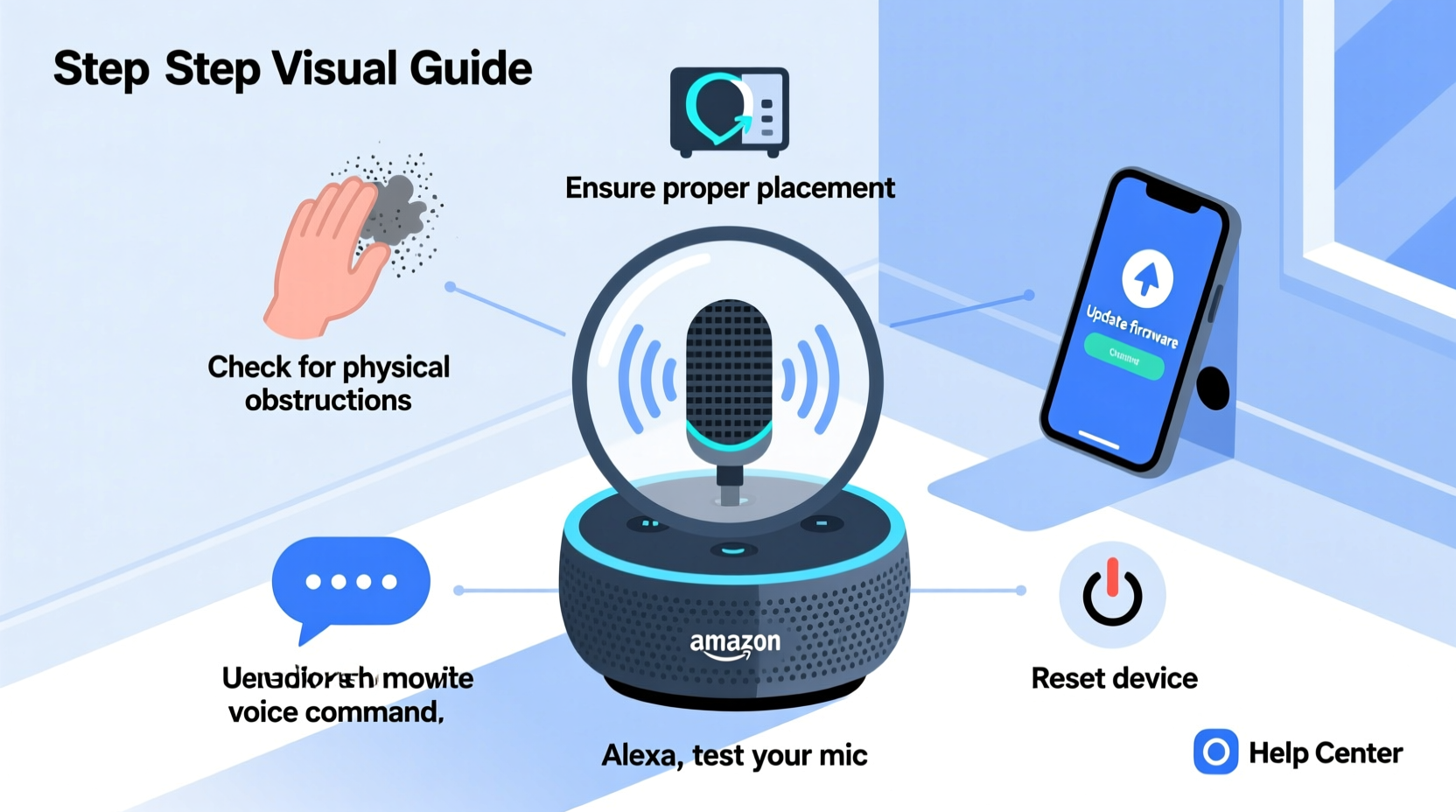
Alexa relies on far-field microphones designed to pick up your voice from across the room. These microphones use beamforming technology to focus on sound coming from your direction while filtering out background noise. However, several factors can degrade this functionality:
- Background noise: Loud appliances, TVs, or conversations can drown out your voice.
- Poor device placement: Placing Alexa near walls, in cabinets, or behind objects blocks sound waves.
- Dust or debris: Accumulation over time can clog microphone ports.
- Firmware bugs: Outdated software may impair audio processing.
- Microphone muting: Accidentally pressing the mute button disables listening completely.
- Multiple devices: Having several Echo devices nearby can cause overlapping responses or confusion.
Before assuming hardware failure, it's essential to evaluate both the environment and settings that affect Alexa’s ability to interpret speech accurately.
Step-by-Step Troubleshooting Guide
Follow this structured approach to diagnose and resolve Alexa’s mishearing issues efficiently. Each step isolates potential causes and applies targeted fixes.
- Check the microphone mute button. Look for the red light ring on your Echo device. If lit, the microphone is muted. Press the microphone off button to reactivate it.
- Test the microphone manually. Say “Alexa, what’s the weather?” If there’s no response or the light doesn’t activate, the mic may not be receiving input.
- Restart your Echo device. Unplug it for 30 seconds, then plug it back in. This clears temporary software glitches.
- Update device software. Open the Alexa app, go to Devices > Echo & Alexa > [Your Device] > About > Check for Software Updates.
- Reposition the device. Move it away from walls, corners, or enclosed shelves. Place it on an open surface at waist to eye level.
- Reduce ambient noise. Turn off loud fans, TVs, or kitchen appliances during voice interactions.
- Perform a factory reset (if needed). Press and hold the Action button (usually the microphone off or volume down button) for 25 seconds until the light ring cycles through colors. Reconnect via the Alexa app afterward.
This sequence addresses common software and environmental issues before escalating to advanced solutions.
Environmental and Placement Best Practices
The location of your Echo device significantly impacts its performance. Even high-sensitivity microphones struggle in acoustically challenging environments. Consider these guidelines when placing your Alexa-enabled device:
| Do’s | Don’ts |
|---|---|
| Place on an open shelf or table in the center of the room | Put inside a cabinet or bookshelf with limited airflow |
| Elevate slightly (waist to chest height) | Set directly on thick carpets or soft surfaces that absorb sound |
| Keep away from large reflective surfaces like mirrors or glass walls | Position near constant noise sources (AC units, refrigerators) |
| Use one primary device per room to avoid cross-talk | Cluster multiple Echos within 6 feet without proper grouping setup |
Hard surfaces can create echo effects, while soft materials absorb sound. A balanced environment—such as a living room with furniture, curtains, and moderate background activity—is ideal for consistent voice pickup.
“Proper placement is just as important as microphone quality. Even the best sensors fail if obstructed by poor acoustics.” — Dr. Alan Reyes, Audio Engineering Consultant at SoundLogic Labs
Maintenance and Hardware Checks
Over time, dust, pet hair, and moisture can accumulate around the microphone ports—tiny holes typically located along the top or side rim of the device. When blocked, they reduce sensitivity and clarity.
To clean safely:
- Power down and unplug the device.
- Use a dry, soft-bristled brush (like a clean makeup or electronics brush) to gently sweep debris from the mic holes.
- Avoid using compressed air, which can force particles deeper or damage internal components.
- Never apply liquids or cleaning sprays directly onto the device.
If physical inspection reveals no blockages and basic troubleshooting fails, consider testing with another Echo unit if available. Swapping devices helps determine whether the issue is isolated to hardware.
Mini Case Study: Fixing Persistent Misinterpretation in a Busy Kitchen
Sarah, a homeowner in Portland, noticed her Echo Dot in the kitchen kept mishearing “Add milk to my shopping list” as “Play jazz music.” Frustrated, she almost gave up on voice commands altogether. After reviewing placement, she realized the device was tucked behind a toaster oven and near a humming refrigerator. She moved it to a central countertop, unplugged the fridge briefly to test, and restarted the Echo. She also disabled her second Echo in the adjacent dining room temporarily to eliminate interference. The result? Immediate improvement. Alexa now adds items correctly 95% of the time. Sarah later re-enabled the second device but renamed it “Dining Room Alexa” to reduce confusion. Her experience underscores how environment and configuration—not intelligence—are often the root cause.
Advanced Settings and App-Based Fixes
Beyond physical adjustments, the Alexa app offers tools to fine-tune voice recognition accuracy. These settings allow customization based on user behavior and household dynamics.
Voice Profile Training
Alexa supports personalized voice profiles, enabling better recognition of individual users. To train Alexa to recognize your voice:
- Open the Alexa app.
- Go to More > Settings > Your Profile & Family > Voice Purchasing & Voice ID.
- Select Improve Alexa’s Ability to Recognize Your Voice.
- Read and speak the 10 on-screen phrases clearly.
This process helps Alexa distinguish your tone, pitch, and cadence from others in the household, reducing misinterpretations.
Adjust Wake Word Sensitivity (Beta Feature)
Some newer Echo models support wake word sensitivity adjustment. While not universally available, if accessible:
- Navigate to Device Settings > Wake Word Sensitivity.
- Choose between Low, Medium, or High based on ambient noise levels.
- High sensitivity works well in quiet rooms; lower settings help in noisy areas to reduce false triggers.
Review Voice History and Corrections
You can review what Alexa heard and correct mistakes:
- In the Alexa app, go to Activity.
- Find a misheard command and tap it.
- Select Edit what Alexa heard and type the correct phrase.
This feedback loop trains Alexa over time and improves future accuracy.
Troubleshooting Checklist
Use this checklist to systematically address Alexa’s mishearing issues:
- ✅ Ensure the microphone is not muted (red light off)
- ✅ Restart the Echo device
- ✅ Confirm Wi-Fi connection is stable
- ✅ Update device software via the Alexa app
- ✅ Reposition device to a central, open area
- ✅ Clean microphone ports gently with a dry brush
- ✅ Reduce background noise during use
- ✅ Train your voice profile in the app
- ✅ Review and correct misheard commands in Activity log
- ✅ Perform factory reset if all else fails
Checking each item ensures no stone is left unturned in restoring reliable voice control.
Frequently Asked Questions
Can other people trigger my Alexa?
Yes, unless Voice ID is enabled and trained. By default, any voice can activate Alexa. Setting up Voice Purchasing and Voice Profiles allows Alexa to recognize specific users and restrict actions like shopping or accessing personal information.
Why does Alexa hear me only sometimes?
Inconsistent hearing usually points to connectivity issues, low sensitivity settings, or intermittent obstructions. Check for Wi-Fi drops, ensure the device isn’t overheating, and verify that nothing intermittently blocks the mic (e.g., a swinging door or moving object).
Does Alexa record everything I say?
No. Alexa only begins recording after detecting the wake word (e.g., “Alexa”). Prior audio is processed locally and discarded unless the wake word is recognized. You can delete recordings anytime via the Alexa app under Privacy Settings.
Conclusion: Restore Clarity and Confidence in Voice Control
Misheard commands don’t mean your Alexa is broken—they’re often a signal that something in the system needs adjustment. Whether it’s a dusty microphone, a poorly placed speaker, or untrained voice settings, most issues are solvable with patience and the right steps. By following the troubleshooting methods outlined here—from basic resets to advanced voice training—you regain the responsive, intuitive interaction Alexa was designed to deliver. Don’t settle for constant corrections or ignored requests. Take action today: inspect your device, optimize its environment, and refine your settings. Once tuned properly, Alexa becomes a more reliable partner in your daily routine.




 浙公网安备
33010002000092号
浙公网安备
33010002000092号 浙B2-20120091-4
Comments
No comments yet. Why don't you start the discussion?