
If you've ever been startled by music suddenly blaring from your Amazon Echo device with no command given, you're not alone. Thousands of Alexa users report the unsettling experience of their smart speaker turning on unexpectedly and playing music—sometimes in the middle of the night. This behavior can be confusing, frustrating, and even concerning. The good news: it's usually fixable. In most cases, random playback is caused by misconfigured settings, voice recognition errors, or background features like Autoplay. This guide explains the root causes, walks you through disabling autoplay quickly, and offers long-term strategies to prevent recurrence.
Why Is My Alexa Playing Music Randomly?
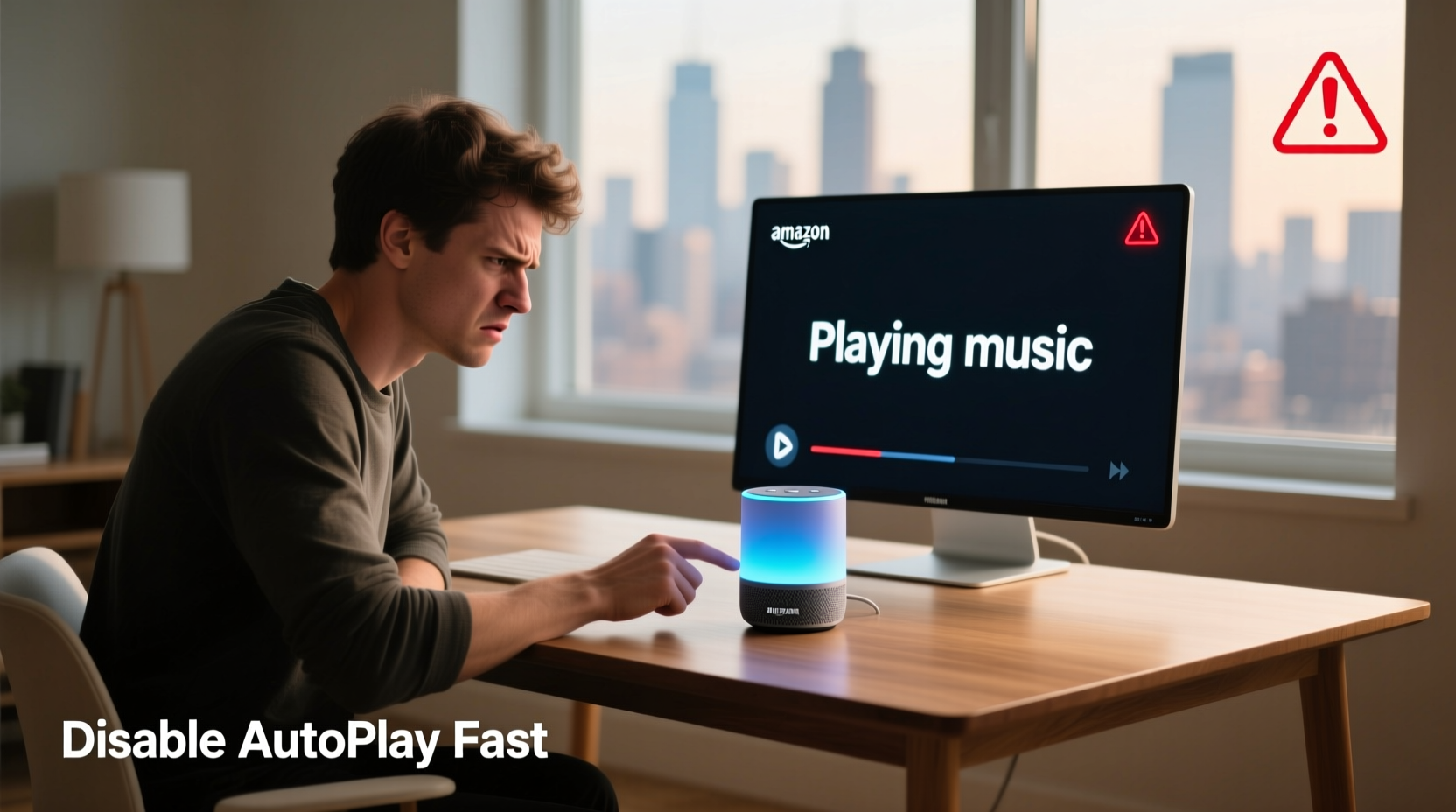
Alexa’s random music playback typically stems from one of several technical or environmental triggers. While it may seem like your device has developed a mind of its own, the issue is almost always traceable to a specific setting or external influence.
The most common cause is Autoplay, a feature designed to keep music going after a song ends by suggesting similar tracks. While convenient for some, it can activate unintentionally—especially when paired with accidental wake word detection. Other factors include:
- Voice misinterpretation: Alexa may mistake background noise, TV dialogue, or similar-sounding phrases for its wake word (\"Alexa,\" \"Echo,\" etc.).
- Third-party skill behavior: Some music skills have autoplay enabled by default and may resume playback based on vague cues.
- Scheduled routines: Forgotten or outdated routines might trigger music at odd times.
- Shared household accounts: Another user on the same Amazon account could be initiating playback remotely.
- Firmware glitches: Rare software bugs can cause erratic behavior until patched.
“Most cases of unexplained Alexa playback are due to either autoplay settings or false wake word triggers from ambient sound.” — Jordan Lee, Smart Home Systems Engineer at IoT Labs
How to Disable Autoplay on Alexa (Fast Fix)
Disabling Autoplay is the fastest and most effective way to stop random music playback. Here's how to do it across devices:
Step-by-Step: Turn Off Autoplay in the Alexa App
- Open the Alexa app on your smartphone or tablet.
- Navigate to Settings (tap the gear icon in the top-right corner).
- Select Music & Podcasts.
- Tap Autoplay.
- Toggle the switch to Off.
This setting applies globally across all linked music services (Amazon Music, Spotify, Pandora, etc.) and prevents Alexa from automatically queuing up additional songs after the current one ends.
Disable Autoplay During Playback
You can also turn off Autoplay mid-session:
- While music is playing, say: “Alexa, turn off Autoplay.”
- Alternatively, tap the screen on an Echo Show or Fire Tablet and disable the looping icon (two arrows forming a circle).
Note that this only disables Autoplay for the current session unless changed permanently in the app.
Additional Fixes to Prevent Unwanted Playback
Even with Autoplay disabled, random activations can still occur. Use these targeted solutions to eliminate other potential triggers.
Adjust Wake Word Sensitivity
If Alexa frequently activates without being called, it may be too sensitive to sound. You can adjust this in the Alexa app:
- Go to Devices > Echo & Alexa.
- Select the specific Echo device.
- Tap Wake Word.
- Change sensitivity from “High” to “Medium” or “Low” based on your environment.
In noisy homes or near TVs, a lower sensitivity reduces false triggers. However, avoid setting it too low, or Alexa may fail to respond when needed.
Review Active Routines
Check if any automated routines are triggering music:
- In the Alexa app, go to Routines under the More menu.
- Look for routines involving music, alarms, or time-based actions.
- Edit or delete any suspicious entries—especially those set to “When this happens” with vague triggers like “Sunset” or “Motion detected.”
Sign Out Unused Music Services
Multiple linked music accounts increase the risk of unintended playback. If you don’t use Spotify or Apple Music with Alexa, remove them:
- Open Alexa app > Settings > Music & Podcasts.
- Tap each service and select Disconnect.
This reduces complexity and minimizes conflicts between apps.
Enable Do Not Disturb Mode
To block all notifications and audio during certain hours (e.g., nighttime), enable Do Not Disturb:
- Say: “Alexa, turn on Do Not Disturb.”
- Or schedule it via the app: Settings > Do Not Disturb > set custom times.
This prevents music, calls, and alerts from playing—even if triggered remotely.
Troubleshooting Table: Common Causes & Solutions
| Issue | Likely Cause | Solution |
|---|---|---|
| Alexa plays music after a song ends | Autoplay enabled | Turn off Autoplay in Music settings |
| Alexa turns on with no command | False wake word detection | Lower wake word sensitivity; reposition device away from TVs |
| Music starts at the same time daily | Scheduled routine | Review and edit routines in the app |
| Different music service starts unexpectedly | Multiple linked accounts | Disconnect unused music services |
| Device responds but no one spoke | Background noise or echo | Move device away from walls, fans, or running appliances |
Mini Case Study: How Sarah Fixed Her Midnight Music Problem
Sarah, a remote worker in Austin, began noticing her Echo Dot in the bedroom would play jazz music around 2:30 AM. It wasn’t loud, but it disrupted her sleep. At first, she assumed it was a glitch. After reading online forums, she realized Autoplay was likely the culprit—but she’d already turned it off. Then she discovered a forgotten routine titled “Relaxing Evening,” created months earlier during a meditation phase. The routine was set to activate based on “calm ambiance detected,” a now-deprecated trigger that occasionally fired randomly. She deleted the routine, lowered her device’s wake word sensitivity, and hasn’t had an incident since.
Sarah’s case highlights how legacy settings and misunderstood features can linger and cause issues long after setup.
Expert Checklist: Stop Random Alexa Playback
Follow this checklist to fully secure your Alexa against unwanted music:
- ✅ Disable Autoplay in the Alexa app
- ✅ Review and delete unused or unclear routines
- ✅ Lower wake word sensitivity if false triggers persist
- ✅ Disconnect unused music streaming services
- ✅ Schedule Do Not Disturb during sleeping hours
- ✅ Reposition devices away from TVs, radios, or noisy appliances
- ✅ Update device firmware (done automatically, but ensure Wi-Fi is stable)
Completing all steps ensures maximum control over your smart speaker’s behavior.
Frequently Asked Questions
Can someone else control my Alexa and play music remotely?
Yes—if they have access to your Amazon account. Anyone logged into your account can use the Alexa app to play music on your devices. Always use strong passwords, enable two-factor authentication, and review trusted devices regularly under Your Amazon Account > Login & Security.
Does disabling Autoplay affect playlists or albums?
No. Disabling Autoplay only stops Alexa from adding *related* songs after a playlist or album ends. Your original playlist will still play in full. Autoplay affects post-playback suggestions, not internal playlist continuity.
Why does Alexa sometimes play music after I make a call?
This often occurs when using “Drop In” or intercom features. If a call ends and Autoplay is on, Alexa may interpret silence as a cue to continue with more music—especially if music was playing before the call. Disable Autoplay and avoid leaving music running during communications.
Long-Term Prevention: Best Practices for Alexa Owners
Preventing random playback isn’t just about fixing the moment—it’s about building habits that keep your smart home reliable. Consider these ongoing practices:
- Monthly check-ins: Spend five minutes each month reviewing routines, connected apps, and device status.
- Use distinct wake words: If “Alexa” is too common, change it to “Echo,” “Computer,” or “Ziggy” to reduce false triggers.
- Label devices clearly: Name devices by room (e.g., “Kitchen Echo,” “Bedroom Dot”) to avoid confusion when managing settings.
- Limit child profiles: Kids’ voices can trigger devices more easily. Use parental controls and disable Autoplay on shared speakers.
- Monitor activity history: In the Alexa app, go to History to see every command received. Investigate unknown entries immediately.
“The key to a trustworthy smart home is proactive maintenance. Treat your Alexa like a car—regular tune-ups prevent breakdowns.” — Lena Patel, IoT Security Consultant
Conclusion: Take Control of Your Smart Speaker Today
Random music playback from Alexa isn’t supernatural—it’s solvable. By understanding how Autoplay works, adjusting your settings, and auditing routines, you regain full control over when and how your devices respond. The fix starts with turning off Autoplay, but true peace of mind comes from regular oversight and smart configuration. Don’t wait for another midnight serenade to act. Open the Alexa app now, follow the steps in this guide, and enjoy a quieter, more predictable smart home experience.




 浙公网安备
33010002000092号
浙公网安备
33010002000092号 浙B2-20120091-4
Comments
No comments yet. Why don't you start the discussion?