
Bluetooth technology has transformed the way we interact with devices—wireless headphones, speakers, keyboards, and smart home gadgets all rely on seamless connectivity. Yet, nothing disrupts the experience faster than sudden dropouts or failed pairings. Whether you're in the middle of a critical call, listening to music, or trying to connect a fitness tracker, unstable Bluetooth can feel maddening. The good news: most issues are fixable with the right approach. Understanding the root causes—from interference to outdated firmware—empowers you to diagnose and resolve problems quickly.
Understanding Why Bluetooth Cuts Out
Bluetooth operates on the 2.4 GHz frequency band, the same range used by Wi-Fi routers, microwaves, cordless phones, and many smart home devices. This shared spectrum means congestion is common. When multiple signals compete for bandwidth, your Bluetooth connection may stutter, lag, or disconnect entirely. But interference isn't the only culprit.
Physical obstructions like walls, furniture, or even your body can weaken signal strength. Bluetooth Class 2 devices—the most common type—have a typical range of about 30 feet (10 meters), but this drops significantly with obstacles. Additionally, low battery levels on either device can cause instability. As power dwindles, some devices reduce transmission strength to conserve energy, leading to intermittent connectivity.
Another often-overlooked factor is device compatibility. Older Bluetooth versions (like 4.0 or earlier) lack the efficiency and stability of newer standards such as Bluetooth 5.0 and above. If you're connecting a modern smartphone to an older speaker, you might experience frequent dropouts due to mismatched capabilities.
Common Causes of Pairing Failures
When a device won’t pair, it’s rarely random. Most pairing failures stem from one of several predictable issues:
- Pairing mode not activated: Many users assume their device is ready to connect when it's not. Headphones, speakers, and trackers must be placed into discoverable mode manually—often by holding a power or function button for several seconds until a light flashes.
- Full pairing list: Bluetooth devices store a limited number of paired devices (usually 6–8). Once full, they cannot accept new connections until old ones are forgotten.
- Software glitches: Temporary bugs in operating systems or firmware can prevent recognition. A simple restart often resolves these.
- Mismatched codecs: Audio devices use different codecs (like SBC, AAC, aptX) to transmit sound. If your phone and headset don’t support a common codec, pairing may fail or deliver poor quality.
- Security mismatches: Some enterprise or locked-down environments restrict Bluetooth access for security reasons, blocking certain types of connections.
“Over 60% of Bluetooth issues reported to tech support are resolved by resetting network settings or clearing the pairing cache.” — Rajiv Mehta, Senior Wireless Systems Engineer at ConnectIQ Labs
Step-by-Step Guide to Fix Bluetooth Issues Fast
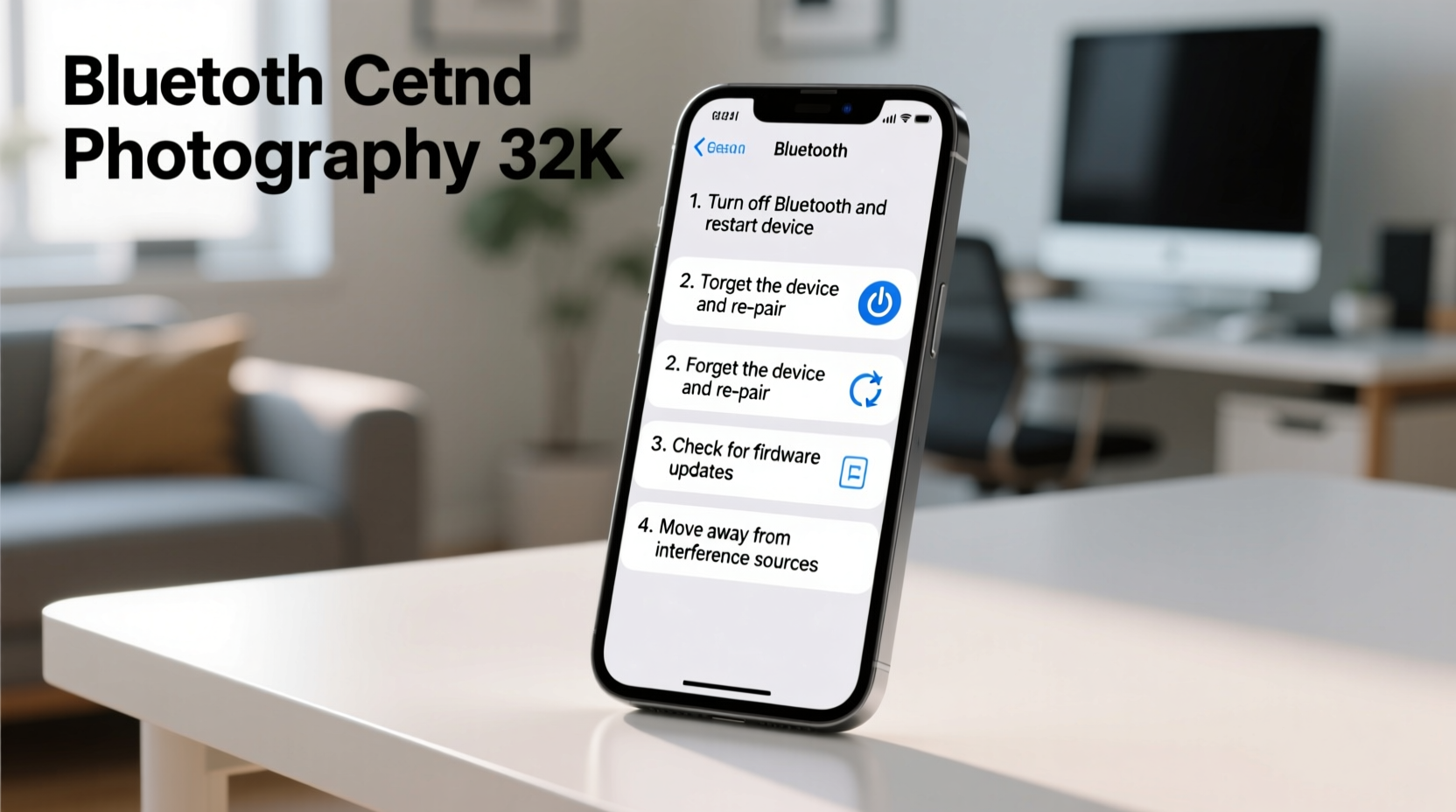
When your connection drops or pairing fails, follow this structured troubleshooting sequence. Most problems are resolved within minutes using these steps:
- Restart both devices: Power cycle your phone, tablet, or computer and the Bluetooth accessory. This clears temporary software hiccups.
- Ensure pairing mode is active: Refer to the device manual. For most accessories, press and hold the power button for 5–7 seconds until the LED blinks rapidly.
- Forget the device and re-pair: On your phone or computer, go to Bluetooth settings, find the problematic device, and select “Forget” or “Remove.” Then re-initiate pairing.
- Check for updates: Update the firmware of your Bluetooth accessory if possible. Manufacturers often release patches that improve stability.
- Reduce wireless interference: Turn off nearby Wi-Fi routers temporarily or switch your router to the 5 GHz band to free up 2.4 GHz space.
- Reset network settings: On smartphones, this option clears saved Wi-Fi networks, Bluetooth pairings, and APNs. It’s a powerful reset that often restores functionality.
- Test with another device: Try pairing the accessory with a different phone or tablet. If it works, the issue lies with the original host device.
Advanced Fixes for Persistent Problems
If basic steps fail, dig deeper:
- Clear Bluetooth cache (Android): Go to Settings > Apps > Show System Apps > Bluetooth > Storage > Clear Cache. This removes corrupted data without affecting other settings.
- Reinstall Bluetooth drivers (Windows): Open Device Manager, expand Bluetooth, right-click your adapter, and choose Uninstall. Restart your PC to reinstall automatically.
- Use Safe Mode (iOS/Android): Boot your phone in Safe Mode to disable third-party apps that might interfere with Bluetooth services.
- Check airplane mode and Do Not Disturb: These settings can disable or limit Bluetooth functions on some models.
Do’s and Don’ts: Bluetooth Best Practices
| Do | Don’t |
|---|---|
| Keep devices updated with the latest firmware | Ignore manufacturer update notifications |
| Store paired devices close together when in use | Place metal objects between connected devices |
| Use Bluetooth 5.0+ devices for better range and stability | Assume all Bluetooth versions perform the same |
| Regularly clear old pairings from device memory | Leave unused devices paired indefinitely |
| Turn off Bluetooth when not in use to save battery | Keep Bluetooth constantly scanning for devices |
Real-World Example: Office Headset Dropout
Consider Sarah, a remote project manager who uses wireless earbuds during back-to-back Zoom calls. She began experiencing frequent audio cuts every 10–15 minutes. At first, she assumed her earbuds were faulty. But after testing them with her tablet—where they worked perfectly—she realized the issue was with her laptop.
She followed the step-by-step guide: restarted both devices, forgot the earbuds, and re-paired. No improvement. Next, she checked for driver updates and found her laptop’s Bluetooth adapter had not been updated in over a year. After installing the latest driver from the manufacturer’s website, the dropouts stopped completely.
The root cause? A known bug in the older driver caused periodic disconnections under sustained load—a common scenario during long video calls. This case illustrates why updating firmware and drivers matters, even if everything seems to work initially.
Essential Checklist for Stable Bluetooth Connections
Use this checklist whenever you face Bluetooth issues. Print it or save it for quick reference:
- ✅ Confirm both devices are charged (above 30%)
- ✅ Ensure Bluetooth is enabled on both devices
- ✅ Activate pairing/discoverable mode on the accessory
- ✅ Remove physical obstructions and minimize distance
- ✅ Forget the device and re-pair from scratch
- ✅ Check for OS and firmware updates
- ✅ Restart both devices
- ✅ Reduce nearby wireless interference (Wi-Fi, microwaves)
- ✅ Clear Bluetooth cache (on Android) or reset network settings
- ✅ Test with a secondary device to isolate the problem
Frequently Asked Questions
Why does my Bluetooth cut out when I move my phone?
Bluetooth signals are sensitive to movement and orientation. If you turn your phone away from the accessory or place it in a pocket, the signal may be blocked by your body or casing. Metal cases, thick fabrics, and internal phone components can shield the antenna. Try keeping your phone face-up and within direct line of sight.
Can too many Bluetooth devices cause interference?
While Bluetooth uses adaptive frequency hopping to avoid crowded channels, having multiple active devices in a small area can still degrade performance. Each connection requires bandwidth, and older Bluetooth versions handle concurrency poorly. Limit active connections to essential devices, especially in dense environments like offices or apartments.
How do I know if my device supports Bluetooth 5.0?
Check your device specifications online. For smartphones, search “[Your Phone Model] specs” and look under Connectivity. On Windows PCs, open Device Manager, expand Bluetooth, and check the adapter name. Common Bluetooth 5.0+ adapters include Intel AX200, Realtek RTL8761B, and Broadcom BCM94360NG. On macOS, go to Apple Menu > About This Mac > System Report > Bluetooth to view supported versions.
Conclusion: Take Control of Your Wireless Experience
Bluetooth dropouts and pairing failures are frustrating but rarely permanent. With systematic troubleshooting, most issues can be resolved in under ten minutes. The key is understanding that Bluetooth is not magic—it’s a complex protocol influenced by hardware, software, environment, and usage patterns. By applying the fixes outlined here, from simple resets to strategic updates, you regain reliable connectivity.
Don’t tolerate glitchy audio or failed connections. Use the checklist, apply the tips, and test solutions methodically. Your devices are capable of seamless performance—you just need to unlock it.




 浙公网安备
33010002000092号
浙公网安备
33010002000092号 浙B2-20120091-4
Comments
No comments yet. Why don't you start the discussion?