
Bluetooth mice offer convenience and clutter-free workspace design, but nothing disrupts productivity faster than a lagging cursor or unresponsive clicks. If your Bluetooth mouse feels sluggish—whether on a MacBook, iMac, Windows laptop, or desktop—it’s likely suffering from interference, outdated drivers, or suboptimal settings. While occasional hiccups are normal, persistent lag indicates deeper issues that can be resolved with targeted fixes. This guide walks through the root causes of Bluetooth mouse lag and delivers practical, tested solutions for both Mac and Windows systems.
Understanding Bluetooth Mouse Lag: Causes and Triggers
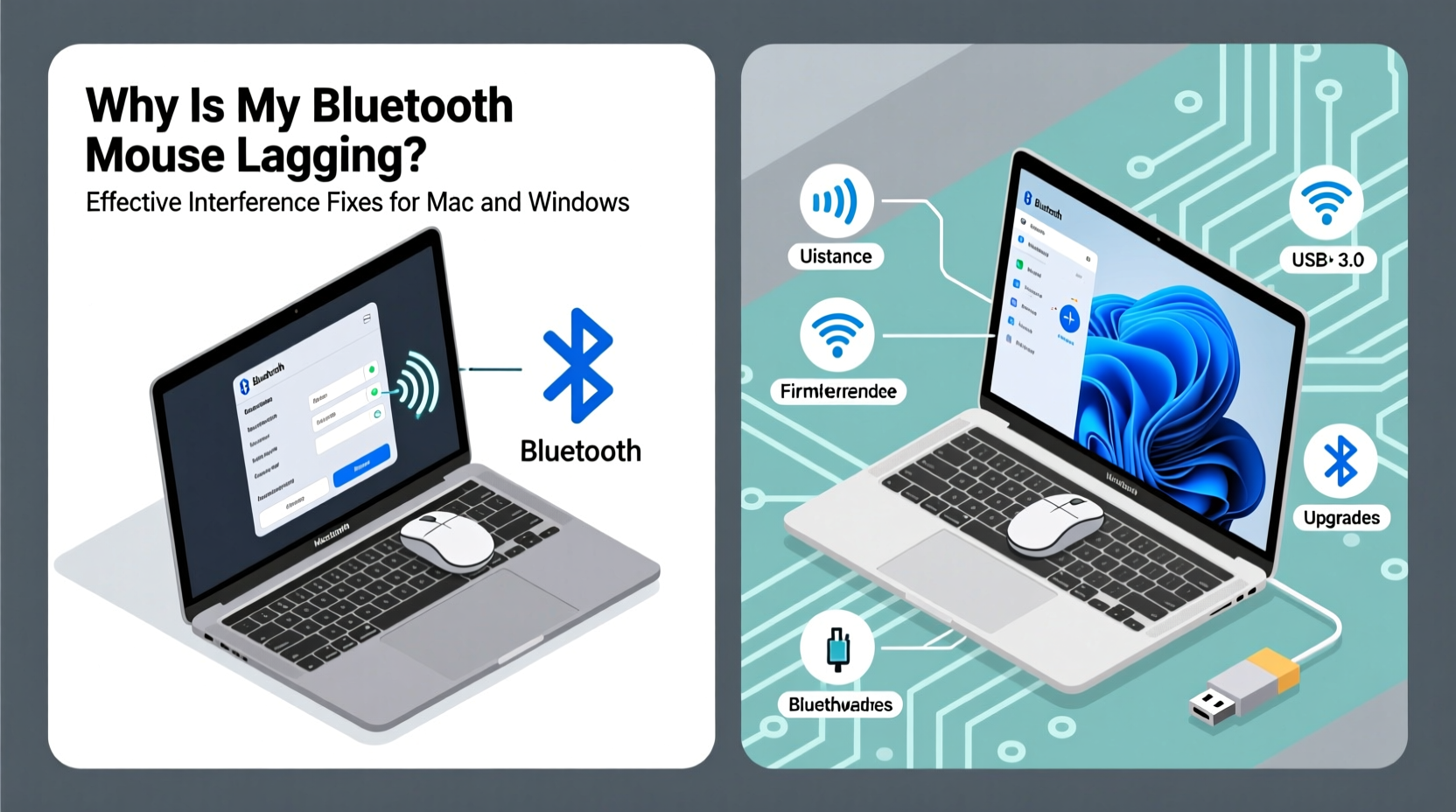
Bluetooth mouse lag isn’t always due to hardware failure. More often, it stems from environmental interference, system-level inefficiencies, or connection instability. The 2.4 GHz frequency band used by Bluetooth shares space with Wi-Fi routers, cordless phones, microwaves, and even USB 3.0 ports, all of which can cause signal degradation. Additionally, weak batteries, outdated firmware, and background software consuming bandwidth contribute to performance drops.
On Mac systems, macOS power management may throttle Bluetooth activity to preserve battery life, especially on laptops. On Windows, driver conflicts or misconfigured HID (Human Interface Device) services can delay input signals. Recognizing these factors is the first step toward restoring smooth pointer movement.
Common Sources of Bluetooth Interference
Identifying interference sources in your workspace is crucial. Many everyday devices emit electromagnetic noise that disrupts Bluetooth signals. Below is a breakdown of common culprits:
- Wi-Fi routers: Especially dual-band models operating on 2.4 GHz.
- USB 3.0 devices and hubs: Known to leak RF noise near Bluetooth receivers.
- Microwave ovens: Emit strong bursts during operation.
- Cordless phones and baby monitors: Operate on similar frequencies.
- Other wireless peripherals: Keyboards, headsets, or speakers competing for bandwidth.
- Thick walls or metal objects: Can block or reflect signals between mouse and receiver.
Distance also plays a role. Most Bluetooth mice operate reliably within 3 meters (10 feet). Beyond that, signal strength diminishes, increasing latency. Obstacles like desks, monitors, or books further degrade connectivity.
“Up to 70% of Bluetooth input lag cases we see are tied to co-channel interference from nearby electronics.” — Dr. Alan Zhou, Wireless Systems Engineer at IEEE
Step-by-Step Fixes for Mac Users
macOS handles Bluetooth differently than Windows, relying heavily on built-in power-saving protocols. These optimizations sometimes sacrifice responsiveness for efficiency. Follow this sequence to restore performance:
- Restart Bluetooth Module: Click the Bluetooth icon in the menu bar and turn Bluetooth off, wait 10 seconds, then turn it back on. If no icon appears, enable it via System Settings > Bluetooth.
- Remove and Re-Pair the Mouse: Go to System Settings > Bluetooth, find your mouse, click the “i” icon, and select Remove. Power off the mouse, restart your Mac, then re-pair the device following the manufacturer’s instructions.
- Reset the Bluetooth Controller: Hold Shift + Option and click the Bluetooth menu bar icon. Select \"Debug\" > \"Reset the Bluetooth module.\" Confirm and reboot.
- Disable Handoff and Continuity Features: In System Settings > General > AirDrop & Handoff, disable features like “Allow Handoff between this Mac and your iCloud devices.” These services increase Bluetooth overhead.
- Update macOS and Mouse Firmware: Check Apple Menu > System Settings > General > Software Update. For firmware updates, consult your mouse manufacturer’s app (e.g., Logitech Options+, Microsoft Mouse and Keyboard Center).
- Use a USB Bluetooth Dongle (if applicable): Built-in Bluetooth antennas on older MacBooks can weaken over time. A high-quality external USB-BT5.0+ adapter placed away from USB 3.0 ports may improve stability.
Troubleshooting Steps for Windows Users
Windows offers more granular control over hardware but is prone to driver bloat and service conflicts. Addressing mouse lag requires checking multiple layers of configuration.
1. Update or Reinstall Mouse Drivers
Navigate to Device Manager (right-click Start button > Device Manager), expand “Mice and other pointing devices,” right-click your Bluetooth mouse, and choose “Update driver.” Select “Search automatically for updated driver software.” If no update is found, uninstall the device, disconnect the mouse, restart the PC, then re-pair.
2. Disable USB Selective Suspend
This power-saving feature can interrupt Bluetooth communication. Go to Control Panel > Power Options > Change plan settings > Change advanced power settings. Expand “USB settings” and set “USB selective suspend setting” to Disabled.
3. Adjust HID-Compliant Mouse Settings
In Device Manager, right-click each “HID-compliant mouse” entry under Human Interface Devices. Choose Properties > Power Management and uncheck “Allow the computer to turn off this device to save power.” Repeat for all HID entries related to your mouse.
4. Run the Hardware and Devices Troubleshooter
Go to Settings > System > Troubleshoot > Other troubleshooters. Run the “Hardware and Devices” diagnostic tool to detect configuration issues.
5. Minimize Background Applications
Some apps, particularly cloud sync tools or real-time communication software, consume significant CPU and I/O resources. Open Task Manager (Ctrl+Shift+Esc), sort by CPU usage, and close non-essential programs while testing mouse responsiveness.
| Issue | Mac Fix | Windows Fix |
|---|---|---|
| Weak Signal | Move mouse closer; avoid obstacles | Use external BT adapter |
| Driver/Firmware Outdated | Check macOS updates & vendor app | Update via Device Manager |
| Power Management Throttling | Disable Handoff | Disable USB suspend |
| Interference from USB 3.0 | Use front/left-side ports | Relocate hub or use shielded cables |
Proactive Optimization Checklist
Prevention is more effective than constant troubleshooting. Use this checklist monthly to maintain peak mouse performance:
- ✅ Replace mouse batteries or recharge weekly if usage is heavy
- ✅ Keep mouse within 3 feet of the computer, with clear line-of-sight
- ✅ Update operating system and peripheral firmware quarterly
- ✅ Relocate Wi-Fi router or switch to 5 GHz band when possible
- ✅ Avoid daisy-chaining USB devices near the Bluetooth receiver
- ✅ Clean mouse sensor weekly with a soft, dry cloth
- ✅ Test mouse on different surfaces—avoid reflective or textured mats
Real-World Example: Remote Worker Resolves Daily Lag
Sophie, a freelance graphic designer using a MacBook Pro and Logitech MX Master 3, experienced daily cursor stuttering during client Zoom calls. She initially blamed her internet connection, but noticed the issue persisted offline. After ruling out Wi-Fi congestion, she discovered her USB-C hub—connected to an external monitor and SSD—was generating interference. Moving the hub to the right-side port (farther from the internal Bluetooth antenna) reduced lag immediately. She later reset the Bluetooth module and disabled Handoff, achieving consistent responsiveness. Her workflow improved significantly without upgrading hardware.
Frequently Asked Questions
Can Wi-Fi 6 reduce Bluetooth mouse lag?
Yes. Wi-Fi 6 includes better spectrum sharing mechanisms (like OFDMA and BSS coloring) that reduce contention on the 2.4 GHz band. While not a direct fix, upgrading to a Wi-Fi 6 router can lower overall interference, indirectly improving Bluetooth performance.
Why does my mouse lag only during video calls?
Video conferencing apps like Teams or Zoom consume substantial CPU and network resources. This load can delay input processing, especially on low-RAM systems. Close unused browser tabs and background apps during calls. Consider using a wired mouse for critical meetings.
Is a wired mouse always better than Bluetooth?
Wired mice generally offer lower latency and higher polling rates (up to 1000 Hz), making them ideal for gaming or precision work. However, modern Bluetooth mice with low-latency modes (e.g., Logitech Lightspeed, Razer HyperSpeed) perform nearly as well for everyday tasks. The convenience of wireless often outweighs marginal delays.
Final Recommendations and Long-Term Care
Sustained Bluetooth mouse performance depends on environment, maintenance, and system hygiene. Treat your wireless setup like any high-performance tool: keep it updated, minimize electronic clutter, and respond quickly to early signs of lag. Regularly audit connected devices, especially after installing new hardware. For professionals relying on precise input—designers, editors, developers—a $20 USB Bluetooth 5.2 adapter can outperform aging built-in radios.
Don’t assume lag means replacement is necessary. Most issues are resolvable with simple adjustments. By understanding how Bluetooth interacts with your computing ecosystem, you gain control over reliability and responsiveness.




 浙公网安备
33010002000092号
浙公网安备
33010002000092号 浙B2-20120091-4
Comments
No comments yet. Why don't you start the discussion?