
Bluetooth speakers offer convenience and portability, but nothing ruins the experience faster than distorted audio when you turn up the volume. Distortion—characterized by crackling, buzzing, or muffled sound—isn’t just annoying; it can signal underlying issues that, if ignored, may lead to permanent damage. The good news: most distortion problems are diagnosable and often fixable without professional help. Whether you're using a budget-friendly model or a premium outdoor speaker, understanding the root cause is the first step toward clear, powerful sound.
Understanding Audio Distortion in Bluetooth Speakers
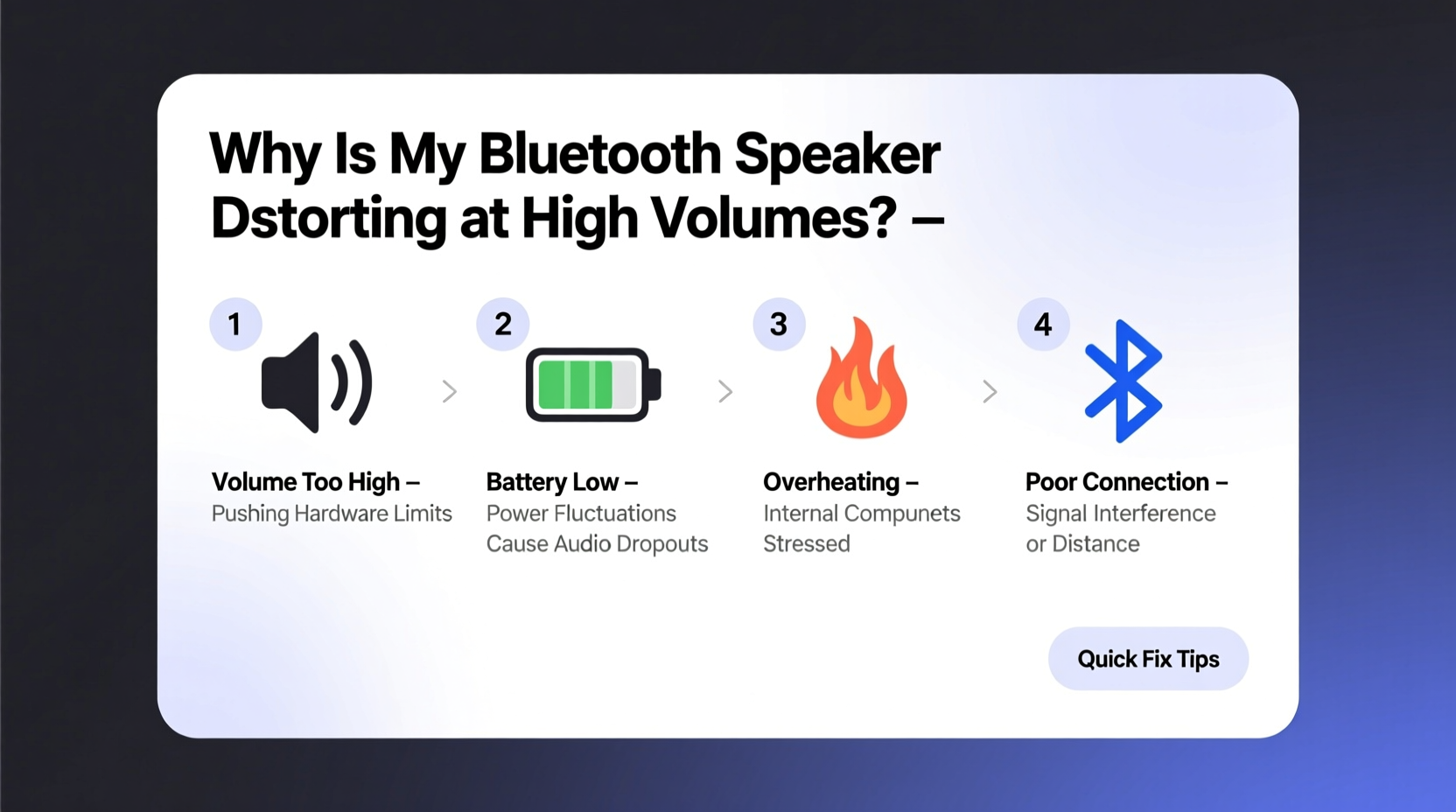
Audio distortion occurs when the signal sent to the speaker’s drivers (the components that produce sound) exceeds what they can accurately reproduce. At high volumes, this mismatch becomes more apparent. While some degree of compression is normal in compact speakers, true distortion—where music loses clarity and develops harsh tones—is not. It typically stems from one of three areas: the source signal, the transmission path (Bluetooth), or the speaker hardware itself.
Small speakers, especially portable ones, have physical limitations. Their drivers and amplifiers are designed for efficiency, not high output. When pushed beyond their limits, they struggle to maintain fidelity. However, distortion isn’t inevitable. Identifying whether the issue lies in software, connection, or hardware allows you to take targeted corrective action.
“Distortion at high volume is rarely about one single flaw—it's usually a chain reaction starting from an overloaded signal or poor power delivery.” — David Lin, Audio Engineer & Product Tester, SoundReview Labs
Step-by-Step Diagnostic Process
Follow this systematic approach to isolate and resolve the source of distortion. Work through each step before moving on to ensure accurate diagnosis.
- Test at different volume levels: Start low and gradually increase. Note the exact point where distortion begins. If it starts below 70%, the issue is likely significant.
- Use multiple audio sources: Play music from different apps (Spotify, YouTube, local files). If distortion only happens with one app, the problem may be software-related or due to low-bitrate streaming.
- Try a wired connection: If your speaker supports auxiliary input, use a 3.5mm cable. If the distortion disappears, the issue is likely Bluetooth-related.
- Swap devices: Connect the speaker to another phone, tablet, or laptop. If the problem persists across devices, the speaker is likely at fault.
- Check for firmware updates: Visit the manufacturer’s website or app to see if a firmware update addresses known audio bugs.
- Inspect for physical damage: Look for dents, torn speaker grilles, or loose parts. Even minor impacts can misalign internal components.
Common Causes and How to Fix Them
1. Overdriven Input Signal
One of the most frequent causes is sending too strong a signal from the source device. If your phone or tablet has its volume set to maximum while the speaker is also cranked up, the amplifier inside the speaker receives a “hot” signal it can’t handle cleanly.
Solution: Lower the volume on your playback device to around 70–80%, then adjust loudness using the speaker’s controls. This gives the internal amplifier headroom to process the signal without clipping.
2. Bluetooth Compression and Interference
Bluetooth uses data compression (via codecs like SBC, AAC, or aptX) to transmit audio wirelessly. At high volumes, compressed signals can break down, especially in crowded RF environments (e.g., near Wi-Fi routers, microwaves, or other Bluetooth devices).
Solution: Move closer to the speaker and reduce interference. If your devices support higher-quality codecs (like aptX HD), enable them in settings. On Android, check Developer Options; on iOS, AAC is standard but cannot be changed.
3. Low Battery or Power Supply Issues
A weak battery can’t deliver consistent power to the amplifier, especially during bass-heavy passages. As voltage drops, the amplifier distorts the signal—a phenomenon known as “voltage sag.”
Solution: Fully charge the speaker before testing at high volume. If distortion improves when plugged in but returns on battery, the battery may be degraded and need replacement.
4. Damaged or Worn Drivers
The speaker driver (or woofer/tweeter) moves air to create sound. If it’s physically damaged—torn surround, detached voice coil, or misalignment—it will distort regardless of volume level.
Solution: Gently press the center of the driver. It should move smoothly and return to center. If it feels stiff, loose, or makes scratching noises, the driver is likely damaged and may require repair or replacement.
5. Poor-Quality Source Audio
Streaming low-bitrate audio (e.g., 96 kbps instead of 320 kbps) lacks detail and dynamic range. When amplified, these compressed files reveal artifacts that manifest as distortion.
Solution: Test with high-quality lossless or high-bitrate files. If distortion decreases, the issue is source-related, not the speaker.
Tips to Prevent Future Distortion
- Always allow headroom—avoid maxing out both device and speaker volume simultaneously.
- Keep your speaker updated with the latest firmware to benefit from audio optimizations.
- Store and use the speaker within its recommended temperature range (typically 0°C to 40°C).
- Avoid exposing the speaker to moisture or dust, which can degrade internal components over time.
- Use EQ settings wisely—reducing bass slightly can prevent driver overload and improve clarity at high volumes.
Do’s and Don’ts: Quick Reference Table
| Do’s | Don’ts |
|---|---|
| Charge fully before high-volume use | Run the speaker on critically low battery |
| Use moderate source volume (70–80%) | Max out both phone and speaker volume |
| Update firmware regularly | Ignore repeated crackling or popping |
| Test with high-bitrate audio files | Assume all distortion is “normal” for small speakers |
| Maintain a clean, dry storage environment | Expose the speaker to extreme temperatures or humidity |
Real-World Example: Diagnosing a JBL Charge 5 Issue
A user reported severe distortion on their JBL Charge 5 when playing bass-heavy tracks above 75% volume. Initial tests showed the issue occurred across devices and apps. The speaker was fully charged, ruling out power issues. A wired test wasn’t possible (no aux input), so the next step was adjusting the source volume.
Lowering the phone’s output to 70% and increasing speaker volume eliminated most distortion. Further investigation revealed the user had enabled a third-party bass booster app, which was overdriving the signal. Disabling the app and using the built-in JBL Portable app for EQ adjustments restored clean audio even at high volumes.
This case highlights how software enhancements, while tempting, can push compact speakers beyond their design limits. Simple signal management resolved what seemed like a hardware flaw.
When to Seek Repair or Replacement
Not all distortion can be fixed at home. If you’ve followed the diagnostic steps and still experience issues, consider these red flags:
- Distortion occurs even at low volumes
- One channel is significantly more distorted than the other
- Physical damage is visible or the driver doesn’t move freely
- Speaker shuts off or resets at high volume
- Firmware updates fail or aren’t available
In such cases, contact the manufacturer. Many brands offer warranty service for defects, and third-party repair shops can replace drivers or amplifiers for popular models. However, if the cost exceeds 50% of a new unit’s price, replacement may be more economical.
“Many people tolerate distortion because they assume small speakers can’t sound better. But well-maintained Bluetooth speakers can deliver surprisingly clean audio—even at high volumes.” — Maria Tran, Senior Acoustics Technician, PortableSound Lab
Frequently Asked Questions
Can Bluetooth version affect audio quality and distortion?
Yes. Older Bluetooth versions (4.0 and below) have lower bandwidth and less efficient codecs, increasing the chance of compression artifacts. Bluetooth 5.0 and later support higher-quality audio transmission and better stability, reducing distortion risk. However, both your source device and speaker must support the same advanced codec (like aptX or LDAC) to benefit.
Is some distortion normal at maximum volume?
Minor compression or slight harshness may occur in very small speakers, but full-on crackling, buzzing, or muffled vocals is not normal. High-end portable speakers are engineered to minimize distortion even at peak output. If your speaker distorts severely, it’s either being overdriven or has an underlying issue.
Will resetting the speaker fix distortion?
Resetting (usually done via a pinhole button or button combo) can resolve software glitches or pairing errors that indirectly cause distortion. However, it won’t fix hardware problems like damaged drivers or failing amplifiers. Always reset as part of troubleshooting, but don’t expect miracles if the issue is physical.
Final Checklist: Your Action Plan
- ✅ Test distortion threshold with various volume combinations
- ✅ Switch audio sources and file types
- ✅ Try a wired connection if available
- ✅ Ensure full battery charge or use AC power
- ✅ Check for and install firmware updates
- ✅ Inspect for physical damage or debris
- ✅ Adjust EQ settings to reduce bass boost
- ✅ Contact support if issues persist after all steps
Conclusion
Distorted sound at high volumes doesn’t have to be the end of your speaker’s performance life. With a methodical approach, you can pinpoint whether the culprit is your device settings, Bluetooth connection, power supply, or hardware condition. Most fixes are simple and free—like adjusting volume balance or updating firmware. Others may require a repair, but knowing the cause empowers you to make informed decisions.
Clear audio enhances every moment, from backyard gatherings to solo listening sessions. Take the time to diagnose and resolve distortion now, and you’ll extend your speaker’s lifespan while enjoying richer, cleaner sound. Don’t settle for fuzzy highs or muddy bass—your ears deserve better.




 浙公网安备
33010002000092号
浙公网安备
33010002000092号 浙B2-20120091-4
Comments
No comments yet. Why don't you start the discussion?