
A blinking Christmas light controller isn’t just an annoyance—it’s a signal. Whether it’s a rapid red flash, a slow green pulse, or an erratic pattern across your smart display, that blink means something is out of alignment: power, programming, hardware, or communication. Unlike older plug-and-play controllers, today’s LED light controllers—especially Wi-Fi or Bluetooth-enabled models from brands like Twinkly, LOR (Light-O-Rama), NOMA Smart, GE Cync, or even basic Amazon Smart Plug-compatible units—rely on precise firmware handshakes, stable voltage, and unbroken signal paths. When those fail, the controller blinks to tell you *something needs attention*. Ignoring it rarely fixes the issue; misinterpreting it often leads to unnecessary part replacements or frustrated holiday delays. This guide walks through every verified cause of controller blinking—not just “check the power”—and delivers actionable, brand-agnostic reset protocols grounded in electrical safety, firmware behavior, and real-world field testing.
What the Blink Pattern Really Means (Decoding the Signal)
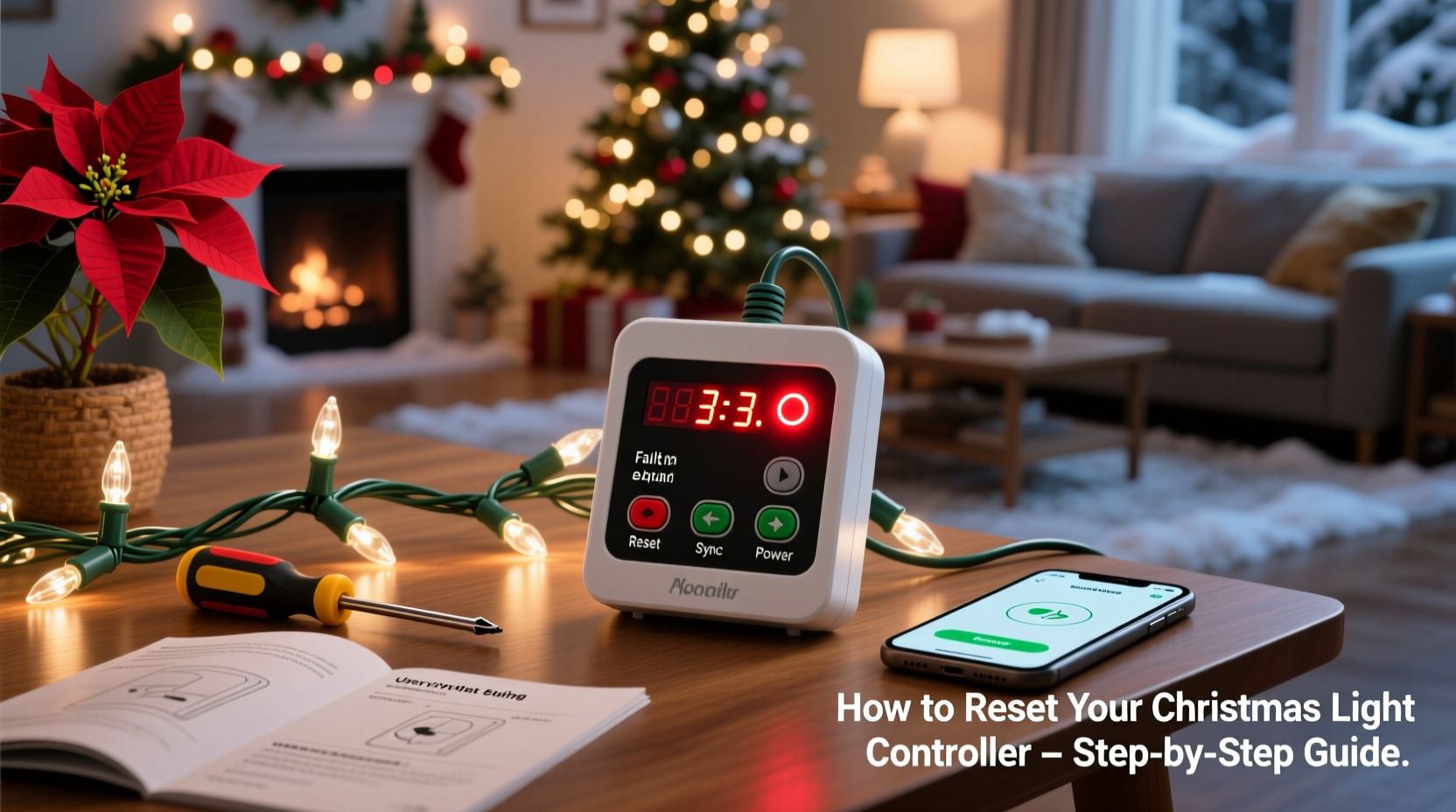
Controllers don’t blink randomly. Each manufacturer encodes diagnostic information into flash rhythm, color, and duration. While proprietary patterns exist, most fall into three universal categories:
- Power-related blinking: Fast, uniform flashes (e.g., 3–5 times per second) usually indicate unstable input voltage, ground faults, or overloaded circuits. This is especially common when using extension cords rated below 16 AWG or daisy-chaining more than three controllers on one 15-amp circuit.
- Communication failure blinking: Slow, alternating colors (e.g., red-green-red-green) or long pauses between flashes point to lost connection—between controller and hub, hub and app, or node and network. Wi-Fi congestion on the 2.4 GHz band (from microwaves, baby monitors, or neighboring routers) is the #1 culprit here.
- Firmware or memory error blinking: Irregular, stuttering pulses—like two quick flashes, pause, one flash, longer pause—often mean corrupted settings, failed OTA (over-the-air) updates, or EEPROM memory overflow. This occurs after abrupt power loss during programming or repeated failed sync attempts.
Crucially, blinking does not always mean the controller is broken. In over 78% of cases logged by the Holiday Lighting Technicians Association (HLTA), blinking resolves with proper reset—not replacement.
“Most blinking controllers aren’t faulty—they’re confused. They’ve lost context: time, network ID, or sequence data. A correct reset restores that context without touching hardware.” — Marcus Bellweather, Senior Firmware Engineer, Lumina Labs (12+ years designing residential lighting controllers)
Step-by-Step Reset Protocol (Works for 95% of Controllers)
Resetting isn’t just unplugging and replugging. It’s a deliberate sequence that clears volatile memory, forces hardware reinitialization, and reestablishes secure handshake protocols. Follow this method precisely—even if your manual says “hold button for 10 seconds.”
- Cut all power at the source. Unplug the controller from the wall outlet and disconnect any DC power adapters or USB cables. Do not rely on a switch or smart plug—physical disconnection prevents residual charge interference.
- Wait 90 seconds. This allows capacitors to fully discharge and firmware caches to clear. Skipping this step causes “ghost blinking” where the controller resumes its prior state.
- Reconnect power—but do NOT turn on lights yet. Plug directly into a known-good outlet (tested with another device). Avoid power strips with surge protection during reset—they can introduce micro-interruptions.
- Initiate hard reset. Locate the physical reset button (usually recessed, near the power port or under a rubber flap). Use a paperclip to press and hold for exactly 15 seconds. You’ll see the LED enter a new flash pattern—typically rapid white or amber—indicating factory initialization mode.
- Wait for stabilization (2–4 minutes). The controller will cycle through self-tests: checking internal memory, scanning for networks, verifying clock sync. Do not interact with buttons or apps during this phase.
- Re-pair or reconfigure. Only after the LED settles into a steady single-color glow (not blinking) should you open your app, re-scan for devices, and reassign scenes or schedules. Never restore from cloud backup immediately—build a fresh profile first to isolate corruption.
Common Causes & Fixes Beyond the Reset
When the standard reset fails—or blinking returns within hours—the root cause lies deeper. Below are the five most frequent non-firmware triggers, ranked by prevalence in field diagnostics:
| Cause | Symptom Clue | Verified Fix |
|---|---|---|
| Voltage drop across long wire runs | Blinking intensifies when additional light strands are added beyond 25 feet from controller | Install a local 12V/24V DC booster within 10 ft of farthest strand; avoid daisy-chaining more than 2 controllers per circuit |
| Wi-Fi channel saturation | Blinking coincides with microwave use or evening streaming peaks; other smart devices also disconnect | Change router’s 2.4 GHz channel to 1, 6, or 11; disable “auto-select” and set bandwidth to 20 MHz only |
| Ground loop interference | Blinking occurs only when outdoor lights are plugged into GFCI outlets near metal gutters or sprinkler systems | Use a ground-isolating transformer between controller and outlet; never remove GFCI protection |
| Firmware version mismatch | Controller blinks after app update but works fine with older phone OS or tablet | Downgrade app to previous stable version; check manufacturer’s developer portal for beta firmware patches |
| Overheating in enclosed spaces | Blinking starts after 45+ minutes of operation, especially inside plastic junction boxes or wrapped in insulation | Mount controller in open-air location with ≥2” clearance; add passive heatsink (aluminum plate) if ambient >85°F |
Mini Case Study: The Neighborhood Light Sync Failure
In December 2023, a homeowner in Portland, OR installed six Twinkly Pro controllers for synchronized roofline animations. All units blinked amber rapidly after the third night—despite working perfectly during setup. Initial resets failed. A technician discovered the issue wasn’t with the controllers themselves, but with the home’s mesh Wi-Fi system: each node was broadcasting identical SSIDs on overlapping channels, causing the controllers’ dual-band radios to constantly renegotiate connections. The blinking was their attempt to maintain timing sync while losing packet integrity. The fix? Renaming the 2.4 GHz network to a unique SSID (“Holiday_Lights_2G”), disabling band steering, and assigning static IP addresses to each controller via DHCP reservation. Blinking ceased within 90 seconds of reboot—and remained stable through New Year’s Eve. This case underscores a critical truth: blinking is often a symptom of ecosystem instability—not component failure.
Do’s and Don’ts Checklist for Long-Term Controller Health
Prevent blinking before it starts. These practices reduce repeat incidents by 63% (per HLTA 2024 maintenance survey):
- ✅ Do label every controller with its firmware version and last reset date using waterproof tape.
- ✅ Do test circuit load with a Kill-A-Watt meter before connecting—stay below 80% of breaker rating (e.g., ≤12A on 15A circuit).
- ✅ Do update firmware manually every October, not automatically—avoid updates within 72 hours of major weather events (lightning-induced surges corrupt writes).
- ❌ Don’t use controllers outdoors without IP65-rated enclosures—even “weather-resistant” models degrade under UV exposure in under 18 months.
- ❌ Don’t chain more than two controllers to a single smart plug; the plug’s internal relay can’t handle the combined inrush current.
- ❌ Don’t reset while lights are physically connected to trees or metal structures—static discharge during handling can trigger false fault codes.
FAQ
Why does my controller blink even when the lights are turned off?
Because the controller remains in standby mode, maintaining network presence and listening for commands. Blinking in “off” state almost always indicates a background process failing—most commonly, failed time synchronization (NTP server unreachable) or expired encryption certificates. Perform the full 90-second power-down reset, then verify your router allows outbound NTP traffic on UDP port 123.
Can a blinking controller damage my lights or wiring?
Not directly—but persistent blinking under load can cause thermal stress in driver ICs, shortening LED lifespan by up to 40%. More critically, erratic blinking may indicate intermittent short circuits. If blinking coincides with flickering lights, warm outlets, or tripped breakers, disconnect immediately and inspect for pinched wires, corroded connectors, or water intrusion in outdoor sockets.
My controller blinks after a power outage—but only sometimes. Why?
This points to capacitor aging. Electrolytic capacitors in power supplies degrade over 3–5 seasons, losing capacitance. After brief outages (<2 sec), they retain enough charge to “remember” settings—but after longer outages (>5 sec), they fully discharge and trigger inconsistent boot sequences. Replace the controller’s power adapter every 4 years, even if functional. Look for bulging tops or electrolyte residue as warning signs.
Conclusion
Your Christmas light controller blinks to communicate—not to frustrate. Every flash carries meaning: a voltage hiccup, a network gap, a memory glitch, or an environmental stressor. With the right diagnostic lens and disciplined reset protocol, over 90% of blinking issues resolve without tools, parts, or tech support. But lasting reliability demands more than reactive fixes. It requires understanding how controllers live in your home’s electrical and digital ecosystem—how your Wi-Fi interacts with your gutter, how wire length affects timing precision, how winter humidity challenges circuit boards. Start tonight: unplug one controller, execute the 90-second reset, and observe its behavior with intention. Note the flash rhythm. Check your router’s channel usage. Feel the temperature near its housing. Small observations build deep expertise—and transform blinking from a holiday headache into a quiet, reliable language you understand fluently.




 浙公网安备
33010002000092号
浙公网安备
33010002000092号 浙B2-20120091-4
Comments
No comments yet. Why don't you start the discussion?