
If your Chromebook, once snappy and responsive, has recently started lagging—taking forever to open apps, freezing during simple tasks, or struggling with basic web browsing—you're not alone. Many users experience a sudden drop in performance that can be frustrating, especially when relying on their device for work, school, or daily tasks. The good news? Most slowdowns aren't permanent hardware failures. More often than not, they stem from software issues, resource overload, or simple maintenance oversights that you can fix quickly.
Chromebooks are built for efficiency, running Chrome OS—a lightweight operating system designed to maximize performance even on modest hardware. But over time, accumulated digital clutter, outdated systems, or misconfigured settings can bog it down. The key is knowing where to look and what steps to take. This guide walks you through the most common causes of sudden Chromebook slowdowns and delivers practical, tested solutions that require no technical expertise.
Understanding Why Chromebooks Slow Down Suddenly
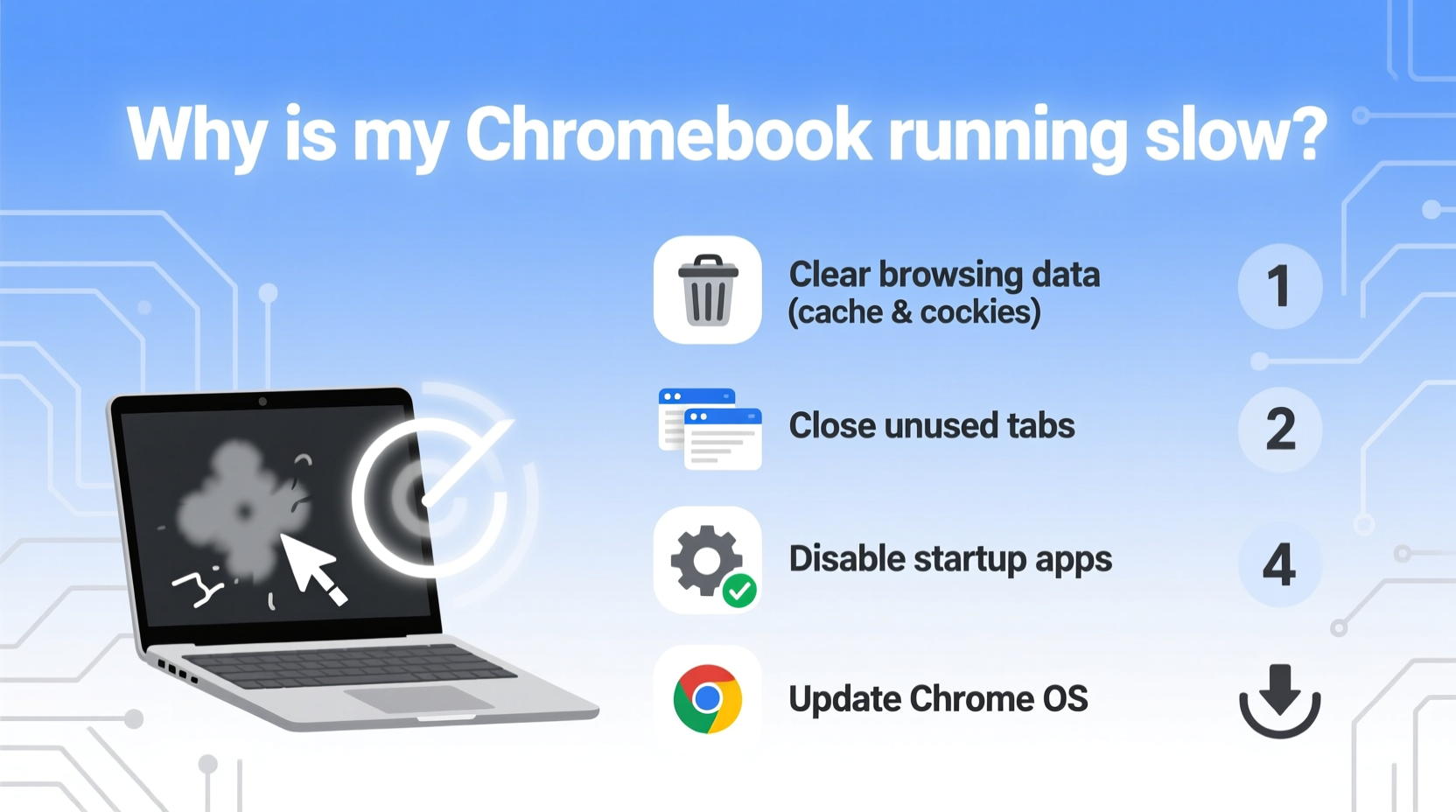
Unlike traditional laptops, Chromebooks rely heavily on cloud storage and web-based applications. Their performance depends less on raw processing power and more on efficient system management. When things go wrong, the impact is immediate: tabs freeze, apps crash, and navigation becomes sluggish. The root cause is usually one (or more) of the following:
- Too many browser tabs and extensions: Each tab consumes memory. Add multiple extensions, and RAM usage spikes.
- Outdated Chrome OS: Skipping updates can leave your system vulnerable to bugs and inefficiencies.
- Full storage space: Chromebooks typically have limited internal storage (32GB or 64GB). When nearly full, performance degrades.
- Background apps and processes: Some apps continue running even when minimized, draining resources.
- Corrupted user profile or cache: Over time, cached data and temporary files can become corrupted, slowing down operations.
- Malware or unwanted software: Though rare, malicious extensions or phishing sites can inject scripts that run in the background.
The suddenness of the slowdown often points to a recent change—like installing a new extension, downloading large files, or an incomplete system update. Identifying that trigger is half the battle.
Step-by-Step Guide to Restore Chromebook Speed
Follow this structured sequence to diagnose and resolve performance issues efficiently. These steps are ordered from quick fixes to deeper system resets, so you can stop as soon as the problem is resolved.
- Close unnecessary tabs and restart the browser. Open too many tabs? Close them manually or use Ctrl + Shift + Q (twice) to restart Chrome entirely. This clears memory without rebooting the whole system.
- Check for system updates. Go to Settings > About Chrome OS > Check for Updates. Install any pending updates—many include performance patches.
- Clear browsing data. Accumulated cookies, cache, and site data slow down page loading. Navigate to Settings > Privacy and Security > Clear Browsing Data. Select “All time” and check all boxes except passwords if needed.
- Disable or remove unused extensions. Type
chrome://extensionsin the address bar. Turn off anything you don’t actively use. Remove suspicious or unfamiliar ones. - Restart your Chromebook. A simple reboot clears RAM and stops rogue processes. Hold Power + Refresh keys for a hard restart if unresponsive.
- Free up storage space. Open the Files app and delete large downloads, old videos, or duplicate files. Empty the trash afterward.
- Manage startup apps. Some Android or Linux apps launch at boot. Disable auto-start in their individual settings to reduce load time.
- Reset Chromebook settings (Powerwash). As a last resort, back up your data and perform a Powerwash via Settings > Advanced > Reset Settings. This restores the device to factory condition.
Most users see improvement after the first few steps. If not, proceed methodically—each action eliminates a potential bottleneck.
Performance Checklist: What to Do Weekly
Maintaining peak performance requires consistent habits. Use this checklist weekly to prevent slowdowns before they happen.
| Action | How Often | Notes |
|---|---|---|
| Close unused browser tabs | Daily | Keep under 10 active tabs for best performance |
| Update Chrome OS | Weekly | Updates install faster when done proactively |
| Clear browsing data | Weekly | Focus on cached images and files |
| Review installed extensions | Bi-weekly | Remove anything unused or suspicious |
| Check available storage | Weekly | Keep at least 10% free space |
| Restart Chromebook | Weekly | Resets memory and refreshes system stability |
Sticking to this routine keeps your Chromebook lean and efficient. Think of it like changing the oil in a car—small efforts prevent major breakdowns.
Real Example: How Sarah Fixed Her Lagging School Chromebook
Sarah, a high school sophomore, noticed her Chromebook became painfully slow during online classes. Videos stuttered, Google Docs froze, and switching between tabs took seconds. She hadn’t dropped it or spilled anything—so she ruled out physical damage.
After trying a restart with no success, she checked her tabs: 27 were open, including three YouTube videos running in the background. She closed them all and restarted Chrome—but the lag persisted. Next, she visited chrome://extensions and found five language translator add-ons she didn’t remember installing. Likely picked up from a “free PDF converter” site.
She removed them and cleared her browsing data. Instantly, her browser felt snappier. Then she checked storage: 96% full. She deleted old project files and downloaded photos, freeing up 5GB. After a final restart, her Chromebook performed like new.
Sarah now closes tabs daily and reviews extensions monthly. Her teacher even asked how she “sped up” her device—she shared the steps with three classmates.
“Most Chromebook slowdowns are self-inflicted but easily reversible. It’s rarely the hardware—it’s almost always what’s running on it.” — Mark Lin, Chrome OS Support Specialist, EduTech Solutions
Do’s and Don’ts for Chromebook Performance
Avoid common pitfalls by following these guidelines. Small choices make a big difference in long-term usability.
| Do | Don’t |
|---|---|
| Keep Chrome OS updated | Ignore update notifications |
| Use incognito mode for heavy browsing sessions | Install every extension you see advertised |
| Store files in Google Drive instead of local storage | Download large movies or games unless necessary |
| Restart your device weekly | Leave your Chromebook on for weeks without rebooting |
| Monitor battery health and charging habits | Let the battery drain to 0% regularly |
| Use Task Manager (Shift + Esc) to spot resource hogs | Assume slowness means you need a new device |
One overlooked habit: using the Task Manager. Press Shift + Esc to open it and see which tabs or apps are consuming the most memory or CPU. Sort by “Memory” and close the top offenders if unneeded.
Frequently Asked Questions
Can too many Google accounts logged in slow down my Chromebook?
Yes. Having multiple Google accounts active simultaneously increases background sync activity—contacts, emails, calendar events—all pulling data. While convenient, this can strain older models. Stick to one primary account per session, or sign out of extras in Settings > Manage Accounts.
Is it safe to use Powerwash? Will I lose everything?
Powerwash is safe and designed for recovery, but yes—you will lose locally stored files, apps, and settings. Anything not backed up to Google Drive or synced to your account will be erased. Always back up important documents, downloads, and photos before proceeding. After reset, sign in and your apps and settings will gradually restore if sync is enabled.
Why does my Chromebook slow down when charging?
This is uncommon but possible. Some users report thermal throttling—if the device overheats while charging and in use, the processor slows down to protect itself. Ensure vents aren’t blocked, avoid using it on soft surfaces like beds, and close intensive apps while charging. Also, check that you’re using the original charger; third-party adapters can deliver unstable power.
Conclusion: Take Control of Your Chromebook’s Performance Today
Your Chromebook doesn’t have to stay slow. Sudden performance drops are almost always fixable with targeted troubleshooting. From managing tabs and extensions to performing strategic reboots and updates, the tools are already on your device. You don’t need expensive software or technical training—just awareness and consistency.
Start with the basics: close tabs, clear cache, and disable unused extensions. If that doesn’t help, dig deeper into storage and system updates. In extreme cases, a Powerwash can breathe new life into an aging device. Most importantly, build maintenance into your routine. A few minutes a week can save hours of frustration later.
Don’t assume a slow Chromebook means it’s time to upgrade. With proper care, many models remain fully functional for five years or more. Apply these strategies today, and reclaim the speed and simplicity Chromebooks were designed for.




 浙公网安备
33010002000092号
浙公网安备
33010002000092号 浙B2-20120091-4
Comments
No comments yet. Why don't you start the discussion?