
If you've opened Facebook recently and found the screen completely black or unexpectedly dark, you're not alone. Many users report sudden shifts to a black interface—sometimes intentional, often not. While Facebook's dark mode is designed to reduce eye strain and save battery, an unintended or malfunctioning dark display can make navigation difficult and raise concerns about app stability. This guide dives into the most common causes of an unexplained black Facebook screen and provides clear, actionable solutions across devices and platforms.
Understanding Facebook Dark Mode: How It Works
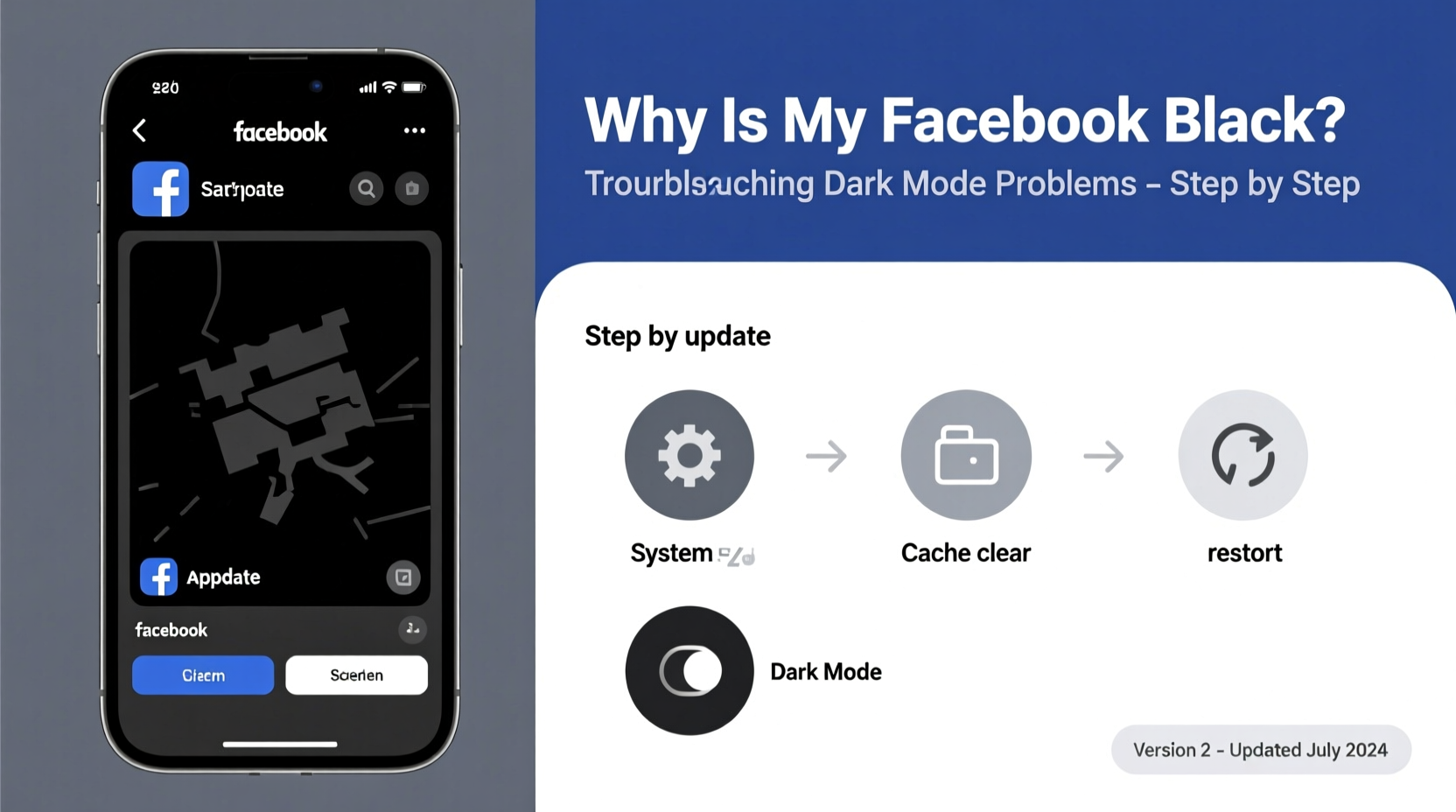
Facebook introduced dark mode as a user-friendly feature that inverts traditional light backgrounds with dark ones, reducing glare in low-light environments. The mode can be activated manually within the app or website, or it may sync automatically with your device’s system-wide dark theme settings. However, when dark mode appears without being enabled—or fails to switch back—confusion arises. This behavior typically stems from one of several sources: device-level settings, browser configurations, app bugs, or account-specific glitches.
The key to resolving the issue lies in identifying whether the black screen is:
- An intentional activation of dark mode
- A system-wide setting overriding app preferences
- A software bug or rendering error
- A compatibility problem with your browser or operating system
Step-by-Step Guide to Restore Normal Display
Follow this structured approach to diagnose and fix the black screen issue on any device.
- Check Facebook App Settings (Mobile)
Open the Facebook app, tap your profile picture, go to Settings & Privacy > Dark Mode. Ensure it's set to \"Light\" or \"Off.\" If set to \"System,\" change it to \"Light\" temporarily to test. - Review Device-Level Appearance Settings
On iOS: Go to Settings > Display & Brightness and select \"Light.\"
On Android: Navigate to Settings > Display > Theme and choose \"Light\" or \"Battery Saver Off.\" - Clear Browser Cache (Desktop Users)
If using Facebook in a browser like Chrome or Firefox:- Press Ctrl + Shift + Delete (Windows) or Cmd + Shift + Delete (Mac)
- Select \"All time\" for time range
- Check \"Cached images and files\"
- Click \"Clear data\"
- Force Stop and Restart the App
On Android: Settings > Apps > Facebook > Force Stop, then reopen.
On iPhone: Swipe up on the app in the app switcher and relaunch. - Update or Reinstall the App
Visit the App Store or Google Play Store, search for Facebook, and update if available. If problems persist, uninstall and reinstall the app to reset corrupted files.
Common Causes and Fixes by Platform
| Platform | Most Likely Cause | Solution |
|---|---|---|
| iOS App | Synced with system dark mode | Change iPhone appearance to Light mode |
| Android App | Bug in Facebook app version | Update or clear app cache |
| Chrome Browser | Dark Reader extension or site override | Disable extensions or reset site settings |
| Safari | Website color inversion enabled | Go to Preferences > Websites > Invert Colors and disable |
| Facebook Lite | Limited theme control | Switch to main app or use desktop site |
Browser-Specific Conflicts
Some browsers apply forced dark themes through accessibility features or third-party add-ons. For example, Chrome allows users to enable “Auto Dark Mode for Web Contents” under chrome://flags. If enabled, this forces all websites—including Facebook—into dark mode regardless of user preference.
To disable:
- Type
chrome://flagsin the address bar - Search for “Auto Dark Mode”
- Set it to “Disabled”
- Relaunch the browser
Mini Case Study: Unexpected Blackout on Desktop
Jamal, a freelance graphic designer, reported that his Facebook feed turned completely black one evening while working late. He uses a Windows laptop with Chrome and had recently installed a new ad-blocker. Initially assuming it was a Facebook outage, he checked online forums and discovered others with similar issues. After testing incognito mode—which displayed Facebook normally—he realized the culprit was a dark-mode-enforcing extension. Disabling the “Night Eye” add-on restored the standard layout instantly. This case underscores how third-party tools can override intended display settings without user awareness.
Expert Insight on UI Consistency
“Users expect consistency across platforms. When dark mode behaves unpredictably, it breaks trust in the app’s reliability. Developers must ensure theme logic respects both user intent and system context.” — Dr. Lena Torres, Human-Computer Interaction Researcher, MIT Media Lab
Troubleshooting Checklist
Use this checklist to systematically eliminate possible causes:
- ✅ Confirm dark mode is disabled in Facebook app settings
- ✅ Verify device theme is set to Light mode
- ✅ Clear browser cache or try incognito/private browsing
- ✅ Disable browser extensions that modify page appearance
- ✅ Update the Facebook app or browser to latest version
- ✅ Restart your device after making changes
- ✅ Test Facebook on another device or network
Frequently Asked Questions
Why does Facebook turn black even when I never enabled dark mode?
This usually happens because your device’s system settings are set to dark mode, and Facebook is configured to follow system preferences. Check your phone or computer’s display settings and switch to light mode to resolve it.
Can a virus cause Facebook to go black?
It’s highly unlikely. A black screen is almost always related to display settings, caching issues, or software bugs—not malware. However, if you notice other strange behaviors (pop-ups, redirects, slow performance), run a security scan to rule out infections.
Does Facebook dark mode drain more battery?
No—on OLED or AMOLED screens, dark mode actually saves battery because black pixels are turned off. On LCD screens, the difference is negligible. The primary benefits are reduced eye strain and improved readability in dim environments.
When to Contact Support
If you’ve followed all troubleshooting steps and Facebook remains black, especially across multiple devices or browsers, the issue may stem from an account-level glitch. In such cases:
- Visit Facebook Help Center
- Report the issue via Settings & Privacy > Help & Support > Report a Problem
- Include screenshots and describe your device, OS, and steps already taken
Facebook support teams typically respond within 24–48 hours for critical usability issues.
Final Thoughts and Action Steps
A black Facebook screen isn’t a sign of permanent damage—it’s almost always fixable with the right adjustments. Start by isolating the environment: is the issue on mobile, desktop, or both? Then methodically test settings at the app, system, and browser levels. Most users regain normal display within minutes using the steps outlined here.




 浙公网安备
33010002000092号
浙公网安备
33010002000092号 浙B2-20120091-4
Comments
No comments yet. Why don't you start the discussion?