
High-speed internet doesn’t guarantee a flawless gaming experience. Gamers often report stuttering, freezing, or delayed responses even when their connection shows 300 Mbps or more. The truth is, raw download speed is only one piece of the puzzle. Latency, network congestion, hardware bottlenecks, and background processes can all sabotage performance—no matter how fast your ISP promises. Understanding the real causes behind in-game lag reveals that optimization goes far beyond bandwidth.
Latency vs. Bandwidth: Why Speed Isn’t Everything
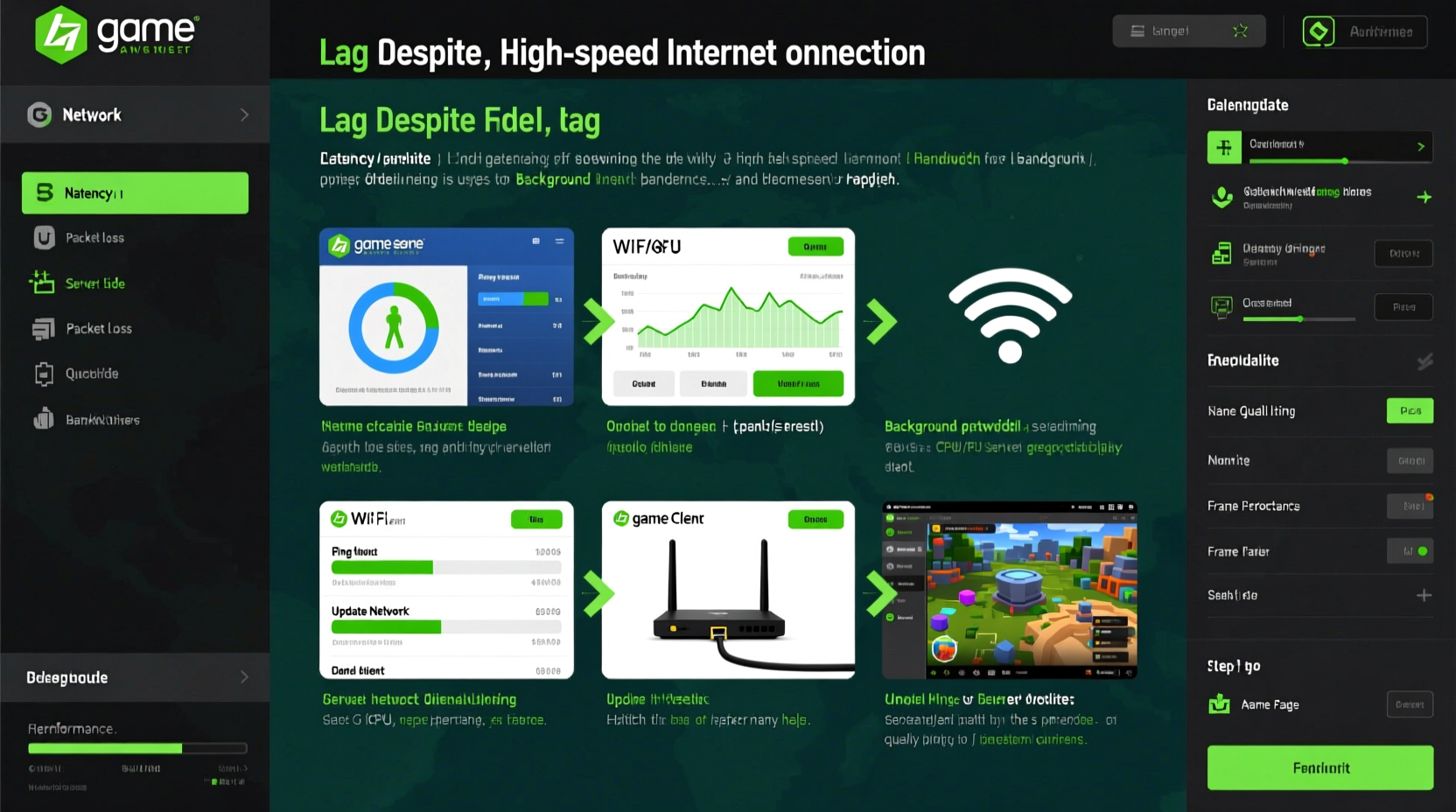
Bandwidth measures how much data your connection can handle per second—typically shown as download and upload speeds. However, latency (often called “ping”) determines how quickly your device communicates with the game server. A low ping (under 50 ms) means near-instant response; high latency (over 100 ms) results in noticeable delays between actions and outcomes.
Imagine two roads: one wide but winding (high bandwidth, high latency), and another narrow but straight (lower bandwidth, low latency). In gaming, the straight road wins every time. Even with gigabit fiber, if your signal bounces through multiple routing nodes before reaching the server, each round-trip adds milliseconds. Over time, those add up to rubber-banding, hit registration issues, and frustrating disconnects.
“Gamers need responsiveness, not just throughput. A 100 Mbps connection with 20 ms ping will outperform a 1 Gbps link at 150 ms every time.” — David Lin, Network Engineer at GameNet Labs
ping in Command Prompt or specialized apps such as PingPlotter.
Common Causes of Lag Beyond Internet Speed
Wi-Fi Interference and Signal Degradation
Even on a fast plan, wireless connections are vulnerable to interference from walls, appliances, neighboring networks, and physical distance. Dual-band routers help, but 2.4 GHz bands suffer from congestion, while 5 GHz offers speed at the cost of range. If your router is across the house or behind metal furniture, signal strength drops dramatically—leading to packet loss and jitter.
Background Applications Consuming Bandwidth
Your operating system may be silently using bandwidth without your knowledge. Windows Update, cloud backups (Google Drive, OneDrive), streaming services on smart TVs, or mobile devices downloading large files can eat into available capacity. These tasks don’t slow your speed test—they compete directly with your game for priority.
Server-Side Issues
The problem might not be on your end at all. Game servers can become overloaded during peak hours, updates, or DDoS attacks. Titles like Fortnite, Call of Duty, or World of Warcraft rely on centralized infrastructure. If thousands log in simultaneously after maintenance, even optimal home setups face lag.
Hardware Bottlenecks
Your PC or console components play a critical role. An outdated GPU, insufficient RAM, or a CPU running at 100% due to background processes can cause frame drops independent of network conditions. Similarly, HDDs (hard disk drives) loading assets slowly create stutters that feel like network lag but stem from local storage limitations.
Router Quality and QoS Settings
Many ISPs provide basic routers designed for general browsing, not real-time gaming. These lack advanced features like Quality of Service (QoS), which prioritizes gaming traffic over less urgent data. Without QoS, your video call or Netflix stream could hijack bandwidth mid-match.
Troubleshooting Checklist: Fix Lag Step-by-Step
- Check your actual ping: Open Command Prompt and type
ping 8.8.8.8 -t. Let it run for 30 seconds. Look for consistent times under 50 ms and minimal packet loss. - Switch to Ethernet: Use a Cat 6 cable instead of Wi-Fi. Wired connections reduce latency and eliminate signal interference.
- Restart your router and modem: Power cycle both devices every few days to clear cached data and refresh IP assignments.
- Close background apps: Shut down Steam downloads, Discord uploads, cloud sync tools, and web browsers with multiple tabs.
- Update drivers and firmware: Ensure your network adapter, GPU, and router have the latest updates installed.
- Enable QoS in router settings: Prioritize your gaming device by assigning it higher bandwidth priority.
- Change DNS servers: Switch to Google DNS (8.8.8.8 / 8.8.4.4) or Cloudflare (1.1.1.1) for faster domain resolution.
- Verify server status: Visit Downdetector or the game’s official Twitter feed to confirm no ongoing outages.
Real-World Example: The Case of Alex’s Persistent FPS Drops
Alex upgraded his internet to 500 Mbps fiber, expecting buttery-smooth gameplay in Apex Legends. Yet he continued experiencing lag spikes during matches. His speed tests showed excellent results, so he assumed the issue was EA’s servers. After frustration mounted, he decided to investigate further.
Using Task Manager, he noticed his upload usage spiked whenever his roommate started uploading videos to YouTube. Despite ample bandwidth, the sudden demand caused micro-congestion. He also discovered his router didn’t support QoS. After purchasing a gaming-grade router (Asus RT-AX86U) and enabling traffic prioritization for his PC’s MAC address, his in-game ping stabilized from fluctuating between 60–180 ms to a steady 42 ms.
This case illustrates that infrastructure upgrades alone aren’t enough—smart configuration matters just as much.
Router Comparison: Features That Matter for Gamers
| Feature | Basic ISP Router | Gaming-Optimized Router |
|---|---|---|
| Quality of Service (QoS) | Limited or absent | Advanced, customizable rules |
| Wi-Fi Standard | Wi-Fi 5 (802.11ac) | Wi-Fi 6/6E (802.11ax) |
| LAN Ports | One Gigabit port | Multiple 2.5 Gbps ports |
| Firmware Updates | Rare, closed-source | Regular, supports third-party firmware (e.g., DD-WRT) |
| Price Range | $0–$80 (often included) | $150–$400 |
While ISP-provided equipment suffices for casual use, serious gamers benefit significantly from investing in dedicated hardware tailored for low-latency performance.
Do’s and Don’ts of Reducing Gaming Lag
| Do | Don't |
|---|---|
| Use wired Ethernet for competitive games | Rely solely on Wi-Fi for online multiplayer |
| Set up port forwarding for specific games | Leave default router settings untouched |
| Monitor bandwidth usage via NetBalancer or GlassWire | Run large downloads during gameplay |
| Place your router centrally, away from obstructions | Hide it in a cabinet or basement corner |
| Upgrade RAM and switch to SSD if using older hardware | Blame the ISP immediately without testing locally |
Frequently Asked Questions
Can high bandwidth cause lag?
No—high bandwidth itself does not cause lag. However, maxing out your bandwidth with multiple devices or downloads can lead to network congestion, increasing latency and causing lag. It's not the speed but how it's being used that matters.
Why does my game lag only during certain times of day?
This typically points to network congestion either on your local network or your ISP’s backbone. Peak usage hours (evenings and weekends) often see slower performance due to shared infrastructure strain. Try scheduling heavy downloads for off-peak hours like early morning.
Does ping matter more than download speed for gaming?
Yes. While download speed affects how quickly assets load initially, ping determines real-time interaction responsiveness. Fast reactions in shooters or MMOs depend almost entirely on low latency. A stable 20 ms connection with moderate speed beats an unstable 1 Gbps line every time in competitive scenarios.
Expert Insight: What Developers Say About Network Performance
Game developers build titles with assumptions about average network behavior. When players encounter lag despite good speeds, engineers often point to \"last-mile\" delivery—the final leg between your router and device.
“We design our netcode to compensate for moderate latency, but nothing fixes packet loss from a flaky Wi-Fi connection. Players assume ‘fast internet’ means perfect gameplay, but we see huge variance based on local setup.” — Lena Park, Senior Networking Developer at Frostbyte Studios
Modern games use prediction algorithms and client-side interpolation to mask minor inconsistencies. But when packets arrive late or out of order, these systems fail, resulting in visible glitches. This reinforces why end-to-end control—from wall jack to graphics card—is essential.
Action Plan: Optimize Your Setup Today
Eliminating lag requires a holistic approach. Start by isolating whether the issue is network-related or hardware-driven. Run your game while connected via Ethernet with all other devices offline. If performance improves, focus on network management. If not, examine CPU, GPU, and memory utilization during gameplay.
Next, upgrade your router if it lacks modern standards or QoS capabilities. Flashing custom firmware like OpenWrt or using manufacturer tools like ASUS AiProtection can give granular control over traffic shaping.
Finally, establish routines: reboot networking gear weekly, disable automatic updates during gaming sessions, and monitor performance monthly using tools like WinMTR or PingInfoView.
Conclusion: Smooth Gameplay Starts With Smart Habits
Having high-speed internet is a strong foundation, but it’s not a magic fix for gaming lag. True optimization demands attention to latency, hardware health, network hygiene, and intelligent configuration. By understanding the difference between bandwidth and responsiveness, identifying hidden bandwidth hogs, and upgrading key components like your router, you gain control over your gaming experience.




 浙公网安备
33010002000092号
浙公网安备
33010002000092号 浙B2-20120091-4
Comments
No comments yet. Why don't you start the discussion?