
You run a speed test, and the results look promising: 300 Mbps download, low latency, strong Wi-Fi signal. Yet when you try to download a game update, software package, or movie file, the progress bar crawls. You're not imagining it—your internet appears fast on paper, but your actual download speeds are frustratingly slow. This disconnect between perceived performance and real-world experience affects millions of users every day. The issue isn't always your ISP or hardware; it's often a combination of overlooked factors ranging from server limitations to background processes. Understanding these nuances is key to restoring smooth, reliable downloads.
Understanding the Difference Between Internet Speed and Download Speed
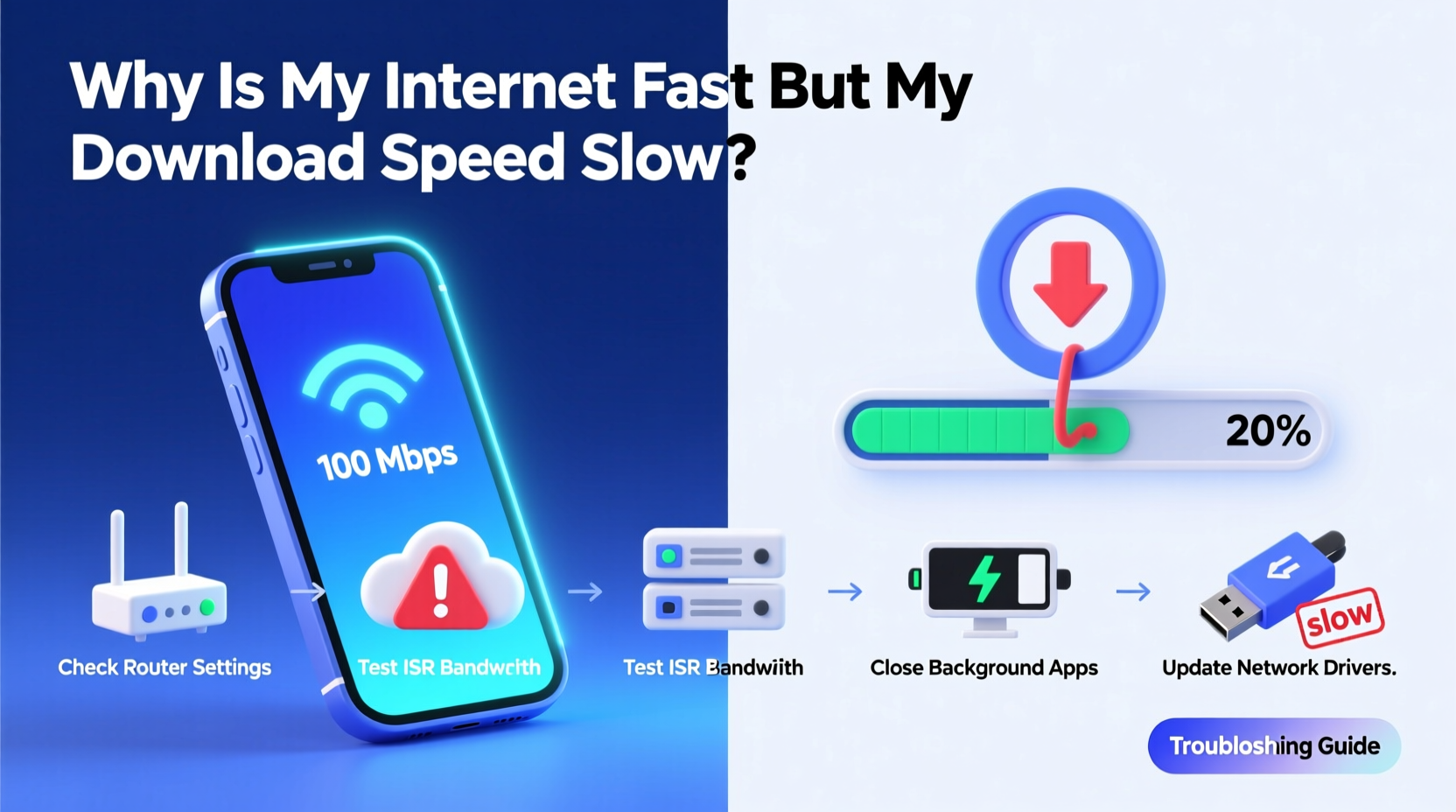
Many users assume that \"internet speed\" and \"download speed\" are interchangeable terms. In reality, they describe related but distinct concepts. Internet speed refers to the maximum data transfer rate your connection can achieve under ideal conditions—typically measured via tools like Ookla Speedtest. This number reflects how quickly your device can communicate with a nearby testing server using optimized protocols.
Download speed, however, refers to the real-world rate at which files transfer from external servers to your device. This process depends on multiple variables beyond your local network: the hosting server’s bandwidth, geographic distance, protocol efficiency (HTTP vs. FTP), concurrent user load, and even throttling policies. As a result, you might have a 500 Mbps fiber connection but only achieve 5 MB/s (40 Mbps) when downloading a large file from a distant or overloaded server.
Common Causes of Slow Downloads Despite Fast Internet
The frustration stems from expecting consistent performance across all online activities. But different tasks stress different parts of the network ecosystem. Below are the most frequent culprits behind sluggish downloads despite excellent speed test results.
1. Server-Side Limitations
The source of your download plays a critical role. Free file hosts, open-source repositories, or older websites often operate on limited infrastructure. If thousands of users are pulling from the same server simultaneously, bandwidth gets divided, capping individual download speeds regardless of your local connection quality.
2. Background Applications Consuming Bandwidth
Even if you’re not actively using your network, background processes may be. Cloud sync services (OneDrive, Dropbox), automatic OS updates (Windows Update, macOS Software Update), streaming apps refreshing content, or peer-to-peer clients (like torrent seeders) can silently consume significant bandwidth. These processes don’t show up in your active tabs but degrade available throughput for new downloads.
3. Throttling by Your ISP or Application
Some Internet Service Providers implement traffic shaping based on usage patterns. While less common with modern unlimited plans, ISPs may still throttle specific types of traffic—especially large-file transfers or sustained high-bandwidth activity—after certain thresholds. Additionally, some platforms (e.g., free cloud storage providers) intentionally limit download speeds unless you pay for premium access.
4. Network Congestion During Peak Hours
Your neighborhood’s shared infrastructure can become congested during evenings or weekends. Even with a dedicated line, cable-based networks (DOCSIS) share bandwidth among households in a node. Fiber connections are less prone to this, but congestion at the ISP’s gateway or routing level can still occur.
5. Hardware Bottlenecks
Your router, modem, or even internal cabling might not support full throughput. Older routers using 802.11n Wi-Fi or outdated Ethernet ports (10/100 Mbps instead of Gigabit) create artificial ceilings. Similarly, connecting over 2.4 GHz Wi-Fi instead of 5 GHz drastically reduces potential speeds due to interference and lower channel capacity.
6. DNS and Routing Inefficiencies
Inefficient DNS resolution or suboptimal routing paths can delay the initial handshake between your device and the download server. While this won’t affect large, ongoing transfers much, it contributes to slow start times and inconsistent performance across sessions.
“Bandwidth is only one piece of the puzzle. Latency, packet loss, and endpoint capability determine real-world performance.” — Dr. Alan Reyes, Network Performance Analyst at NetMetrics Lab
Step-by-Step Troubleshooting Guide
To systematically identify and resolve the root cause of slow downloads, follow this structured approach. Each step isolates variables to pinpoint where the bottleneck lies.
- Verify Actual Internet Speed: Run multiple speed tests using wired Ethernet (not Wi-Fi). Use reputable tools like Speedtest.net, Fast.com, or Google’s built-in speed test. Perform tests at different times of day to check for consistency.
- Test with Different File Sources: Download the same-sized file (e.g., a Linux ISO) from multiple sources—official mirrors, CDN-hosted links, direct HTTP vs. torrent. Compare speeds to determine if slowness is isolated to one provider.
- Disable Background Applications: Close cloud sync tools, pause Windows/macOS updates, quit streaming apps, and disable any torrent clients. Re-run the download to see if performance improves.
- Switch to Wired Connection: Connect your computer directly to the router via Ethernet. Eliminate Wi-Fi interference and signal degradation as variables. If speed improves significantly, your wireless setup needs optimization.
- Reboot Networking Equipment: Power cycle your modem and router. This clears temporary glitches, resets IP leases, and forces renegotiation of line speeds with your ISP.
- Change DNS Servers: Replace your default DNS with faster alternatives like Google DNS (8.8.8.8, 8.8.4.4) or Cloudflare (1.1.1.1). This can reduce latency in establishing connections.
- Check for ISP Throttling: Use a trusted VPN service to encrypt your traffic and bypass potential throttling rules. If download speeds increase dramatically under a VPN, your ISP may be limiting specific traffic types.
- Update Firmware and Drivers: Ensure your router has the latest firmware. Update network adapter drivers on your PC or laptop to eliminate compatibility issues.
- Monitor Real-Time Bandwidth Usage: Use tools like GlassWire (Windows), Activity Monitor (macOS), or your router’s admin dashboard to observe which devices or apps are consuming bandwidth.
- Test on Another Device: Try downloading the same file on a smartphone, tablet, or secondary computer. If all devices perform poorly, the issue is network-wide. If only one device struggles, focus on its configuration.
Do’s and Don’ts: Quick Reference Table
| Do | Don’t |
|---|---|
| Use Ethernet for critical downloads | Rely solely on 2.4 GHz Wi-Fi for large files |
| Clear browser cache before starting downloads | Leave cloud sync apps running during downloads |
| Choose download sources with CDNs (Content Delivery Networks) | Assume speed test results reflect all real-world performance |
| Enable Quality of Service (QoS) settings on your router | Ignore firmware updates for your networking gear |
| Use download managers for resumable, multi-threaded transfers | Run multiple large downloads simultaneously without monitoring bandwidth |
Mini Case Study: Resolving a Home Office Bottleneck
Sarah, a freelance video editor in Austin, TX, subscribed to a 400 Mbps fiber plan. Her speed tests consistently showed 380–410 Mbps download. However, when downloading project assets from client servers, she rarely exceeded 15 MB/s (~120 Mbps). Frustrated, she followed the troubleshooting steps above.
First, she connected her workstation via Ethernet—no improvement. She disabled Dropbox and OneDrive syncing, then rebooted her router. Still no change. Next, she tested a public Ubuntu ISO from a mirror hosted on a CDN: download speed jumped to 45 MB/s. This revealed the issue wasn’t her connection, but the remote client server’s limited bandwidth.
She contacted the client and requested they upload files to WeTransfer or Google Drive, both of which use robust global CDNs. After switching sources, her average download speed increased to over 40 MB/s. The fix didn’t involve upgrading hardware or changing ISPs—just identifying and circumventing a server-side bottleneck.
Optimize Your Setup: Pro Tips for Sustained Performance
Once you’ve resolved immediate issues, take proactive steps to maintain optimal download performance.
- Invest in a Modern Router: Choose models supporting Wi-Fi 6 (802.11ax) and Gigabit Ethernet ports. Look for MU-MIMO and beamforming for better multi-device handling.
- Enable QoS Settings: Prioritize download traffic or specific devices in your router’s admin panel. This prevents video calls or gaming from starving large downloads.
- Use a Download Manager: Tools like Free Download Manager (FDM), JDownloader, or Internet Download Manager split files into segments and download them in parallel, maximizing available bandwidth.
- Upgrade Storage Speed: An old mechanical hard drive (HDD) may struggle to keep up with fast downloads, causing buffer delays. Consider an SSD for your primary download directory.
- Segment Your Network: If possible, place high-bandwidth devices on a separate VLAN or guest network to reduce contention.
Frequently Asked Questions
Why does my phone download faster than my laptop on the same network?
This often occurs because mobile devices connect more efficiently to 5 GHz bands or newer Wi-Fi standards. Laptops with outdated wireless cards (e.g., 802.11ac or earlier) may fail to negotiate top speeds. Also, laptops frequently run background processes that consume bandwidth unnoticed.
Can antivirus software slow down downloads?
Yes. Some security suites scan files in real time as they download, adding processing overhead. While important for safety, this can reduce effective download speed. To balance security and performance, exclude trusted sources from real-time scanning or schedule deep scans outside peak usage hours.
Does using a VPN always slow down downloads?
Not necessarily. While encryption adds minor overhead, a good VPN can sometimes improve speeds by bypassing ISP throttling or providing more efficient routing. Choose servers geographically close to the download source for best results.
Conclusion: Take Control of Your Download Experience
Fast internet doesn’t guarantee fast downloads—but understanding the difference empowers you to diagnose and fix the real issues. From server limitations to silent bandwidth hogs, the causes are varied but manageable. By applying systematic troubleshooting, optimizing your hardware and settings, and choosing smarter download methods, you can bridge the gap between theoretical speed and real-world performance.




 浙公网安备
33010002000092号
浙公网安备
33010002000092号 浙B2-20120091-4
Comments
No comments yet. Why don't you start the discussion?