
You’ve paid for a high-speed internet plan. Your speed test shows 200 Mbps. Yet, when you try to watch a movie on Netflix or join a live stream, the screen freezes. The dreaded buffering wheel spins endlessly. This contradiction confuses many: if the connection is fast, why does streaming struggle?
The answer often lies not in your internet plan, but in how your home network manages that bandwidth. Routers—especially older or poorly configured ones—are frequently the weak link between your ISP’s promise and your actual streaming experience. The good news? Most of these issues can be resolved with simple, no-cost or low-cost fixes.
Understanding the Disconnect Between Speed and Streaming Performance
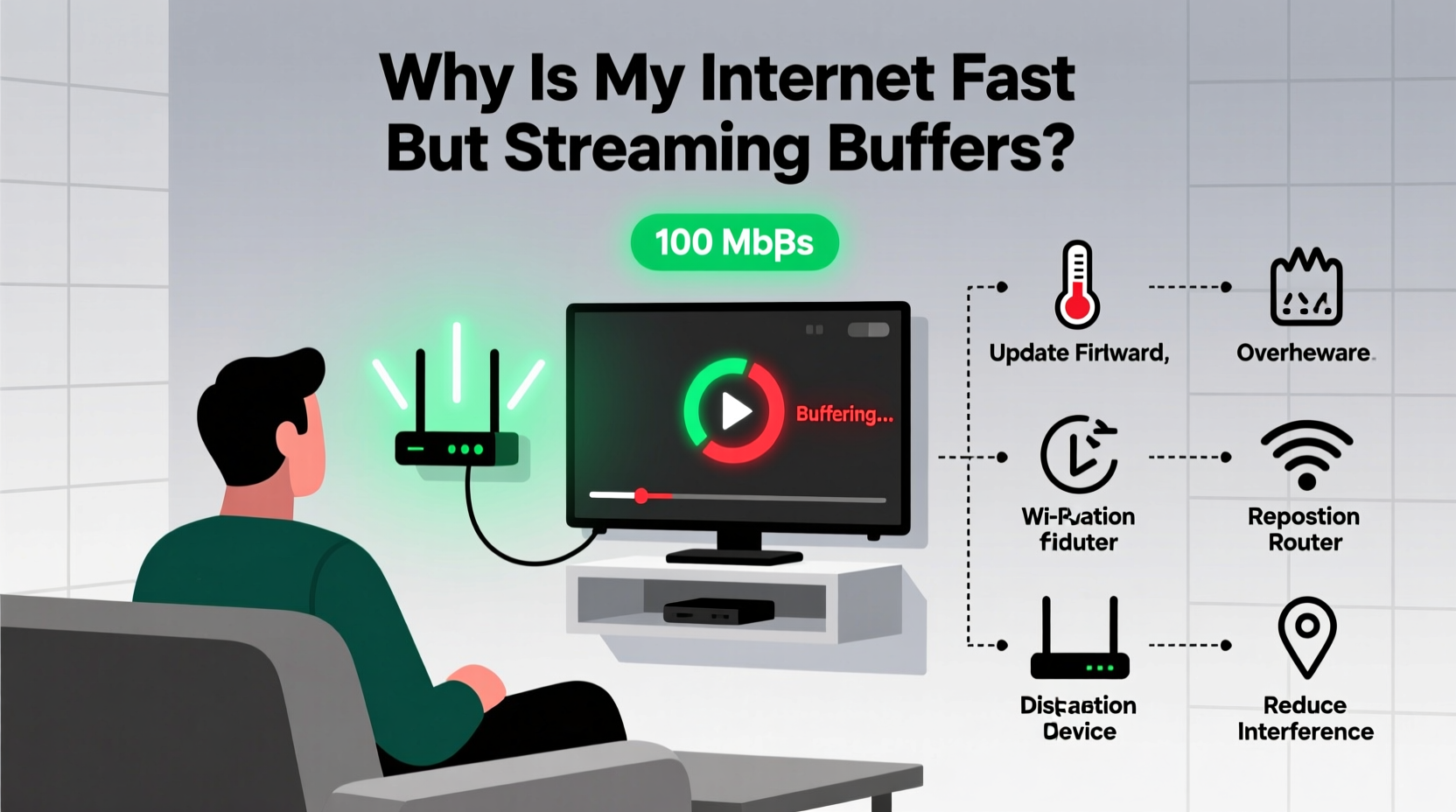
Internet speed and streaming performance are related but not interchangeable. A fast download speed means data can reach your home quickly. But streaming requires consistent, low-latency delivery—not just raw speed. If packets arrive late, out of order, or get dropped due to congestion or interference, even 300 Mbps won’t prevent buffering.
Streaming services like YouTube, Hulu, and Disney+ need steady throughput. They typically require only 5–25 Mbps per stream depending on resolution. So why do they fail on a “fast” connection?
- Network Congestion: Multiple devices using Wi-Fi at once (phones, tablets, smart TVs) can overwhelm your router.
- Wi-Fi Interference: Walls, appliances, and neighboring networks disrupt signal strength.
- Router Overload: Older routers can’t handle modern traffic loads, even if bandwidth is available.
- QoS Mismanagement: Without proper traffic prioritization, large downloads can starve streaming apps.
Your internet may be fast from a technical standpoint, but if your router isn’t managing it efficiently, streaming will suffer.
Common Router Issues That Cause Buffering
Even with a strong internet plan, several router-related problems sabotage streaming:
Outdated Firmware
Manufacturers release firmware updates to fix bugs, improve stability, and enhance security. An outdated router may lack optimizations for modern video codecs or suffer from memory leaks that degrade performance over time.
Single-Band Wi-Fi (2.4 GHz Only)
Older routers operate only on the 2.4 GHz band, which is crowded and slow. While it travels farther through walls, it maxes out at around 150 Mbps under ideal conditions—and real-world performance is often much lower. Simultaneous use by microwaves, baby monitors, or Bluetooth devices worsens interference.
Overloaded Network Channels
Wi-Fi channels overlap. If your router uses a congested channel (e.g., Channel 6 in a dense apartment building), performance plummets. Automatic channel selection doesn’t always choose the best option.
Poor Placement
A router tucked behind furniture, in a closet, or near metal objects suffers from signal degradation. Distance and physical obstructions weaken Wi-Fi, especially at higher frequencies like 5 GHz used for HD streaming.
Lack of QoS (Quality of Service)
Without QoS settings, your router treats all traffic equally. A background cloud backup or software update can consume bandwidth needed for smooth video playback.
“Many users assume their ISP is at fault when streaming stutters, but 70% of such cases stem from internal network inefficiencies—especially outdated or misconfigured routers.” — David Lin, Senior Network Engineer at Broadband Insights Group
Step-by-Step Guide: Simple Router Fixes to Stop Buffering
You don’t need to replace your router immediately. Try these proven fixes in order:
- Restart Your Router and Modem
Unplug both devices for 30 seconds, then power them back on. This clears memory, resets connections, and often resolves temporary glitches. Do this weekly as maintenance. - Update Router Firmware
Log into your router’s admin interface (usually via 192.168.1.1 or 192.168.0.1). Check for firmware updates under “Administration” or “System.” Enable automatic updates if available. - Switch to the 5 GHz Band
If your router is dual-band, connect your streaming device (smart TV, streaming stick) to the 5 GHz network. It’s faster and less prone to interference, though shorter-range. Keep IoT devices on 2.4 GHz to reduce congestion. - Optimize Router Placement
Place the router centrally, elevated, and away from walls, mirrors, and large metal objects. Avoid placing it near microwaves, cordless phones, or refrigerators. - Select the Best Wi-Fi Channel
Use a free app like Wi-Fi Analyzer (Android) or NetSpot (Windows/Mac) to scan nearby networks. Choose the least crowded channel. For 2.4 GHz, stick to Channels 1, 6, or 11. For 5 GHz, use non-DFS channels like 36, 40, 44, or 48. - Enable Quality of Service (QoS)
In your router settings, find QoS or “Bandwidth Control.” Prioritize devices or applications used for streaming. Assign high priority to your smart TV or media server. - Limit Background Devices
Pause large downloads, cloud backups, or software updates during streaming hours. Consider setting up a guest network for visitors to reduce load on your main network.
Do’s and Don’ts: Router Optimization Table
| Do’s | Don’ts |
|---|---|
| Place the router in a central, open location | Hide it in a cabinet or basement |
| Use 5 GHz for streaming devices close to the router | Use 2.4 GHz for 4K streaming |
| Update firmware regularly | Ignore firmware update notifications |
| Enable QoS and prioritize streaming devices | Allow unrestricted background downloads |
| Restart the router monthly | Leave it running for months without a reboot |
Real-World Example: How Sarah Fixed Her Weekend Movie Nights
Sarah had a 150 Mbps fiber connection and a 4-year-old dual-band router. Every Friday night, her family gathered to watch movies, but 4K streams on Disney+ kept buffering. Speed tests on her laptop showed full speed, so she assumed the service was faulty.
After reading about router optimization, she decided to investigate. She ran a speed test on her smart TV over Wi-Fi and got only 18 Mbps. Then she connected the same TV via Ethernet—speed jumped to 142 Mbps. The bottleneck was clearly Wi-Fi.
She followed the step-by-step guide: moved the router from her entertainment center (surrounded by speakers and cables) to a shelf in the hallway, switched her TV to the 5 GHz network, updated the firmware, and enabled QoS for her TV’s IP address. The next weekend, 4K streamed flawlessly.
No new hardware. No extra cost. Just smarter router management.
When to Upgrade Your Router
If you’ve applied all the fixes above and still experience buffering, it may be time for a new router. Consider upgrading if:
- Your router is more than 3–4 years old.
- It doesn’t support Wi-Fi 5 (802.11ac) or newer standards.
- It lacks QoS, parental controls, or guest network features.
- You have more than 10 connected devices.
Modern Wi-Fi 6 (802.11ax) routers handle multiple devices better, offer improved beamforming, and reduce latency—ideal for 4K streaming and smart homes. Mesh systems are excellent for large homes with dead zones.
But before spending money, ensure your modem is also compatible with your internet plan. A DOCSIS 3.1 modem is recommended for gigabit speeds.
Checklist: Eliminate Streaming Buffering in 7 Steps
Follow this checklist to optimize your current router:
- ✅ Restart router and modem
- ✅ Update router firmware
- ✅ Connect streaming devices to 5 GHz band
- ✅ Reposition router for optimal coverage
- ✅ Change to the least congested Wi-Fi channel
- ✅ Enable QoS and prioritize streaming devices
- ✅ Limit bandwidth-heavy background tasks
Complete this routine monthly for peak performance.
Frequently Asked Questions
Does internet speed really matter if my streaming still buffers?
Yes and no. You need sufficient speed (at least 25 Mbps for 4K), but consistency matters more. A stable 50 Mbps connection with low latency performs better than an unstable 200 Mbps one. Buffering is often caused by jitter, packet loss, or Wi-Fi interference—not raw speed.
Can too many devices cause buffering even with fast internet?
Absolutely. Each connected device consumes overhead, even when idle. Multiple active devices (e.g., gaming, downloads, video calls) compete for bandwidth. Routers with limited RAM or processing power struggle to manage traffic efficiently, leading to slowdowns.
Is Ethernet really better than Wi-Fi for streaming?
Yes. Ethernet provides a direct, interference-free connection with minimal latency and maximum reliability. If possible, use Ethernet for your primary streaming device. Powerline adapters or Wi-Fi extenders can help if running cables isn’t feasible.
Conclusion: Take Control of Your Streaming Experience
Your internet speed is only as effective as your router allows it to be. Fast connections mean little if your network can’t deliver data smoothly to your devices. The frustrating gap between high-speed tests and constant buffering is usually solvable with simple, intelligent router adjustments.
From updating firmware to optimizing placement and enabling QoS, the tools are already in your hands. These fixes cost nothing but a few minutes of your time—and the payoff is immediate: seamless streaming, sharper picture quality, and uninterrupted viewing.




 浙公网安备
33010002000092号
浙公网安备
33010002000092号 浙B2-20120091-4
Comments
No comments yet. Why don't you start the discussion?