
It defies logic: you plug in an Ethernet cable expecting a rock-solid, high-speed connection, only to find your download speeds are worse than when using Wi-Fi. Meanwhile, your phone or tablet on the same network performs flawlessly over wireless. This frustrating scenario is more common than you think—and it’s not just in your head. While Ethernet is traditionally more stable and faster than Wi-Fi, several technical factors can reverse that advantage. Understanding the root causes is the first step toward restoring your wired connection to its rightful performance level.
How Ethernet Should Work (And Why It’s Usually Better)
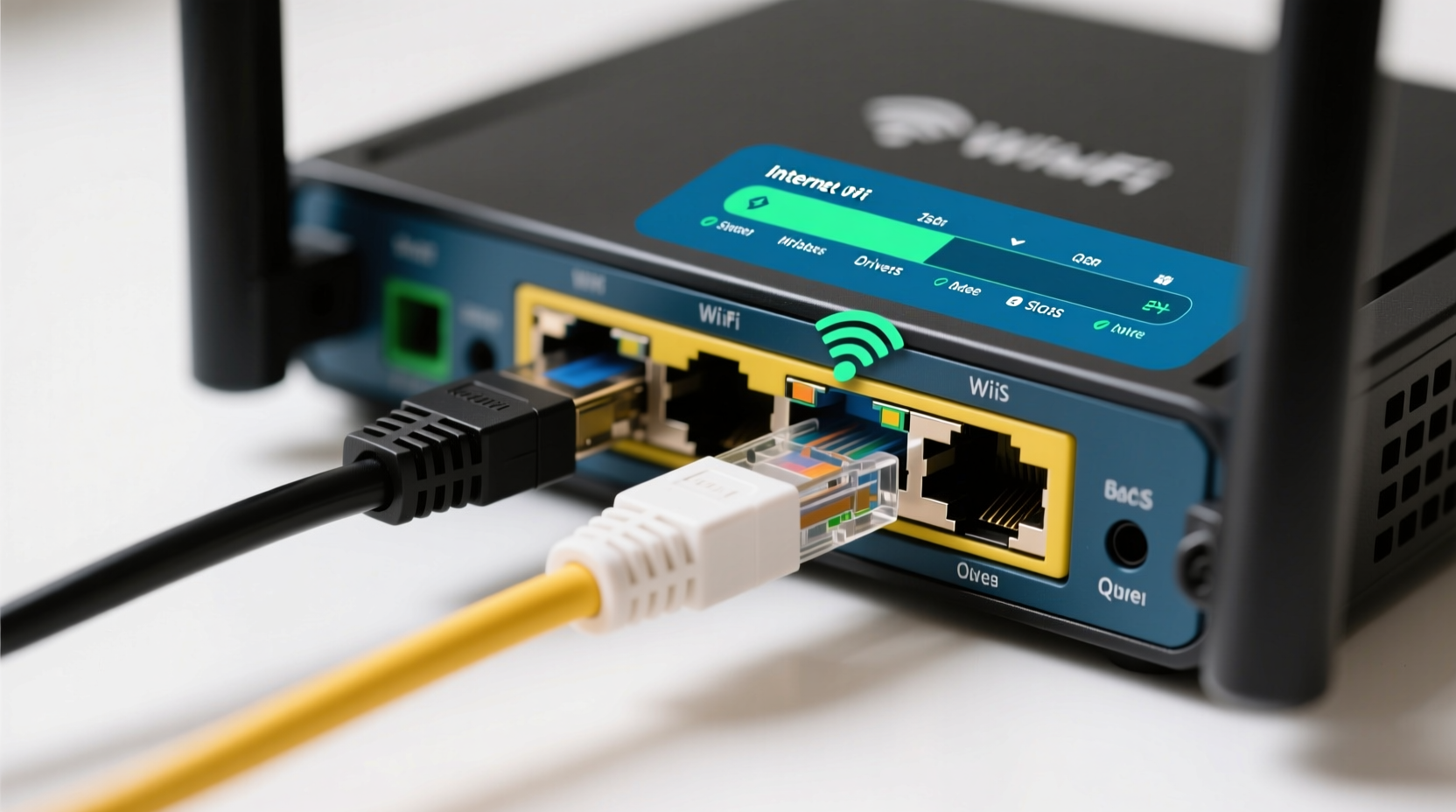
Ethernet connections use physical cables—typically Cat 5e, Cat 6, or higher—to deliver data directly from your router or modem to your device. This direct link avoids the interference, congestion, and signal degradation that plague wireless networks. In ideal conditions, Ethernet offers:
- Lower latency (ping)
- Higher reliability
- Better security
- Consistent throughput, especially under heavy loads
So when Ethernet underperforms compared to Wi-Fi, something is interfering with this expected behavior. The issue isn’t necessarily your internet service—it’s likely a local hardware, software, or configuration problem.
Common Causes of Slow Ethernet Speeds
The paradox of slower Ethernet speeds usually stems from one or more of the following issues:
1. Faulty or Low-Quality Ethernet Cable
A damaged, poorly shielded, or outdated cable can severely limit speed. Cables labeled Cat 5 may only support up to 100 Mbps, while newer standards like Cat 6a support 10 Gbps. Kinks, crushing, or exposure to moisture can degrade performance even in newer cables.
2. Outdated or Misconfigured Network Adapter
Your computer’s Ethernet port (network interface card) may be set to a lower speed or duplex mode. Some drivers default to 100 Mbps full-duplex instead of 1 Gbps, especially after OS updates. Additionally, outdated drivers can cause bottlenecks.
3. Router or Switch Port Issues
The specific LAN port on your router or switch might be malfunctioning. Try plugging the cable into a different port. Some older routers have mixed port speeds—certain ports may only support 100 Mbps.
4. Full-Duplex vs. Half-Duplex Mismatch
Duplex settings determine whether data can be sent and received simultaneously. A mismatch between your PC and router (e.g., one set to full-duplex, the other to half) causes collisions and retransmissions, drastically reducing effective speed.
5. Background Processes and Bandwidth Hogs
Unlike Wi-Fi devices, which often share bandwidth across multiple users, a single Ethernet-connected device might be running silent background tasks—Windows updates, cloud backups, torrents, or malware—that consume bandwidth without your knowledge.
6. Poor Cable Management and Interference
Running Ethernet cables alongside power lines or through electromagnetically noisy environments (like near transformers or motors) can introduce crosstalk and signal loss, especially with unshielded cables.
7. ISP or Modem-Level Throttling
In rare cases, your modem may prioritize certain types of traffic or connections. Some ISPs apply policies that inadvertently affect wired connections differently, though this is uncommon.
“Many users assume Ethernet is plug-and-play, but misconfigurations at the driver or port level can silently cap speeds below expectations.” — David Lin, Senior Network Engineer at NetSolve Inc.
Step-by-Step Troubleshooting Guide
Follow this structured approach to identify and resolve the issue:
- Swap the Ethernet Cable
Use a known-good Cat 6 or higher cable. Avoid coiling excess length tightly, as this can induce interference. - Test a Different Router Port
Plug into another LAN port on your router or switch. If speed improves, the original port may be faulty. - Check Link Speed in Your OS
On Windows: Go to Control Panel > Network and Sharing Center > Change adapter settings. Right-click your Ethernet connection and select Status. Look for “Speed” — it should read 1.0 Gbps. On macOS: System Settings > Network > Ethernet > Details > Hardware. Ensure it shows 1000baseT. - Update Network Drivers
Visit your motherboard or laptop manufacturer’s website and download the latest Ethernet driver. Avoid relying solely on Windows Update for NIC drivers. - Manually Set Speed and Duplex (If Needed)
In Device Manager, go to your network adapter’s Properties > Advanced tab. Find “Speed & Duplex” and change it from “Auto-Negotiate” to “1.0 Gbps Full Duplex.” Revert if instability occurs. - Disable Power-Saving Features
In the same adapter settings, go to the Power Management tab and uncheck “Allow the computer to turn off this device to save power.” - Scan for Malware and Bandwidth Usage
Use Task Manager (Windows) or Activity Monitor (macOS) to check for unexpected network activity. Run a full antivirus scan. - Reboot All Devices
Restart your modem, router, and connected device. This clears temporary glitches and renegotiates connection parameters. - Test with Another Device
Connect a different computer or laptop via Ethernet. If it performs well, the issue lies with your original device’s hardware or software. - Check for Firmware Updates
Log into your router’s admin panel and ensure it’s running the latest firmware. Manufacturers often release fixes for port stability and speed negotiation bugs.
Comparison Table: Ethernet vs. Wi-Fi Performance Factors
| Factor | Ethernet Impact | Wi-Fi Impact |
|---|---|---|
| Interference | Low (if shielded cable used) | High (walls, appliances, neighbors) |
| Maximum Theoretical Speed | 1 Gbps – 10 Gbps (Cat 6/6a) | Up to 1.3 Gbps (Wi-Fi 5), 9.6 Gbps (Wi-Fi 6E) |
| Latency | 0.3–0.5 ms | 2–10 ms (varies with signal) |
| Connection Stability | Very High | Moderate to High |
| Common Bottlenecks | Cable quality, NIC settings, port issues | Signal strength, channel congestion, device count |
Real-World Example: Office Network Slowdown
A small marketing firm in Portland reported that their design team’s desktop workstations—connected via Ethernet—were experiencing lag during cloud-based rendering, while laptops on Wi-Fi seemed unaffected. Initial tests showed Wi-Fi averaging 85 Mbps down, while Ethernet barely reached 30 Mbps.
After investigation, the IT consultant discovered that the Ethernet switches were older models with mixed 100 Mbps and 1 Gbps ports. The designers’ machines were plugged into legacy ports. Additionally, the network drivers on two workstations had reverted to 100 Mbps after a recent Windows update.
By upgrading the switch and updating drivers, speeds jumped to over 120 Mbps on Ethernet—outperforming Wi-Fi. The case highlights how overlooked infrastructure details can invert expected performance hierarchies.
Tips for Maintaining Optimal Ethernet Performance
- Use shielded twisted pair (STP) cables in electrically noisy areas.
- Avoid daisy-chaining multiple switches or hubs, which can introduce latency and reduce bandwidth.
- Keep firmware on networking gear updated—manufacturers patch speed negotiation bugs regularly.
- Monitor your network with tools like Wireshark or NetBalancer to detect anomalies.
Quick Checklist: Fix Slow Ethernet Now
- ✅ Replace Ethernet cable with a known-good Cat 6 or higher
- ✅ Plug into a different router/switch port
- ✅ Check link speed in OS network settings
- ✅ Update network adapter drivers
- ✅ Disable power-saving mode on the NIC
- ✅ Manually set speed/duplex to 1.0 Gbps Full Duplex (if needed)
- ✅ Scan for malware and background downloads
- ✅ Restart modem, router, and connected device
- ✅ Test with another device to isolate the problem
- ✅ Update router firmware
Frequently Asked Questions
Can a bad router cause slow Ethernet speeds?
Yes. Routers with aging hardware, overheating components, or outdated firmware may fail to negotiate full-speed connections on their LAN ports. Some budget models have internal switching limitations that bottleneck wired throughput even if individual ports are rated for 1 Gbps.
Why does my Ethernet show 100 Mbps instead of 1 Gbps?
This usually indicates a negotiation failure between your device and the router. Causes include a substandard cable, outdated drivers, or a port limitation. Check cable quality, update drivers, and manually set the speed in adapter settings if auto-negotiation fails.
Is Wi-Fi really faster than Ethernet in some cases?
Not inherently—but modern Wi-Fi 6 or Wi-Fi 6E networks in close proximity to a powerful router can outperform a degraded or misconfigured Ethernet connection. However, Ethernet remains superior in consistency, latency, and resistance to interference when properly implemented.
Conclusion: Restore Your Wired Advantage
The expectation that Ethernet should outperform Wi-Fi is well-founded—but it depends on proper setup and maintenance. When your wired connection lags behind wireless, the culprit is rarely your internet provider. Instead, it’s often a solvable issue involving cables, drivers, router ports, or hidden system settings. By methodically testing each component and applying the fixes outlined here, you can reclaim the speed, stability, and reliability that Ethernet was designed to deliver. Don’t accept subpar performance just because the cable is plugged in. Take control of your network’s foundation and ensure your wired devices perform as they should.




 浙公网安备
33010002000092号
浙公网安备
33010002000092号 浙B2-20120091-4
Comments
No comments yet. Why don't you start the discussion?